← How to Recover Permanently Deleted Files from Google Drive: A Step-by-Step Guide How to Fix OneDrive Sync Stuck: A Step-by-Step Technical Guide →
If Dropbox has stopped syncing on your Windows 11 machine, you may notice files remaining in a "pending" state, a persistent spinner in the system tray, or conflicting copies appearing across devices. This guide walks you through a structured troubleshooting process to restore normal synchronization. You will learn how to verify account status, reset the Dropbox client, resolve permission and network conflicts, and perform a clean reinstallation if necessary. Each step includes clear technical instructions suitable for both home and managed Windows 11 environments.
Step 1: Confirm Dropbox Account and Sync Status
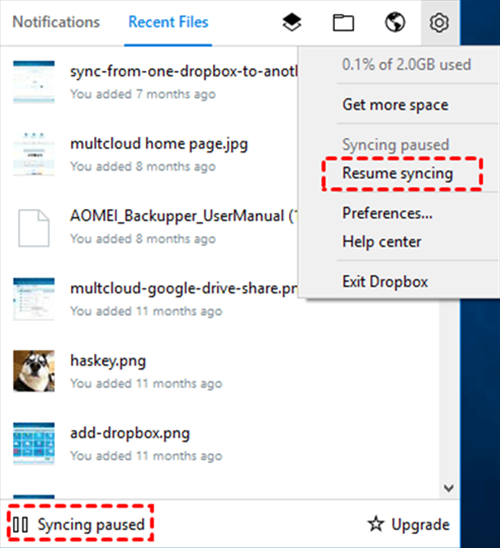
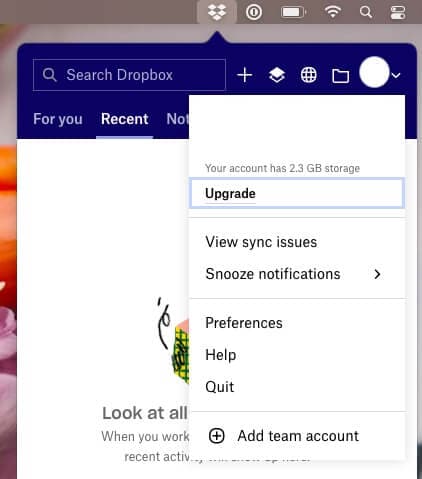
Begin by verifying that Dropbox is actually failing to sync rather than simply being paused. Open the Dropbox system tray icon and check whether the status reads "Up to date," "Syncing," or "Paused." If syncing is paused, click "Resume syncing." Also confirm that you are signed in to the correct Dropbox account, especially if multiple accounts are linked. A common cause of apparent sync failure is an expired session or a paused sync state after a Windows update or network change.

Step 2: Check Internet Connectivity and Proxy Settings
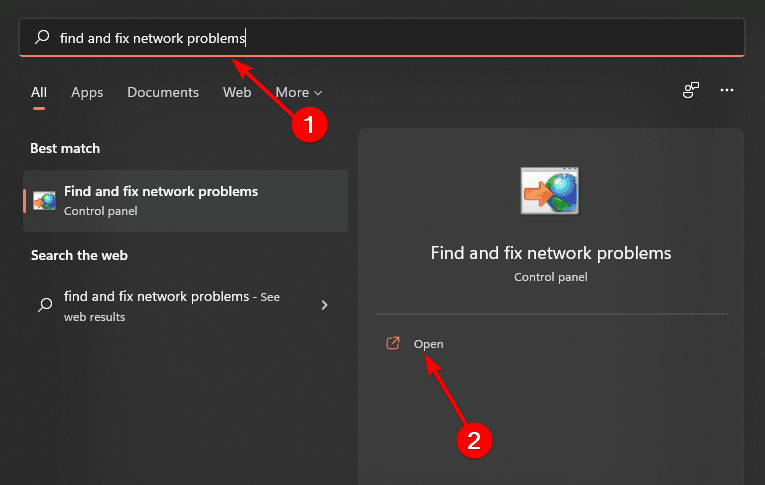
Dropbox requires a stable HTTPS connection to sync. Test your connection by opening a browser and visiting dropbox.com. If the site loads, the issue is likely local to the Dropbox client. If you are behind a corporate proxy, VPN, or firewall, ensure that Dropbox domains and ports 443 and 80 are allowed. Temporarily disable any third-party firewall or antivirus software to rule out packet inspection blocking the sync process. In Windows 11, go to Settings > Network & internet > Proxy and confirm that no misconfigured manual proxy is intercepting traffic.
Step 3: Restart the Dropbox Client and Windows Explorer
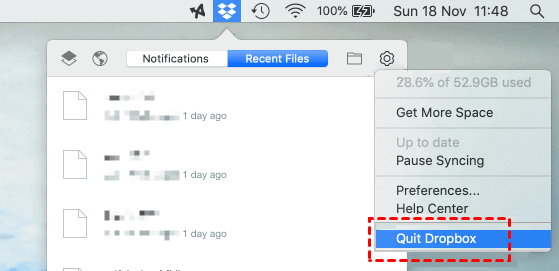
A stale client process can prevent sync operations. Right-click the Dropbox icon in the system tray and select "Quit Dropbox." Then open Task Manager (Ctrl + Shift + Esc), locate any remaining Dropbox.exe processes, and end them. Restart Windows Explorer from the same Task Manager window to refresh shell integration. Relaunch Dropbox from the Start menu and wait two to three minutes. This step clears temporary locks and reinitializes the sync engine without affecting your files.

Step 4: Verify Folder Permissions and Disk Space
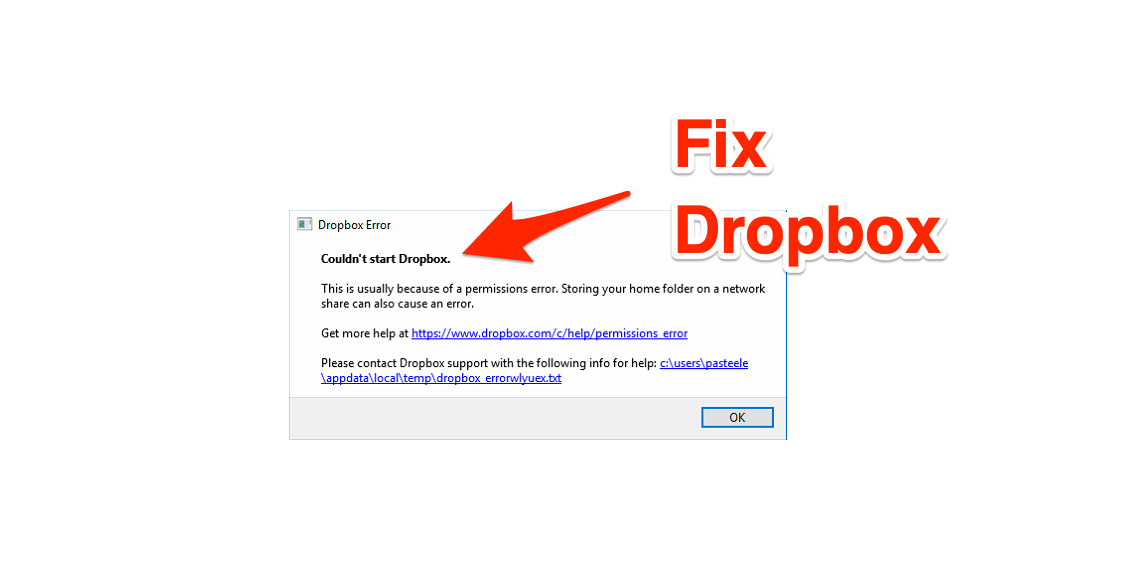
Dropbox must have read and write access to its local folder. Right-click the Dropbox folder, choose Properties > Security, and confirm that your user account has Full control. If permissions were changed by another application or a Windows reset, grant full control to your user. Additionally, check that your system drive has at least 10 GB of free space. A full disk will silently halt syncing. Use Settings > System > Storage to review available space and clear temporary files if needed.
Step 5: Rebuild the Dropbox Sync Cache
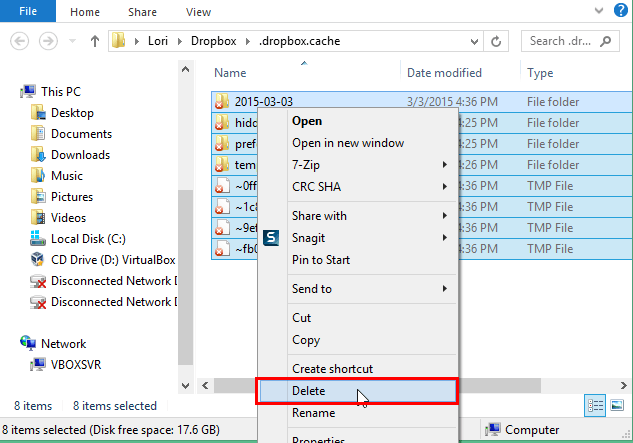
Corrupted cache files are a frequent cause of persistent sync stalls. Quit Dropbox completely. Open File Explorer and navigate to %LOCALAPPDATA%\Dropbox\instance1 or %APPDATA%\Dropbox. Rename the "cache" folder to "cache_old." Do not delete your actual Dropbox folder. Relaunch Dropbox; the client will generate a fresh cache and re-index your files. This process may take several minutes depending on library size. If sync resumes, delete the renamed cache folder to reclaim space.
Step 6: Unlink and Relink Your Dropbox Account
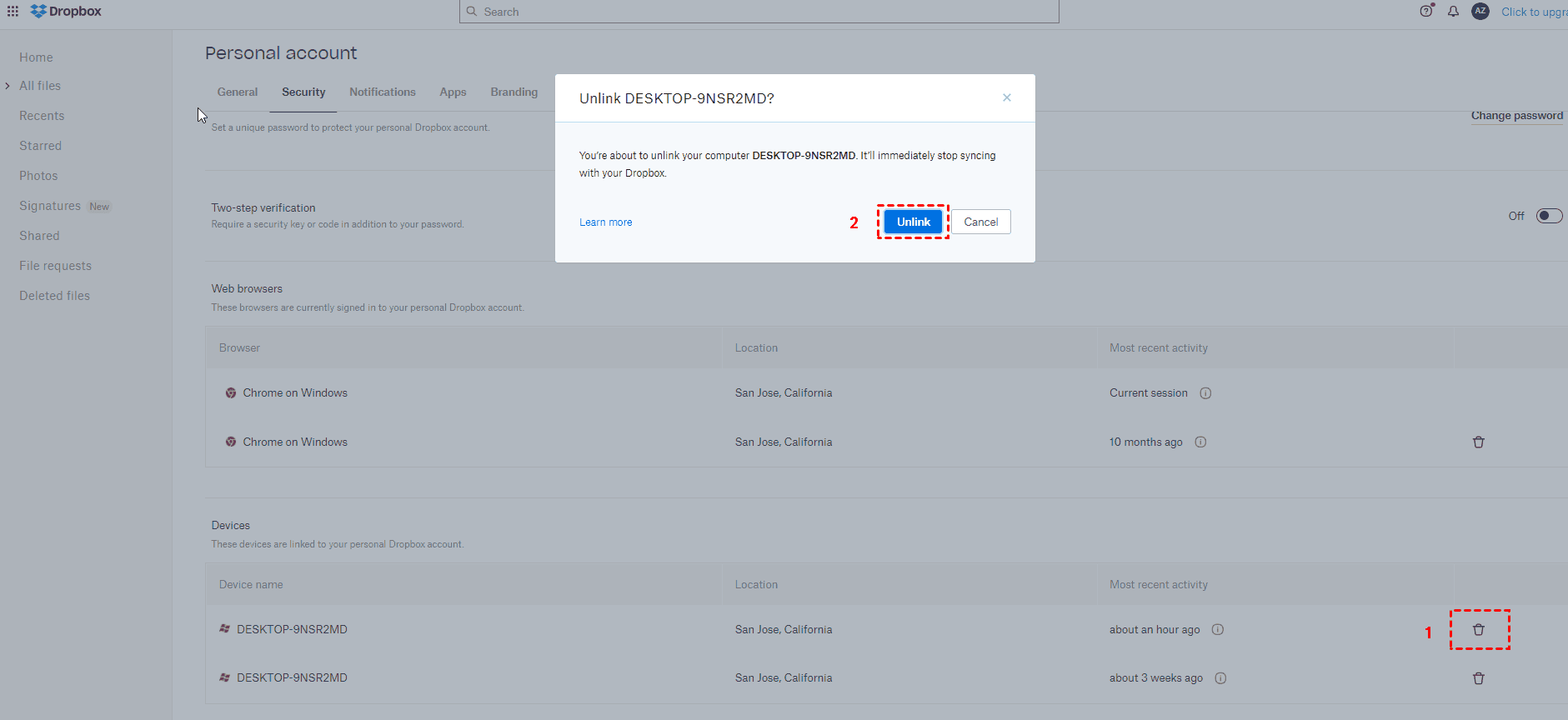
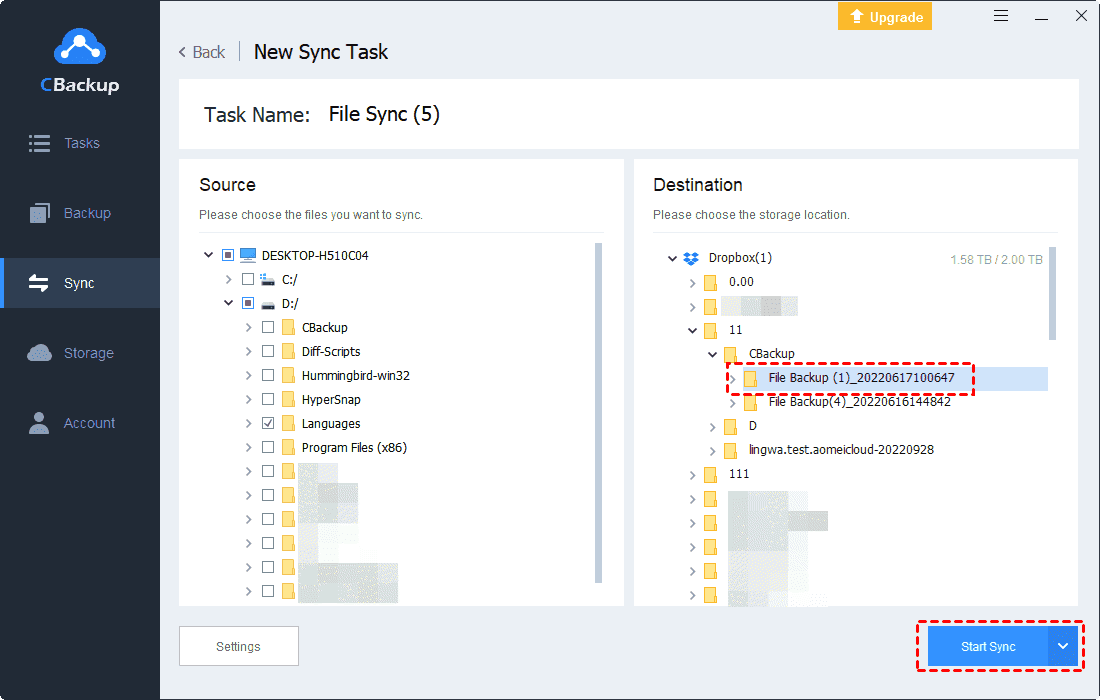
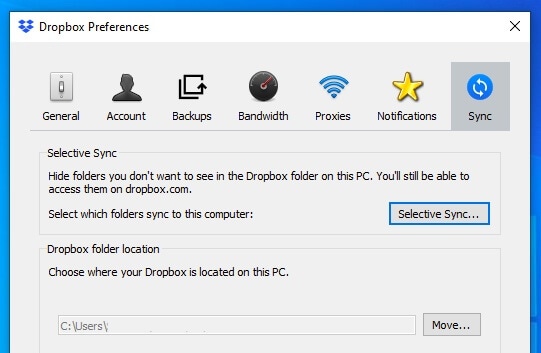
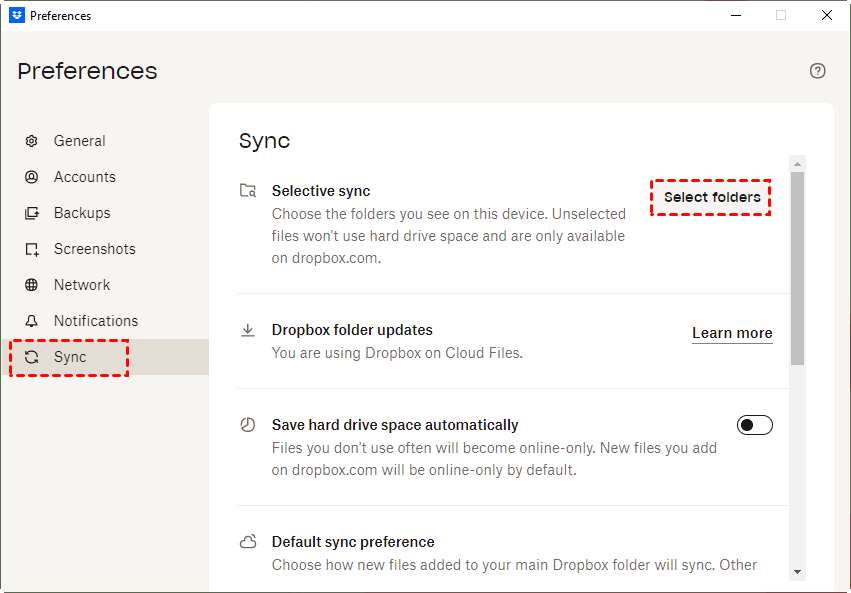
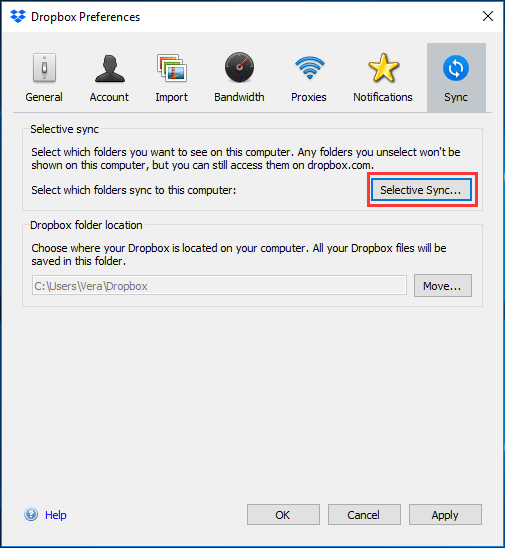
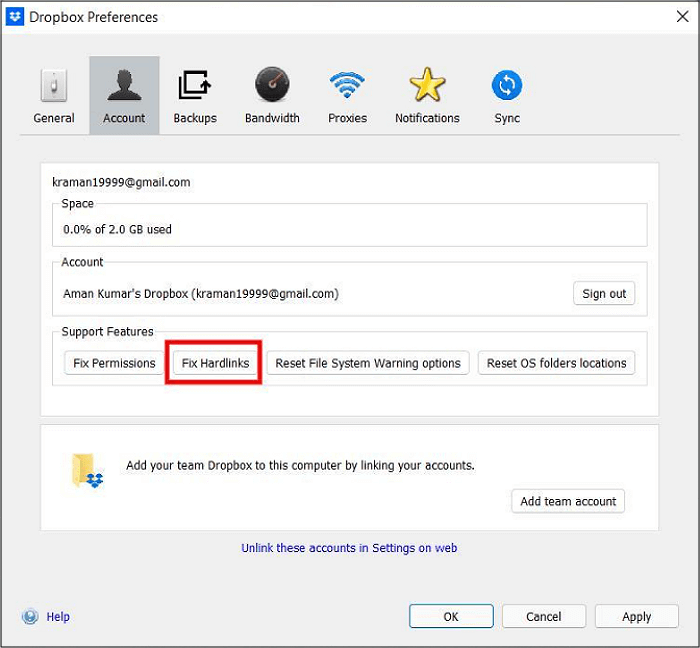
If the cache rebuild fails, unlink the device from your Dropbox account. Open Dropbox Preferences > Account and click "Unlink this computer." Confirm the action. Then sign in again with your credentials. This forces a new authentication token and resets the device entry on Dropbox servers. After relinking, choose "Selective sync" if you only need specific folders, which reduces sync load and avoids conflicts with large or locked files.
Step 7: Perform a Clean Reinstallation of Dropbox
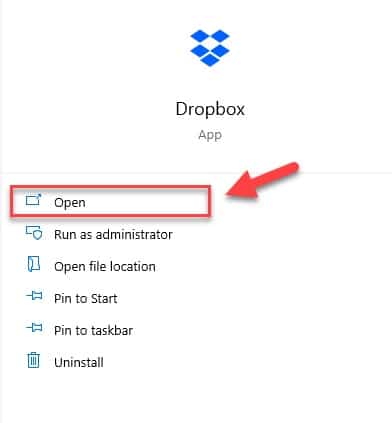
As a final technical measure, uninstall Dropbox from Settings > Apps > Installed apps. Restart Windows 11. Download the latest installer from dropbox.com/install. Before installing, rename any existing Dropbox folder to "Dropbox_backup" to prevent conflicts. Install the client, sign in, and allow it to create a new sync folder. Once syncing completes, move any missing files from the backup folder into the new Dropbox folder. This method resolves deep registry and driver-level conflicts that other steps cannot address.
Step 8: Review Windows Event Logs and Dropbox Logs
If the problem persists, collect diagnostic data. Open Event Viewer and check Windows Logs > Application for Dropbox errors. Also locate Dropbox logs in %APPDATA%\Dropbox\logs. Look for repeated "connection reset," "file locked," or "permission denied" entries. These logs can reveal whether the failure originates from a specific file, a network appliance, or a Windows service conflict. With this information, you can exclude problematic file types or contact Dropbox support with precise technical details.
How To Fix Dropbox Not Syncing 2026 (Easy Fixes For Dropbox Sync
How to Fix Dropbox Not Syncing 2026 (Easy Fixes for Dropbox Sync ...
Fix Dropbox Not Syncing In Windows 10/11 | 10 Ways & 1 Tip
Fix Dropbox not Syncing in Windows 10/11 | 10 Ways & 1 Tip
How To Fix Dropbox Not Syncing Issues?

How To Fix Dropbox Not Syncing Issues?
Why Are Files Not Showing Up In Dropbox?
Why Are Files Not Showing Up in Dropbox?
Dropbox Not Syncing On Windows 11? Here's The Fix 2025
Dropbox Not Syncing on Windows 11? Here's the Fix 2025
Fix Dropbox Not Syncing In Windows 10/11 | 10 Ways & 1 Tip
Fix Dropbox not Syncing in Windows 10/11 | 10 Ways & 1 Tip
How To Fix And Solve Dropbox Not Syncing | Final Solution - YouTube

How To Fix And Solve Dropbox Not Syncing | Final Solution - YouTube
How To Fix Dropbox Sync Problems - Dropbox Sync Issues? Solved In

How to Fix Dropbox Sync Problems - Dropbox sync issues? Solved in ...
8 Ways To Fix Dropbox Not Syncing Issues
8 Ways To Fix Dropbox Not Syncing Issues
8 Ways To Fix The Dropbox Not Syncing Across Devices Effectively
8 Ways to Fix the Dropbox Not Syncing Across Devices Effectively
How To Fix Dropbox Files Not Syncing Across Device - YouTube

How to Fix Dropbox Files Not Syncing Across Device - YouTube
Dropbox Not Syncing Fix For 2025 [How To Solve File Sync Issues]
![Dropbox Not Syncing Fix for 2025 [How to Solve File Sync Issues]](https://www.cloudwards.net/wp-content/uploads/2023/02/How-to-Fix-Dropbox-Not-Syncing-800x480.png)
Dropbox Not Syncing Fix for 2025 [How to Solve File Sync Issues]
How To Fix Dropbox Not Syncing Tutorial [2025 Guide] - YouTube
![How To Fix Dropbox Not Syncing Tutorial [2025 Guide] - YouTube](https://i.ytimg.com/vi/vLYGqms89zY/maxresdefault.jpg)
How To Fix Dropbox Not Syncing Tutorial [2025 Guide] - YouTube
How To Fix Dropbox Not Syncing Issues?

How To Fix Dropbox Not Syncing Issues?
How To Fix Dropbox Not Syncing On Windows 11 | 4 Ways In 2026
How to Fix Dropbox Not Syncing on Windows 11 | 4 Ways in 2026
Dropbox Folder Not Syncing: How To Fix - Gear Probe

Dropbox Folder Not Syncing: How to Fix - Gear Probe
10 Ways To Fix Dropbox Not Syncing On Mac In 2026
10 Ways to Fix Dropbox Not Syncing on Mac in 2026
6 Ways To Solve Dropbox Not Syncing All Files Quickly
6 Ways to Solve Dropbox Not Syncing All Files Quickly
Dropbox Not Syncing On Mac: Easy Fixes - Gear Probe
Dropbox Not Syncing on Mac: Easy Fixes - Gear Probe
Dropbox Not Syncing—How To Fix
Dropbox Not Syncing—How to Fix
How To Fix Dropbox Sync Issues - Not Syncing And Other Issues - YouTube

How to Fix Dropbox Sync Issues - Not Syncing and Other Issues - YouTube
How To Fix Files Not Syncing In Dropbox ! Tutorial - YouTube

How To Fix Files Not Syncing in Dropbox ! Tutorial - YouTube
Troubleshoot: Dropbox Not Syncing On Windows 11 (7 Ways)
Troubleshoot: Dropbox Not Syncing on Windows 11 (7 Ways)
Is Dropbox Not Syncing In Windows 10? Here’s How To Fix It! - MiniTool
Is Dropbox Not Syncing in Windows 10? Here’s How to Fix It! - MiniTool
How To Fix Dropbox Not Syncing Issues?

How To Fix Dropbox Not Syncing Issues?
Dropbox Stop Syncing File , Fix: Dropbox Not Syncing In Windows 10/11
Dropbox Stop Syncing File , Fix: Dropbox not syncing in Windows 10/11 ...
Fix: Dropbox Not Syncing On Windows 11 – PCWH
Fix: Dropbox Not Syncing On Windows 11 – PCWH
8 Ways To Fix Dropbox Not Syncing Issues
8 Ways To Fix Dropbox Not Syncing Issues
13 Possible Fixes To Fix Dropbox Not Syncing Files Issue 🤴
13 Possible Fixes To Fix Dropbox Not Syncing Files Issue 🤴
How To Fix Dropbox Not Syncing Folders Full Guide 2026 - YouTube
How to Fix Dropbox Not Syncing Folders Full Guide 2026 - YouTube
How To Fix Dropbox Not Syncing Issues?

How To Fix Dropbox Not Syncing Issues?
Dropbox Desktop Not Syncing [FIXED] - Gear Probe
![Dropbox Desktop Not Syncing [FIXED] - Gear Probe](https://gearprobe.com/wp-content/uploads/2026/01/Dropbox-Desktop-Not-Syncing.jpg)
Dropbox Desktop Not Syncing [FIXED] - Gear Probe
How To Fix Dropbox Not Syncing Tutorial - YouTube

How To Fix Dropbox Not Syncing Tutorial - YouTube