← How to Stop Spotify from Opening on Startup in Windows 10 How to Fix Instagram Not Letting You Follow: Step-by-Step Troubleshooting Guide →
In this tutorial, you will learn how to change your Gmail password using your Google Account security settings. Changing your password on a regular schedule helps protect your inbox from unauthorized access, phishing attempts, and credential leaks. The process requires you to confirm your identity with your current password or a recovery method. After you complete the change, Google may sign your account out of other devices and third-party applications, so have your new password ready before you begin.
Step 1: Access Your Google Account Security Settings
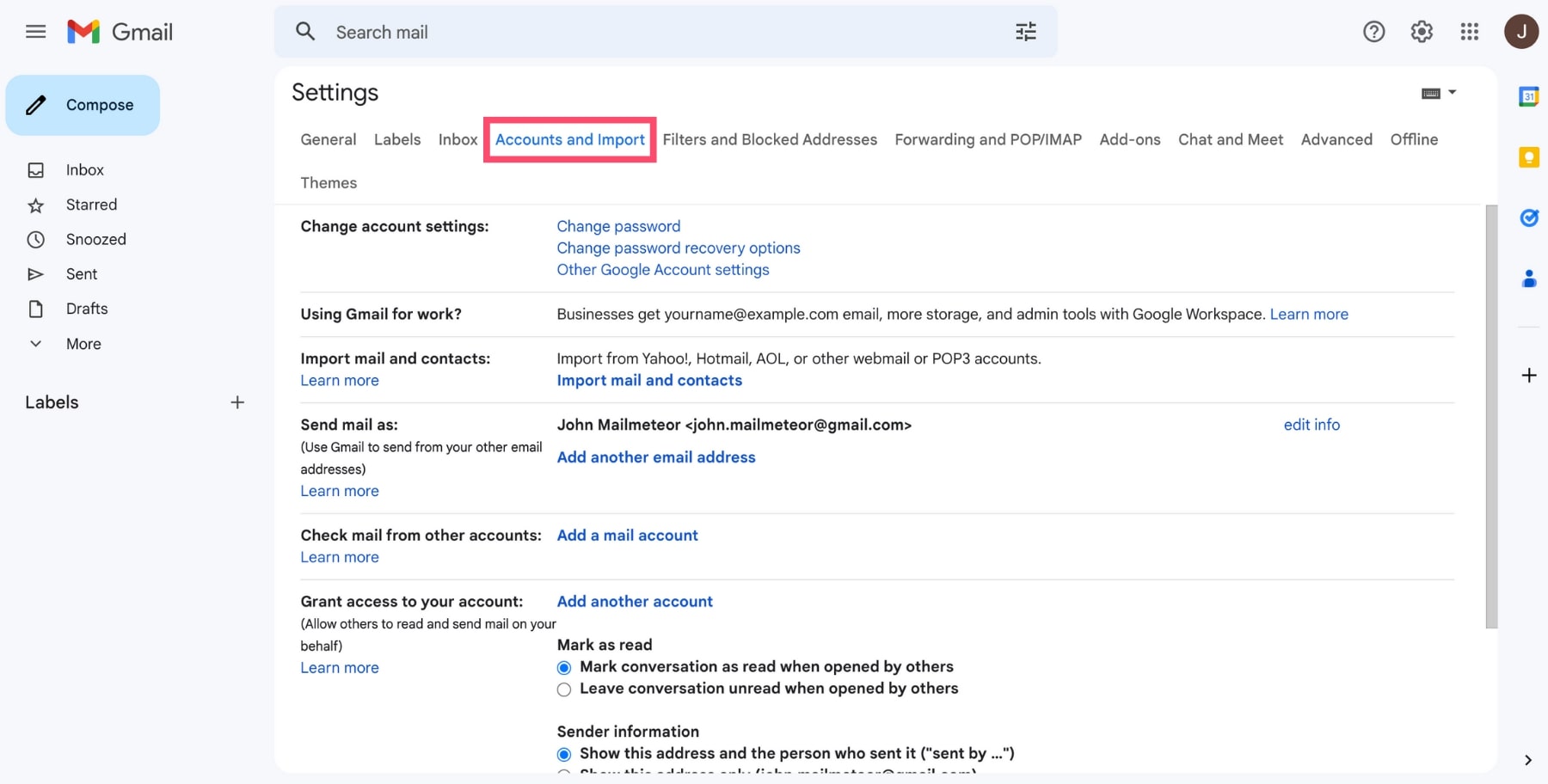
Open a modern web browser such as Chrome, Firefox, Edge, or Safari and navigate to https://myaccount.google.com. If your session has expired or you are using a new device, enter the Gmail address associated with the account and your current password. Once the account dashboard loads, examine the left-hand navigation menu and select Security. In the Security center, scroll to the How you sign in to Google section. This section contains your password setting, two-step verification status, and recent security activity. If you are already signed in to Gmail, you can also click your circular profile image in the upper-right corner, select Manage your Google Account, and then open the Security tab. The screenshot below provides a visual reference for the Google Account security interface where password controls are located.

Step 2: Update Your Password and Confirm the Change
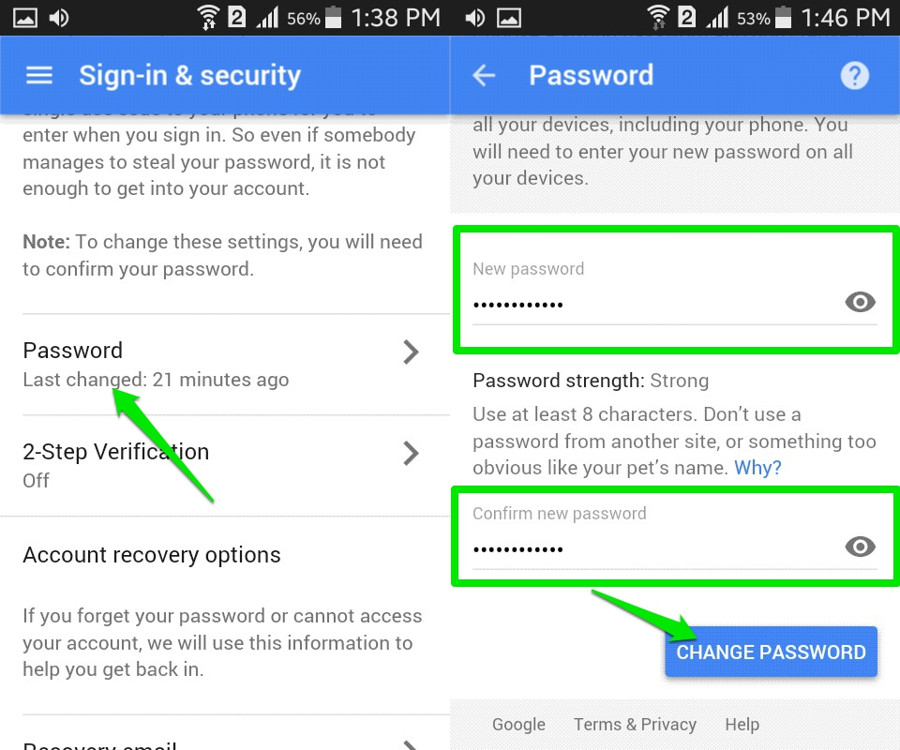
Under the How you sign in to Google section, click the Password row. Google will first require you to re-enter your current password to verify your identity. This authentication step prevents an unauthorized person from changing the password if you leave your account open on a shared or public computer. After you verify your identity, the password change form appears. Enter your new password in the New password and Confirm new password fields. Google requires a minimum of eight characters, but for stronger security use at least twelve characters that combine uppercase letters, lowercase letters, numbers, and symbols. Avoid reusing passwords from other websites, and do not include easily guessed information such as your name, birthday, or common dictionary words. When both fields match, click Change password. Google will update your credentials and display a confirmation message. The change may take a few minutes to propagate across Gmail, YouTube, and other Google services. After the password change, active Gmail sessions on other devices may be signed out, and third-party email clients that use app passwords may require reauthorization. The screenshot below highlights the account settings area where account management options are available during this process.
How To Change Your Gmail Password | Ubergizmo
How To Change Your Gmail Password | Ubergizmo