← How to Fix Slow Startup on Windows 11: Step-by-Step Boot Speed Guide How to Change Your Gmail Password: A Secure Step-by-Step Tutorial →
If Spotify launches automatically every time you log in to Windows 10, it can increase startup time, consume system resources, and interrupt your workflow with unwanted audio. This tutorial explains exactly how to stop Spotify from opening on startup. You will first learn how to adjust the built-in startup preference in the Spotify desktop application, then how to verify and disable any remaining startup entry in Windows 10 Startup Apps. Following these steps gives you full control over when Spotify opens and helps keep your sign-in process cleaner and faster. The instructions below apply to the standard Spotify desktop app on Windows 10 and may also help on Windows 11 with minor menu differences.
Step 1: Turn Off Spotify’s Automatic Startup Setting
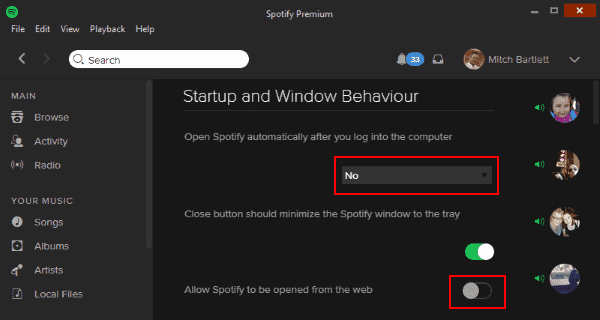
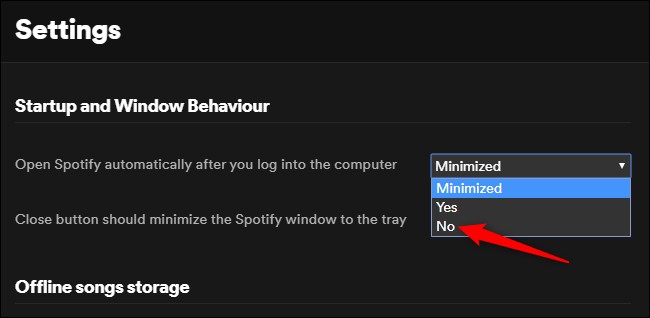
The first and most direct method is to turn off automatic startup inside Spotify. Launch the Spotify desktop application on your Windows 10 computer and log in if required. In the top-right corner of the main window, click your profile icon or the three-dot menu, then choose Settings from the dropdown menu. After the Settings page opens, scroll down until you see the Startup and Window Behavior section. Look for the setting labeled Open Spotify automatically after you log into computer. Click the dropdown next to that setting and select No. This change is saved automatically, so you can close the Settings window immediately. Taking this action does not affect your playlists, downloads, or login credentials. If your Spotify version does not show this exact label, look for a similar option such as Automatically open Spotify when you log in to the computer and disable it. Once this in-app preference is off, Spotify should no longer start itself during future logins.
Step 2: Disable Spotify in Windows 10 Startup Apps
In some cases, an older installation or a previous Windows startup entry can still cause Spotify to launch even after the in-app setting is turned off. To rule this out, open the Windows 10 Settings app by clicking the Start button and selecting the gear icon. Go to Apps, and then click Startup in the left sidebar. In the Startup Apps panel, scroll through the list and find Spotify. If the toggle next to Spotify is enabled, click it once to turn it off. If Spotify is not listed in Settings, press Ctrl+Shift+Esc to open Task Manager, select the Startup tab, right-click Spotify, and choose Disable. You can also select Spotify and click the Disable button in the corner of Task Manager. After making these changes, restart your computer to verify that Spotify does not appear automatically. You can still open Spotify manually from the Start menu or desktop shortcut whenever you want to use it. This two-level check ensures no hidden startup trigger remains active.

How To Stop Spotify From Opening On Startup? 2 Ways!
spotify startup opening