How to Clear Cache in Mozilla Firefox: A Simple Visual Guide →
In this tutorial, you will learn how to clear the cache in Google Chrome on a desktop computer. The cache consists of temporary files such as images, scripts, and other website data that Chrome saves to help pages load faster on future visits. Over time, these stored files can become outdated or corrupted, which may cause pages to display incorrectly, prevent new content from appearing, or slow down the browser. By following the steps below, you will learn how to open Chrome’s Clear browsing data settings, select a time range, and delete cached images and files without removing saved passwords or bookmarks.
Step 1: Open Chrome’s Clear Browsing Data Settings
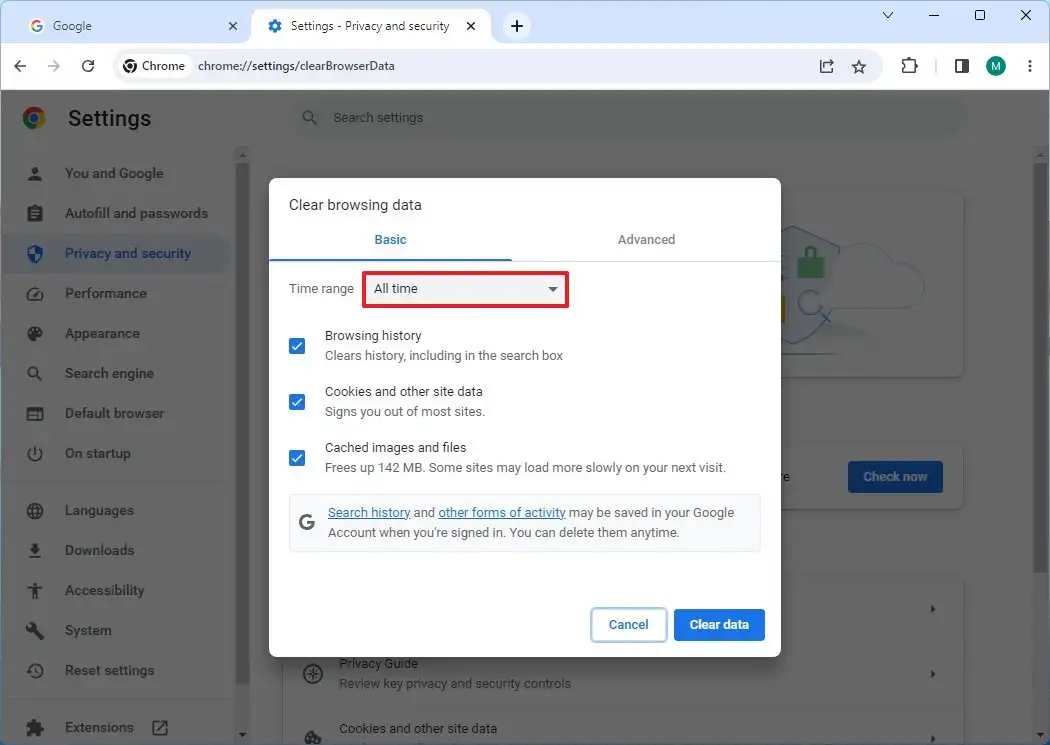
Launch Google Chrome on your computer. Click the three-dot menu icon in the upper-right corner of the browser window and choose Settings. In the left navigation pane, select Privacy and security, then click Clear browsing data. You can also press Ctrl+Shift+Delete on Windows or Command+Shift+Delete on macOS to open the Clear browsing data dialog directly. This dialog provides the controls you need to manage temporary browser data. The default Basic tab includes checkboxes for browsing history, cookies and other site data, and cached images and files. The screenshot below shows the Clear browsing data dialog in Google Chrome, which is the central location for removing cached content.
Step 2: Choose a Time Range and Clear Cached Images and Files
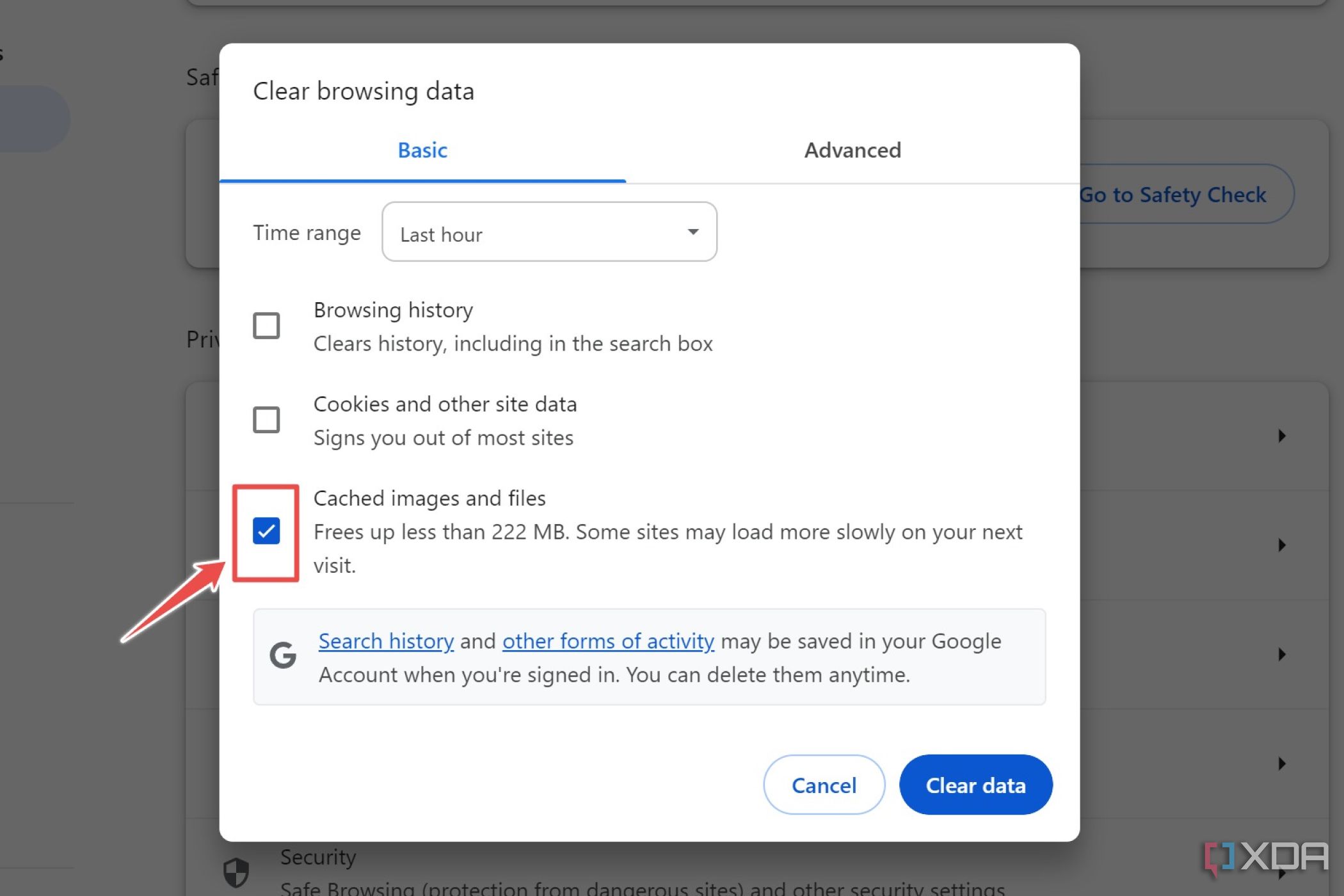
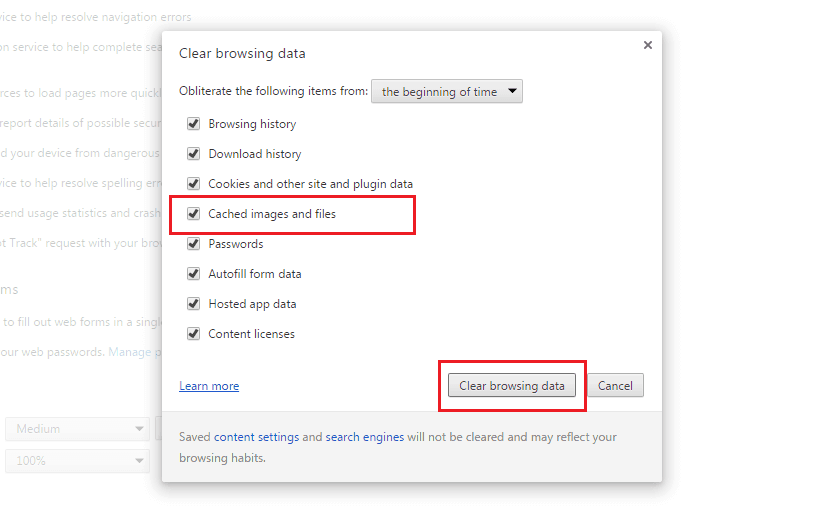
After the Clear browsing data dialog opens, use the Time range dropdown at the top to specify how much cached data you want to remove. Selecting All time clears the entire cache from all websites, while options such as Last hour, Last 24 hours, Last 7 days, or Last 4 weeks limit the cleanup to recent activity. Next, place a checkmark in the box labeled Cached images and files. If your goal is to clear only the cache, deselect Browsing history and Cookies and other site data unless you also want to remove those items. Once your selections are correct, click the Clear data button. Chrome will delete the cached files and may take a few seconds to complete the process. You can then close the settings tab and resume browsing normally. The image below highlights the Cached images and files option in the Clear browsing data window, showing exactly what to select for a cache-only cleanup.
After clearing the cache, websites may load slightly slower on the first visit because Chrome needs to download fresh copies of page resources. This is normal and ensures you see the most current content.
How To Clear Cache In Google Chrome
How to Clear Cache in Google Chrome