← How to Clear Cache on Google Chrome: A Step-by-Step Guide How to Fix Zoom Camera Not Working: Step-by-Step Troubleshooting Guide →
In this tutorial, you will learn exactly how to clear the cache in Mozilla Firefox. Every time you visit a website, Firefox stores temporary files such as images, scripts, and other site data in a cache. This storage helps pages load faster when you return, but it can also cause problems when a site changes or when cached files become corrupted. Clearing the cache removes these temporary files without deleting your bookmarks, saved passwords, or browsing history. The process is useful for fixing outdated pages, broken layouts, login issues, and general browser slowness. The instructions below work with recent desktop versions of Firefox on Windows, macOS, and Linux.
Step 1: Open the Firefox Settings Menu
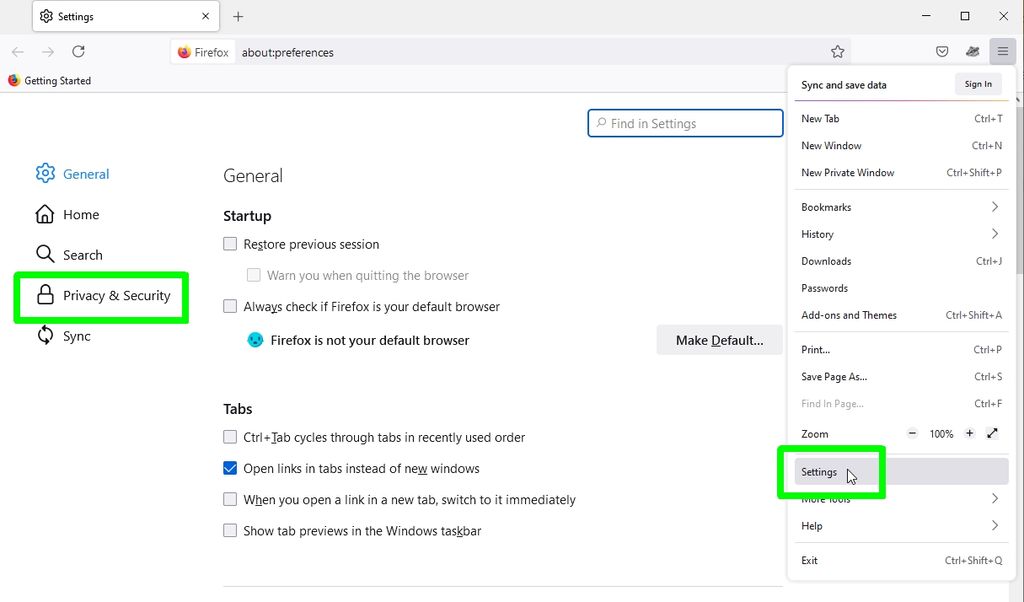
Launch Mozilla Firefox and look for the menu button in the upper-right corner of the window. The button is represented by three horizontal lines, sometimes called the hamburger menu. Click it to open a dropdown menu. From the dropdown, select Settings. If you are using a Mac, you can also open the Firefox menu at the top of the screen and choose Preferences. Once you click Settings, a new browser tab will open with the Firefox options. This is the area where you can manage privacy, security, browsing data, and other browser behavior. The image below shows the Firefox menu button location, which is the first entry point for clearing the cache.

Step 2: Clear the Cached Web Content
In the Firefox Settings tab, click Privacy & Security in the left sidebar. Scroll down until you see the Cookies and Site Data section. This section controls cookies, site storage, and cached web content. Click the Clear Data button. A dialog box will appear with two checkboxes. The first checkbox controls cookies and site data, and the second controls cached web content. For this tutorial, make sure the box labeled Cached Web Content is selected. If you only want to clear the cache and keep your cookies and login sessions intact, leave the Cookies and Site Data box unchecked. When you are ready, click the Clear button. Firefox will remove the temporary cached files immediately. The image below shows the Clear Data dialog with the cached web content option selected.

After completing these steps, close the Settings tab and continue browsing. Websites may load slightly slower the first time you visit them because Firefox needs to download fresh files again. If a specific page still appears outdated, try reloading it with Ctrl+F5 on Windows or Command+Shift+R on Mac to bypass the cache for that page.
How To Clear The Cache In Firefox | Tom's Guide
How to clear the cache in Firefox | Tom's Guide