← How to Recover Deleted LinkedIn Messages: A Complete Technical Guide How to Fix Printer Not Printing From Laptop: Step-by-Step Guide →
Bluetooth headphones that refuse to connect to Windows 11 can disrupt your workflow, whether you are attending a virtual meeting or enjoying music. This guide walks you through a series of proven troubleshooting steps to restore a stable connection between your Bluetooth headphones and your Windows 11 computer. By following these instructions in order, you will learn how to diagnose pairing failures, resolve driver conflicts, and reconfigure your system settings to get your audio devices working again.
Step 1: Confirm Pairing Mode and Proximity
Before diving into software fixes, verify that your headphones are actually in pairing mode. Many Bluetooth headphones only broadcast a discoverable signal for a limited time after being powered on. Turn your headphones off, then press and hold the power or pairing button until you see a rapidly flashing LED indicator, which usually signals discoverable mode. Place the headphones within three feet of your Windows 11 PC and ensure they are charged above twenty percent. A low battery can cause intermittent connection drops that mimic pairing failures.
Step 2: Remove and Re-Pair the Device
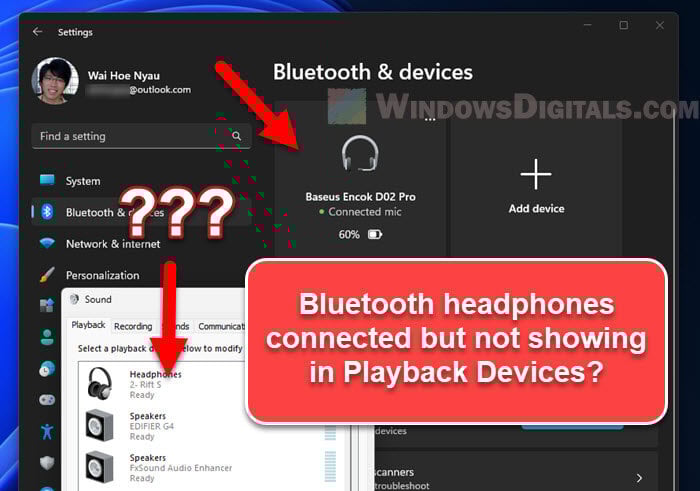
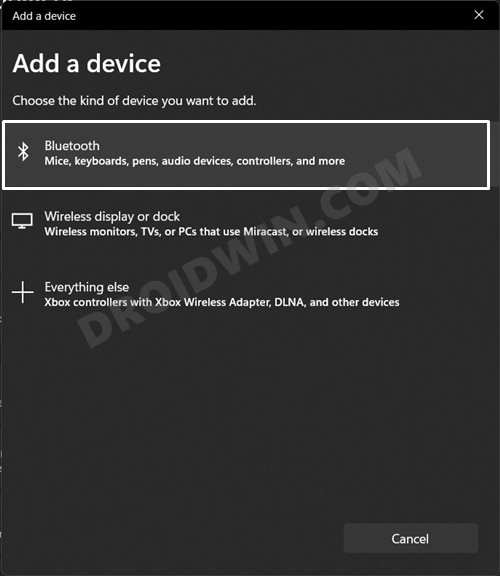
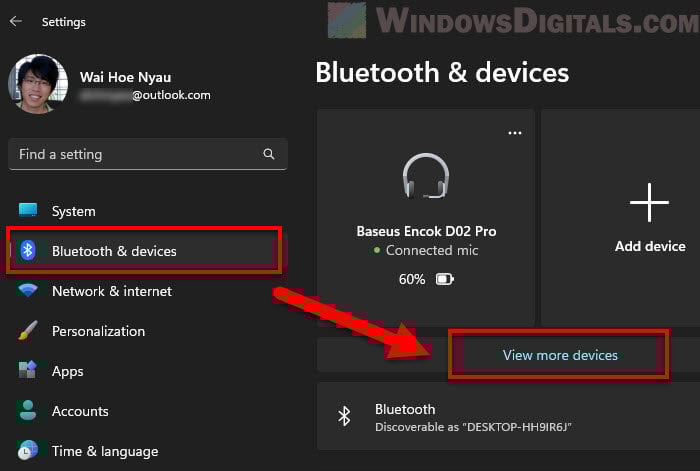
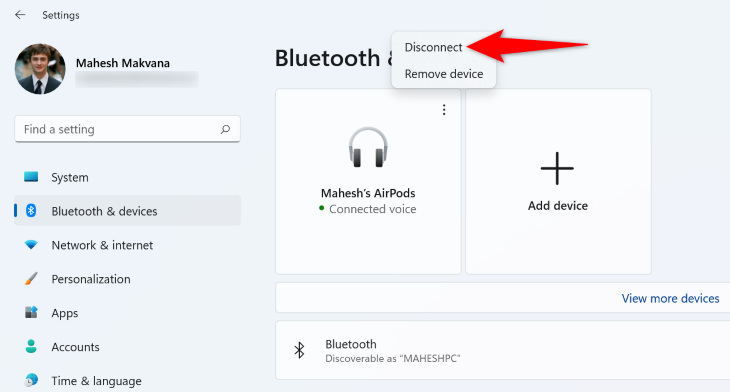
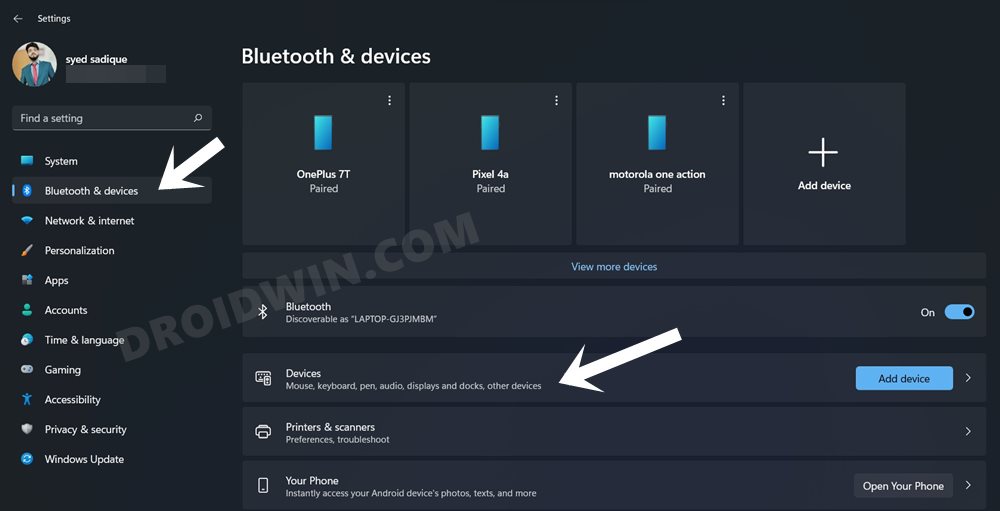
Corrupted pairing data is one of the most common causes of connection failures. Open Settings by pressing Windows + I, then navigate to Bluetooth & devices. Locate your headphones in the list, click the three-dot menu next to the device name, and select Remove device. Once removed, toggle Bluetooth off and back on, then click Add device and choose Bluetooth. Select your headphones from the list and wait for the pairing confirmation. This forces Windows 11 to create a fresh connection profile.
Step 3: Run the Bluetooth Troubleshooter
Windows 11 includes a built-in diagnostic tool that can automatically detect and repair common Bluetooth issues. Go to Settings, then System, and select Troubleshoot. Click Other troubleshooters, find Bluetooth in the list, and press Run. Follow the on-screen prompts and allow the tool to scan for problems. If it identifies an issue, apply the recommended fix and restart your computer before testing the headphones again.
Step 4: Update or Reinstall Bluetooth Drivers
Outdated or corrupted Bluetooth drivers frequently prevent headphones from connecting. Right-click the Start button and select Device Manager. Expand the Bluetooth section, right-click your Bluetooth adapter, and choose Update driver. Select Search automatically for drivers. If no update is found, right-click the adapter again, choose Uninstall device, and restart your PC. Windows will automatically reinstall the driver on reboot. You can also visit your computer manufacturer's website to download the latest Bluetooth driver for your specific model.
Step 5: Adjust Bluetooth Services and Power Settings
Windows 11 may disable Bluetooth to save power, which can interrupt headphone connections. Open Device Manager, right-click your Bluetooth adapter, and select Properties. Under the Power Management tab, uncheck the box labeled Allow the computer to turn off this device to save power. Next, go to Settings, System, Power & battery, and set the power mode to Balanced or Best performance. Additionally, open Services by pressing Windows + R and typing services.msc. Locate Bluetooth Support Service, set its startup type to Automatic, and start the service if it is stopped.
Step 6: Disable Interfering Devices and Radio Conflicts
Other wireless devices operating on the 2.4 GHz frequency, such as Wi-Fi routers, USB 3.0 drives, and cordless phones, can interfere with Bluetooth signals. Move your computer away from these devices or switch your Wi-Fi to the 5 GHz band. Also, check for a physical Bluetooth toggle on your laptop keyboard or a flight mode setting that may be disabling radios. In Windows 11, open Quick Settings by clicking the network icon in the taskbar and confirm that Bluetooth and Airplane mode are configured correctly.
Step 7: Perform a Network and System Reset
If all previous steps fail, resetting the network stack can clear deeper configuration errors. Go to Settings, Network & internet, Advanced network settings, and click Network reset. Confirm the reset and allow your computer to restart. After rebooting, you will need to re-enter Wi-Fi passwords, but Bluetooth pairing data will also be refreshed. As a final option, check for Windows updates under Settings, Windows Update, and install any pending cumulative updates that may contain Bluetooth fixes.
Wired Earphones Not Connecting To Laptop Windows 11 At Brandon

Wired Earphones Not Connecting To Laptop Windows 11 at Brandon ...
Fix Windows 11 Bluetooth Headphones Not Connecting To PC's / Laptop

Fix Windows 11 Bluetooth Headphones Not Connecting to PC's / Laptop ...
Fix Bluetooth Headphones Audio Stutter In Windows 11 & 10 - YouTube

Fix Bluetooth Headphones Audio Stutter in Windows 11 & 10 - YouTube
Windows 11 Bluetooth Headphones Keep Disconnecting [Fix] – DKZHGJ
![Windows 11 Bluetooth Headphones Keep Disconnecting [Fix] – DKZHGJ](https://i.ytimg.com/vi/CrzuHKX2ZZs/maxresdefault.jpg)
Windows 11 Bluetooth Headphones Keep Disconnecting [Fix] – DKZHGJ
How To Fix Bluetooth Headphones Not Working In Windows 11 - YouTube

How to Fix Bluetooth Headphones Not Working in Windows 11 - YouTube
Fix Headphones/Earphones Not Working In Windows 11 - Step By Step - YouTube
Fix Headphones/Earphones Not Working In Windows 11 - Step By Step - YouTube
Windows 11/10 Won’t Detect Bluetooth Headphones? Here's How To Fix It
Windows 11/10 Won’t Detect Bluetooth Headphones? Here's how to fix it ...
Top 9 Ways To Fix Windows 11 Computer Not Recognizing Headphones

Top 9 Ways to Fix Windows 11 Computer Not Recognizing Headphones
Bluetooth Headphones Not Showing Up On Windows 11/10? Fix Pairing

Bluetooth Headphones Not Showing Up on Windows 11/10? Fix Pairing ...
How To Fix Bluetooth Headphone Connected But No Sound Or Audio In

How to Fix Bluetooth Headphone Connected but No Sound or Audio in ...
Headphones Not Working In Windows 11: How To Fix - DroidWin
Headphones Not Working in Windows 11: How to Fix - DroidWin
Bluetooth Headphones Not Showing Up On Windows 11/10? Fix Pairing

Bluetooth Headphones Not Showing Up on Windows 11/10? Fix Pairing ...
How To Fix Windows 11/10 Won’t Detect Bluetooth Headphones - YouTube

How To Fix Windows 11/10 Won’t Detect Bluetooth Headphones - YouTube
Bluetooth Headphones Connected But No Sound Or Audio Windows 11 - 5 Fix

Bluetooth Headphones Connected But No Sound or Audio Windows 11 - 5 Fix ...
How To Fix Bluetooth Not Connecting Or Audio Lag In Windows 11 - TechWiser

How to Fix Bluetooth Not Connecting or Audio Lag in Windows 11 - TechWiser
Bluetooth Headphones Connect But Not In Playback Devices
Bluetooth headphones connect but not in Playback Devices
Bluetooth Headphones Connected But No Sound At Ilene Haase Blog

Bluetooth Headphones Connected But No Sound at Ilene Haase blog
Windows 11 Bluetooth Headphones Keep Disconnecting [Fix]
![Windows 11 Bluetooth Headphones Keep Disconnecting [Fix]](https://windowsreport.com/wp-content/uploads/2022/02/Bluetooth-headphones-not-connecting-930x620.jpg)
Windows 11 Bluetooth Headphones Keep Disconnecting [Fix]
Bluetooth Headphones Not Working On Windows 10: 14 Proven Solutions

Bluetooth Headphones Not Working on Windows 10: 14 Proven Solutions ...
Audio Not Working On Windows 11 At Betty Dean Blog
Audio Not Working On Windows 11 at Betty Dean blog
How To Fix Headphones Don’t Work On Windows 11 — Tech How

How To Fix Headphones Don’t Work on Windows 11 — Tech How
FIX Bluetooth Couldn't Connect Error On Windows 11 || Bluetooth On Off

FIX Bluetooth Couldn't Connect Error on Windows 11 || Bluetooth on off ...
How To Fix Bluetooth Headphones Not Showing Up (Windows 11) - YouTube

How To Fix Bluetooth Headphones Not Showing Up (Windows 11) - YouTube
How To Fix Bluetooth Headphones Not Showing In Windows 11 - YouTube

How to Fix Bluetooth Headphones Not Showing in Windows 11 - YouTube
Fix Bluetooth Devices Not Connecting Or Pairing In Windows 11 | How To

Fix Bluetooth Devices Not Connecting or Pairing in Windows 11 | How To ...
How To Fix Bluetooth Headphone Not Working On Windows 11? - TechNewzTOP

How to Fix Bluetooth Headphone Not Working on Windows 11? - TechNewzTOP
Headphones Won't Connect To Pc At Sandra Raines Blog

Headphones Won't Connect To Pc at Sandra Raines blog
Fix: Wireless Headphones Not Connecting To Windows 11 - YouTube
Fix: Wireless Headphones not Connecting to Windows 11 - YouTube
How To Fix Bluetooth Headphones Sound Delay On Windows 11
How to Fix Bluetooth Headphones Sound Delay on Windows 11
Headphones Not Working In Windows 11: How To Fix - DroidWin
Headphones Not Working in Windows 11: How to Fix - DroidWin
Why Are My Bluetooth Headphones Not Connecting Properly? – GUVPI

Why Are My Bluetooth Headphones Not Connecting Properly? – GUVPI
How To Fix Windows 11 Or 10 Not Detecting Bluetooth Headphones - Full

How To Fix Windows 11 or 10 Not Detecting Bluetooth Headphones - Full ...
How To Fix Bluetooth Not Connecting Or Audio Lag In Windows 11 - TechWiser
How to Fix Bluetooth Not Connecting or Audio Lag in Windows 11 - TechWiser