← Fix Slack Notifications Not Working on Windows 11: A Step-by-Step Guide How to Clear Cache in Safari on iPhone, iPad, and Mac: A Step-by-Step Guide →
When your Skype camera stops working, it can disrupt important meetings, virtual family gatherings, or job interviews. This guide walks you through a series of practical, proven troubleshooting steps to restore your webcam functionality on Windows 10. You will learn how to check Skype's internal settings, verify system-level camera permissions, update drivers, and rule out hardware conflicts. By following these instructions in order, you can identify the root cause and get your video back quickly.
Step 1: Check Skype's Audio and Video Settings
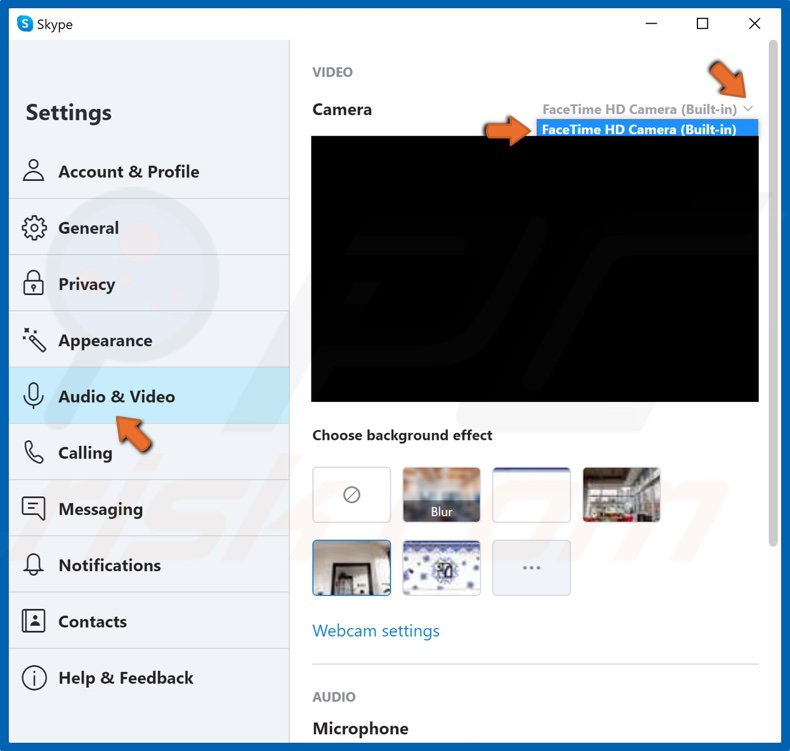
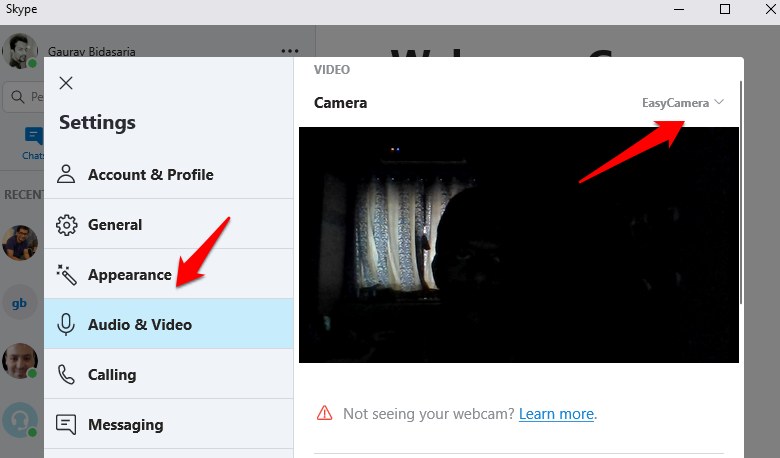
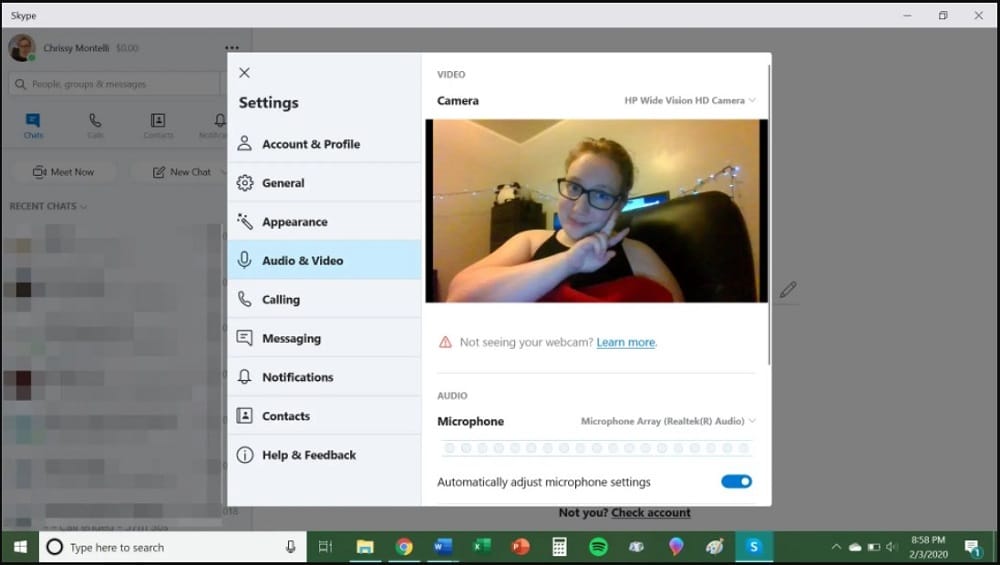
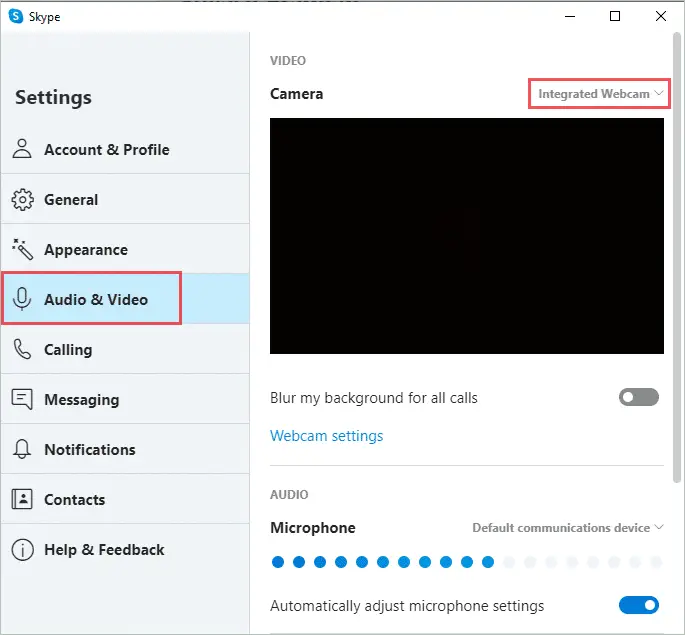
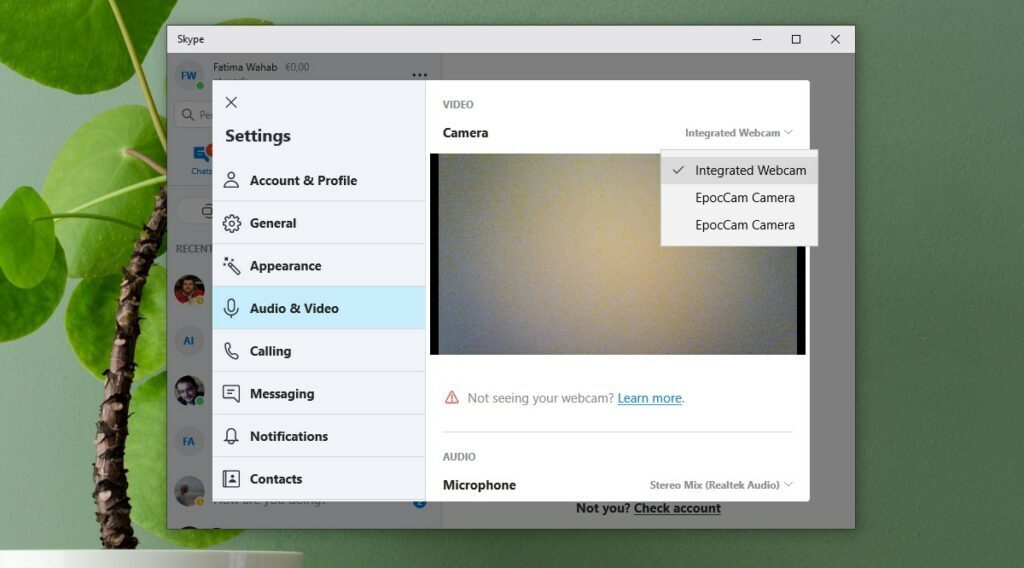
Begin by ensuring Skype itself recognizes the correct camera. Open Skype and click on your profile picture near the top left, then select Settings. Navigate to Audio & Video. Under the Camera section, confirm that your webcam is selected from the dropdown menu. If you see multiple devices, try switching to a different one and back again. Also, verify that the video preview appears. If it does not, the issue may be with permissions or drivers rather than Skype. This step is often the quickest fix because Skype sometimes defaults to a disabled or virtual camera.

Step 2: Verify Windows Camera Privacy Permissions
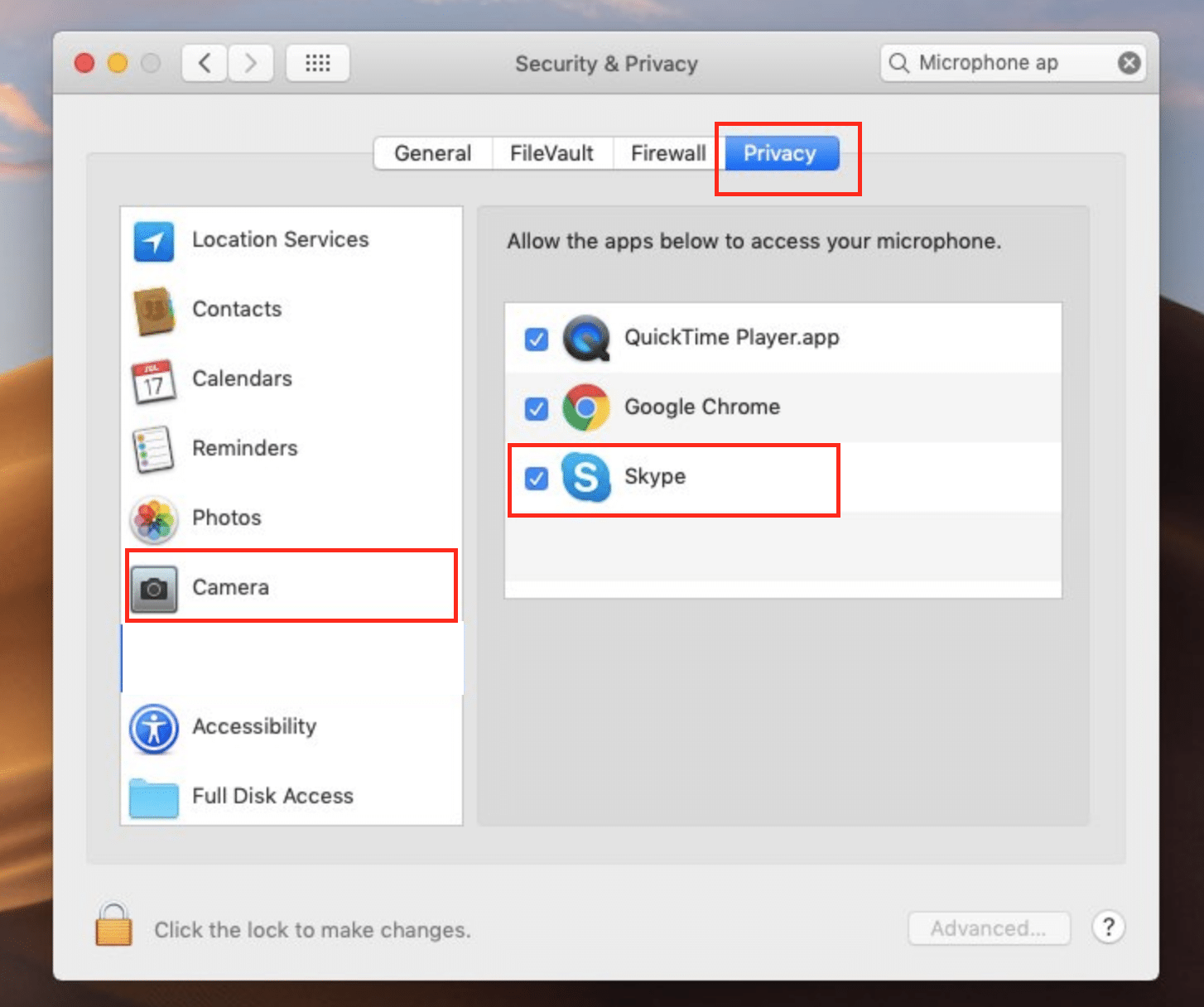
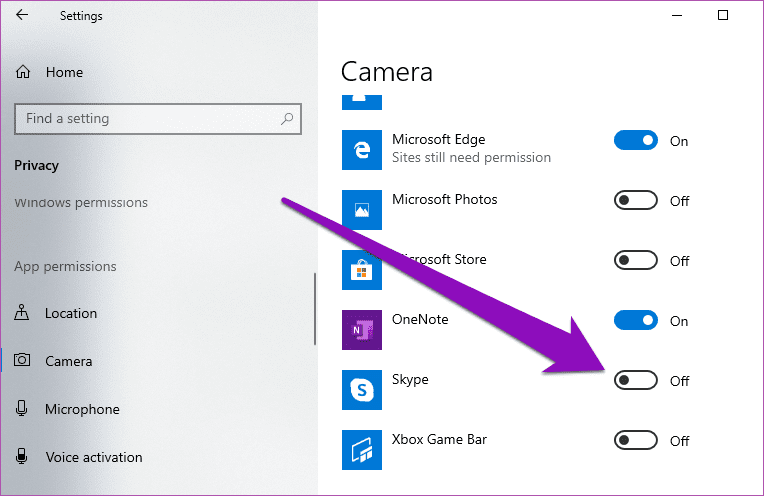
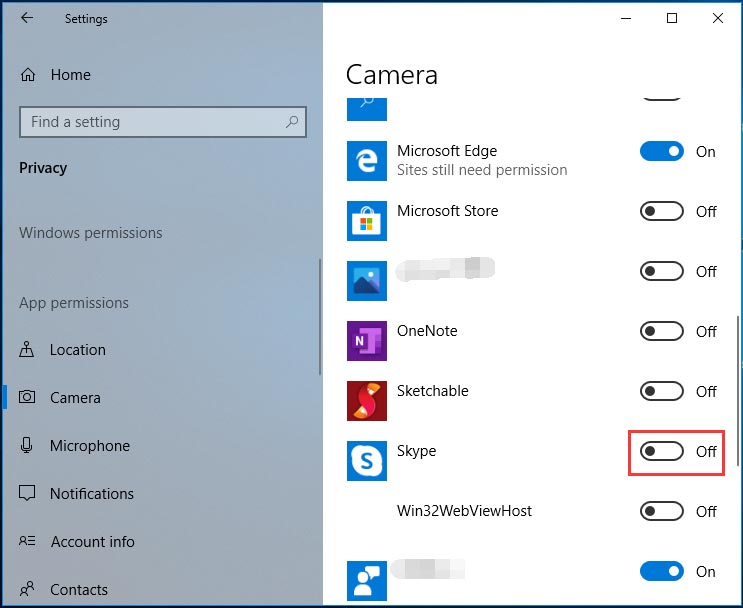
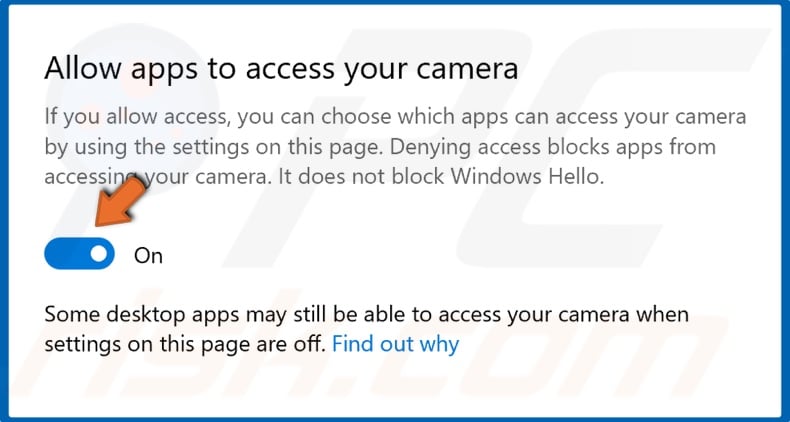
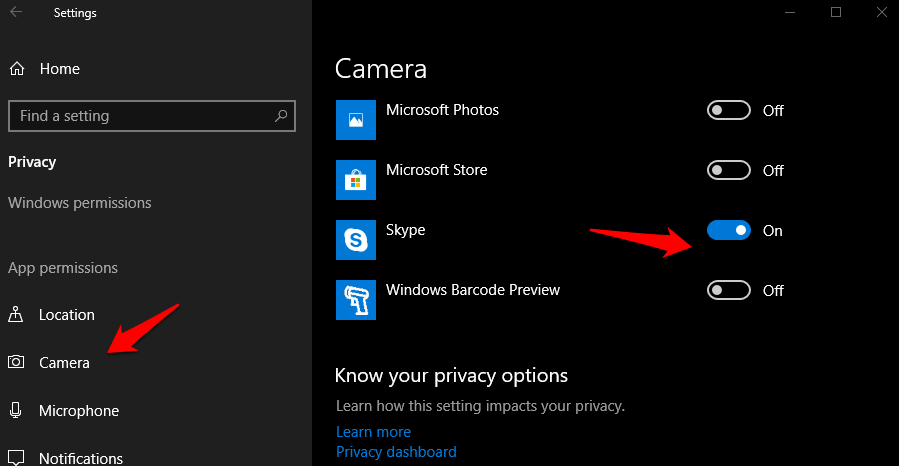
Windows 10 includes robust privacy controls that can block apps from accessing your camera. Click the Start button, then go to Settings > Privacy > Camera. Ensure that Allow access to the camera on this device is turned on. Below that, confirm that Allow desktop apps to access your camera is also enabled. Scroll down to the list of apps and make sure Skype has permission. If Skype is missing, reinstall it later, but first toggle the global settings off and on again. Many users find that a recent Windows update silently disabled camera access for desktop applications.
Step 3: Select the Correct Webcam in Skype
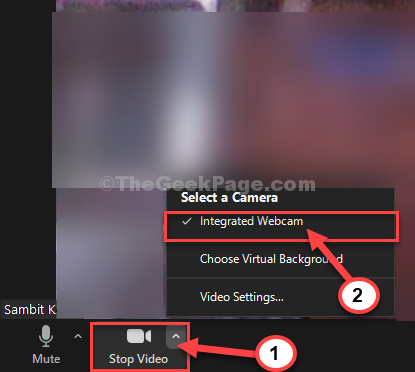
Even if your camera works in other apps, Skype may be using a different video source. Return to Skype's Audio & Video settings. Click the dropdown under Camera and explicitly choose your physical webcam (e.g., "HD Webcam" or "Integrated Camera"). Avoid options like "OBS Virtual Camera" or "ManyCam" unless you intend to use them. After selecting, close Skype completely from the system tray (right-click the Skype icon and choose Quit), then reopen it. This forces Skype to reinitialize the camera driver.
Step 4: Update or Reinstall Your Camera Drivers
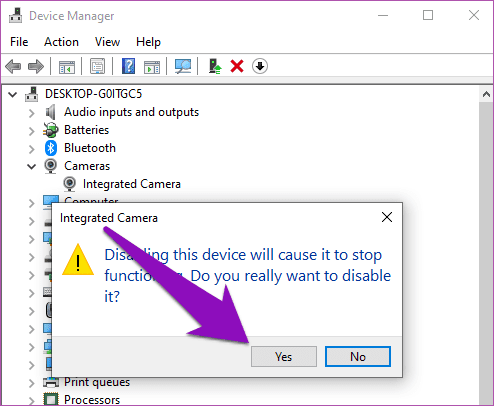
Outdated or corrupted drivers are a common cause. Right-click the Start button and select Device Manager. Expand Cameras or Imaging devices. Right-click your webcam and choose Update driver > Search automatically for drivers. If no update is found, right-click again and select Uninstall device, then restart your computer. Windows will reinstall the driver automatically. For laptops with built-in cameras, you can also visit your manufacturer's support site for the latest driver. After reinstalling, test the camera in the Windows Camera app before opening Skype.
Step 5: Close Conflicting Applications and Antivirus Interference
Other software can lock your camera. Close apps like Zoom, Microsoft Teams, Google Meet, or any camera testing tool. Also, temporarily disable your antivirus or privacy software (e.g., Kaspersky, Avast, or Windows Defender's controlled folder access) because they may block Skype from accessing the webcam. If Skype works after disabling them, add Skype as an allowed app in your security suite. Finally, run the Hardware and Devices troubleshooter: go to Settings > Update & Security > Troubleshoot > Additional troubleshooters. This wizard can automatically detect and fix camera configuration errors. After completing all steps, restart Skype and test your video. If the camera still fails, try a different USB port or test the webcam on another computer to rule out hardware failure.
Fix Skype Webcam Not Working In Windows 11 | Camera Apps, Desktop

Fix Skype Webcam Not Working in Windows 11 | Camera apps, Desktop ...
7 Ways To Fix Skype Camera Not Working

7 Ways to Fix Skype Camera Not Working
How To Fix Skype Camera Not Working On Windows 10 - Windows Bulletin

How to Fix Skype Camera Not Working on Windows 10 - Windows Bulletin
Camera Not Working On Skype Windows 10? Here's How To Fix It - TechWiser
Camera Not Working on Skype Windows 10? Here's How to Fix It - TechWiser
How To Fix Skype Camera Not Working In Windows 10
How to Fix Skype Camera Not Working in Windows 10
Camera Not Working On Skype Windows 10? Here's How To Fix It - TechWiser
Camera Not Working on Skype Windows 10? Here's How to Fix It - TechWiser
How To Fix Skype Camera Not Working - EasyPCMod

How To Fix Skype Camera Not Working - EasyPCMod
How To Fix Skype Camera Not Working (All Devices)
How to Fix Skype Camera not Working (All devices)
PPT - Call 1-800-385-7116 - How To Fix Skype Camera Not Working On
PPT - Call 1-800-385-7116 - How to Fix Skype Camera Not Working on ...
7 Ways To Fix Skype Camera Not Working

7 Ways to Fix Skype Camera Not Working
What To Do When Skype Camera Is Not Working On Windows 10
What To Do When Skype Camera Is Not Working On Windows 10
How To Fix Skype Camera Not Working (All Devices)
How to Fix Skype Camera not Working (All devices)
How To Fix Skype Camera Not Working In Windows 10 - YouTube
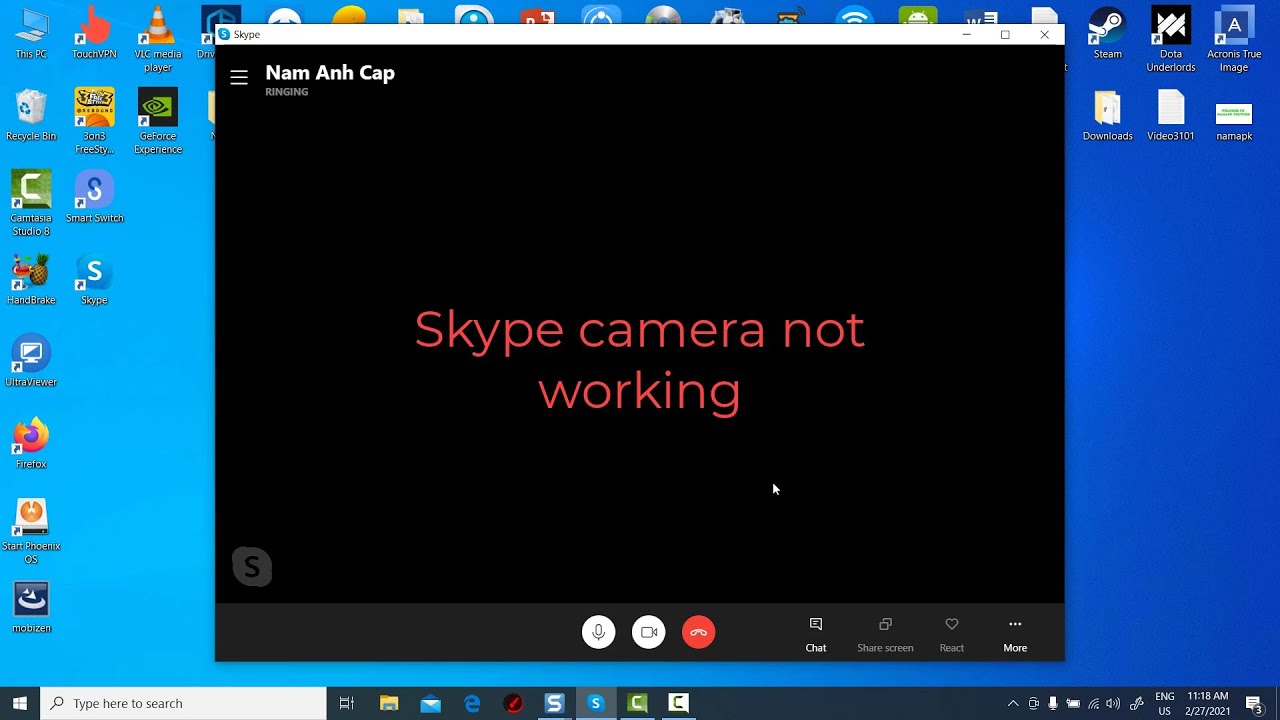
How To Fix Skype camera not working in Windows 10 - YouTube
How To Fix Skype Video Call Not Working | Fix Camera Not Working - YouTube

How To Fix Skype Video Call Not Working | Fix Camera Not Working - YouTube
Skype Picture
Skype Picture
FIX: Skype Camera Not Working In Windows 10/11

FIX: Skype camera not working in Windows 10/11
How To Fix Skype Camera Not Working In Windows 10
How to Fix Skype Camera Not Working in Windows 10
How To Fix Skype Video Call Issues | Skype Camera Not Working - YouTube

How to fix Skype Video Call Issues | Skype Camera Not Working - YouTube
7 Ways To Fix Skype Camera Not Working
7 Ways to Fix Skype Camera Not Working
SKYPE VIDEO CALL NOT WORKING FIX 2024 | How To Fix Skype Camera Not

SKYPE VIDEO CALL NOT WORKING FIX 2024 | How To Fix Skype Camera Not ...
Fix Skype Camera Not Working On Windows 10 – TechCult

Fix Skype Camera Not Working on Windows 10 – TechCult
Blog Archives - Lasopavisual
Blog Archives - lasopavisual
PPT - Call 1-800-385-7116 - How To Fix Skype Camera Not Working On
PPT - Call 1-800-385-7116 - How to Fix Skype Camera Not Working on ...
How To Fix Skype Camera Not Working Windows 11 Laptop - YouTube

How To Fix Skype Camera Not Working Windows 11 Laptop - YouTube
7 Best Fixes For Skype Camera Not Working On Windows 10
7 Best Fixes for Skype Camera Not Working on Windows 10
How To Fix And Solve Skype App Camera Not Working | Final Solution

How To Fix And Solve Skype App Camera Not Working | Final Solution ...
7 Best Fixes For Skype Camera Not Working On Windows 10
7 Best Fixes for Skype Camera Not Working on Windows 10
Multiple Ways To Fix Skype Camera Not Working Are Here! - MiniTool
Multiple Ways to Fix Skype Camera Not Working Are Here! - MiniTool
7 Ways To Fix Skype Camera Not Working
7 Ways to Fix Skype Camera Not Working
Camera Not Working On Skype Windows 10? Here's How To Fix It - TechWiser
Camera Not Working on Skype Windows 10? Here's How to Fix It - TechWiser
SKYPE VIDEO CALL NOT WORKING FIX (2023) | How To Fix Skype Camera Not

SKYPE VIDEO CALL NOT WORKING FIX (2023) | How to Fix Skype Camera Not ...
How To Fix Skype Camera Not Working (All Devices)
How to Fix Skype Camera not Working (All devices)
How To Fix Skype Camera Not Detecting Issue In Windows 11 - YouTube
How to Fix Skype Camera Not Detecting Issue in Windows 11 - YouTube