← How to Fix Windows 11 Search Bar Not Working: Step-by-Step Guide How to Fix AirPods Not Connecting to iPhone: A Step-by-Step Guide →
In this tutorial, you will learn how to diagnose and repair a non-responsive touchpad on a Windows 11 system. The instructions cover hardware checks, driver resets, system configuration adjustments, and advanced rollback procedures. Follow each step sequentially until the touchpad restores normal function.

Step 1: Perform a Hardware and Function Key Check
Before modifying software settings, confirm the touchpad is not disabled by a hardware shortcut. Many laptops use a function key combination (e.g., Fn + F6, Fn + F7, or a dedicated touchpad icon) to toggle the device on and off. Press the corresponding function key once and test the touchpad. Additionally, connect an external USB mouse. If the external mouse works, the issue is isolated to the touchpad hardware or its driver. If neither works, the problem may be systemic with the USB or input subsystem.

Step 2: Verify Touchpad Settings in Windows 11
Open Settings by pressing Windows + I. Navigate to Bluetooth & devices > Touchpad. Ensure the main toggle for Touchpad is set to On. Expand the Touchpad section and verify that the sensitivity is not set to "No sensitivity" and that no external mouse is connected, which can automatically disable the touchpad. Under Related settings, click Additional settings. If a "Touchpad" tab appears in the legacy Control Panel, confirm the device is enabled and the "Disable touchpad when a mouse is connected" option is unchecked.
Step 3: Run the Hardware and Devices Troubleshooter
Windows 11 includes an integrated troubleshooter for input devices. Open Settings > System > Troubleshoot > Other troubleshooters. Locate "Hardware and Devices" and click Run. The tool will scan for driver conflicts, misconfigured registry entries, and disabled device states. Allow the process to complete and apply any recommended fixes. Restart the computer after the troubleshooter finishes to ensure changes take effect.
Step 4: Reinstall or Roll Back the Touchpad Driver
Press Windows + X and select Device Manager. Expand "Mice and other pointing devices." Right-click the touchpad entry (often labeled as PS/2 Compatible Mouse, I2C HID Device, or Synaptics/ELAN Precision Touchpad) and select Uninstall device. Check "Attempt to remove the driver for this device" if available, then confirm. Restart Windows. The system will automatically reinstall the default driver. If the touchpad worked previously and stopped after an update, right-click the driver and select Properties > Driver > Roll Back Driver instead.
Step 5: Adjust Power Management and Registry Settings
In Device Manager, right-click the touchpad driver and select Properties. Go to the Power Management tab and uncheck "Allow the computer to turn off this device to save power." Click OK. Next, open Registry Editor by typing regedit in the Run dialog. Navigate to HKEY_LOCAL_MACHINE\SOFTWARE\Synaptics\SynTP\Install (path may vary by vendor). Locate the value "DisableDevice" and set it to 0. Close the editor and restart. This prevents Windows from disabling the touchpad during sleep or idle states.
Step 6: Perform a Clean Boot and Check for Updates
Type msconfig in the Run dialog and open System Configuration. Under the Services tab, check "Hide all Microsoft services" and click Disable all. Go to the Startup tab and open Task Manager to disable all startup items. Restart the computer. If the touchpad works, a third-party service or startup app was interfering. Re-enable items in groups to identify the culprit. Finally, run Windows Update (Settings > Windows Update > Check for updates) and install any optional driver updates, particularly under "Driver updates."
How To Fix Touchpad Not Responding In Windows 11, 10 - YouTube
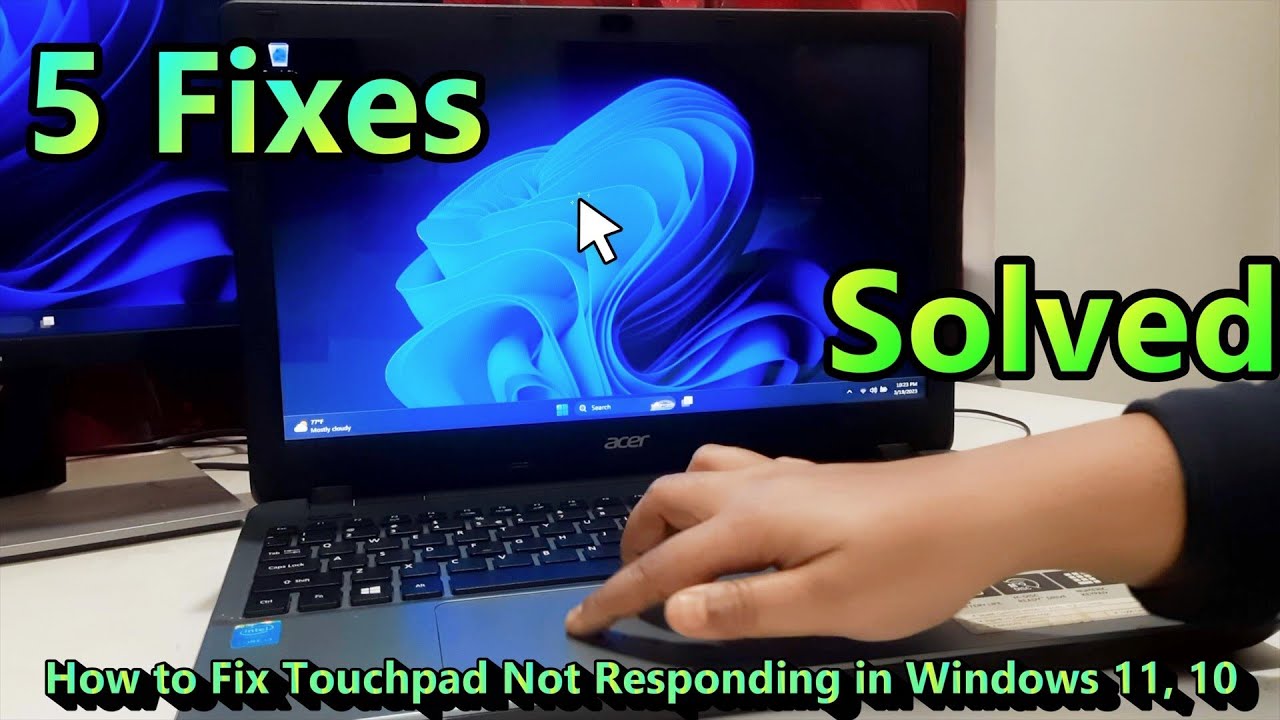
How to Fix Touchpad Not Responding in Windows 11, 10 - YouTube
How To Fix TouchPad Not Working On Windows 11 - YouTube

How To Fix TouchPad Not Working On Windows 11 - YouTube
Windows 11 Touchpad Not Working? 5 Easy Ways To Fix It - YouTube

Windows 11 Touchpad Not Working? 5 Easy Ways to Fix it - YouTube
14 Proven Methods: Fix Windows 11 Touchpad Not Working
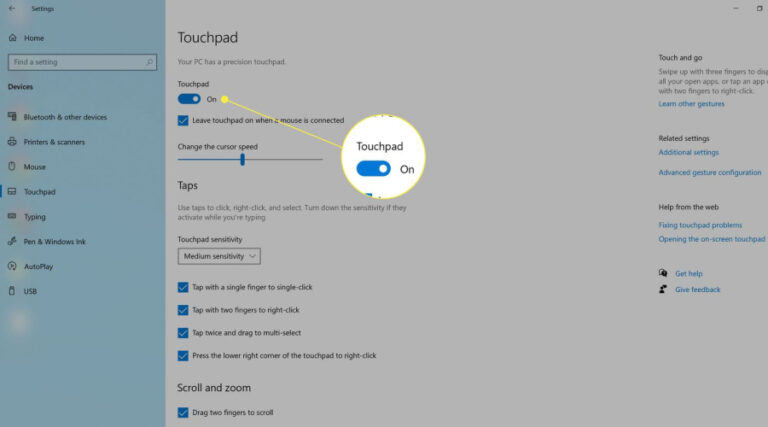
14 Proven Methods: fix Windows 11 Touchpad not Working
How To Fix TouchPad Not Working On Windows 11 - YouTube

How To Fix TouchPad Not Working on Windows 11 - YouTube
How To Fix Laptop Touchpad Not Working In Windows 11 - YouTube
How to Fix Laptop Touchpad Not Working in Windows 11 - YouTube
Das Virtuelle Touchpad Von Windows 11: So Aktivieren, Deaktivieren Und

Das Virtuelle Touchpad Von Windows 11: So Aktivieren, Deaktivieren Und ...
Laptop Touchpad Not Working In Windows 11 - (3 Ways To Fix) - YouTube

Laptop Touchpad Not Working in Windows 11 - (3 Ways to Fix) - YouTube
How To Fix Touchpad Not Working Windows 11 At Nancy Hickman Blog

How To Fix Touchpad Not Working Windows 11 at Nancy Hickman blog
How To Fix Touchpad Not Working Properly In Windows 10/11 [Solution

How To Fix Touchpad Not Working Properly in Windows 10/11 [Solution ...
How To Fix Laptop Touchpad Not Working! (Windows 10 And 11) (EASY

How to Fix Laptop Touchpad Not Working! (Windows 10 and 11) (EASY ...
How To Fix Touchpad Windows 10/11 | Fix Touchpad Not Working - YouTube
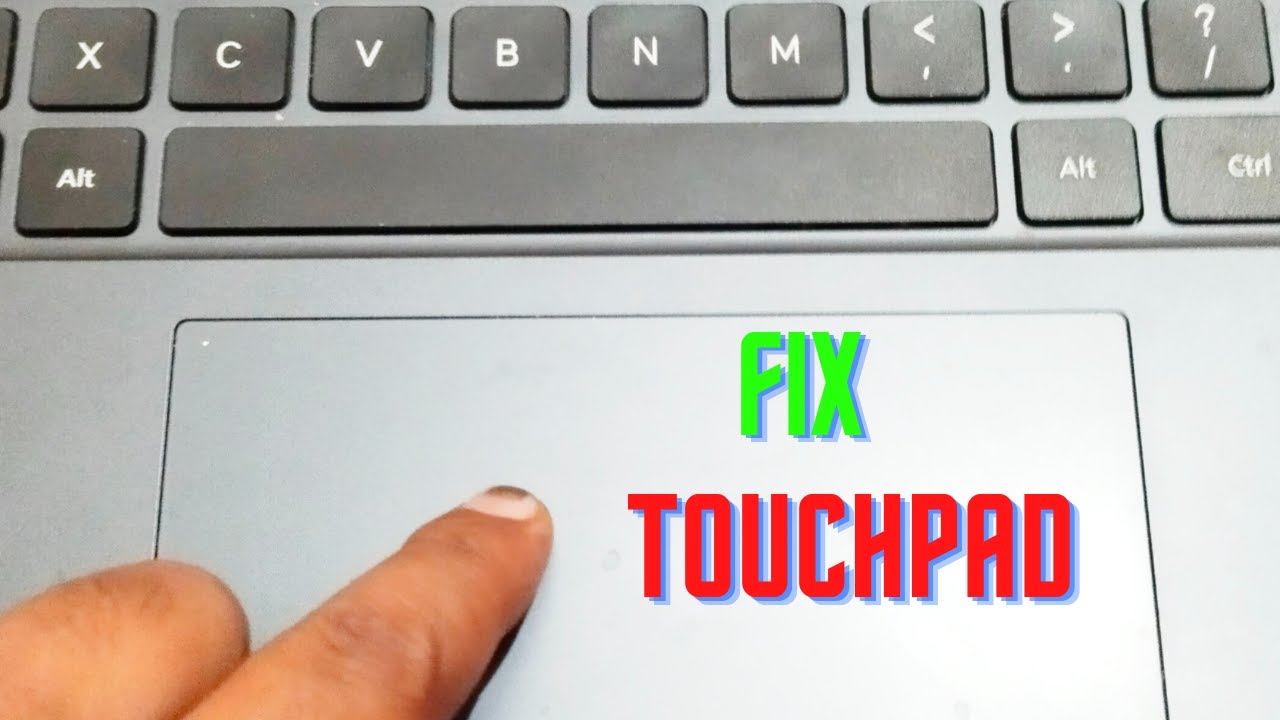
How To Fix Touchpad Windows 10/11 | Fix Touchpad Not Working - YouTube
How To Fix Touchpad Not Working On Windows 11 - Step By Step - YouTube
How To Fix Touchpad Not Working On Windows 11 - Step By Step - YouTube
Touchpad Not Working Windows 11 | Laptop Touchpad Not Working - How To

Touchpad Not Working Windows 11 | Laptop Touchpad Not Working - How to ...
How To Fix Issues Of Touchpad In Windows 10-tech Note How To Fix A
How To Fix Issues Of Touchpad In Windows 10-tech Note How To Fix A
Touchpad Ausschalten Windows 11 – Altmersleben

Touchpad Ausschalten Windows 11 – Altmersleben
How To Fix Laptop Touchpad Not Working On Windows 10/11 - YouTube

How To Fix Laptop Touchpad Not Working on Windows 10/11 - YouTube
Why Is My Laptop Touchpad Not Working – CDMGYW

Why Is My Laptop Touchpad Not Working – CDMGYW
Top 10 Ways To Fix Touchpad Not Working On A Windows 11 Laptop
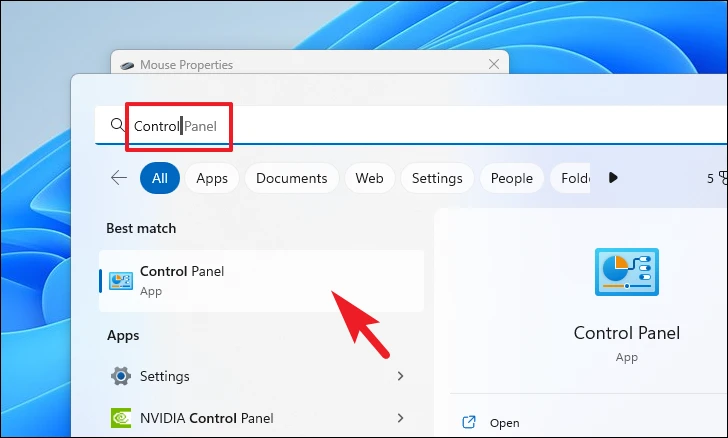
Top 10 Ways to Fix Touchpad Not Working on a Windows 11 Laptop
Touch Pad Not Working On Windows 11 At Ruby Najar Blog

Touch Pad Not Working On Windows 11 at Ruby Najar blog
How To Fix TouchPad Not Working Problem In Windows 11/10/8 , TouchPad

How To Fix TouchPad Not Working Problem in Windows 11/10/8 , TouchPad ...
How To Fix Touchpad Not Working On Windows 11 - YouTube
How to Fix Touchpad not Working on Windows 11 - YouTube
Fix Laptop Touchpad Not Working In Windows 11 | Windows 11 Touchpad Isn

Fix Laptop Touchpad Not Working in Windows 11 | Windows 11 Touchpad isn ...
How To Fix Touchpad Windows 10/11 | Fix Touchpad Not Working - YouTube

How To fix Touchpad windows 10/11 | Fix Touchpad not Working - YouTube
How To Fix Touchpad Not Working Windows 11 - SOLVED For 2025!! - YouTube

How to Fix Touchpad Not Working Windows 11 - SOLVED for 2025!! - YouTube
How To Fix Touchpad Not Working On Windows 11 – Step-by-Step Guide 2026

How to Fix Touchpad Not Working on Windows 11 – Step-by-Step Guide 2026 ...
How To Fix Touchpad Not Working In Windows 11 - YouTube

How to Fix Touchpad Not Working in Windows 11 - YouTube
🔧 How To Fix Touchpad Windows 10/11 | Fix Touchpad Not Working 🖱️💻

🔧 How To Fix Touchpad Windows 10/11 | Fix Touchpad Not Working 🖱️💻 ...
Hp Touchpad Not Working When Key – FFIIBN

Hp Touchpad Not Working When Key – FFIIBN
How To Fix Touchpad On Windows 11 [Tutorial] - IPhone Wired
![How To Fix Touchpad On Windows 11 [Tutorial] - iPhone Wired](https://iphonewired.com/wp-content/uploads/2022/07/1658333536_maxresdefault.jpg)
How To Fix Touchpad On Windows 11 [Tutorial] - iPhone Wired
Fix Touchpad Not Working How To Fix Touchpad Windows 11 - YouTube
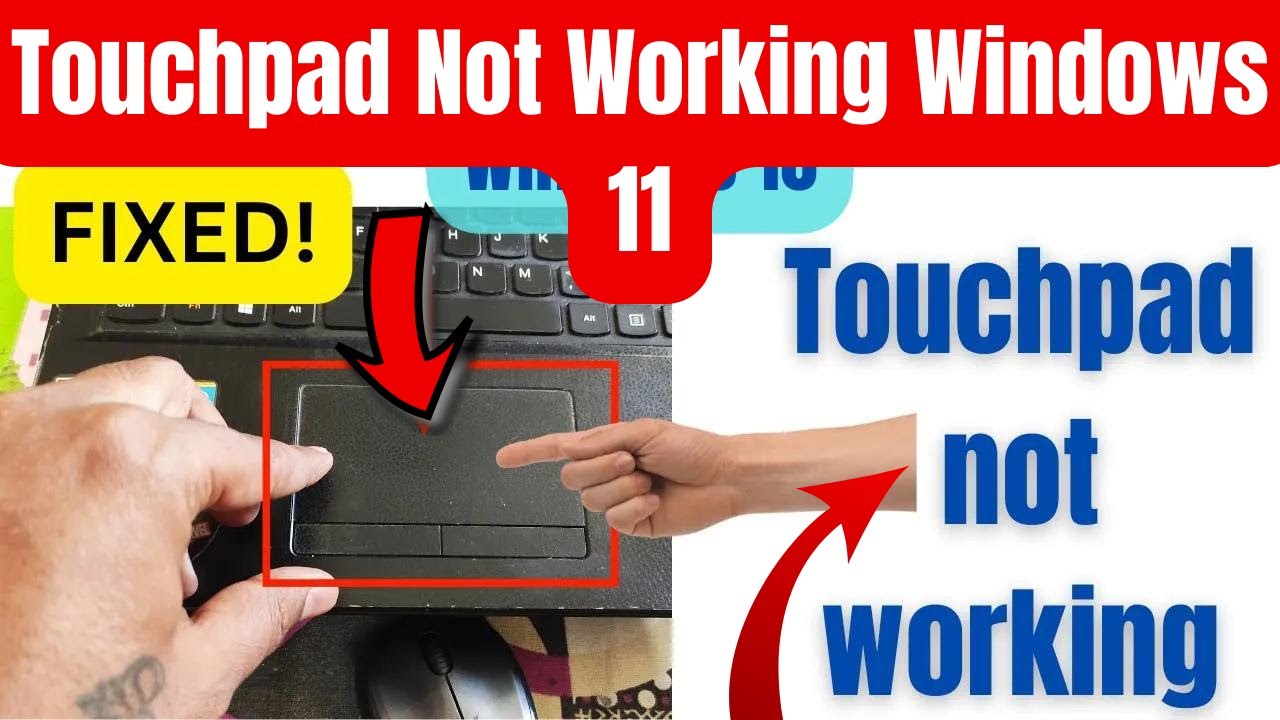
Fix Touchpad Not Working How To Fix Touchpad Windows 11 - YouTube
How To Fix Touchpad Not Working In Windows 11 - JGuru

How to Fix Touchpad Not Working in Windows 11 - JGuru
How To Fix Touchpad Not Working On Windows 11 - YouTube

How to Fix Touchpad Not Working on Windows 11 - YouTube