← How to Disable the Pop-Up Blocker in Chrome: A Step-by-Step Guide How to Fix Slow Startup on Windows 11: Step-by-Step Boot Speed Guide →
If your Windows 11 computer is dealing with Wi-Fi disconnects, slow network speeds, missing adapters, or VPN errors, resetting the network settings can often solve the problem. A network reset removes and reinstalls all network adapters and returns networking components to their original settings. This process will delete saved Wi-Fi networks and passwords, remove VPN connections, and clear any custom network configuration. In this tutorial, you will learn how to open the Windows 11 network reset tool, confirm the reset, and complete the restart process so your PC can rebuild its network stack cleanly. Make sure you have your Wi-Fi password available before you start because you will need to reconnect after the reset.
Step 1: Open Advanced Network Settings and Locate Network Reset
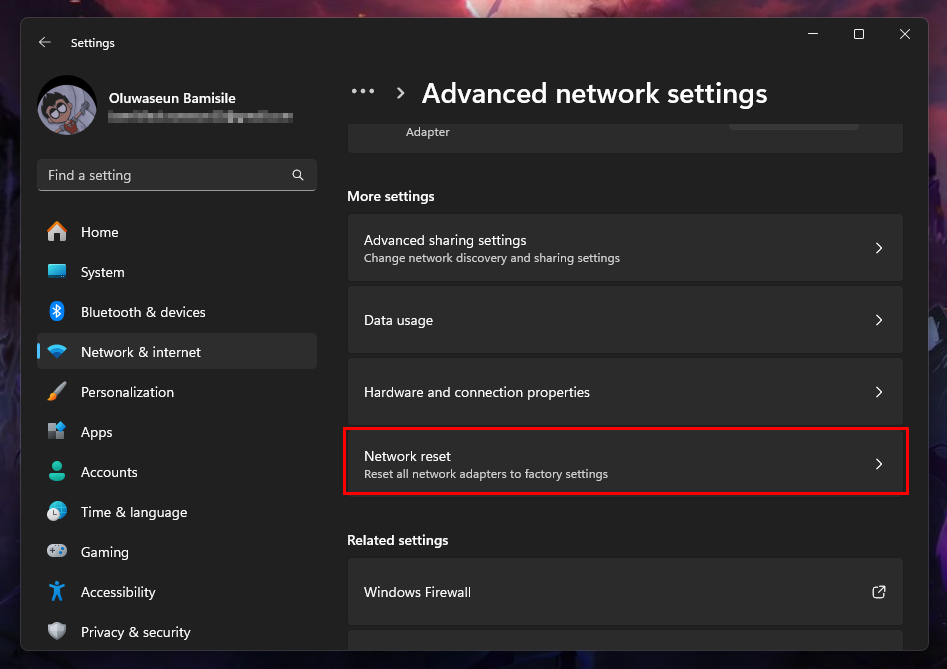
Start by clicking the Start button on the taskbar, then select the Settings gear icon. You can also press the Windows key and the letter I together to open Settings directly. In the Settings window, choose Network & internet from the left sidebar. On the right side, scroll down or look for Advanced network settings and click it. This page shows options for network adapters, data usage, and more. Scroll to the bottom of the Advanced network settings page to find the Network reset section. Windows 11 describes this option as a way to reinstall network adapters and reset networking components. The image below shows the Network reset link and its description in the Advanced network settings area, which is where you need to click next.
:max_bytes(150000):strip_icc()/NetworkReset-65bc046f024a45d4b0aa435e41968167.jpg)
Step 2: Run the Network Reset and Restart Your Computer
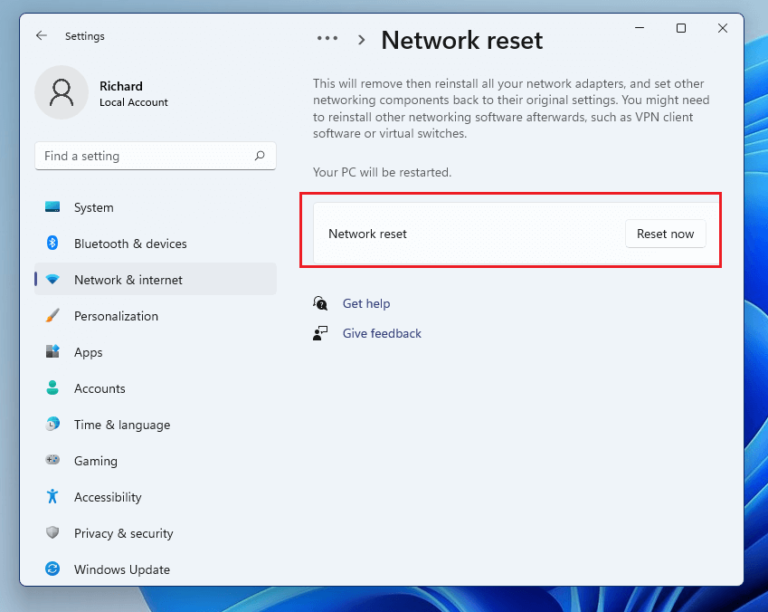
After you click the Network reset link, Windows 11 will open a screen that explains what the reset will do. Read the warning carefully because this action cannot be undone. It will remove all network adapters, reset network settings, and require a restart. When you are ready, click the Reset now button. A confirmation dialog will appear asking if you want to continue. Confirm the action and allow Windows to begin the reset process. The computer will prepare the network reset and then prompt you to restart. The screenshot below shows the network reset confirmation screen with the Reset now button, which is the final control you need to select. If your PC restarts automatically, let it complete. If it does not restart automatically, save any open work and restart manually from the Start menu.
After the restart, Windows 11 will reinstall your network drivers and reset networking services to defaults. Sign in to your PC, open the network icon in the system tray, and reconnect to your Wi-Fi network by entering your password. For wired connections, the Ethernet adapter should resume automatically. If you still have network issues, you may need to check for driver updates from Windows Update or your device manufacturer. Resetting network settings is a useful troubleshooting step that can resolve many common connectivity problems without reinstalling Windows.
How To Reset Network Settings On Windows 11
How to Reset Network Settings on Windows 11