← How to Schedule an Email in Outlook: A Step-by-Step Guide How to Reset Network Settings in Windows 11: A Clear Step-by-Step Guide →
Chrome’s built-in pop-up blocker prevents unwanted windows, ads, and redirects from disrupting your browsing session. However, some legitimate websites rely on pop-up windows for login forms, payment portals, document previews, or download confirmations. When those features fail, disabling the pop-up blocker or adding an exception can restore full functionality without compromising overall security. In this tutorial, you will learn how to access Chrome’s pop-up controls, turn off the pop-up blocker, and manage site-specific exceptions. The process works on Chrome for desktop, while Chrome for Android and iOS uses a similar settings path.
Step 1: Open Chrome’s Pop-Up and Redirect Settings
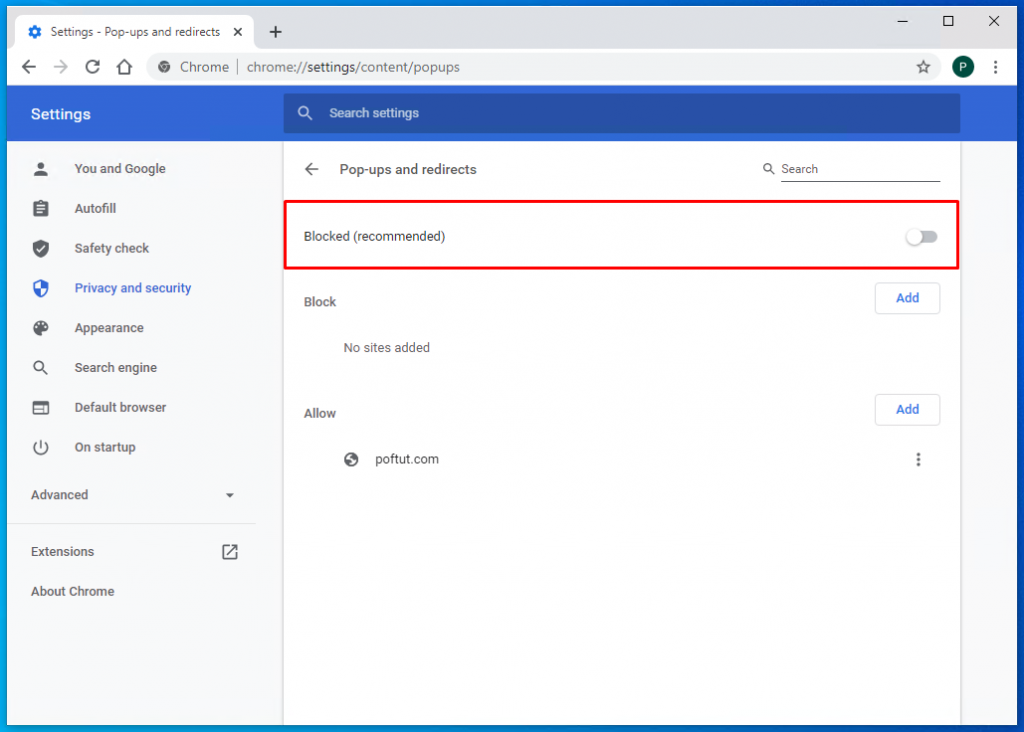
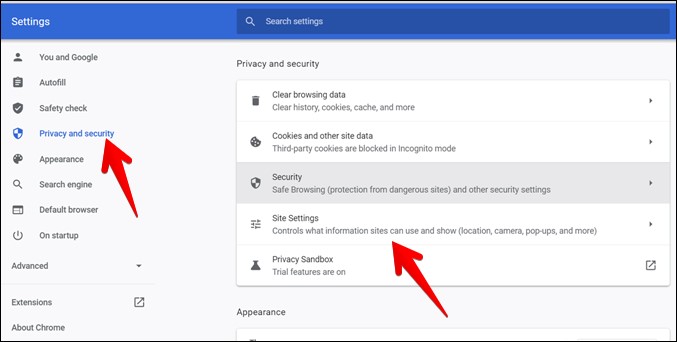
Launch Google Chrome on your computer. Click the three-dot menu icon in the upper-right corner of the browser window, then select Settings from the drop-down menu. In the Settings page, choose Privacy and security from the left navigation panel. Next, click Site settings to open the permissions area for websites. Scroll down to the Content section and select Pop-ups and redirects. This screen contains the default pop-up behavior and the list of sites that are allowed or blocked. The screenshot below shows the Chrome settings area where you can find the pop-up and redirect options.
Step 2: Turn Off the Pop-Up Blocker or Add Site Exceptions
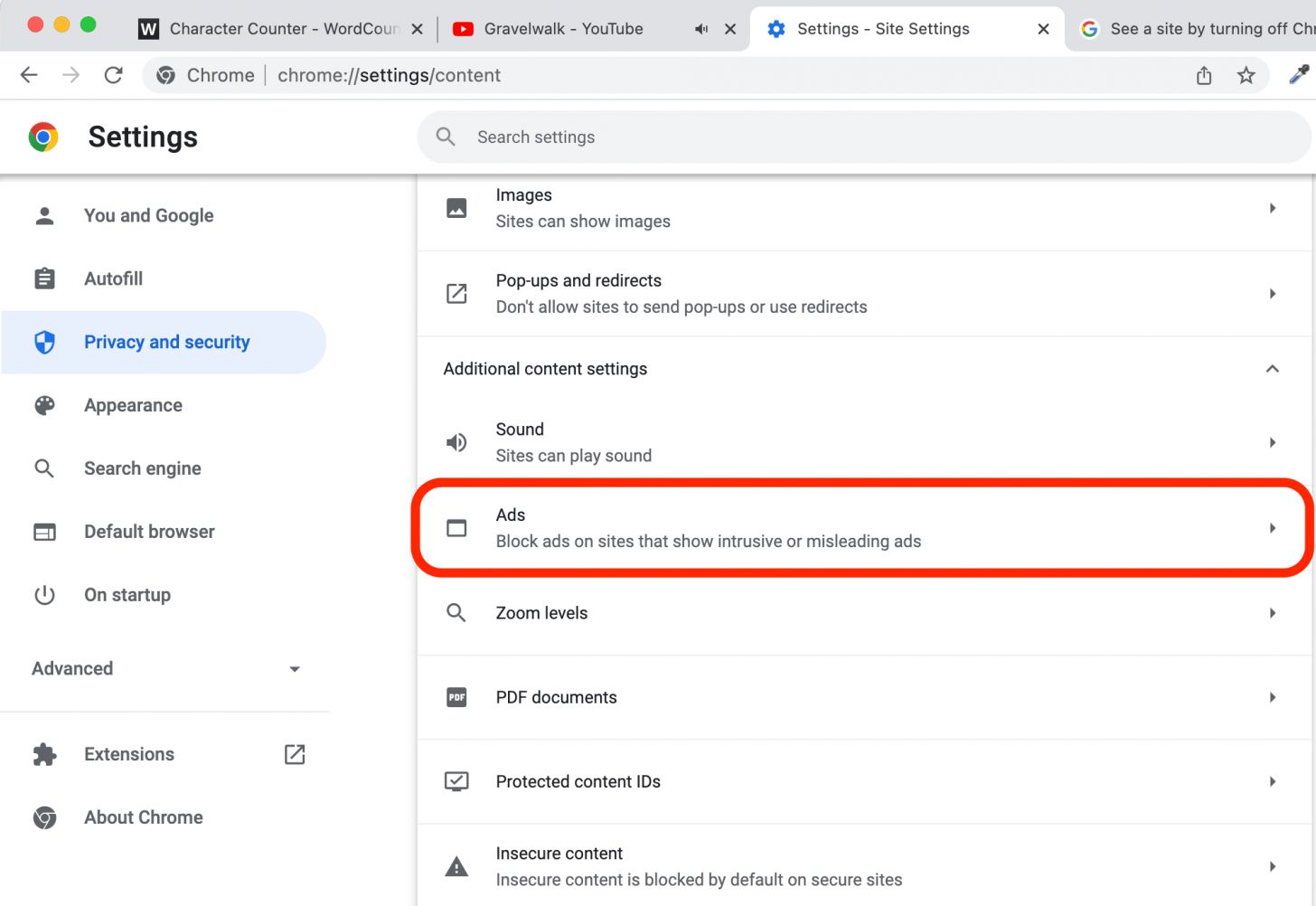
On the Pop-ups and redirects page, you can choose the default behavior. Select Sites can send pop-ups and use redirects if you want to disable the pop-up blocker globally. This option is useful when testing a site that requires multiple pop-ups, but it is less secure for everyday browsing. A safer alternative is to keep the default setting at Don’t allow sites to send pop-ups or use redirects and add only trusted sites to the Allowed to send pop-ups and use redirects list. Click Add, enter the full website address, such as https://example.com, and then click Add again to save the exception. After you make the change, reload the website to confirm that the pop-up window opens correctly. The screenshot below illustrates the toggle and exception list in Chrome’s pop-up settings.
After completing these steps, Chrome will apply the new pop-up behavior immediately. For better security, review the allowed list periodically and remove any sites that no longer need pop-up access. If a site still does not open pop-ups, make sure that any third-party ad blocker or browser extension is not interfering with the site’s requests.
How To Turn Off Pop Up Blocker In Chrome On Mobile And PC - TechWiser
How to Turn off Pop up Blocker in Chrome on Mobile and PC - TechWiser