← How to Recover Deleted Photos on Android: Step-by-Step Guide How to Fix Google Docs Not Saving Changes: A Complete Troubleshooting Guide →
Keeping your device drivers current is one of the most important maintenance tasks for any Windows 11 system. Drivers act as the bridge between your operating system and your hardware, allowing components such as graphics cards, network adapters, printers, and audio devices to function correctly. Outdated or corrupted drivers can lead to performance drops, system instability, connectivity problems, and even security vulnerabilities. In this tutorial, you will learn several reliable methods to update drivers on Windows 11 in 2026, from using built-in Windows tools to leveraging manufacturer software. By the end of this guide, you will be able to identify outdated drivers, install the latest versions, and verify that every component is running optimally.
Step 1: Check for Driver Updates Through Windows Update
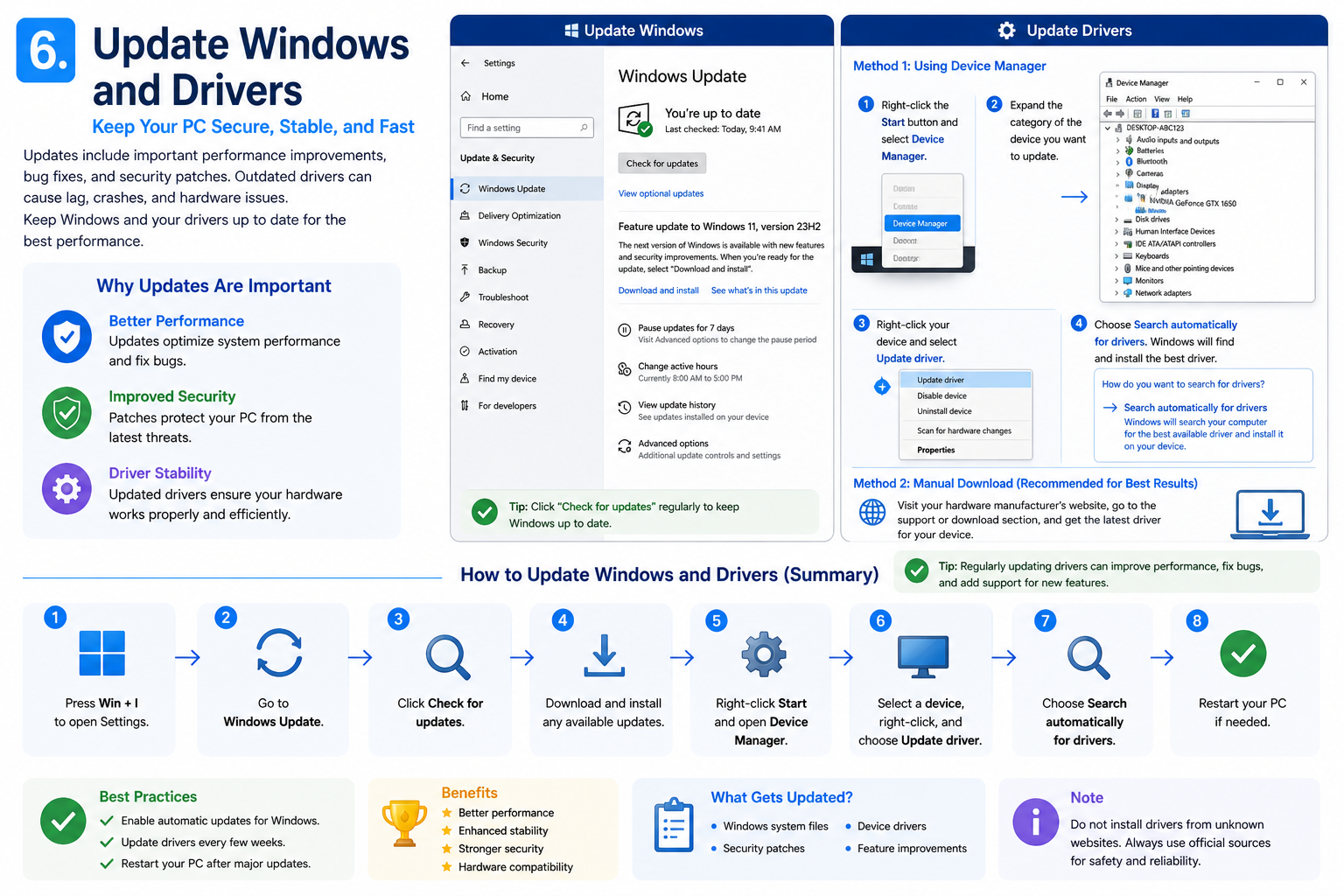
The simplest and safest way to update drivers on Windows 11 is through the built-in Windows Update service. Microsoft routinely pushes certified driver updates through this channel, ensuring compatibility and stability. To begin, open the Settings app by pressing Windows + I, then navigate to Windows Update. Click the Check for updates button. If any driver updates are available, they will appear under the optional updates section. Expand that section, select the driver updates you wish to install, and confirm by clicking Download & install. Windows will handle the rest automatically, including a possible restart.
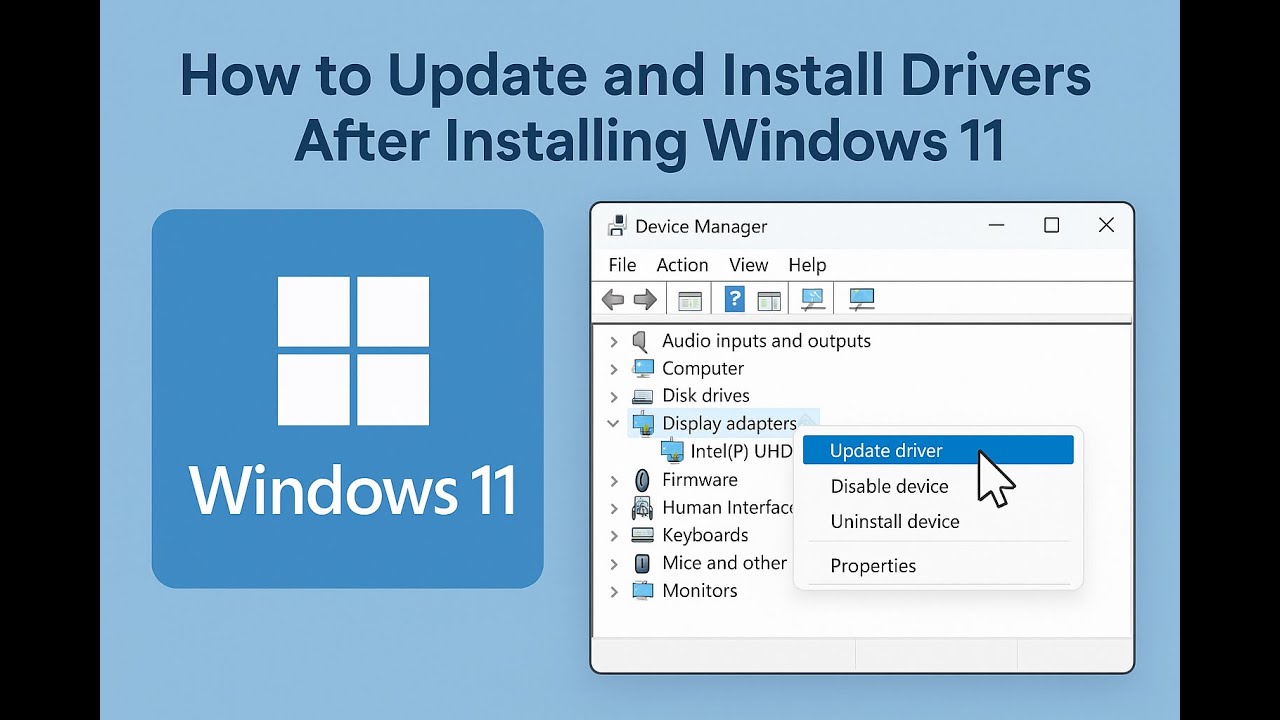
Step 2: Use Device Manager to Update Individual Drivers
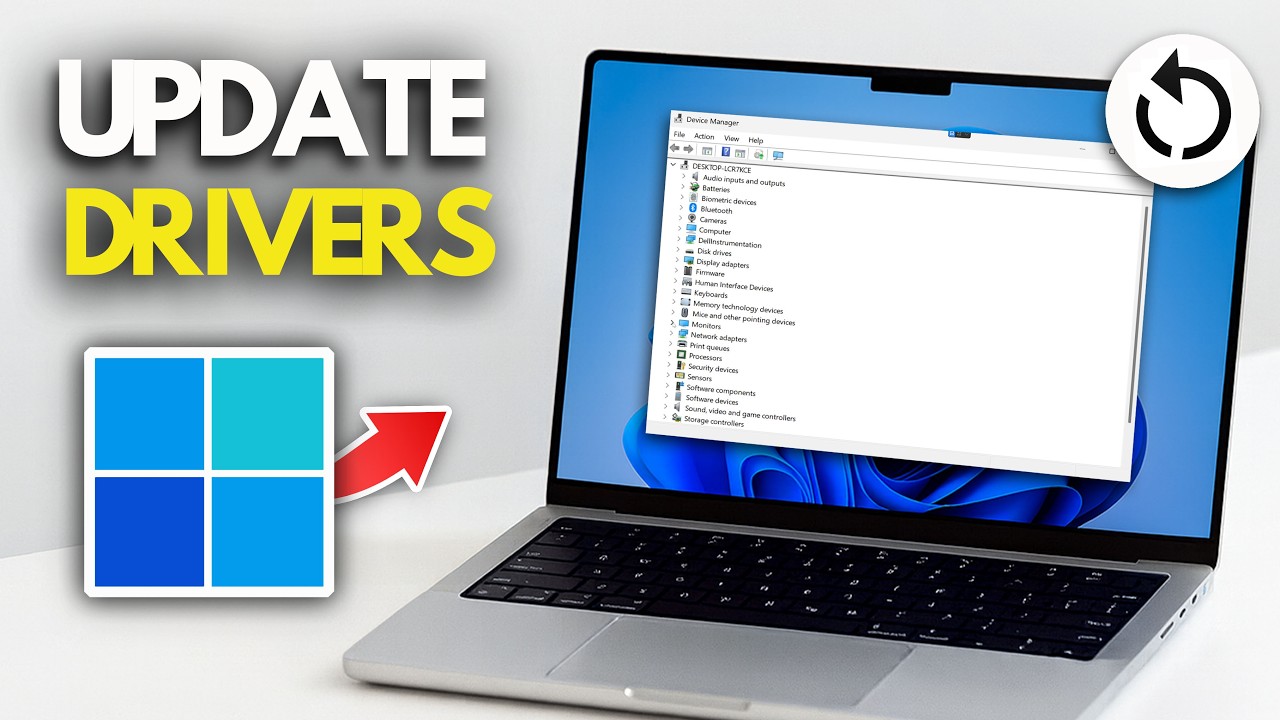
If Windows Update does not provide the latest driver for a specific component, Device Manager offers a more targeted approach. Right-click the Start button and select Device Manager from the menu. Locate the category for the device you want to update, such as Display adapters or Network adapters, and expand it. Right-click the specific device and choose Update driver. You will then be presented with two options: Search automatically for drivers, or Browse my computer for drivers. The first option queries Windows Update and local caches, while the second allows you to point to a downloaded driver file. After the wizard completes, restart your computer if prompted.

Step 3: Download Drivers Directly from Manufacturer Websites
For the most current and feature-rich drivers, especially for graphics cards, motherboards, and laptops, visiting the manufacturer's official website is the best practice. Navigate to the support section of your hardware vendor, such as Intel, AMD, NVIDIA, Dell, HP, or Lenovo. Enter your exact model number or let the site detect your product. Download the latest driver package for Windows 11, then run the installer. Follow the on-screen instructions, which may include choosing a custom or express installation. This method often delivers performance improvements and bug fixes that generic Windows drivers lack.
Step 4: Utilize Manufacturer Update Utilities
Many hardware manufacturers provide dedicated update utilities that automate the entire process. Examples include Intel Driver & Support Assistant, AMD Software: Adrenalin Edition, NVIDIA App, Dell Command | Update, and Lenovo Vantage. After installing the utility for your system, launch it and run a scan. The tool will compare your installed driver versions against the latest available releases. You can then select which updates to apply, often with a single click. These utilities are particularly useful for laptops and pre-built desktops where multiple components require regular updates.
Step 5: Verify and Roll Back Drivers If Necessary
Once you have installed new drivers, it is wise to verify that everything works correctly. Open Device Manager and check for any yellow warning triangles next to device names. You can also right-click a device, select Properties, and view the Driver tab to confirm the driver version and date. If a newly installed driver causes instability, blue screens, or performance issues, return to the Driver tab and click Roll Back Driver. This reverts to the previous version. If no rollback option is available, you can uninstall the driver and restart Windows, which will reinstall the default driver automatically.
Step 6: Maintain a Regular Driver Update Schedule
To keep your Windows 11 system running smoothly throughout 2026 and beyond, establish a routine for driver maintenance. Check Windows Update at least once a month, and visit manufacturer websites or utilities every two to three months, or whenever you experience hardware problems. Enable automatic updates where possible, but always review optional driver updates before installing them to avoid conflicts with specialized software. By following these steps consistently, you will minimize downtime, enhance security, and ensure peak performance from all your hardware components.
How To Update Windows 11 Drivers - YouTube

How to Update Windows 11 Drivers - YouTube
How To Update Your Drivers On Windows 11 - YouTube

How to update your drivers on Windows 11 - YouTube
Update All Drivers On Windows 11 In One-Click (FREE) - 2026 - YouTube

Update All Drivers on Windows 11 in One-Click (FREE) - 2026 - YouTube
NVMe Detected In BIOS But Not In Windows 11 [Quick Fix]
![NVMe Detected in BIOS but Not in Windows 11 [Quick Fix]](https://10pcg.com/wp-content/uploads/how-to-update-drivers-on-windows-11-e1658229162853.jpg)
NVMe Detected in BIOS but Not in Windows 11 [Quick Fix]
How To Install Drivers On Windows 11 | How To Update Drivers On Windows

How To Install Drivers On Windows 11 | How to Update Drivers on Windows ...
Update All Drivers In Windows 11 Using One CMD Command

Update All Drivers in Windows 11 Using One CMD Command
A Complete Guide To Updating Intel Drivers On Windows 11 - SOFTWAREHUBS.COM

A Complete Guide to Updating Intel Drivers on Windows 11 - SOFTWAREHUBS.COM
10 Proven Ways To Make Windows 11 Faster On Any PC (2026 Complete Guide
10 Proven Ways to Make Windows 11 Faster on Any PC (2026 Complete Guide ...
How To Update All Drivers On Windows 11 - YouTube

How To Update All Drivers On Windows 11 - YouTube
How To Update All Drivers On Windows 11 - YouTube

How to Update All Drivers On Windows 11 - YouTube
Updating Printer Drivers: Every Method For Windows 11 And What Changed

Updating Printer Drivers: Every Method for Windows 11 and What Changed ...
How To Update Drivers On Windows 11 - YouTube
How to Update Drivers on Windows 11 - YouTube
How To Update Drivers Windows 11 - YouTube

How to Update Drivers Windows 11 - YouTube
How To Update Drivers For Windows 11 - Full Guide - YouTube

How To Update Drivers For Windows 11 - Full Guide - YouTube
How To Update All Drivers On Windows 11 (Beginner Guide) - YouTube

How To Update All Drivers on Windows 11 (Beginner Guide) - YouTube
How To Update All Drivers On Windows 11 - Updated Guide - YouTube

How To Update All Drivers On Windows 11 - Updated Guide - YouTube
How To Update Windows 11 Drivers – Full Guide (2026) - YouTube
How To Update Windows 11 Drivers – Full Guide (2026) - YouTube
How To Update Drivers On Windows 11 - YouTube

How to Update Drivers on Windows 11 - YouTube
How To Update Drivers For Windows 11 - YouTube

How To Update Drivers For Windows 11 - YouTube
How To Update Network Drivers / Adapters In Windows 11 - YouTube

How To Update Network Drivers / Adapters in Windows 11 - YouTube
How To Update All Drivers In Windows 11 - YouTube

How to Update All Drivers in Windows 11 - YouTube
US How To Update Windows 11 Drivers 2026 How To Install Drivers On

US How To Update Windows 11 Drivers 2026 How To Install Drivers On ...
A Complete Guide To Updating Intel Drivers On Windows 11 - SOFTWAREHUBS.COM

A Complete Guide to Updating Intel Drivers on Windows 11 - SOFTWAREHUBS.COM
How To Update All Drivers In Windows 11 Quickly
How to Update All Drivers in Windows 11 Quickly
How To Manually Update Your Device Drivers In Windows 11 (Complete 2026
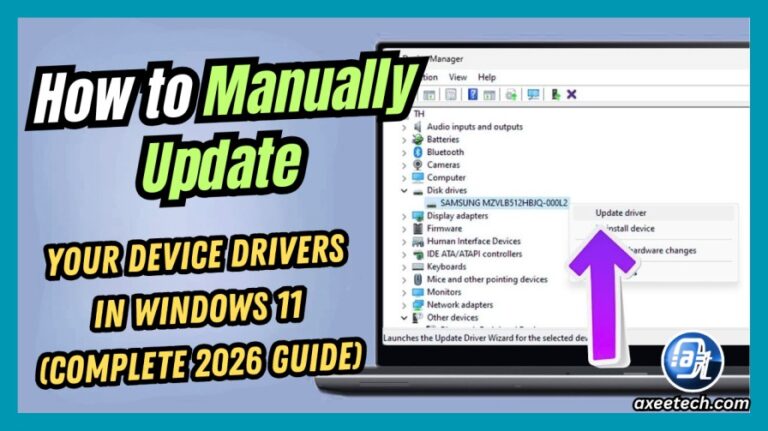
How to Manually Update Your Device Drivers in Windows 11 (Complete 2026 ...
How To Update ALL Drivers On Windows 11 (Easy Guide) - YouTube
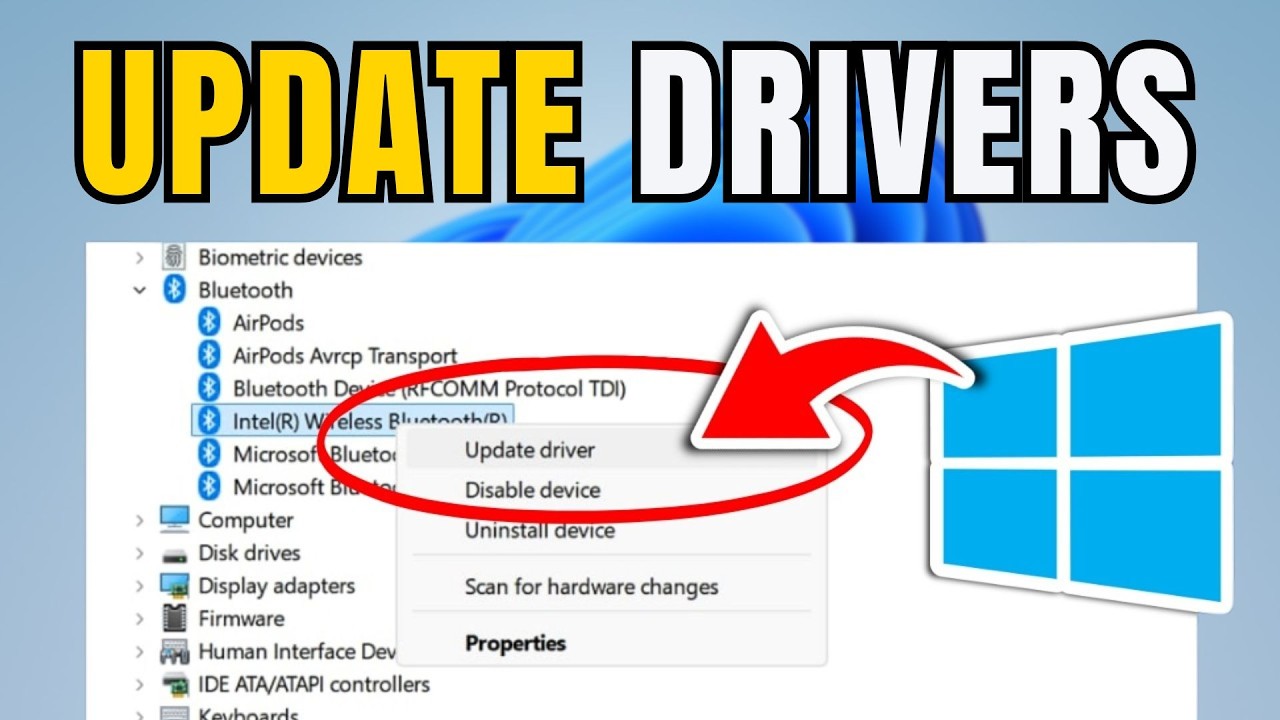
How To Update ALL Drivers On Windows 11 (Easy Guide) - YouTube
How To Update Every Driver Windows 11 - Step By Step - YouTube

How to Update Every Driver Windows 11 - Step by Step - YouTube
How To Update All Drivers On Windows 11 - YouTube
How to Update All Drivers on Windows 11 - YouTube
Windows 11 Driver Kit At Bill Henson Blog
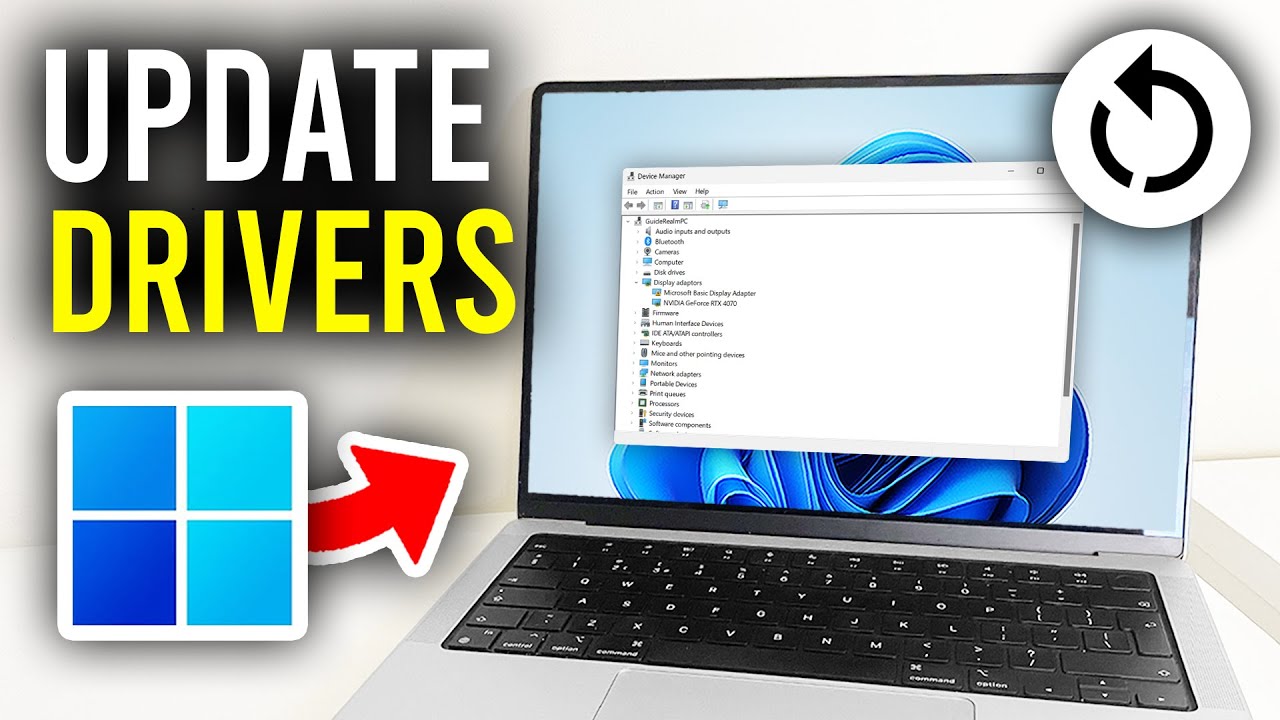
Windows 11 Driver Kit at Bill Henson blog
How To Update Drivers On Windows 11 - YouTube

How to Update Drivers on Windows 11 - YouTube
How To Update All Drivers On Windows 11 - YouTube

How To Update All Drivers On Windows 11 - YouTube
Easy Ways To Update Windows 11 Driver - ( Tutorial ) - GEEKLIFY

Easy Ways To Update Windows 11 Driver - ( Tutorial ) - GEEKLIFY
How To Update Drivers For Windows 11 (2025) - YouTube
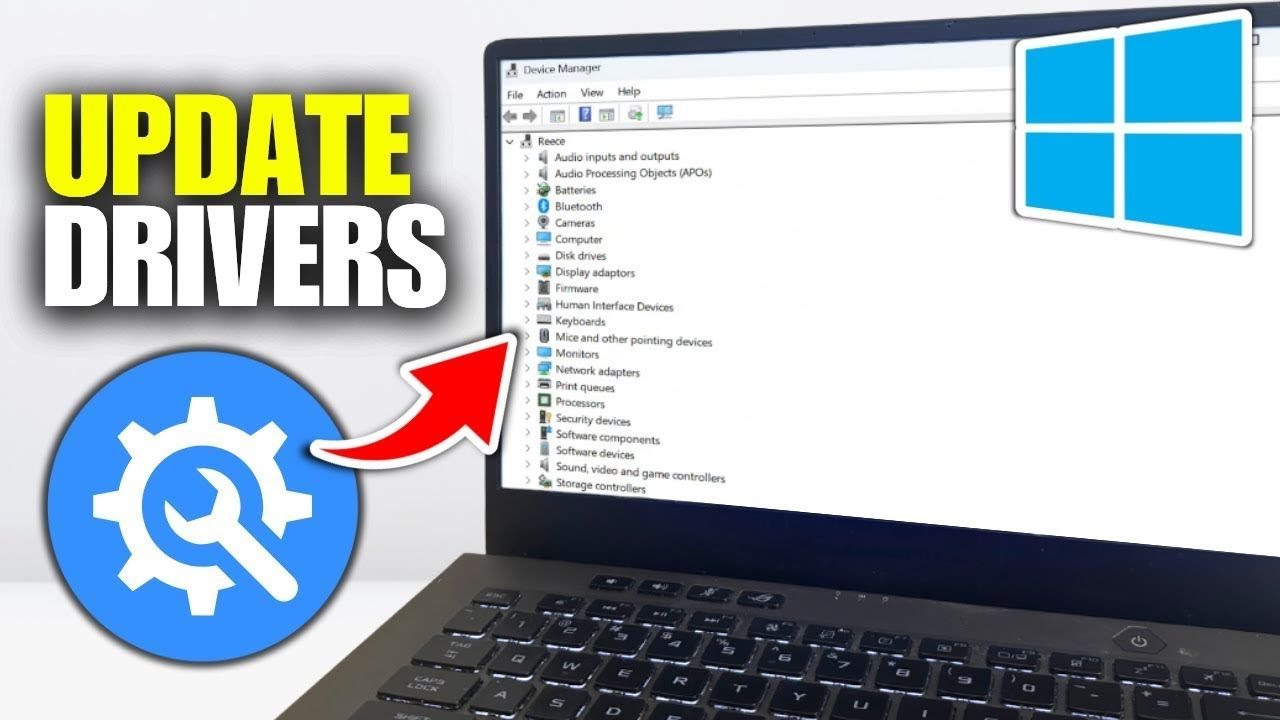
How To Update Drivers For Windows 11 (2025) - YouTube