← How to Speed Up Windows 11: A Step-by-Step Performance Guide Free Canva Alternatives: A Step-by-Step Guide for Business Graphics →
Converting a PDF document into an editable Microsoft Word file no longer requires expensive desktop software or advanced technical skills. Whether you need to revise a contract, update a report, or extract text from a scanned invoice, a free online PDF to Word converter can handle the job in minutes. This tutorial walks you through the entire process, from selecting the right tool to downloading your finished document, while explaining how to preserve formatting and avoid common pitfalls. By the end of this guide, you will be able to transform any PDF into a fully editable DOC or DOCX file using only your web browser.
Step 1: Choose a Reliable Free PDF to Word Converter
The first step is selecting a trustworthy conversion service. Many websites offer free PDF to Word conversion, but the quality and security practices vary significantly. Look for a platform that advertises no registration requirement, deletes uploaded files after a short period, and supports OCR (optical character recognition) for scanned documents. A well-designed converter will display a clean upload interface and clearly state file size limits, which are typically between 10 MB and 50 MB for free users. Avoid tools that force you to install browser extensions or provide excessive personal information. Once you have identified a reputable converter, open it in your preferred browser.

Step 2: Upload Your PDF File
With the converter open, locate the upload button or drag-and-drop area. Most services allow you to add files directly from your computer, Google Drive, or Dropbox. Click “Select File” or “Upload PDF” and browse to the document you want to convert. If the tool supports batch processing, you can add multiple PDFs at once, though free versions often limit this feature. After selecting the file, wait for the upload progress bar to reach 100 percent. The platform may display the file name, size, and number of pages so you can verify you chose the correct document.
Step 3: Select Word as the Output Format and Configure Settings
Once the PDF is uploaded, choose “Word” or “DOCX” as your target format. Many converters also offer options such as “Editable Word” versus “Flowing Text” or “Exact Layout.” If your PDF contains complex tables, columns, or images, select the layout-preserving option to keep the original design intact. For scanned documents, enable OCR and choose the correct language. Some tools let you specify whether to convert all pages or a page range. Review these settings carefully, because they directly affect the quality of the final Word file.
Step 4: Start the Conversion Process
Click the “Convert” or “Convert to Word” button. The service will process your PDF on its servers, which usually takes anywhere from a few seconds to a minute, depending on the file size and complexity. During this time, do not close the browser tab. A progress indicator will show the status. If the conversion fails, check whether your PDF is password-protected or corrupted; most free tools cannot handle encrypted files without the password. Once processing completes, a download link or button will appear on the screen.
Step 5: Download and Review Your Word Document
Click “Download” to save the converted DOCX file to your computer. Open it in Microsoft Word, Google Docs, or another word processor. Carefully review the document for formatting issues, such as misplaced images, broken tables, or changed fonts. Minor adjustments are common, especially with scanned PDFs. If the output is unsatisfactory, return to the converter and try a different layout setting or a different tool. Remember to delete the uploaded file from the online service if it offers a manual removal option, and always keep a backup of your original PDF.
Pdf To Word Converter Online – Convert Dari Pdf Ke Word – BFRMAI
Pdf To Word Converter Online – Convert Dari Pdf Ke Word – BFRMAI
SmartSoft Free PDF To Word Converter - Download
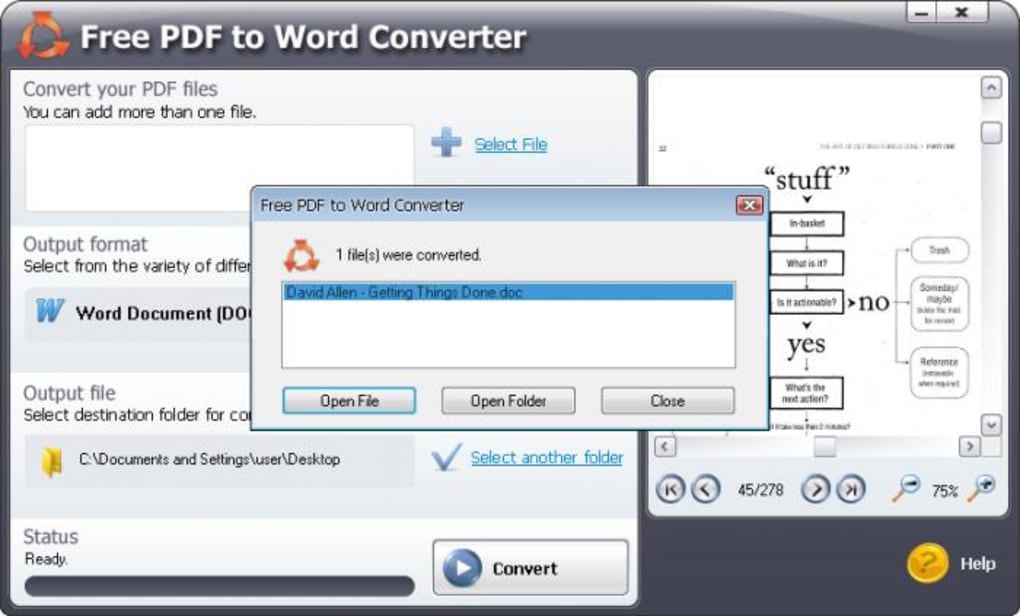
SmartSoft Free PDF to Word Converter - Download
Convert PDF To Word Easily: 6 Best Tools To Use In 2025
Convert PDF to Word Easily: 6 Best Tools to Use in 2025
Pdf To Ms Word Converter Online Free Download - Design Talk
Pdf To Ms Word Converter Online Free Download - Design Talk
Discover The Best PDF To Word Converter - BlogEarns
Discover the Best PDF to Word Converter - BlogEarns
Pdf To Word Converter Online – Convert Dari Pdf Ke Word – BFRMAI
Pdf To Word Converter Online – Convert Dari Pdf Ke Word – BFRMAI
Pdf To Word Convert PDF To Word With Python: A Beginner's Guide | By
Pdf To Word Convert PDF To Word With Python: A Beginner's Guide | By