← Zoom Microphone Not Working: Step-by-Step Troubleshooting Guide How to Convert PDF to Word Online for Free: A Step-by-Step Guide (2025) →
Windows 11 introduces a modern interface, improved security features, and better resource management, but it can still feel sluggish over time. Background services, startup applications, visual effects, and storage bottlenecks often degrade performance. This tutorial provides a clear, technical walkthrough to optimize Windows 11 for faster boot times, smoother multitasking, and improved responsiveness. Each step includes actionable settings and tools built into the operating system.
Step 1: Disable Unnecessary Startup Applications
Startup programs consume CPU, memory, and disk I/O during boot, extending login times. Open Task Manager with Ctrl + Shift + Esc, navigate to the Startup apps tab, and sort by Startup impact. Right-click any high-impact entry you do not need immediately after login and select Disable. This reduces the initial process load and frees resources for foreground tasks.
Step 2: Adjust Visual Effects for Performance
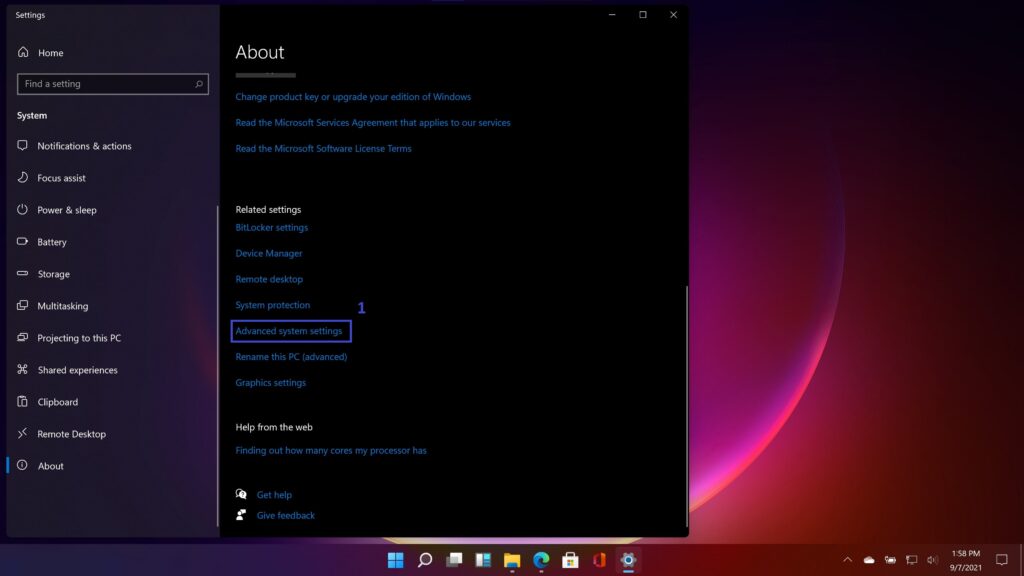
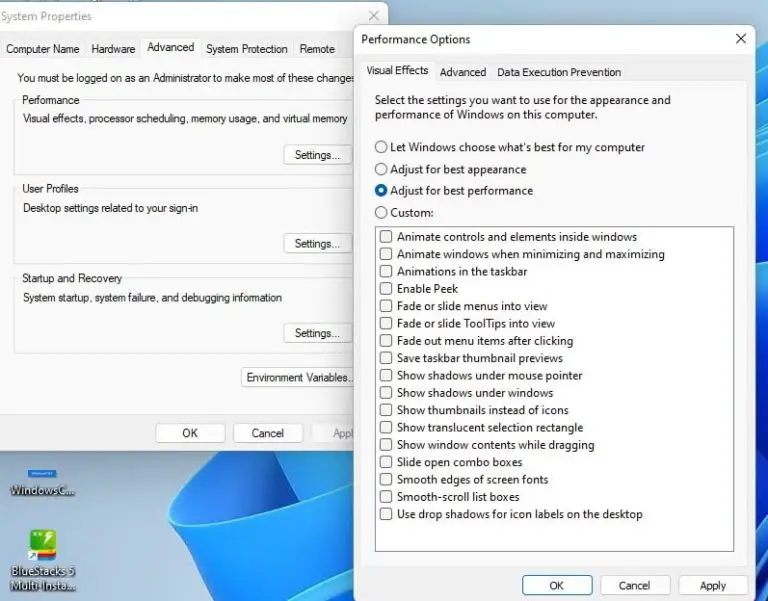
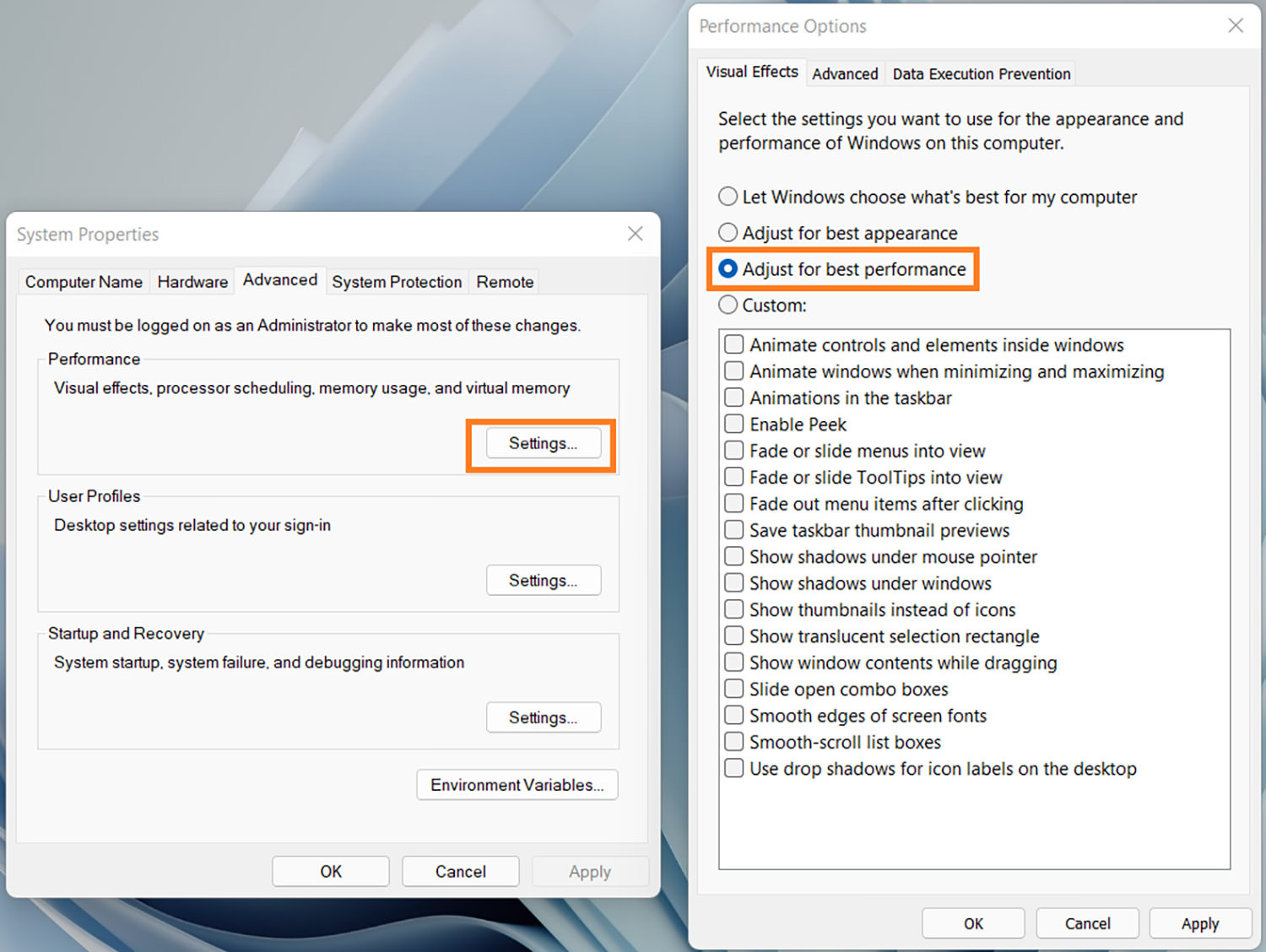
Windows 11 enables animations, shadows, and transparency effects that look polished but tax the GPU and CPU on lower-end hardware. Press Windows + R, type sysdm.cpl, and press Enter. Go to the Advanced tab, click Settings under Performance, and select Adjust for best performance. Alternatively, choose Custom and disable individual options like Animate windows when minimizing and maximizing and Show shadows under windows. This reduces rendering overhead without sacrificing core functionality.
Step 3: Enable Storage Sense and Clean Temporary Files
Temporary files, cache, and leftover update packages consume disk space and can slow down file indexing. Open Settings > System > Storage and toggle Storage Sense on. Configure it to run weekly and delete temporary files automatically. Then click Temporary files, scan the list, and remove items such as Recycle Bin contents, Delivery Optimization files, and Thumbnail cache. A cleaner drive improves read/write speeds and reduces fragmentation.
Step 4: Optimize Power Settings for Maximum Performance
By default, Windows 11 balances power consumption, which can limit CPU frequency under load. Open Control Panel > Hardware and Sound > Power Options. Select High performance or Ultimate Performance if available. If not, click Create a power plan and choose High performance. This prevents the processor from throttling during demanding tasks, resulting in snappier application launches and smoother window dragging.
Step 5: Disable Background Apps and Unused Services
Many Microsoft Store apps run in the background, consuming network and CPU cycles. Go to Settings > Apps > Installed apps, locate non-essential apps, click the three-dot menu, and select Advanced options. Under Background permissions, choose Never. For deeper control, open services.msc and disable services such as Print Spooler (if no printer is used), Fax, and Windows Search (only if you do not rely on file indexing). Exercise caution and research each service before disabling it.
Step 6: Update Drivers and Windows
Outdated drivers, especially GPU, chipset, and storage controllers, cause stutters and high latency. Run Windows Update from Settings > Windows Update and install all pending quality and feature updates. Then visit your PC manufacturer’s website or use vendor utilities like Intel Driver & Support Assistant or AMD Software to download the latest graphics and chipset drivers. Updated drivers include performance patches and better memory management.
Step 7: Run Disk Cleanup and Defragment if Needed
For traditional hard disk drives (HDDs), fragmentation slows file access. Type Defragment and Optimize Drives in the Start menu, select your HDD, and click Optimize. For solid-state drives (SSDs), Windows runs TRIM automatically, but you can still click Optimize to trigger it manually. Do not defragment an SSD. Additionally, run the legacy Disk Cleanup tool (cleanmgr.exe) as administrator to remove system-level leftovers like old Windows installations and error reports.
After applying these steps, restart your system and monitor performance using Task Manager or Resource Monitor. Most users will notice faster boot times, reduced memory pressure, and more consistent frame rates in applications. Revisit these settings every few months to maintain optimal speed as new software and updates accumulate.
Speed Up Windows 11 Laptop Or PC Performance (7 Effective Tips)
Speed Up Windows 11 Laptop or PC Performance (7 effective tips)
How To Speed Up Windows 11 And Boost Its Performance

How to Speed Up Windows 11 and Boost its Performance
How To Speed Up Windows 11 [Full Guide With Images] | TERRA-X
![How To Speed Up Windows 11 [Full Guide With Images] | TERRA-X](https://terraexploration.space/wp-content/uploads/How-To-Speed-Up-Windows-11-Full-Guide-With-Images35-1024x576.jpg)
How To Speed Up Windows 11 [Full Guide With Images] | TERRA-X
How To Speed Up Windows 11? [5 Advanced Methods]
![How to Speed Up Windows 11? [5 Advanced Methods]](https://www.diskpart.com/screenshot/en/others/windows-11/increase-win11-virtual-memory/setting.png)
How to Speed Up Windows 11? [5 Advanced Methods]
How To Speed Up Windows 11 [Full Guide With Images] | TERRA-X
![How To Speed Up Windows 11 [Full Guide With Images] | TERRA-X](https://terraexploration.space/wp-content/uploads/How-To-Speed-Up-Windows-11-Full-Guide-With-Images47-1024x576.jpg)
How To Speed Up Windows 11 [Full Guide With Images] | TERRA-X
How To Speed Up Windows 11 (Tips And Tricks) - Hongkiat
How to Speed Up Windows 11 (Tips and Tricks) - Hongkiat
How To Speed Up Windows 11 Performance By Tweaking Settings
How to Speed Up Windows 11 Performance by Tweaking Settings