← How to Recover Deleted Files on Windows 11: A Step-by-Step Guide How to Fix Microsoft Teams Not Connecting to Audio: Step-by-Step Guide →
If you need to send a message at a specific time but do not want to stay up late or forget to hit send, Gmail's scheduling feature is the solution. In this tutorial, you will learn exactly how to schedule an email in Gmail on your desktop and mobile devices. By the end, you will be able to compose a message, pick a future date and time, and trust that Gmail will deliver it automatically. Whether you are sending a business follow-up, a birthday greeting, or a time-sensitive announcement, these steps will help you stay organized and punctual without the stress of manual reminders.
Step 1: Open Gmail and Start a New Email
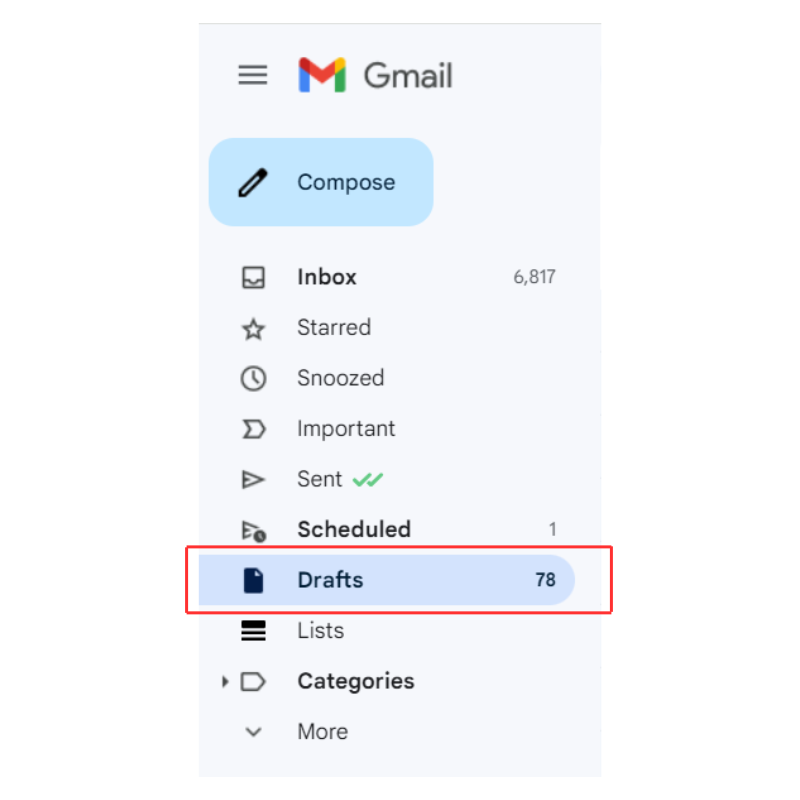
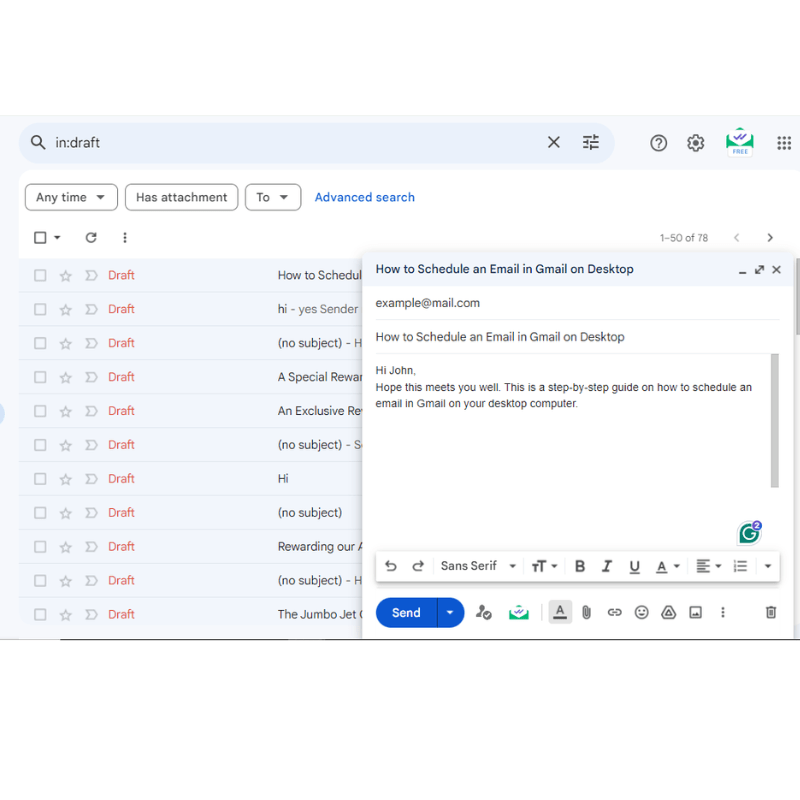
First, log in to your Gmail account using a web browser. Once your inbox is open, look for the large Compose button in the upper-left corner of the screen. Click it to open a fresh email draft window. You can also use the keyboard shortcut by pressing the C key, but make sure you are not typing in a search field. This new window is where you will write your message and set the delivery time. Do not send the email yet; you will schedule it in a later step.
Step 2: Write Your Email Content
Fill in the recipient's email address in the To field. Add a clear subject line and type your full message in the body. Take your time to proofread for spelling and grammar because once the email is scheduled, you may not be able to edit it easily. If you need to attach a file, click the paperclip icon at the bottom of the compose window. Remember that scheduling works best when your content is final. Avoid leaving placeholders like "TBD" because the email will send exactly as written at the chosen time.
Step 3: Click the Arrow Next to the Send Button
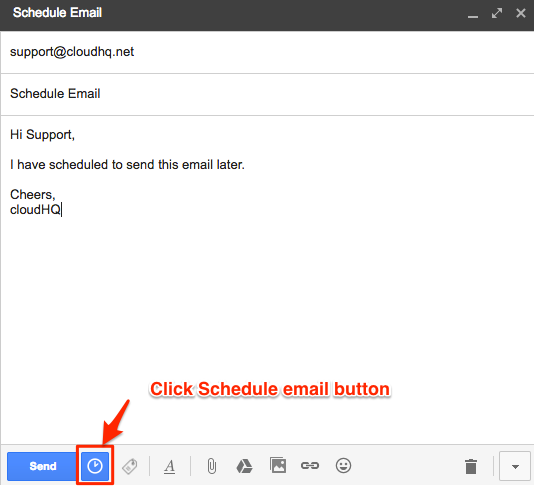
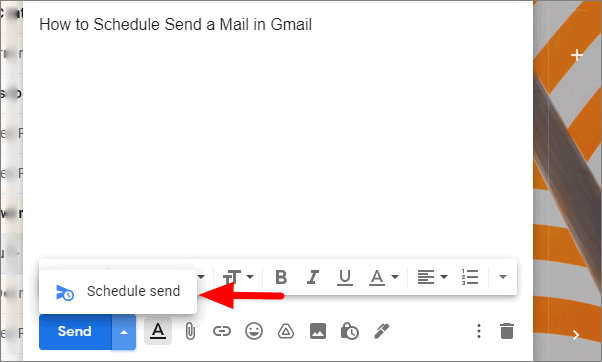
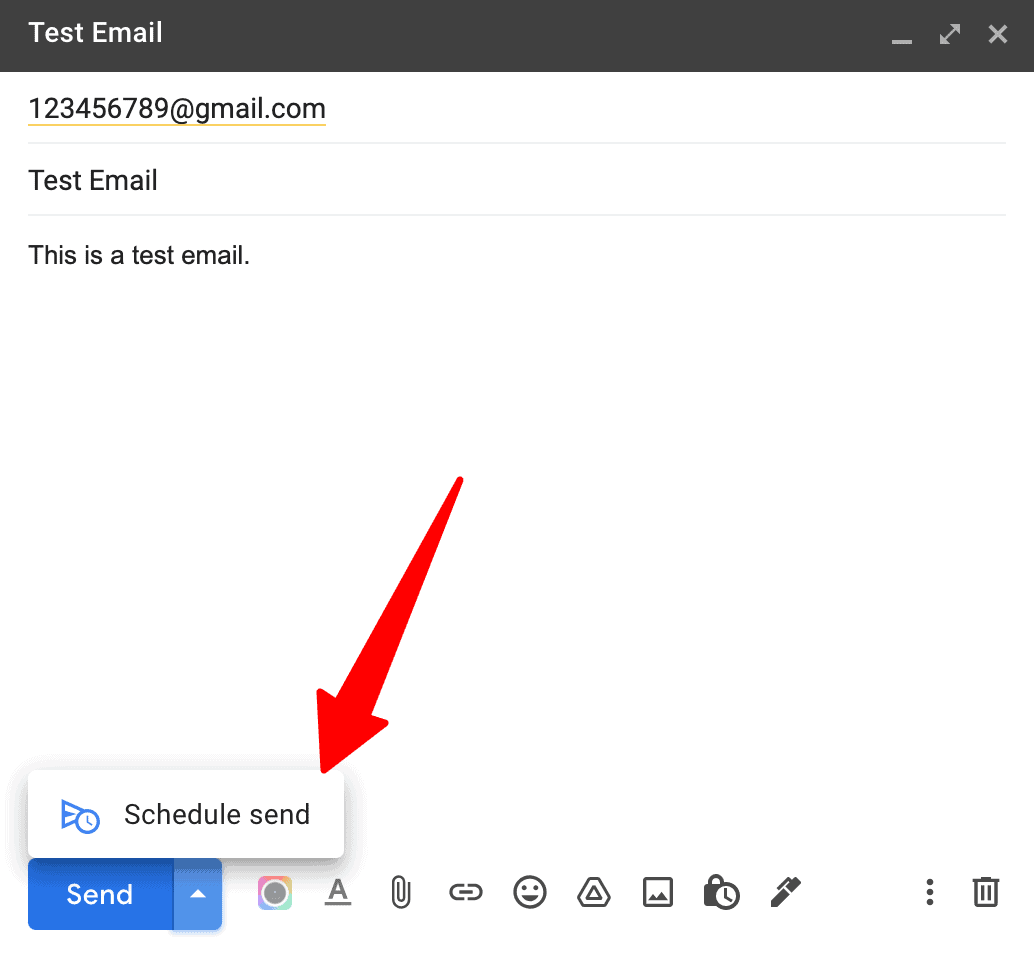
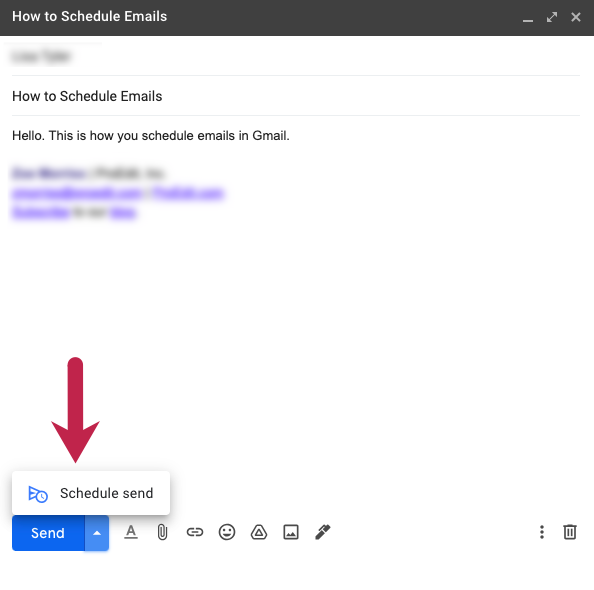
After you finish writing, do not click the main blue Send button. Instead, look for the small downward-pointing arrow immediately to the right of the Send button. This arrow reveals a hidden menu of additional sending options. Click the arrow once. A small dropdown menu will appear with two choices: Schedule send and Confidential mode. You want to select Schedule send. If you accidentally click Send instead, the email will go out immediately and you will not be able to schedule it.

Step 4: Choose a Date and Time
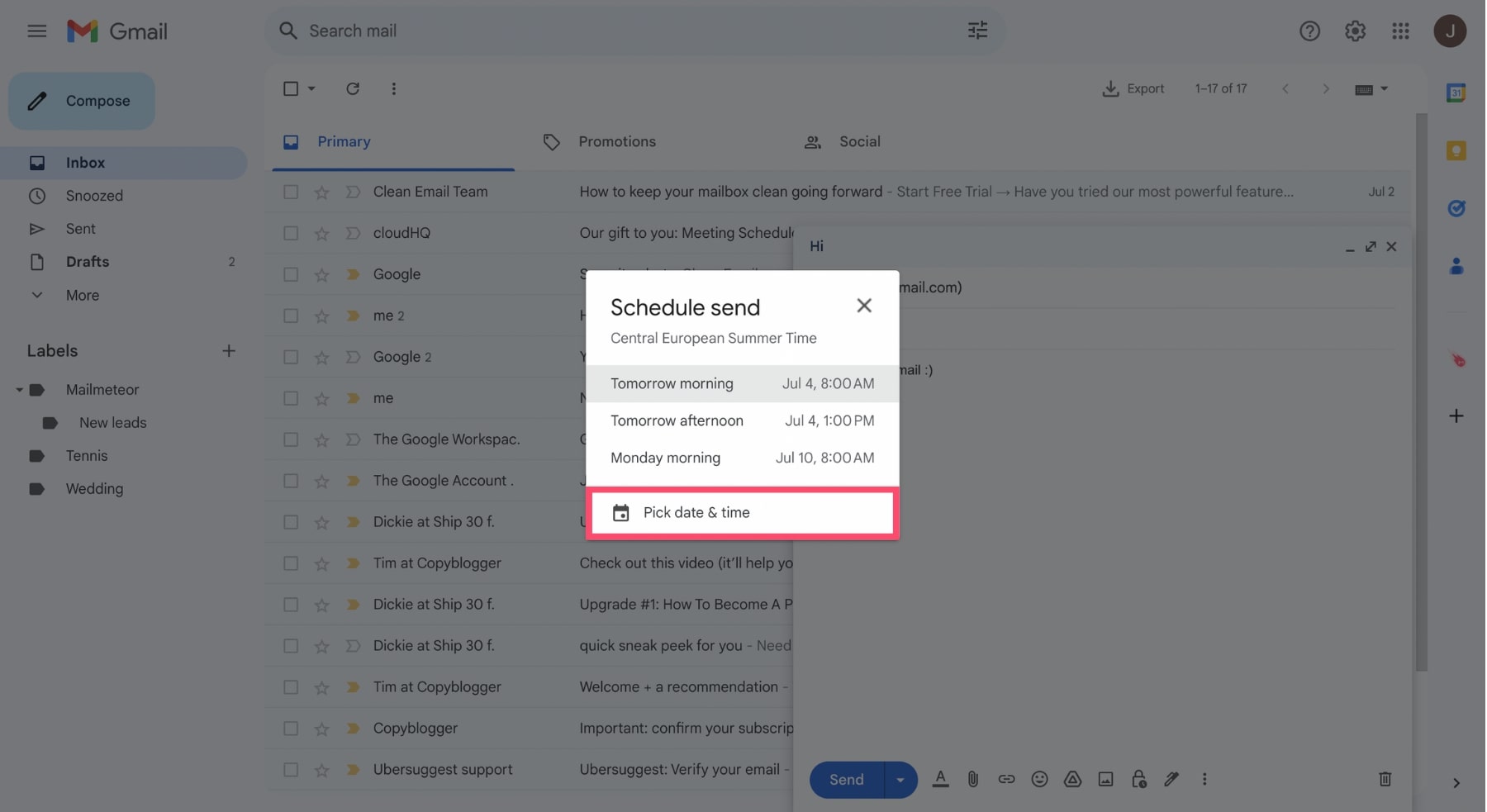
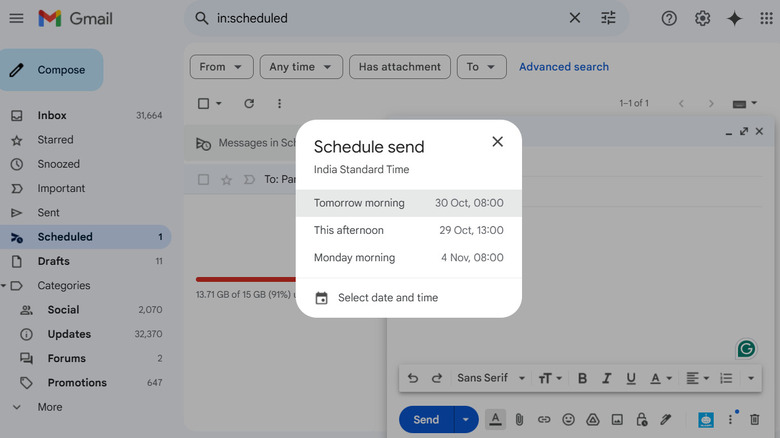
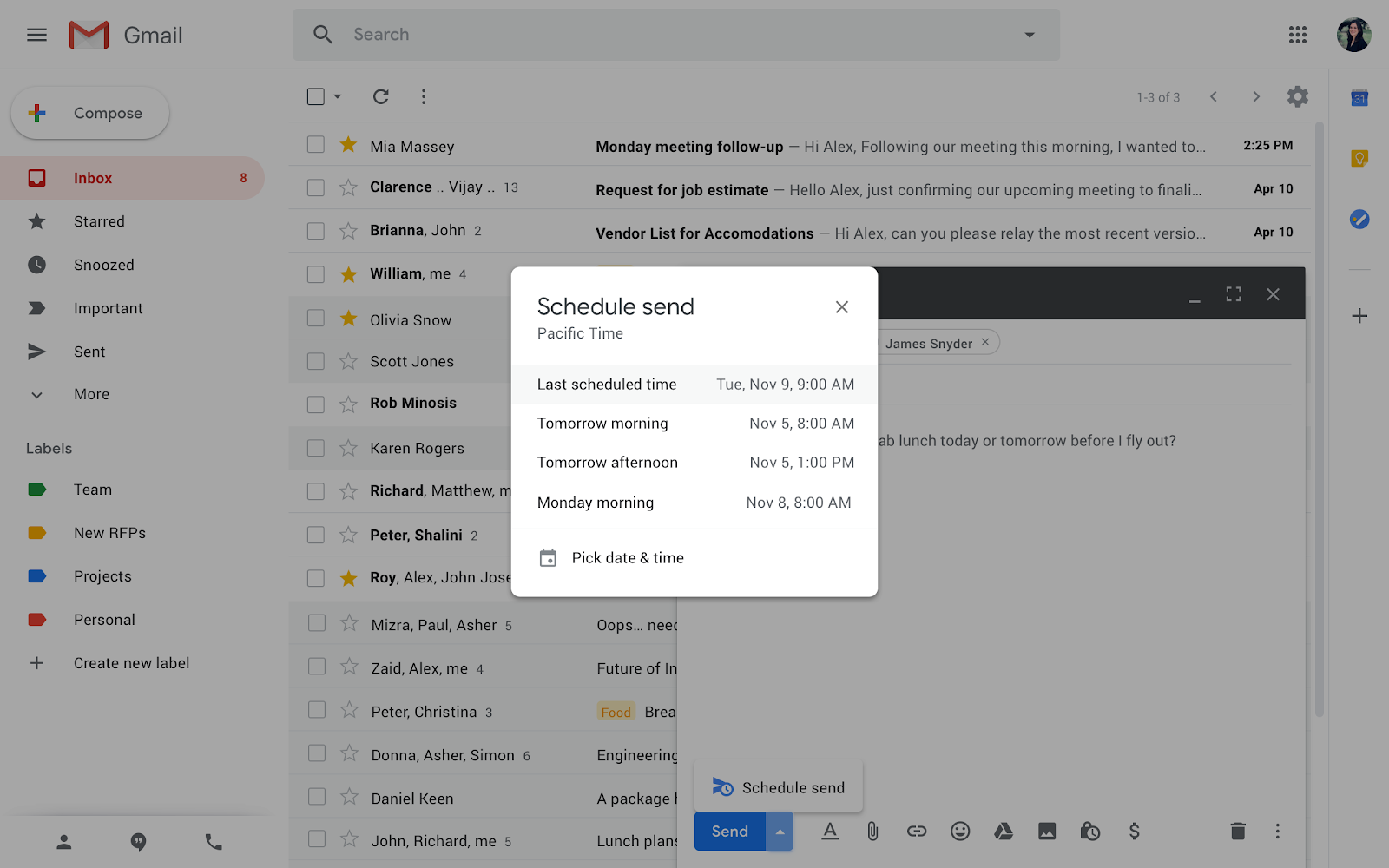
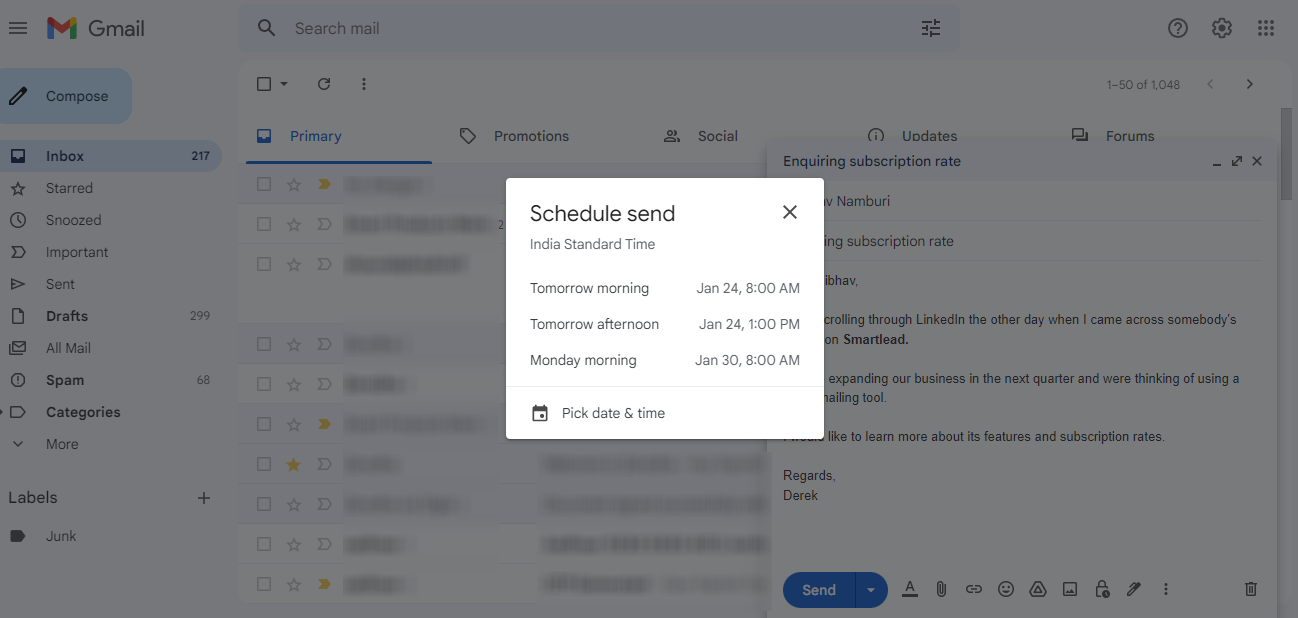
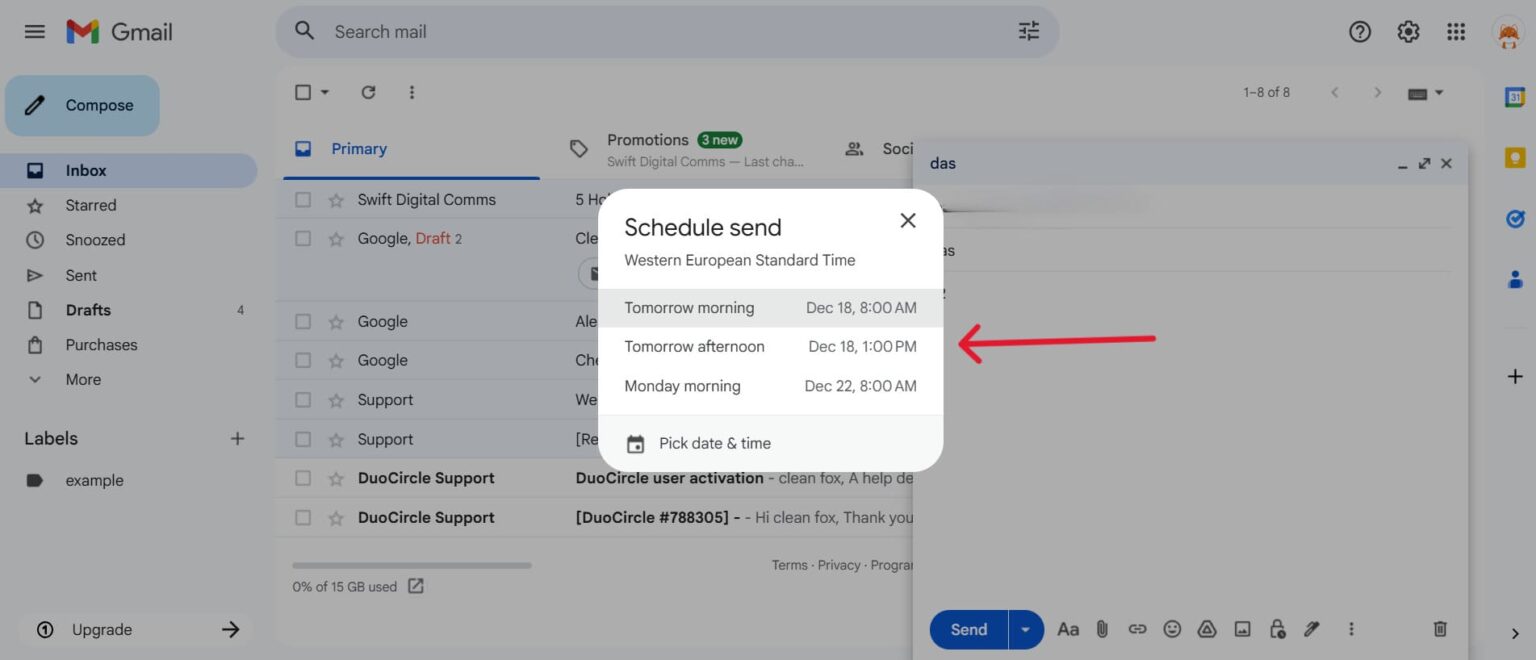
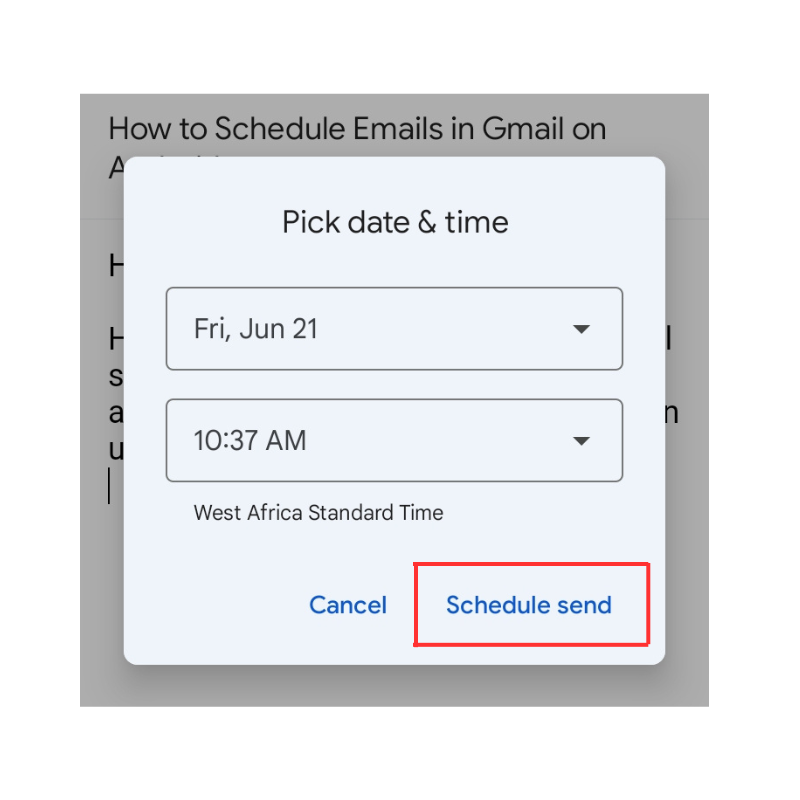
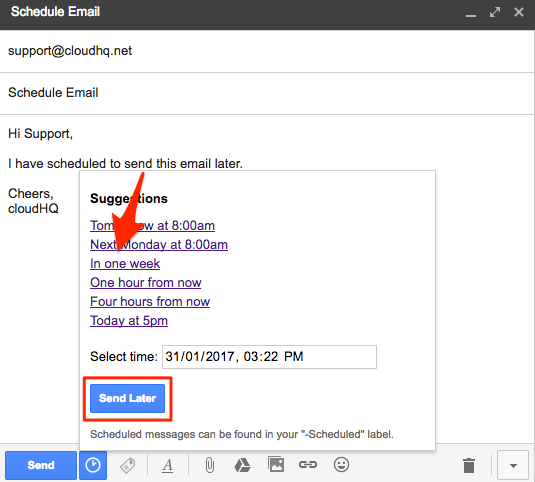
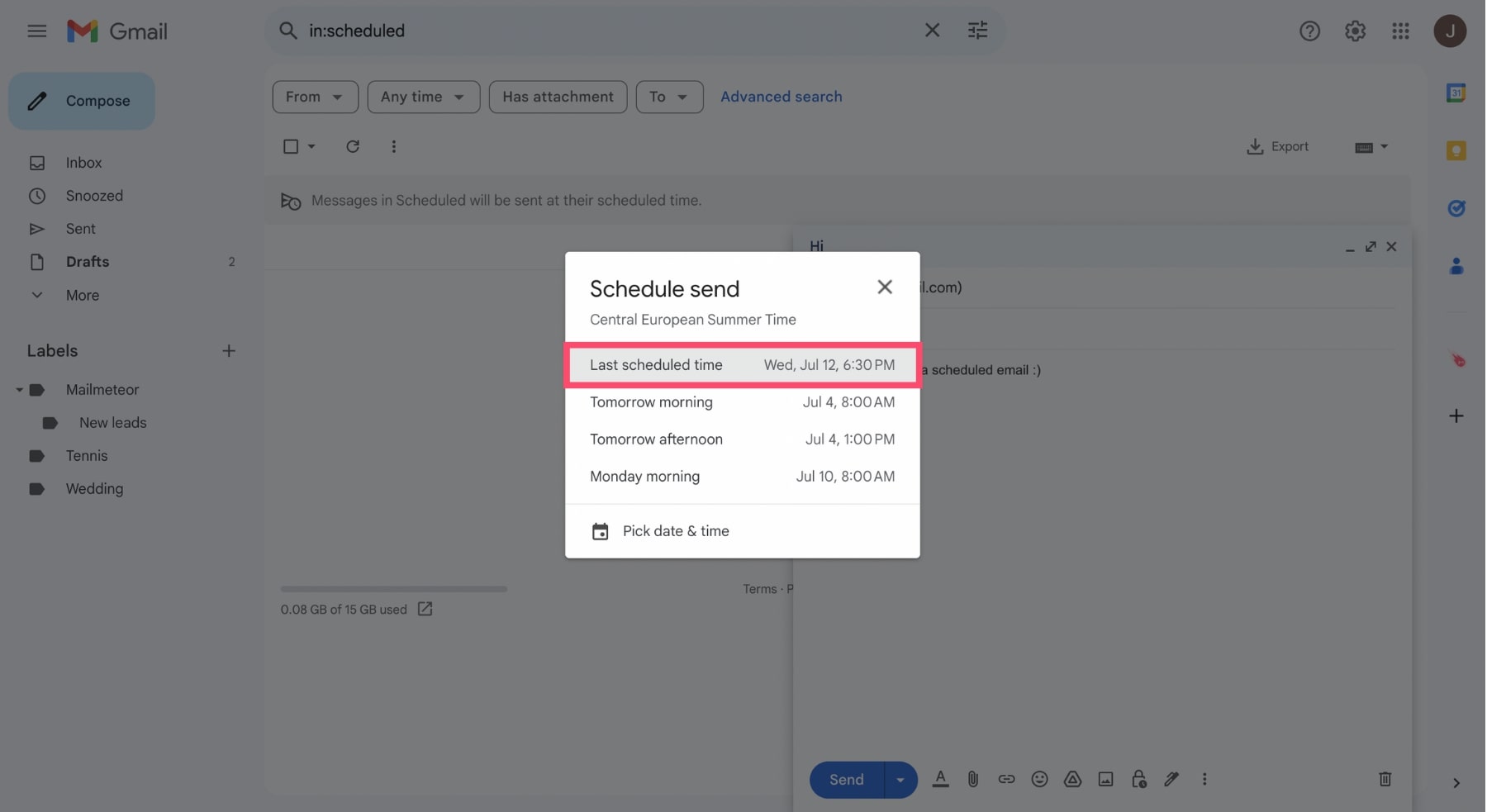
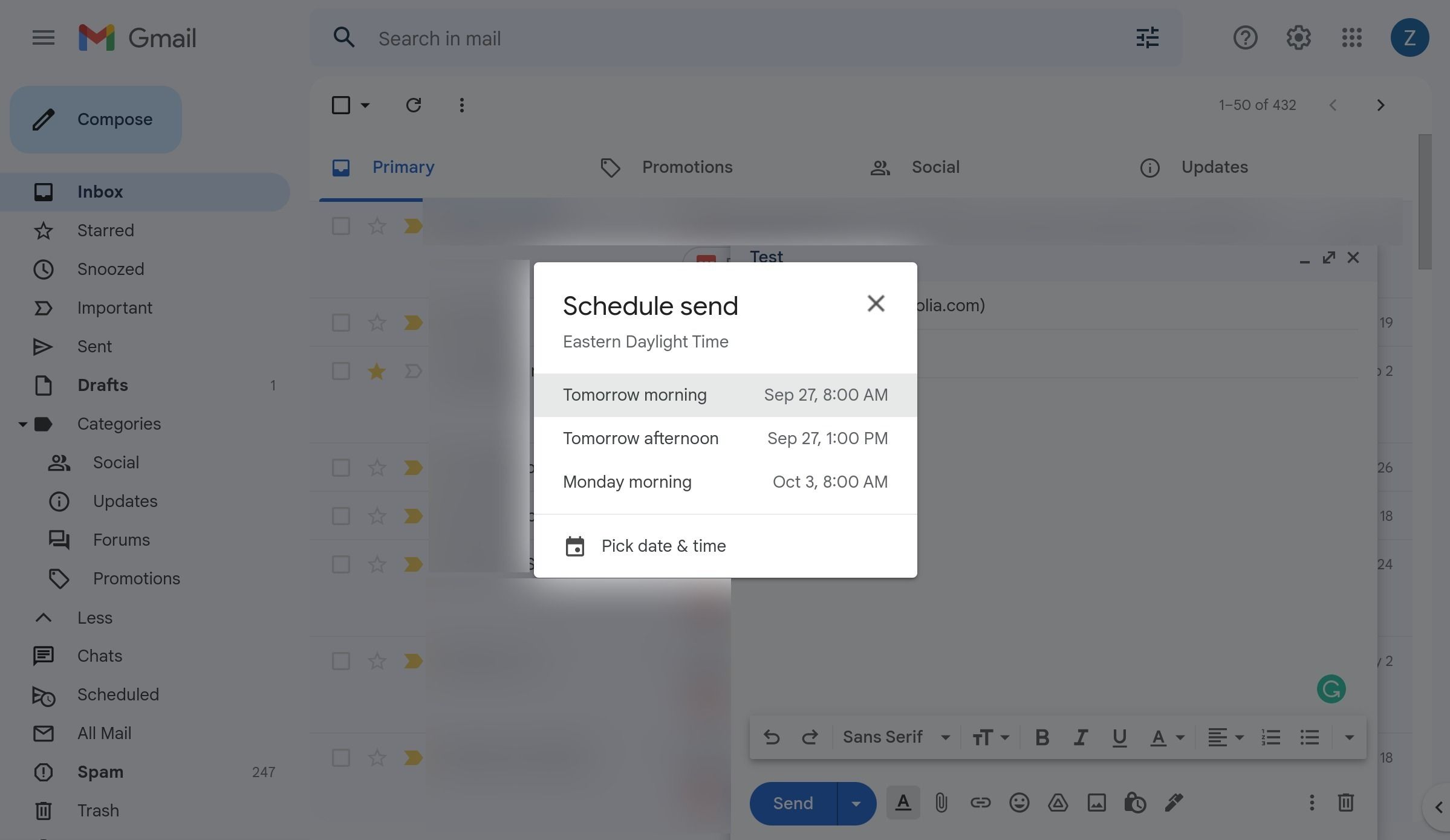
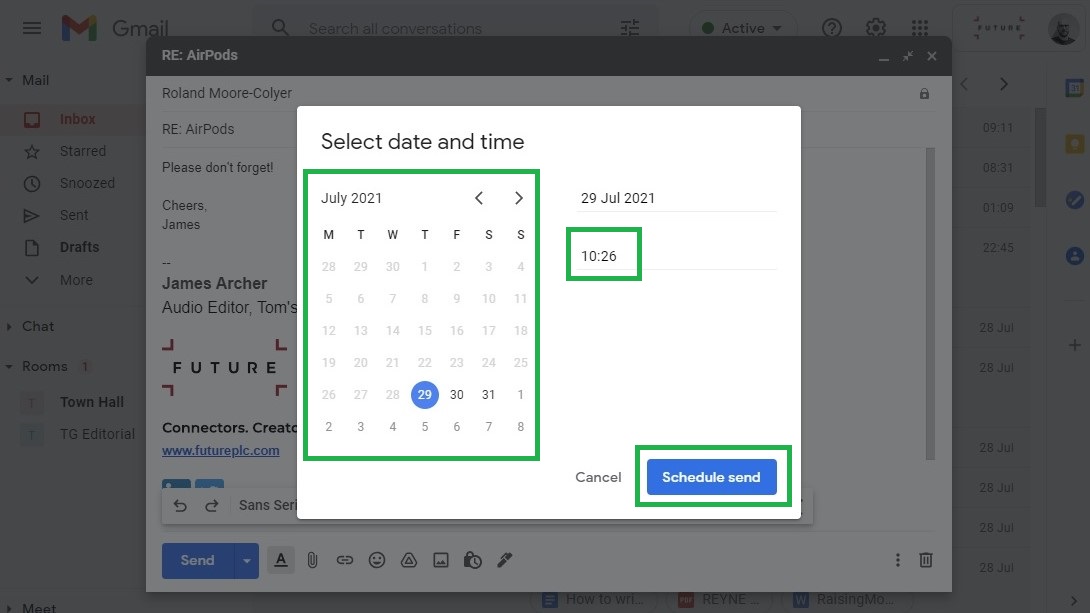
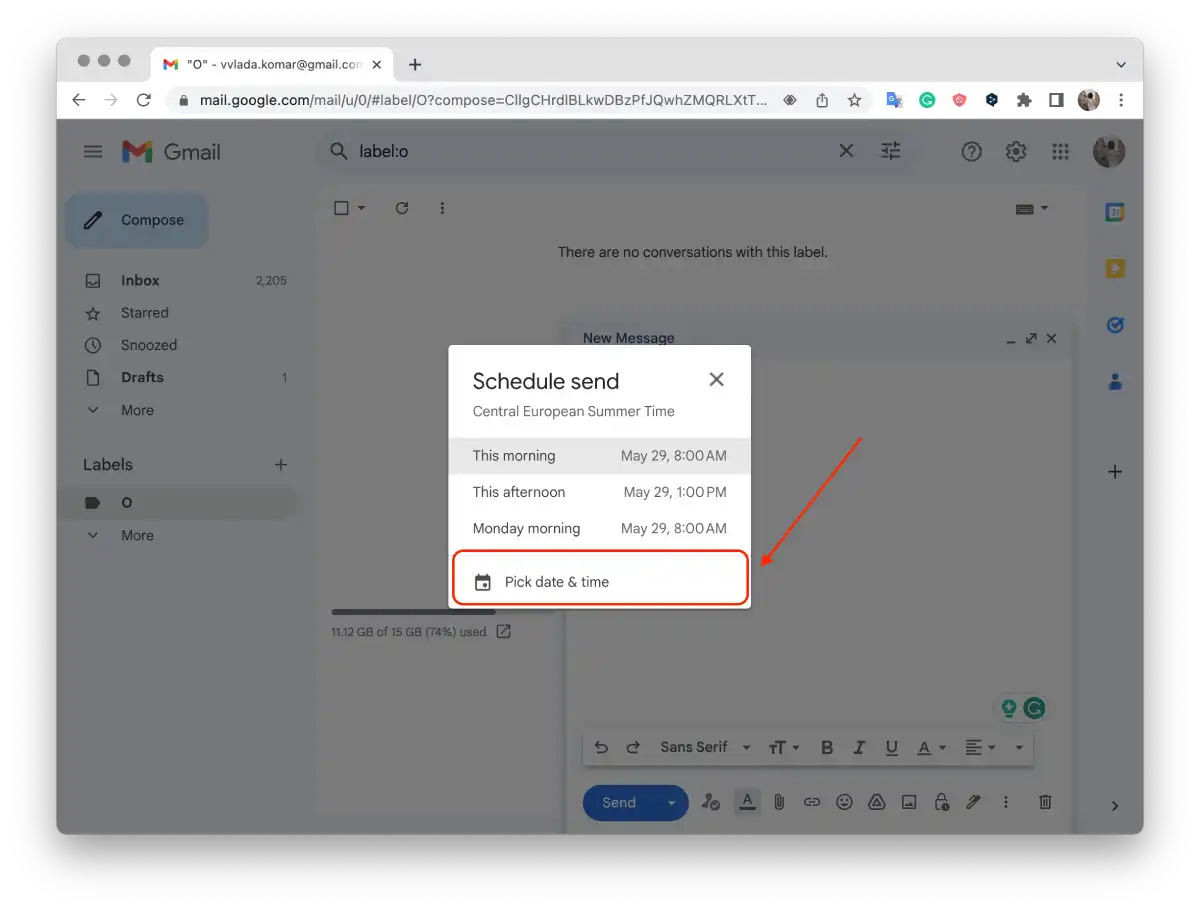
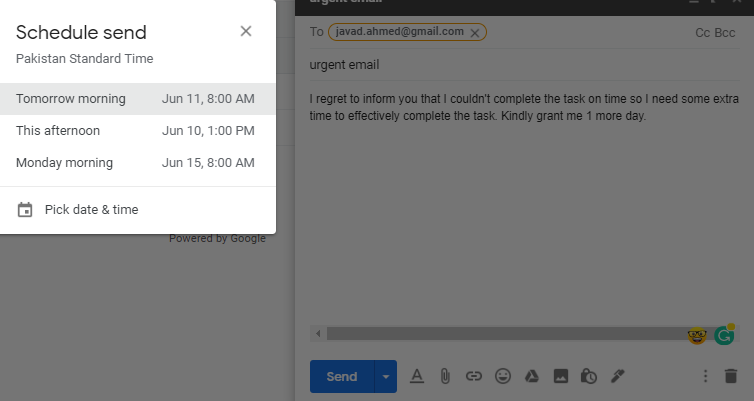
When you click Schedule send, a pop-up window appears. Gmail will suggest a few preset times, such as "Tomorrow morning" or "Monday morning." You can click one of those suggestions for a quick choice. If you need a specific time, click the option labeled Pick date & time at the bottom of the pop-up. A calendar and time selector will open. Choose the exact date from the calendar, then set the hour and minute. Make sure you select AM or PM correctly. Gmail uses your computer's local time zone, so double-check that the time zone matches your expectation.
Step 5: Confirm and Manage Your Scheduled Email
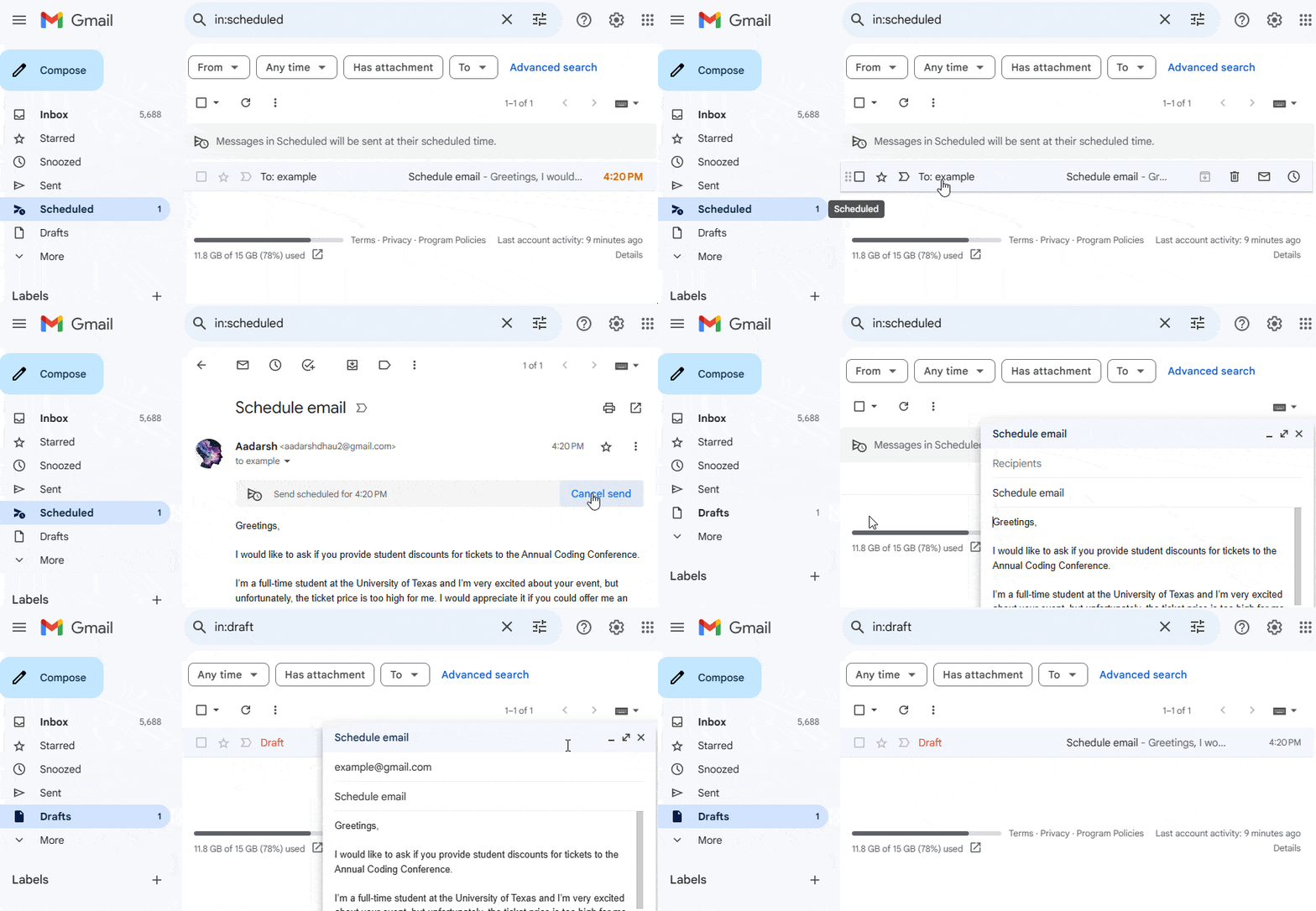
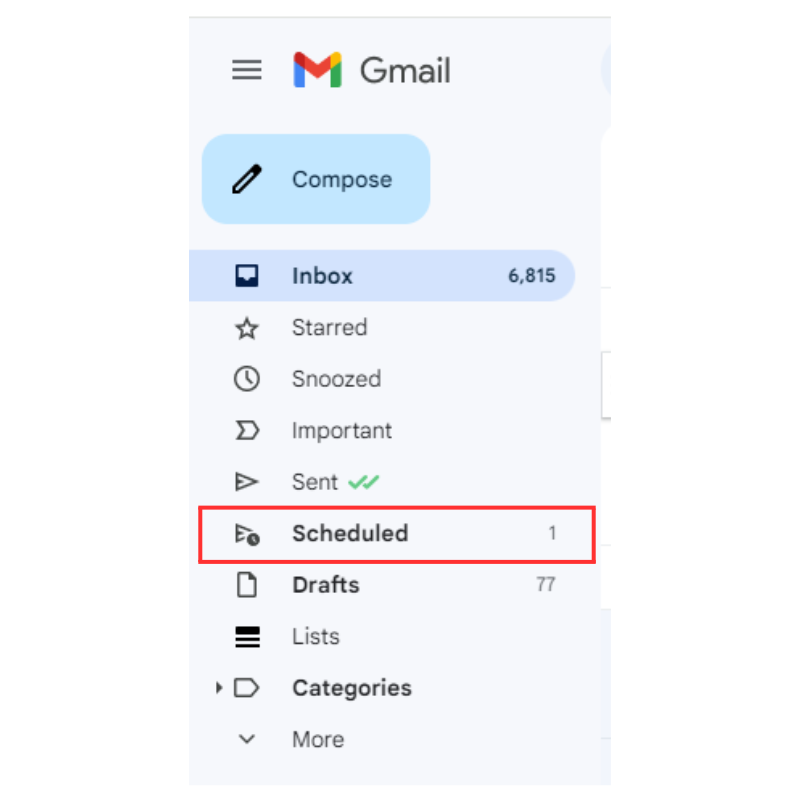
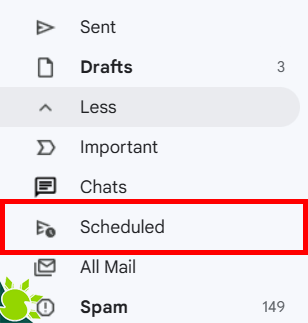
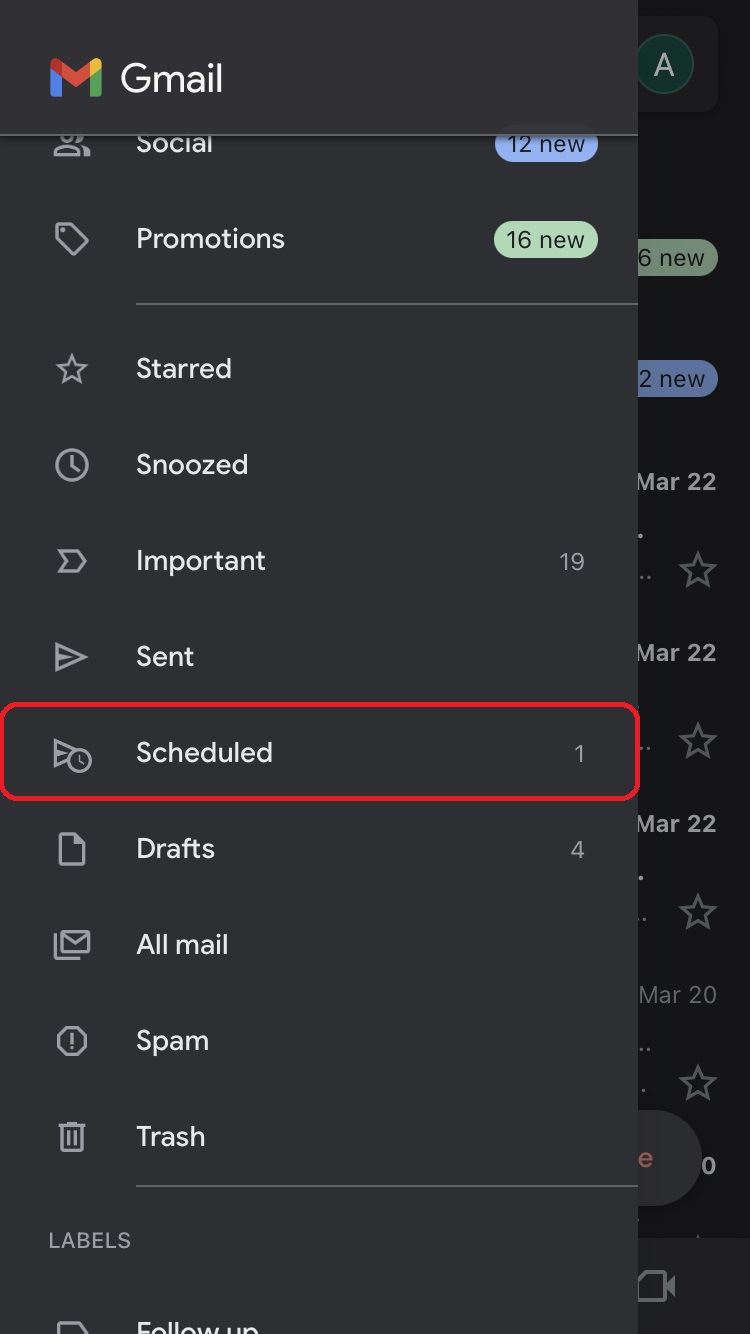
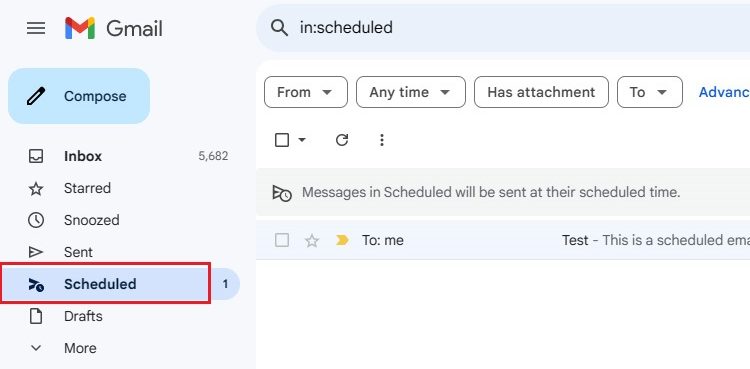
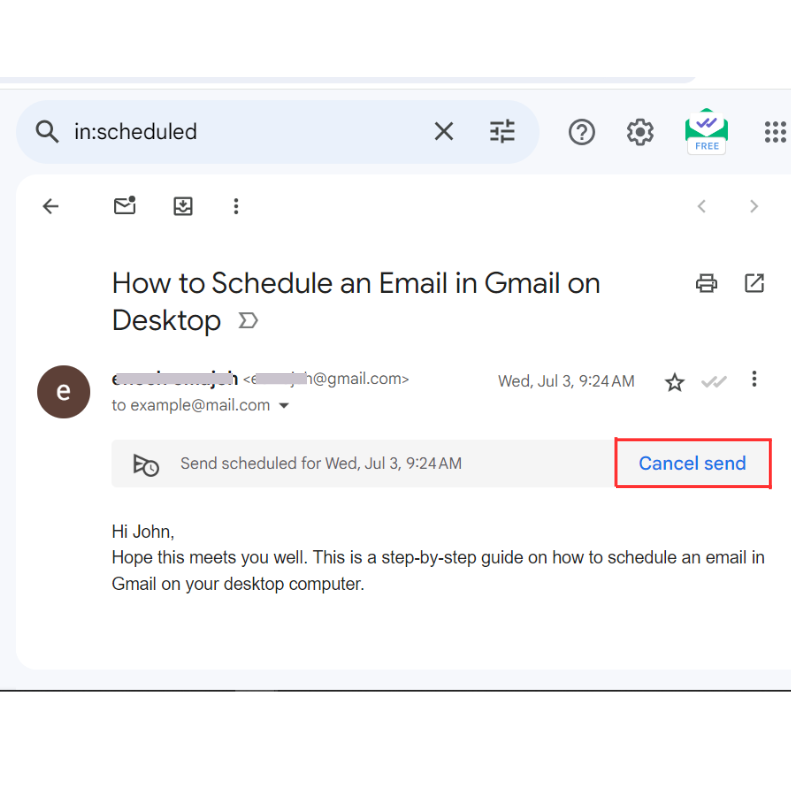
Once you have selected the date and time, click the Schedule send button at the bottom of the pop-up window. Gmail will close the original compose window and show a brief confirmation message: "Your email has been scheduled." To view or change it, go to your Scheduled folder in the left sidebar of Gmail. There you will see all pending emails. You can click on any scheduled email to cancel it, reschedule it for a different time, or edit the content. If you cancel, the email will be moved back to your drafts. This folder gives you full control until the moment of delivery.
Step 6: Schedule Emails on Mobile (Optional)
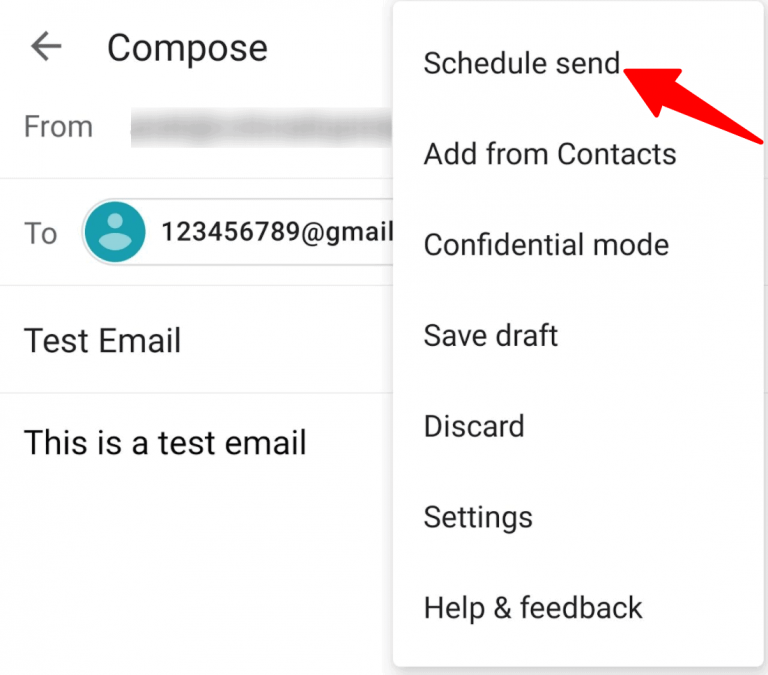
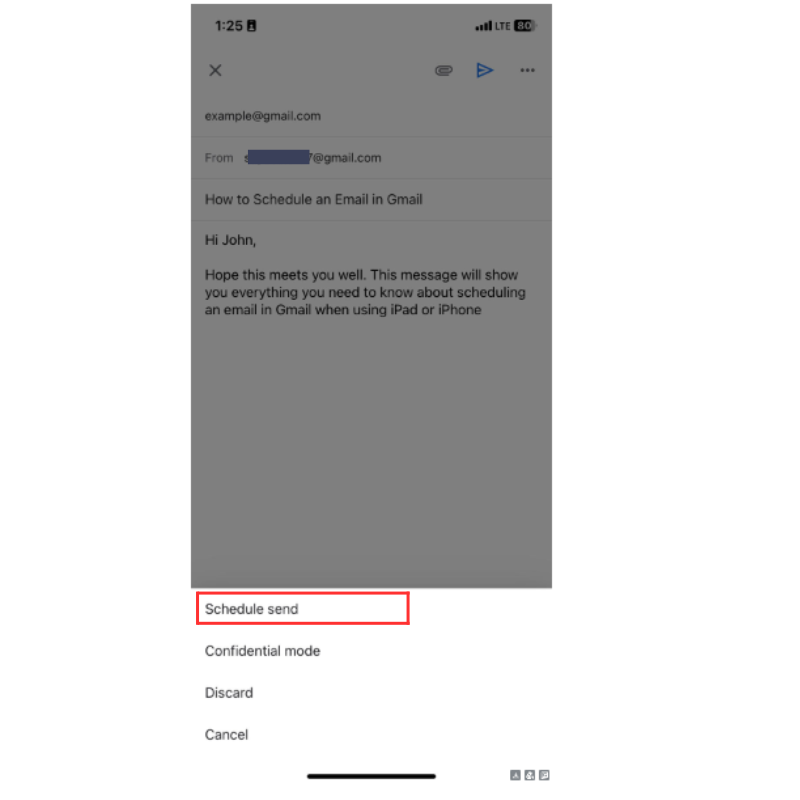
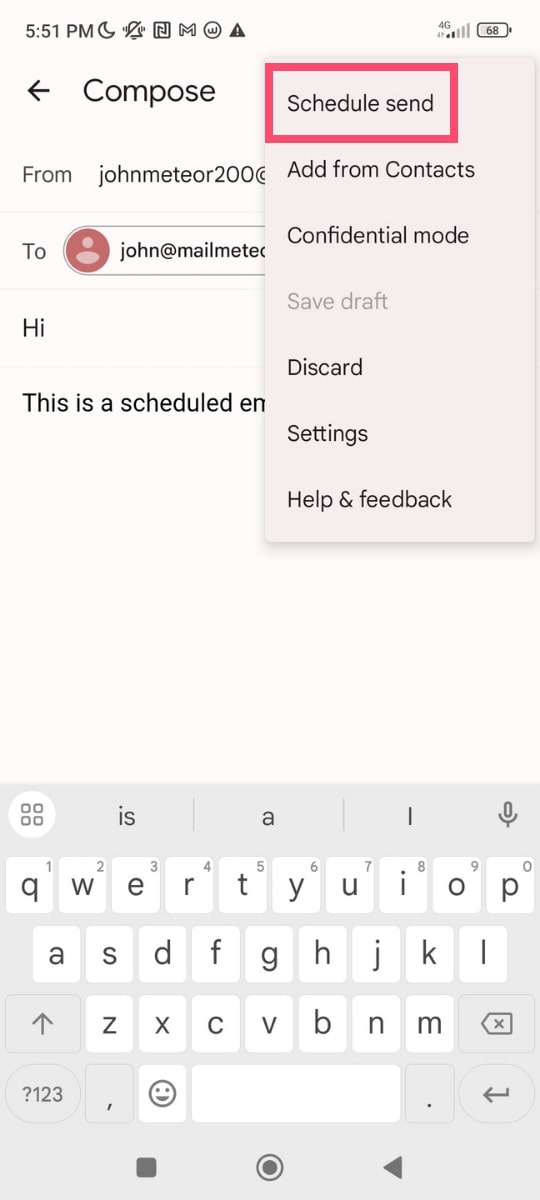
The process is similar on the Gmail mobile app for iPhone and Android. Open the app, tap the Compose button, and write your message. Instead of tapping Send, tap the three dots in the top-right corner of the compose screen. Select Schedule send from the menu. Then pick a suggested time or tap Pick date & time to choose a custom slot. Tap Schedule to confirm. Your email will appear in the Scheduled folder within the app. Note that if you delete the app or log out, the schedule remains on Google's servers and will still send on time.
With these steps, you can now schedule emails in Gmail confidently. Use this feature for reminders, business communications, or personal messages that need perfect timing. Always double-check the recipient and time before scheduling, and remember that you can cancel or edit any scheduled email from the Scheduled folder. Gmail handles the rest, so you can focus on other tasks.
How To Schedule Emails In Gmail
How to Schedule Emails in Gmail
How To Schedule Emails In Gmail To Send At Later Date

How to Schedule emails in Gmail to send at later date
How To Schedule An Email In Gmail And Avoid Hitting Send After Hours

How to Schedule an Email in Gmail and Avoid Hitting Send After Hours
How To Schedule An Email In Gmail: A Step-by-Step Guide
How to Schedule an Email in Gmail: A Step-by-Step Guide
How To Schedule An Email In Gmail (Desktop, Android & IPhone)
How to Schedule an Email in Gmail (Desktop, Android & iPhone)
How To Schedule Email In Gmail
How to Schedule Email in Gmail
How To Schedule An Email In Gmail: A Step-by-Step Guide
How to Schedule an Email in Gmail: A Step-by-Step Guide
How To Schedule An Email In Gmail (Step-by-Step Guide)
How to Schedule an Email in Gmail (Step-by-Step Guide)
How To Schedule Your Gmail Emails On Your Phone Or Computer
How To Schedule Your Gmail Emails On Your Phone Or Computer
How To Schedule Emails In Gmail On IPhone
How to schedule emails in Gmail on iPhone
How To Schedule An Email In Gmail [Bonus Gmail Hack]?
![How To Schedule An Email In Gmail [Bonus Gmail Hack]?](https://fossbytes.com/wp-content/uploads/2021/04/scheduled-emails-in-gmail-Android-945x2048.jpg)
How To Schedule An Email In Gmail [Bonus Gmail Hack]?
Getting Started With Schedule Email For Gmail (How To Schedule Sending
Getting started with Schedule Email for Gmail (How to schedule sending ...
How To Schedule Emails On Gmail - Web Daytona, LLC
How to Schedule Emails on Gmail - Web Daytona, LLC
How To Schedule Emails In Gmail
How to Schedule Emails in Gmail
How To Schedule Send A Mail In Gmail
How to Schedule Send a Mail in Gmail
How To Schedule An Email In Gmail - A Step By Step Guide
How To Schedule An Email In Gmail - A Step By Step Guide
How To Schedule An Email In Gmail (Step-by-Step Guide)
How to Schedule an Email in Gmail (Step-by-Step Guide)
How To Schedule Emails In Gmail? – WebNots

How to Schedule Emails in Gmail? – WebNots
How To Schedule Email In Gmail (Desktop & Mobile) - Cleanfox Blog
How to Schedule Email in Gmail (Desktop & Mobile) - Cleanfox Blog
How To Schedule An Email In Gmail: A Step-by-Step Guide
How to Schedule an Email in Gmail: A Step-by-Step Guide
Getting Started With Schedule Email For Gmail (How To Schedule Sending
Getting started with Schedule Email for Gmail (How to schedule sending ...
How To Schedule An Email In Gmail: A Step-by-Step Guide
How to Schedule an Email in Gmail: A Step-by-Step Guide
How To Schedule Emails In Gmail

How to Schedule Emails in Gmail
How To Schedule An Email In Gmail (Desktop, Android & IPhone)
How to Schedule an Email in Gmail (Desktop, Android & iPhone)
How To Schedule An Email In Gmail | A Step-by-Step Guide
How to Schedule an Email in Gmail | A Step-by-Step Guide
How To Schedule An Email In Gmail Outlook A Step By Step Guide – Artofit

How to schedule an email in gmail outlook a step by step guide – Artofit
Gmail: How To Schedule An Email Message
Gmail: How to schedule an email message
How To Schedule An Email In Gmail: A Step-by-Step Guide
How to Schedule an Email in Gmail: A Step-by-Step Guide
How To Schedule An Email In Gmail | Tom's Guide
How to schedule an email in Gmail | Tom's Guide
How To Schedule An Email In Gmail: A Step-by-Step Guide
How to Schedule an Email in Gmail: A Step-by-Step Guide
How To Schedule An Email In Gmail | Tab-TV
How to schedule an email in Gmail | Tab-TV
How To Schedule Emails In Gmail? - PhoneWorld
How to Schedule Emails in Gmail? - PhoneWorld
How To Schedule An Email In Gmail (Desktop, Android & IPhone)
How to Schedule an Email in Gmail (Desktop, Android & iPhone)