← 7 Best Notion Alternatives for Brainstorming and Knowledge Management in 2025-2026 How to Schedule an Email in Gmail: Step-by-Step Guide →
Accidentally deleting important files is a common occurrence, but Windows 11 offers several built-in methods to retrieve them before they are permanently lost. This tutorial will guide you through the most effective techniques to recover deleted files on Windows 11, from restoring items from the Recycle Bin to using File History and third-party recovery software. By following these steps, you will maximize your chances of getting your documents, photos, and other data back safely.
Step 1: Check the Recycle Bin First
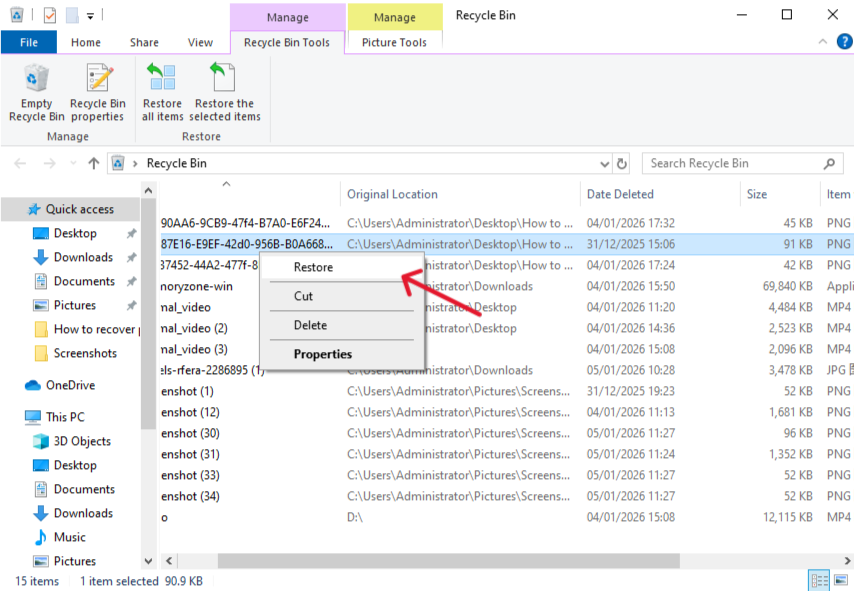
The Recycle Bin is the first place to look when you have deleted a file by mistake. When you delete a file in Windows 11, it is not immediately erased from your hard drive; instead, it is moved to the Recycle Bin, where it stays until you empty it or it exceeds its storage limit. To recover a file, double-click the Recycle Bin icon on your desktop, locate the file you want to restore, right-click it, and select "Restore." The file will be returned to its original location. If you cannot find the file, it may have been permanently deleted or the Recycle Bin may have been emptied, so proceed to the next steps.
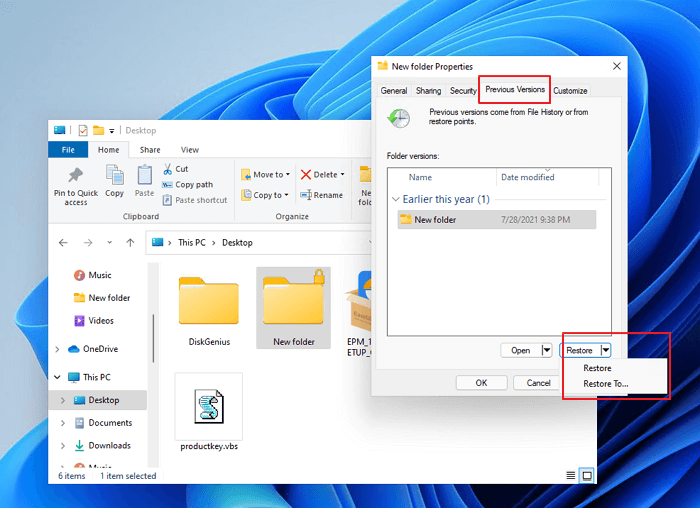
Step 2: Use File History to Restore Previous Versions
If the Recycle Bin does not contain your file, Windows 11's File History feature may have a backup. File History automatically saves copies of your files to an external drive or network location. To use it, connect the drive that contains your File History backup, open File Explorer, and navigate to the folder where the deleted file was originally stored. Right-click within the folder and select "Restore previous versions." A list of available versions will appear. Choose the version that contains your file, then click "Restore" or "Open" to recover it. Note that File History must have been enabled before the file was deleted.
Step 3: Recover from a Backup or Restore Point
If you have a system backup or a restore point created before the file was deleted, you can use it to recover your data. Open the Start menu, type "Create a restore point," and press Enter. In the System Properties window, click the "System Protection" tab, then click "System Restore." Follow the wizard to select a restore point that predates the deletion. This will revert system files and settings, but it may also restore your deleted file if it was included in the backup. Be aware that system restore does not affect personal files by default, so this method works best if you have a separate file backup solution like Windows Backup or a third-party tool.
Step 4: Use Data Recovery Software for Permanently Deleted Files
When a file is permanently deleted—bypassing the Recycle Bin or after the bin is emptied—the data remains on the disk until it is overwritten. Data recovery software can scan the drive for these remnants and reconstruct the files. Choose a reputable tool such as EaseUS Data Recovery Wizard, Recuva, or Disk Drill. Download and install the software on a different drive than the one you want to recover from to avoid overwriting the deleted data. Launch the program, select the drive where the files were lost, and start the scan. Once the scan completes, preview the found files, select the ones you need, and click "Recover" to save them to a safe location. For best results, stop using the affected drive immediately after deletion.
Step 5: Prevent Future Data Loss
After recovering your files, take proactive measures to avoid future data loss. Enable File History and regularly back up your important files to an external drive or cloud storage service like OneDrive or Google Drive. Windows 11 also offers the "Backup" feature in Settings, which can sync your folders to OneDrive automatically. Additionally, consider using a reliable data recovery tool as a safety net, and always double-check before emptying the Recycle Bin. By following these practices, you can ensure that your files remain safe and recoverable in the future.
How To Recover Accidentally Deleted File In Windows 11? - GeeksforGeeks
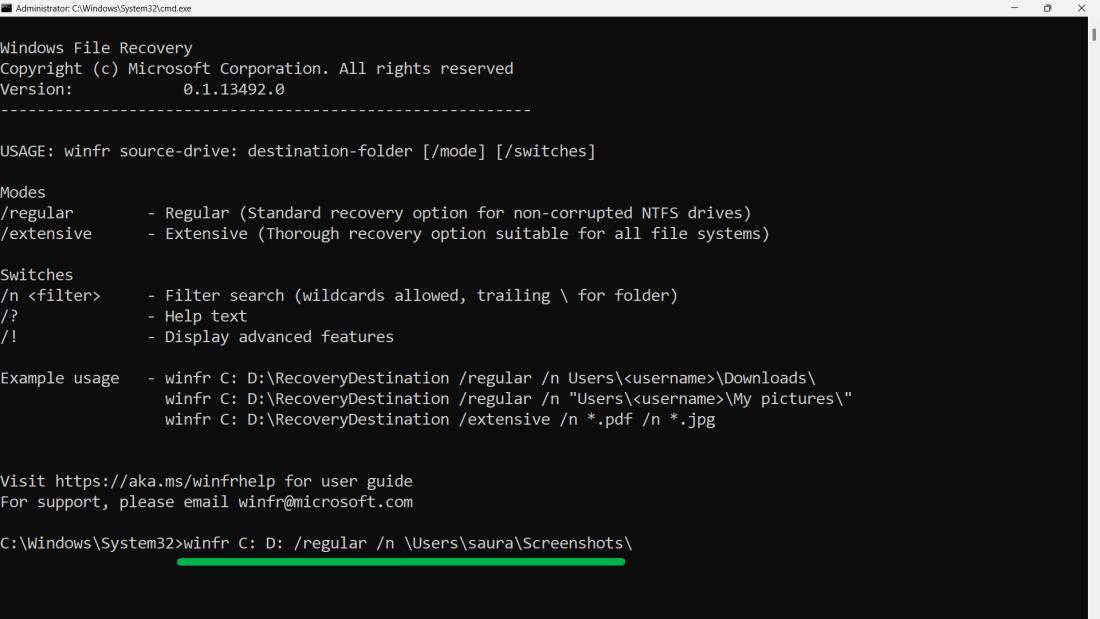
How to Recover Accidentally Deleted File in Windows 11? - GeeksforGeeks
Windows File Recovery Windows File Recovery At Leonard Kaminski Blog
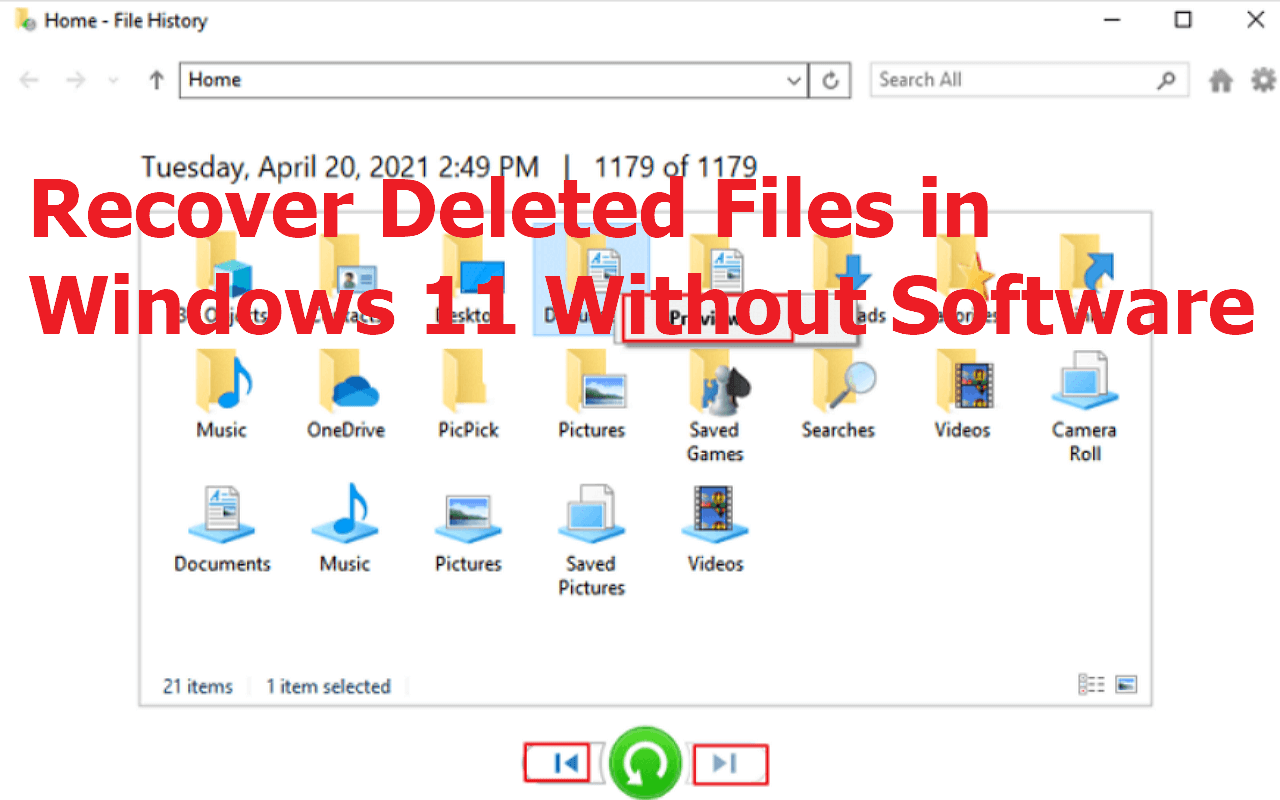
Windows File Recovery Windows File Recovery at Leonard Kaminski blog
How To Recover Deleted Files In Windows 11 - YouTube
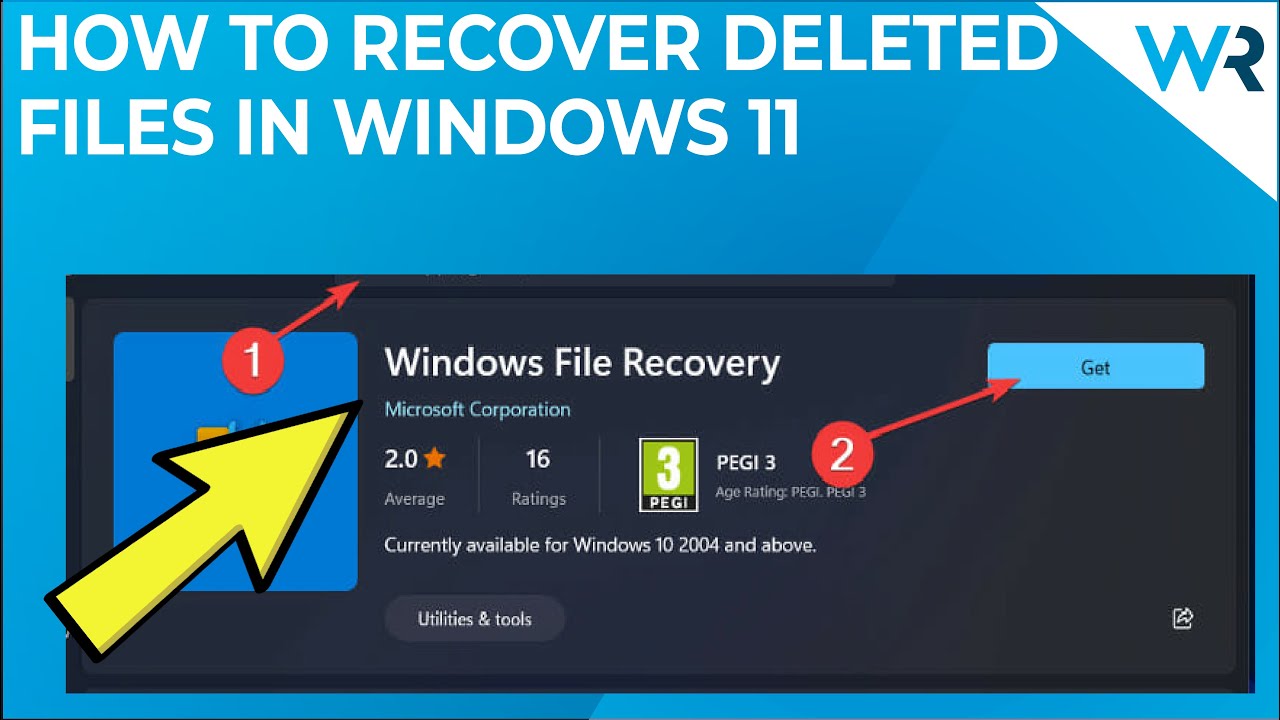
How to Recover Deleted Files in Windows 11 - YouTube
8 Best Ways To Recover Deleted Files On Windows 11 [2026]
![8 Best Ways to Recover Deleted Files on Windows 11 [2026]](https://www.cleverfiles.com/howto/wp-content/uploads/2021/12/restore-personal-files-scaled.jpg)
8 Best Ways to Recover Deleted Files on Windows 11 [2026]
How To Recover Deleted Files In Windows 11 (2025 Guide) - Build Windows
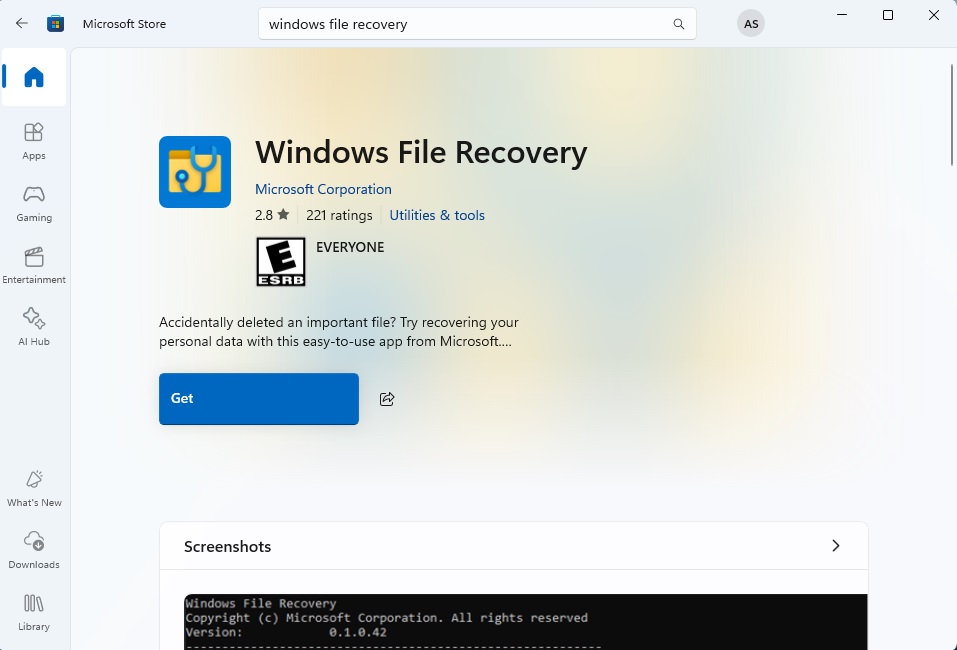
How to Recover Deleted Files in Windows 11 (2025 Guide) - Build Windows
3 Ways To Restore Permanently Deleted Files In Windows 11
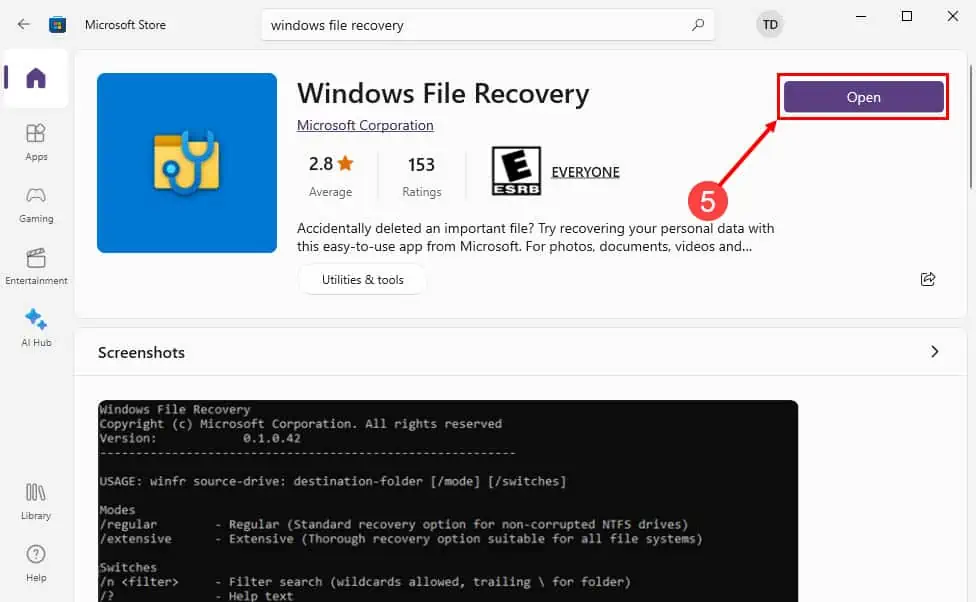
3 Ways to Restore Permanently Deleted Files in Windows 11
How To Recover Deleted Files On Windows 11: Overview Of Available Data
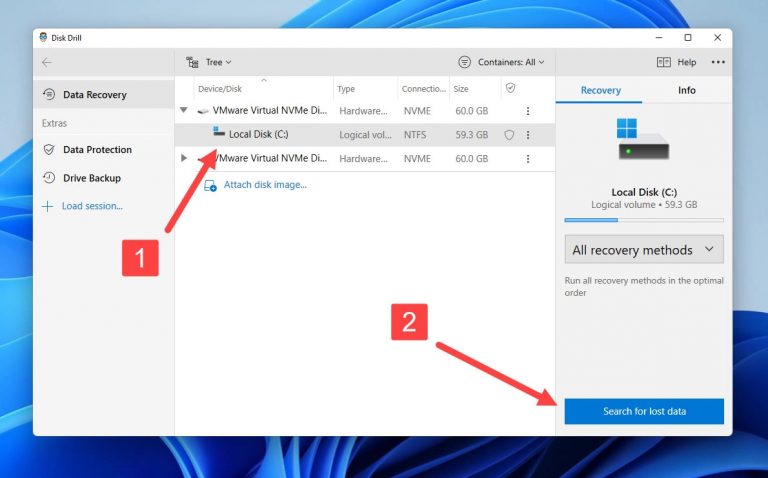
How to Recover Deleted Files on Windows 11: Overview of Available Data ...