← Google Meet Microphone Not Working? Step-by-Step Troubleshooting Guide Zoom Microphone Not Working: Step-by-Step Troubleshooting Guide →
Clearing the cache on an Android phone removes temporary files that applications store locally to improve load times and reduce repeated downloads. While cached data is normally harmless, it can accumulate over time and consume several gigabytes of storage, cause applications to load outdated content, or lead to performance issues such as freezing and unexpected crashes. This guide explains how to clear cached data for individual apps using the Android settings menu. The process applies to most Android versions, including Android 10, 11, 12, 13, and 14, though menu labels may vary slightly between manufacturers such as Samsung, Xiaomi, Google, and Motorola.
Step 1: Open Android Settings and access the application manager
Begin by unlocking the device and launching the Settings app from the home screen, app drawer, or quick settings panel. Scroll through the settings menu and locate the entry named “Apps,” “Applications,” “App management,” or “Manage apps.” On Samsung devices running One UI, the path is typically Settings > Apps. On Xiaomi, Redmi, and POCO devices running MIUI or HyperOS, the option may appear as Settings > Apps > Manage apps. On stock Android and Pixel devices, use Settings > Apps > See all apps. Tap the relevant option to open the full list of installed and system applications.

If the exact label is not visible, use the search icon at the top of the Settings screen and enter the keyword “Apps.” This will jump directly to the application manager. The screenshot above illustrates a typical settings layout where the application management section is highlighted for easy access.
Step 2: Select the app and clear cached data from its storage settings
In the application list, tap the name of the app that is consuming excessive storage or behaving incorrectly. The system will open an App info screen that shows options such as notifications, permissions, storage, battery, and memory. Select “Storage & cache” or “Storage” to view a detailed breakdown of the space used by the app. The screen displays two main categories: app size, which includes the base application and updates, and user data, which includes account information, settings, databases, and cached files. The cache value represents the temporary files that can be safely removed without affecting the app’s core functionality.
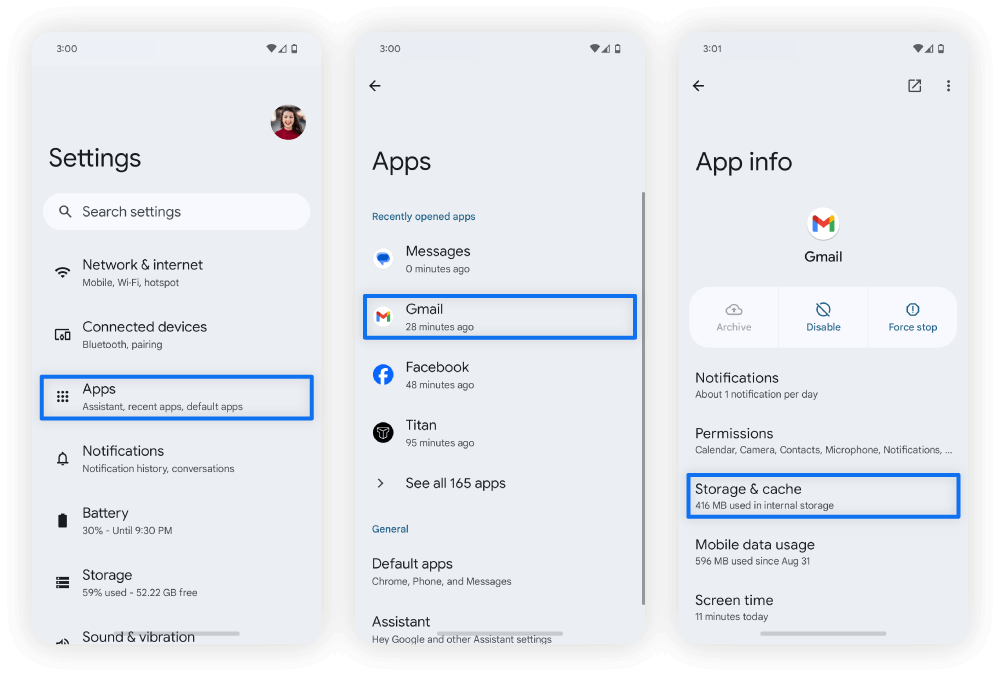
Tap the “Clear cache” button to delete the temporary files immediately. Android does not show a confirmation prompt for this action because cached data is non-essential. Avoid selecting “Clear data” or “Clear storage” unless you intend to fully reset the application, as those options remove login sessions, saved preferences, downloaded content, and other persistent user data. After clearing the cache, you can press the back button and repeat the process for other applications. If the device still shows low storage or an app remains unstable, restart the phone and check for available software updates before considering more aggressive troubleshooting steps.
Clearing cache is a reversible maintenance task because applications rebuild cached files automatically during normal use. Regular cache clearing can help free storage space on devices with limited capacity and resolve temporary issues such as slow loading, blank screens, or stale content in apps and browsers.
How To Clear Cache On Android Phones
How to Clear Cache on Android Phones