← How to Clear Cache on Android Phone: A Complete Step-by-Step Guide How to Speed Up Windows 11: A Step-by-Step Performance Guide →
When your microphone fails during a Zoom meeting, the cause can range from incorrect application permissions to outdated audio drivers or hardware conflicts. This tutorial walks you through the most common technical reasons a Zoom microphone stops working on Windows and macOS, providing a structured diagnostic path. You will learn how to verify Zoom's internal audio settings, adjust operating system privacy permissions, update or reinstall drivers, disable conflicting enhancements, and test hardware independently. By following these steps in order, you can isolate the fault and restore clear audio input for your meetings.
Step 1: Verify Zoom's Audio Settings and Input Selection
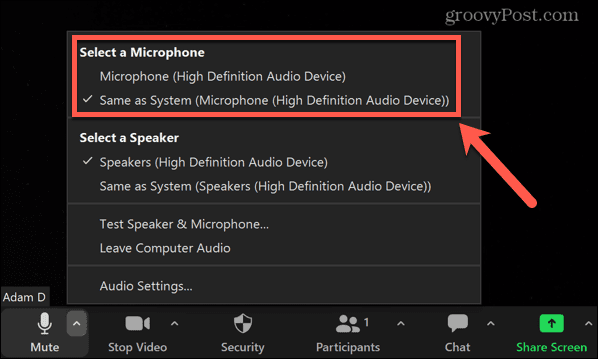
Zoom maintains its own audio device selection, which can override system defaults. Open Zoom, click your profile icon, and select Settings. Navigate to the Audio tab. Under Microphone, ensure the correct device is selected from the dropdown menu. If you have multiple inputs (e.g., a webcam microphone, USB headset, or internal array), Zoom may have defaulted to a disconnected device. Click Test Mic and speak; the input level bar should move. If it does not, proceed to the next step. Also, uncheck Automatically adjust microphone volume temporarily, as aggressive automatic gain control can mute quiet inputs.

Step 2: Check Operating System Microphone Privacy Permissions
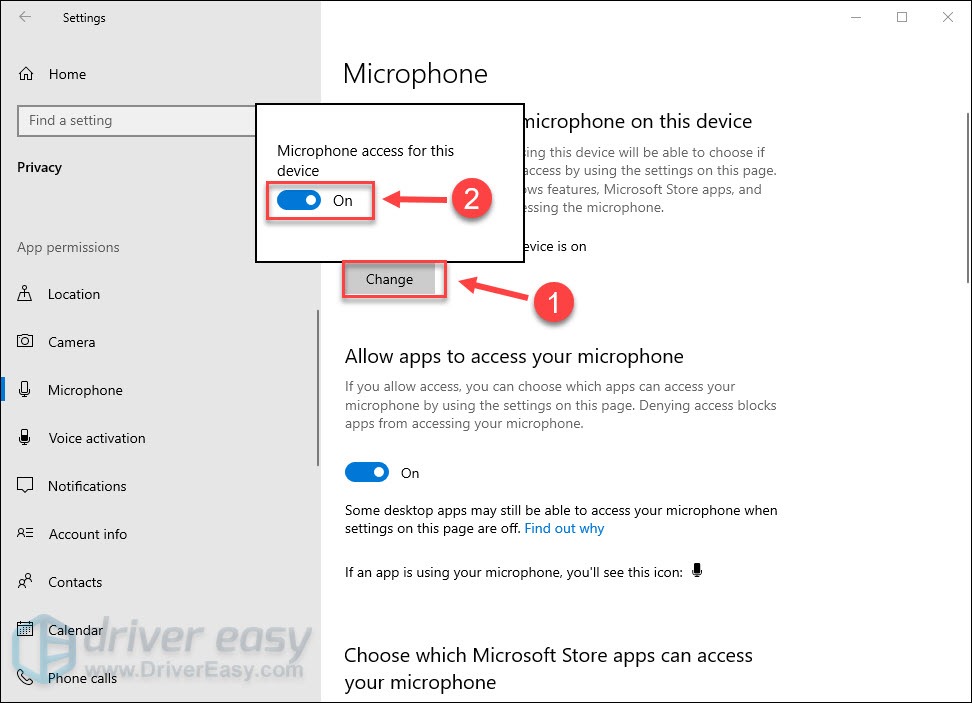
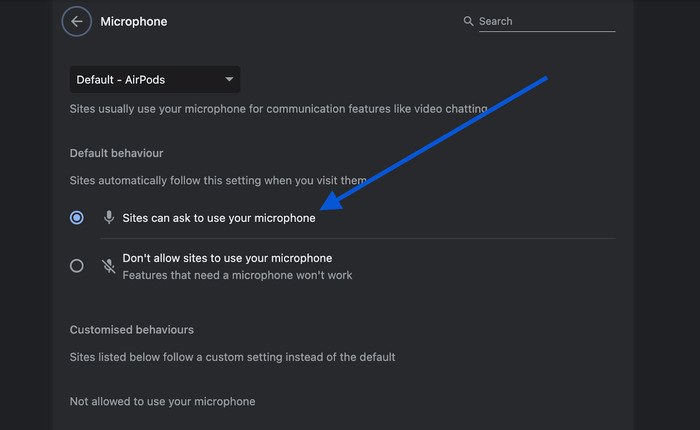
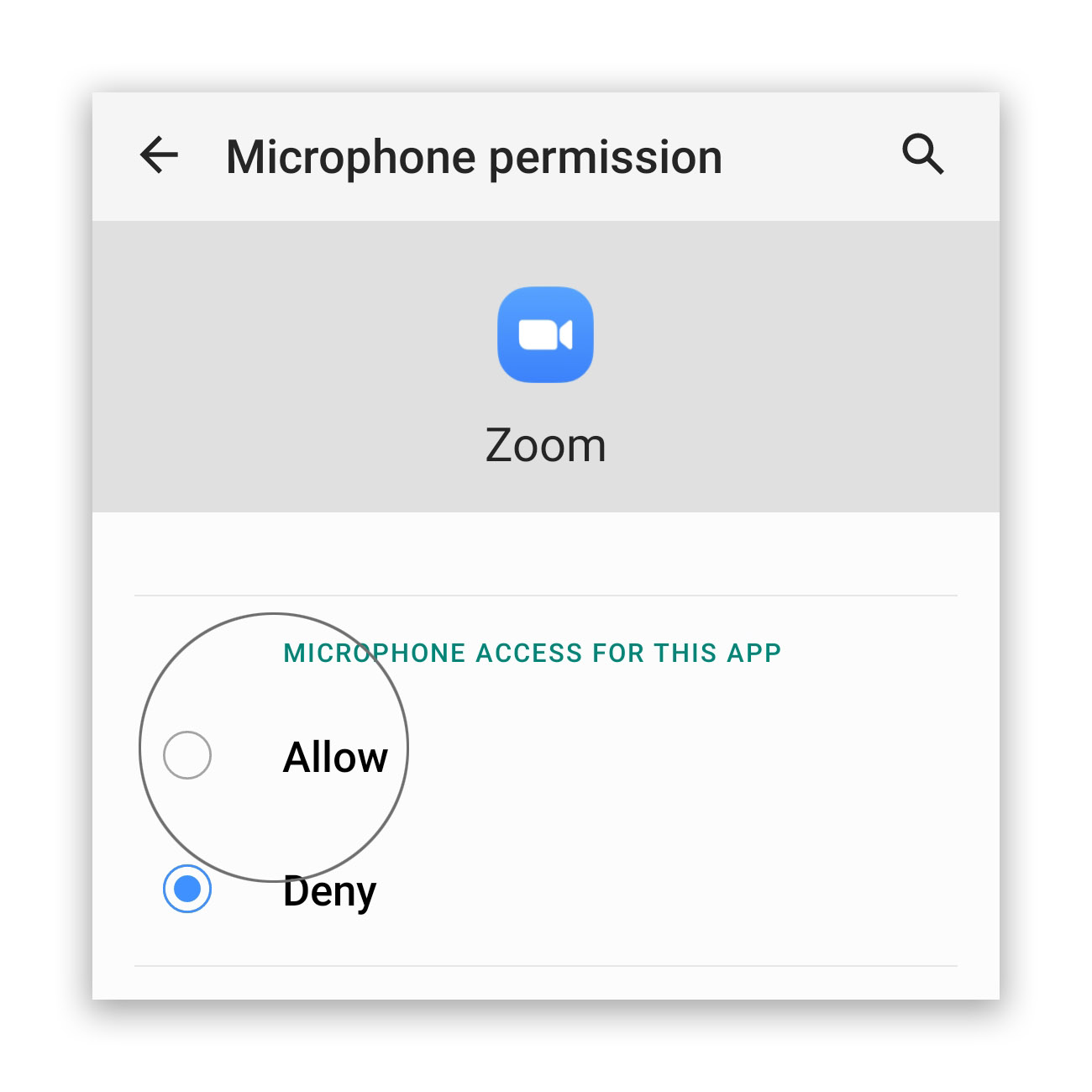
Modern versions of Windows 11/10 and macOS enforce privacy controls that block applications from accessing the microphone. On Windows, go to Settings > Privacy & security > Microphone. Ensure Microphone access is On and that Let apps access your microphone is enabled. Scroll down to find Zoom and toggle it On. On macOS, open System Settings > Privacy & Security > Microphone and confirm Zoom has a checkmark. If Zoom does not appear in the list, launch a Zoom test meeting to trigger the permission prompt. Without these permissions, Zoom receives no audio signal regardless of hardware status.
Step 3: Update or Reinstall Audio Drivers
Corrupted or outdated audio drivers are a frequent cause of microphone failure. Open Device Manager on Windows (right-click Start > Device Manager). Expand Audio inputs and outputs and Sound, video and game controllers. Right-click your microphone and select Update driver > Search automatically. If no update is found, right-click again and choose Uninstall device, then restart your computer. Windows will reinstall the driver automatically. For macOS, reset the Core Audio daemon by opening Terminal and running sudo killall coreaudiod, then enter your password. This refreshes the audio subsystem without a reboot.
Step 4: Disable Audio Enhancements and Exclusive Mode
Windows audio enhancements such as noise suppression, echo cancellation, or spatial sound can interfere with Zoom's raw input. Go to Control Panel > Hardware and Sound > Sound. Under the Recording tab, select your microphone, click Properties, then open the Enhancements tab. Check Disable all enhancements and click Apply. Next, go to the Advanced tab and uncheck Allow applications to take exclusive control of this device. Exclusive mode allows one app to lock the microphone, preventing Zoom from accessing it if another program (e.g., Discord, OBS) is running. Repeat for any other listed microphones.
Step 5: Test the Microphone Outside of Zoom
To determine whether the issue is Zoom-specific or hardware-related, close Zoom entirely. Open Voice Recorder (Windows) or Voice Memos (macOS) and record a short clip. If the recording is silent, the problem lies with the microphone, its cable, or the port—not Zoom. Try a different USB port, avoid unpowered hubs, and test the microphone on another computer if possible. If the recording works, return to Zoom and check for background processes that may have claimed the device, such as NVIDIA Broadcast, Krisp, or vendor audio utilities. Quit those applications and restart Zoom.
How To Fix It When A Zoom Microphone Is Not Working
:max_bytes(150000):strip_icc()/001_how-to-fix-it-when-a-zoom-microphone-is-not-working-4844958-a699717949b44ba0be85812c7084e600-d3a9420414fa4dc9825cfd54a94216d9.jpg)
How to Fix It When a Zoom Microphone Is Not Working
How To Fix The Zoom Microphone Not Working: 10 Proven Solutions
How to Fix the Zoom Microphone Not Working: 10 Proven Solutions
Why Does My Laptop Microphone Not Work On Zoom At Donna Bull Blog
Why Does My Laptop Microphone Not Work On Zoom at Donna Bull blog
How To Fix Zoom Microp... | IIUM BookStack
How to Fix Zoom Microp... | IIUM BookStack
8 Easy Ways To Fix Zoom Audio Not Working (Why And Tips)
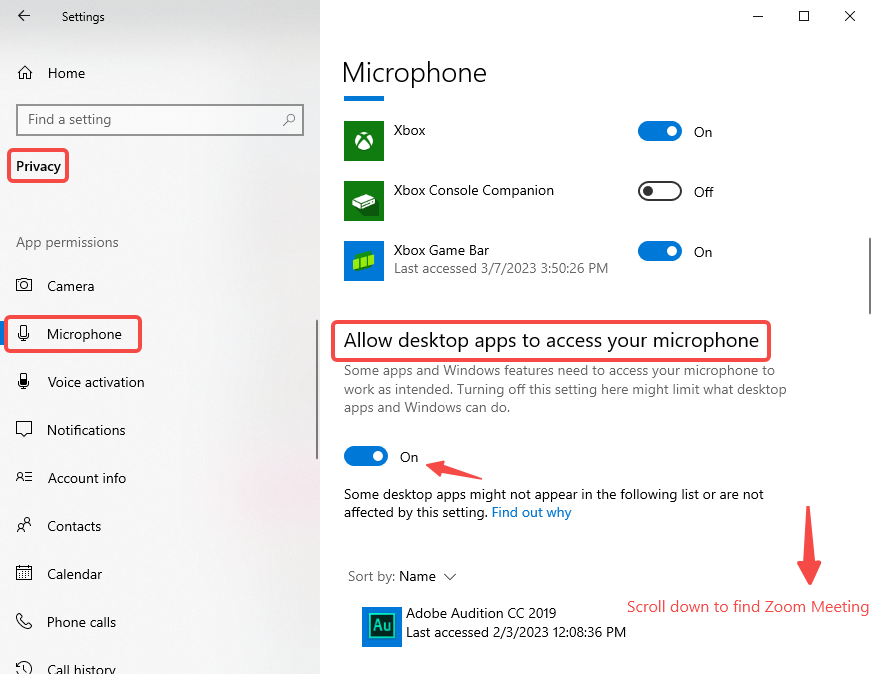
8 Easy Ways to Fix Zoom Audio Not Working (Why and Tips)
9 Ways To Fix Zoom Microphone Not Working Issue On A Windows PC
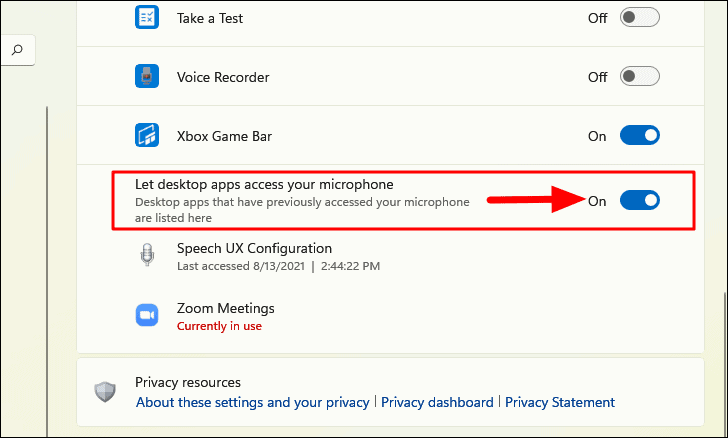
9 Ways to Fix Zoom Microphone Not Working Issue on a Windows PC
How To FIX Microphone Not Working In Zoom On PC Windows 10/11 - YouTube

How to FIX Microphone Not Working in Zoom on PC Windows 10/11 - YouTube