← How to See Who Unfollowed You on Instagram in 2025: A Complete Step-by-Step Guide How to Clear Cache on Android Phone: A Complete Step-by-Step Guide →
If participants cannot hear you in Google Meet, the cause is usually a blocked browser permission, an incorrect microphone selection, an operating system privacy restriction, or a device-level audio problem. This tutorial provides a structured troubleshooting sequence to identify and resolve the most common microphone failures in Google Meet on desktop browsers. You will learn how to verify site permissions, check Google Meet audio settings, confirm the correct input device in your operating system, and rule out driver or hardware conflicts.
Step 1: Verify browser and Google Meet microphone permissions
Google Meet requires explicit microphone access from your web browser. If this permission is denied or set to ask, the meeting may load without an active audio input. In Chrome or Microsoft Edge, select the lock or information icon in the address bar while a Google Meet session is open, find the Microphone entry, and set it to Allow. If the permission was blocked, change it to Allow and reload the meet.google.com tab. You can also manage site permissions by opening chrome://settings/content/microphone and confirming that meet.google.com is not in the blocked list. In Firefox, open Settings, go to Privacy & Security, click Settings next to Microphone under Permissions, and ensure meet.google.com is allowed. Inside Google Meet, click the three-dot menu, choose Settings, and open the Audio tab. Confirm that a microphone is selected in the Microphone drop-down menu and that the input level indicator moves when you speak. If the browser shows a red microphone blocked icon or the audio input is missing, permission is the most likely cause.
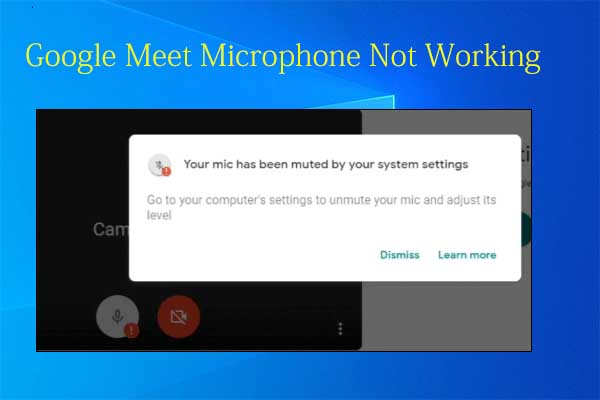
Step 2: Check operating system input device, privacy settings, and audio drivers
After browser permissions are correct, confirm that the operating system exposes the microphone and that the correct input device is active. On Windows, open Settings > System > Sound > Input, select the microphone you want to use from the input device list, and ensure the input volume is set to at least 50 percent. Speak into the microphone and check whether the test bar responds. If the bar does not move, open Settings > Privacy & security > Microphone and enable Microphone access and Let apps access your microphone. On macOS, open System Settings > Privacy & Security > Microphone and confirm that your browser has microphone access enabled, then open System Settings > Sound > Input and verify the selected device and input level meter. If the meter remains flat, check any physical mute switch on a headset or external microphone, disconnect and reconnect the device, and test it in a native app such as Voice Recorder on Windows or Voice Memos on macOS. Outdated or corrupted audio drivers can also prevent the microphone from appearing in Google Meet. On Windows, open Device Manager, expand Audio inputs and outputs, right-click the microphone, and select Update driver. Restart the browser and rejoin the meeting after making these changes. In Google Meet, return to Settings > Audio and reselect the microphone if the previous device was not detected.
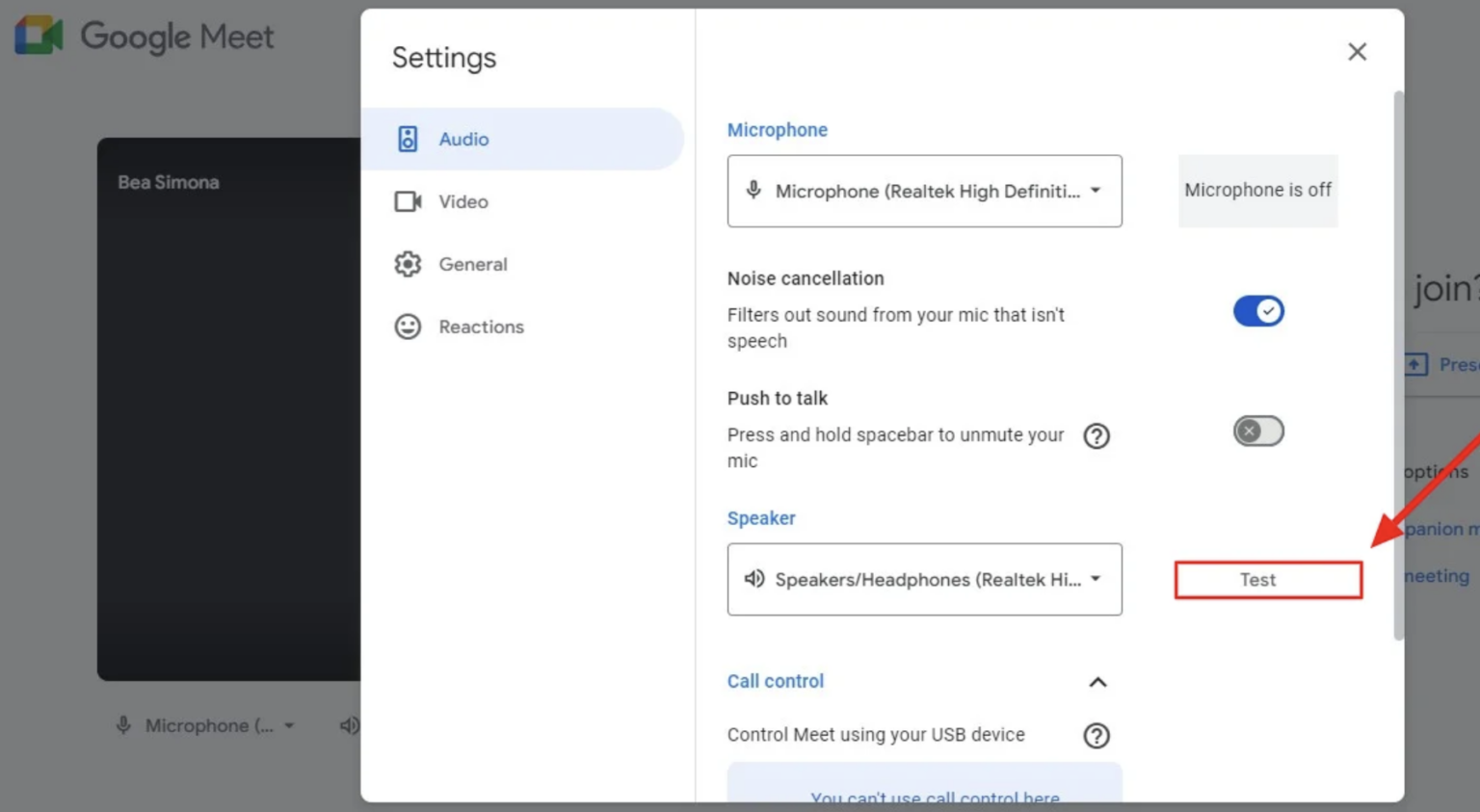
[FIXED] Google Meet Microphone Not Working On Window 11/10 - Driver Easy
![[FIXED] Google Meet Microphone Not Working on Window 11/10 - Driver Easy](https://www.drivereasy.com/wp-content/uploads/2021/10/google-meet-setting.jpg)
[FIXED] Google Meet Microphone Not Working on Window 11/10 - Driver Easy