← How to Fix Microsoft Teams Not Connecting to Audio: Step-by-Step Guide How to Recover Unsent Messages on Slack: Step-by-Step Guide →
Microsoft Edge stores temporary files, images, and archived web content in a cache to accelerate page loading and reduce bandwidth usage on subsequent visits. While this cached data improves browsing speed, it can also accumulate over time, consume significant disk space, and occasionally cause rendering issues, outdated content displays, or login conflicts. This tutorial explains how to clear the cache in Microsoft Edge on both desktop and mobile platforms. By following the steps below, you will learn to navigate Edge's settings, select the appropriate time range, choose which data types to remove, and confirm the deletion process. The instructions apply to Windows, macOS, Android, and iOS versions of Edge, with minor label variations noted where applicable.
Step 1: Open Microsoft Edge and Access the Settings Menu
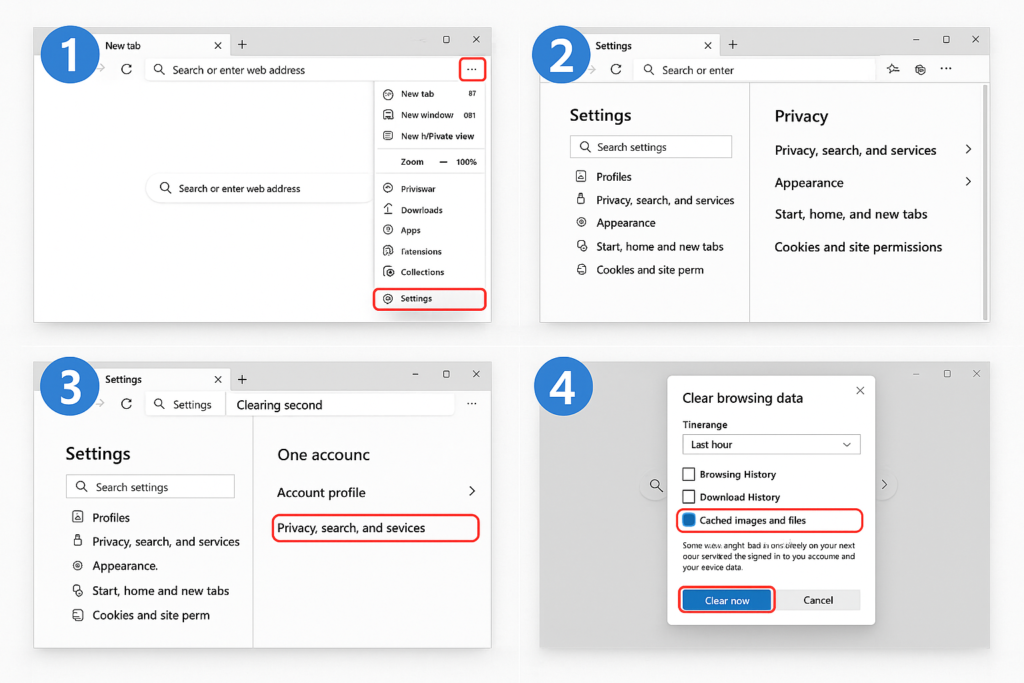
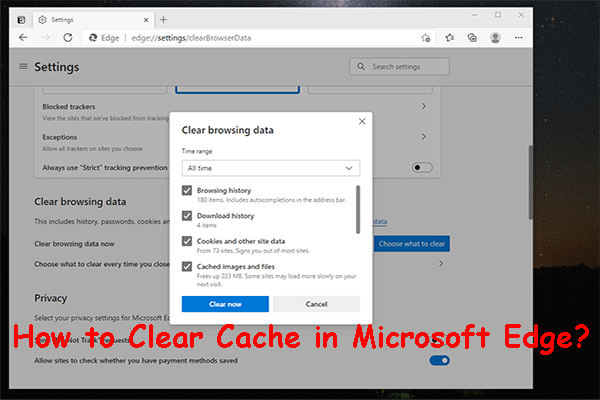
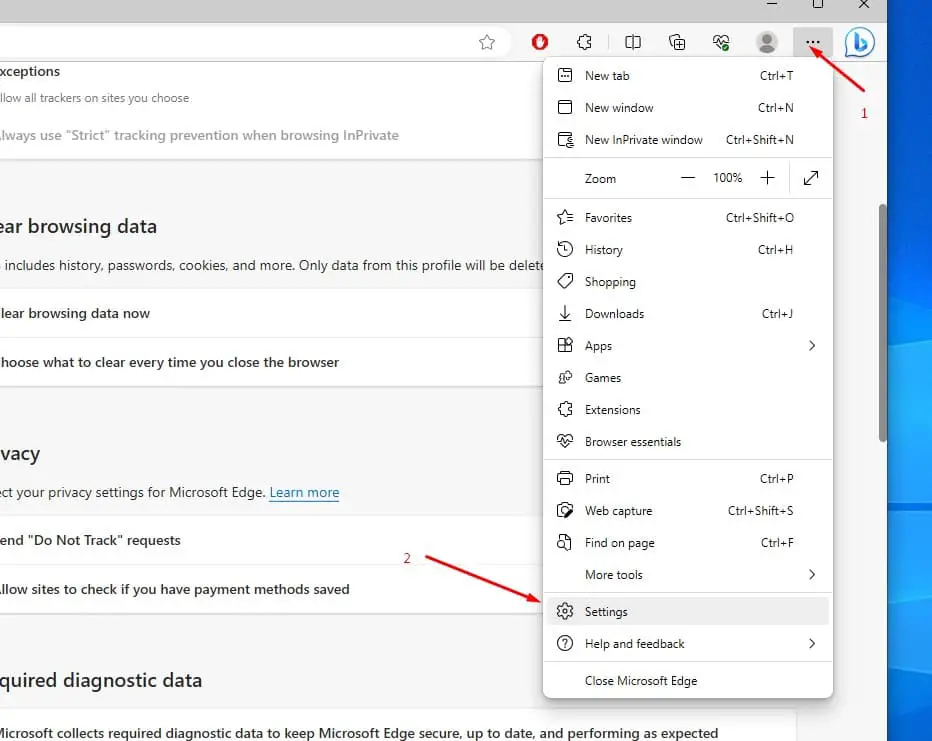
Launch Microsoft Edge from your taskbar, dock, or app drawer. Once the browser window is open, locate the three horizontal dots located in the upper-right corner of the toolbar. This icon represents the Settings and more menu. Click it to reveal a dropdown list of options, including New tab, Favorites, Collections, History, Downloads, and Settings. On mobile devices, the same three-dot icon appears at the bottom of the screen. Selecting it will display a similar menu from which you can proceed to the privacy and storage controls.
Step 2: Navigate to the Privacy, Search, and Services Section
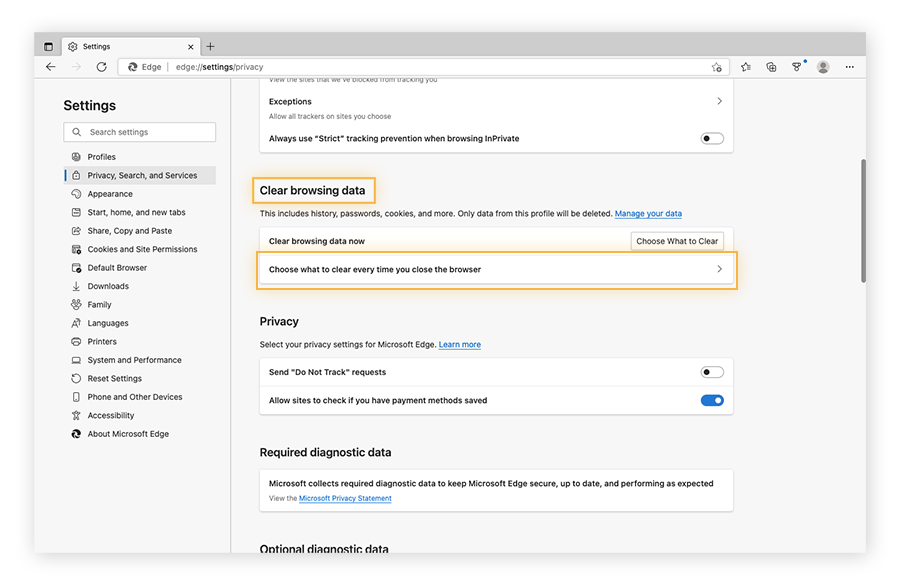
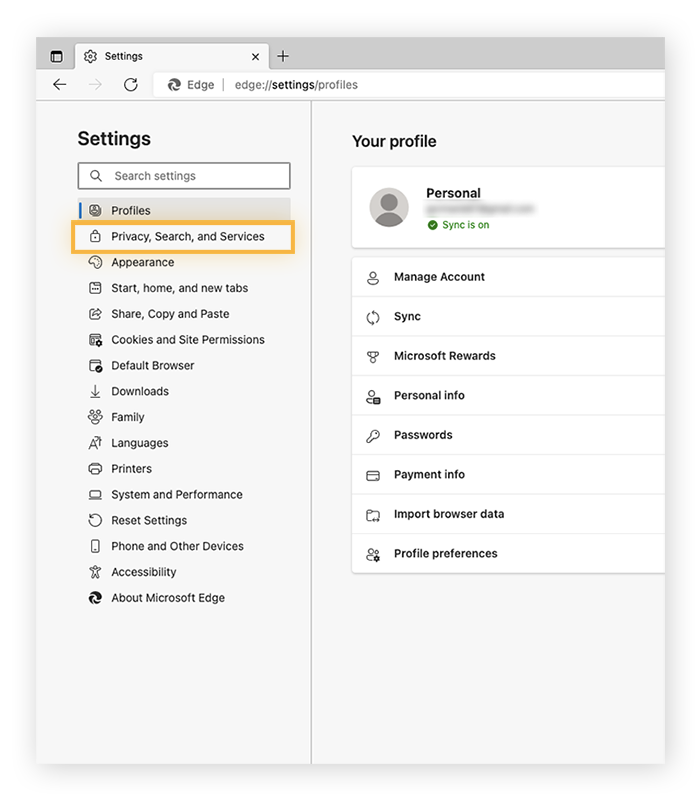
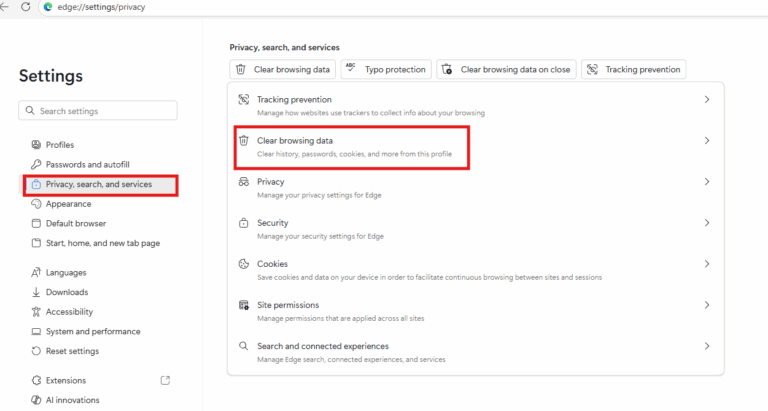
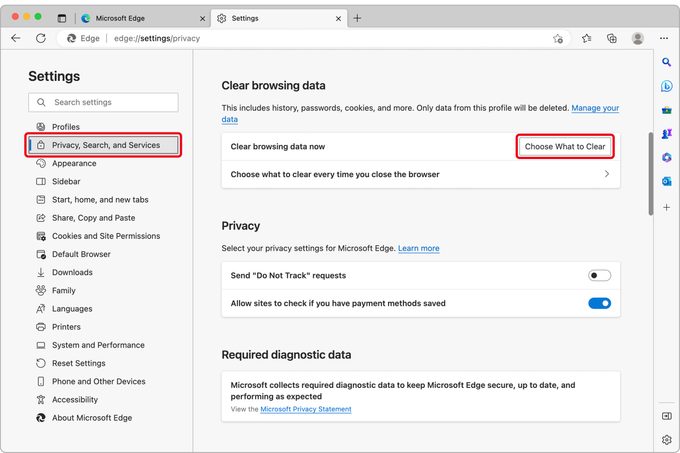
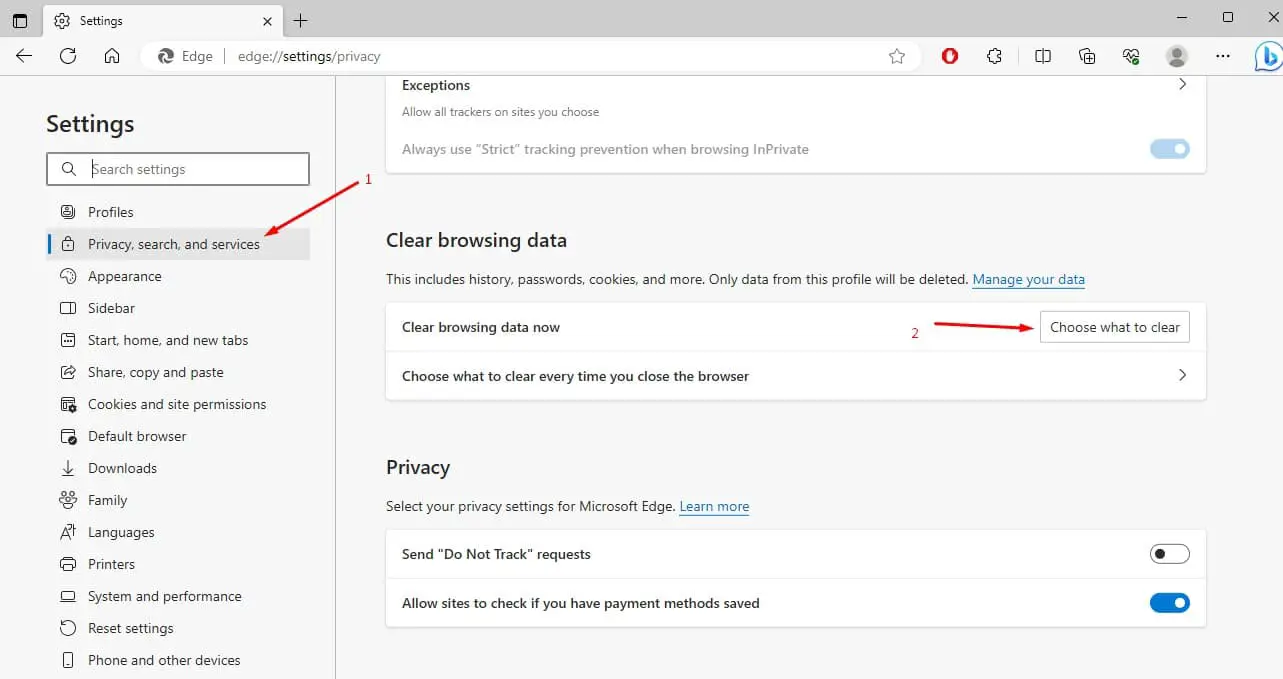
From the Settings menu, look at the left-hand navigation pane on desktop or the list of options on mobile. Click or tap Privacy, search, and services. This section contains all controls related to tracking prevention, browsing data, and permissions. Scroll down until you find the heading labeled Clear browsing data. Directly beneath it, you will see a button labeled Choose what to clear. Clicking this button opens the clear browsing data dialog, which offers both a Basic and an Advanced tab. The Basic tab includes cached images and files by default, while the Advanced tab provides additional categories such as hosted app data and media licenses.
Step 3: Select the Time Range and Cached Data Option
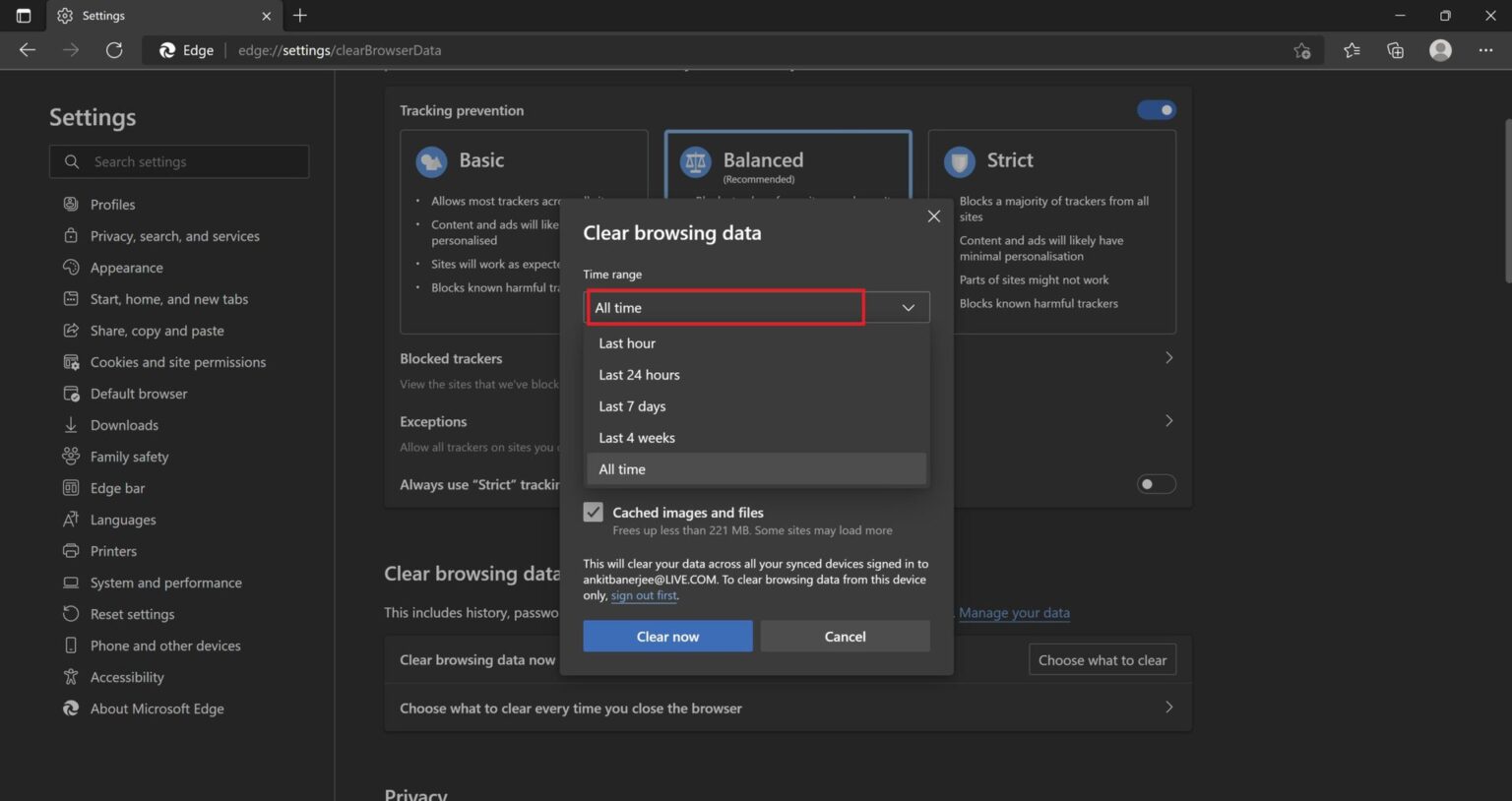
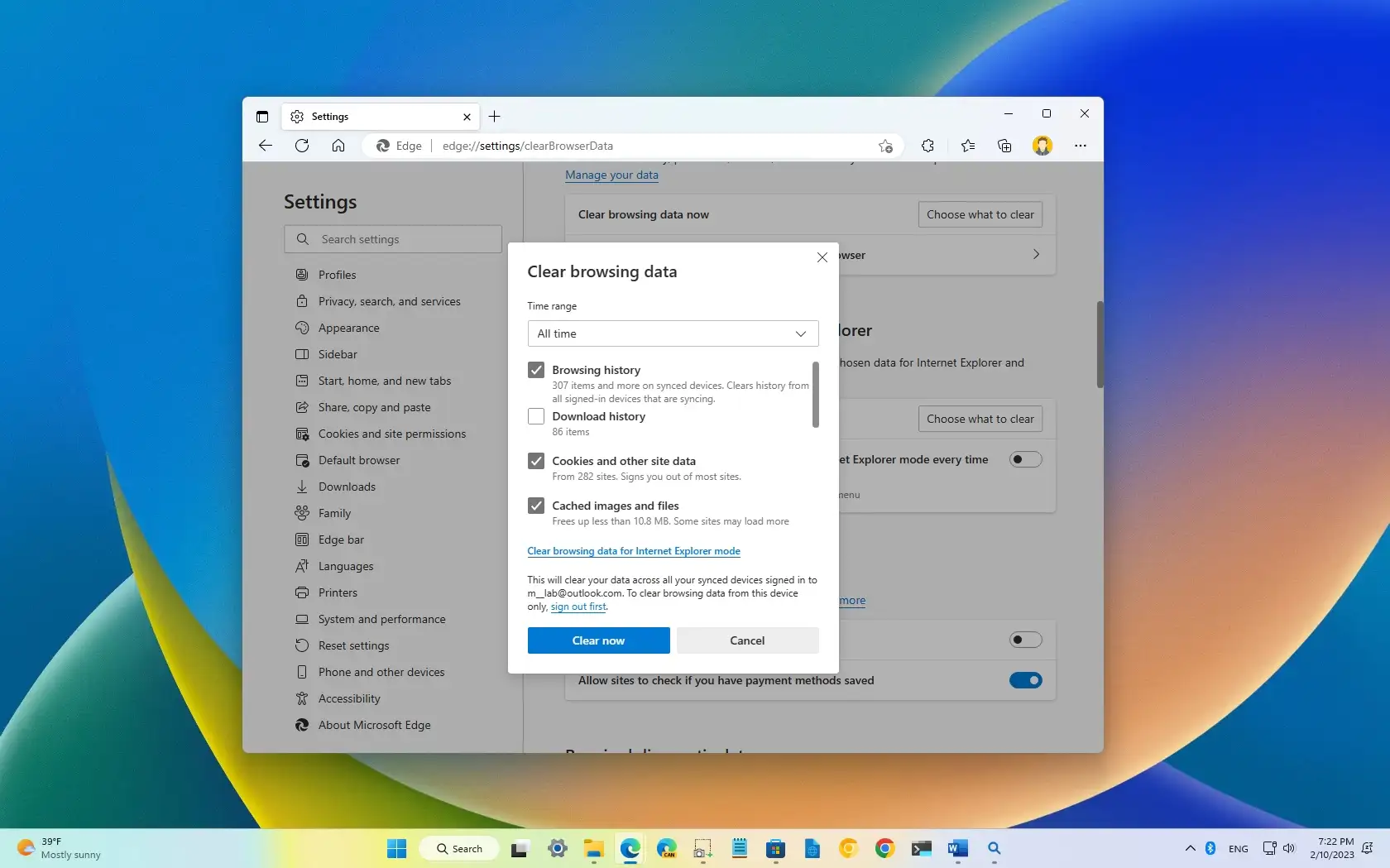
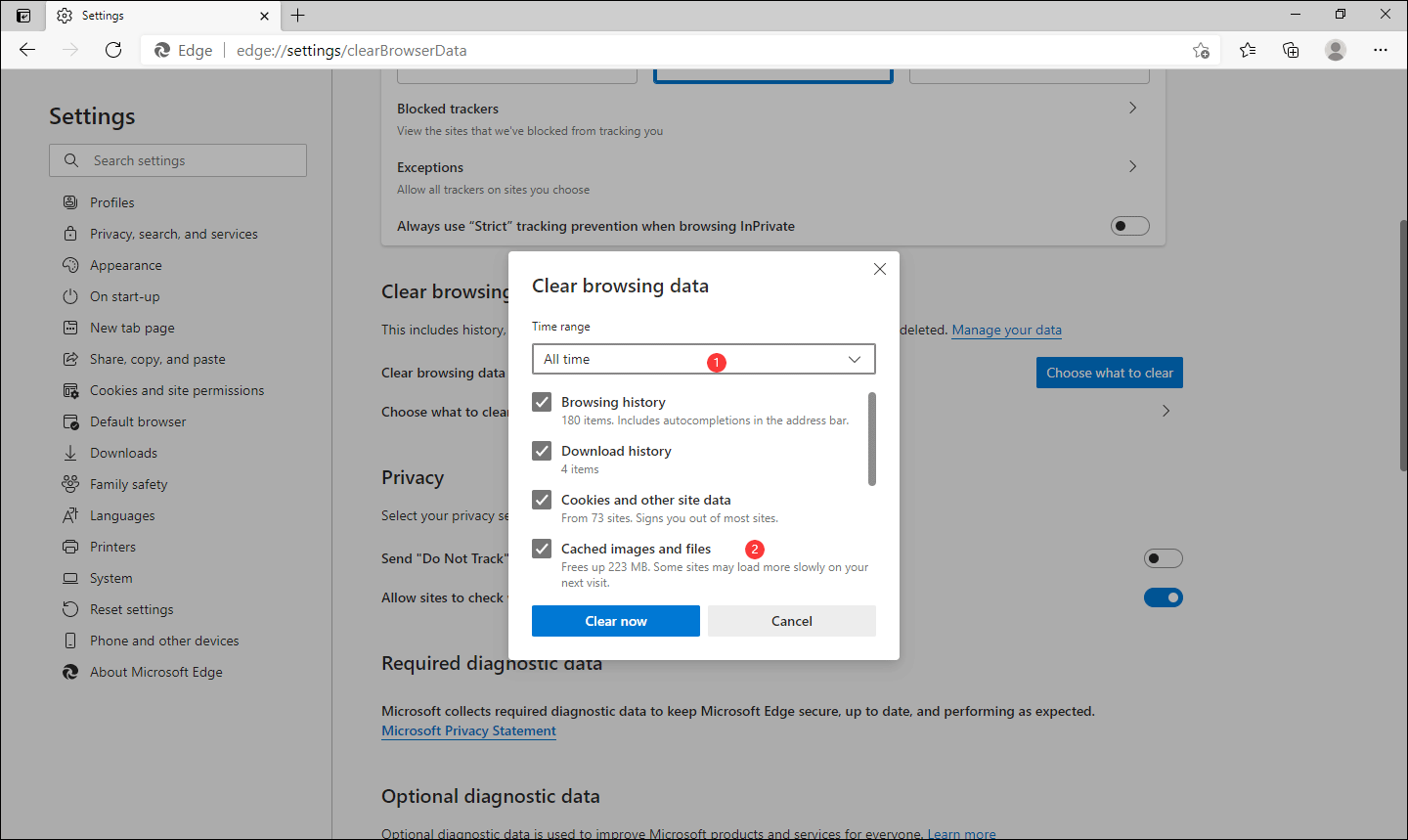
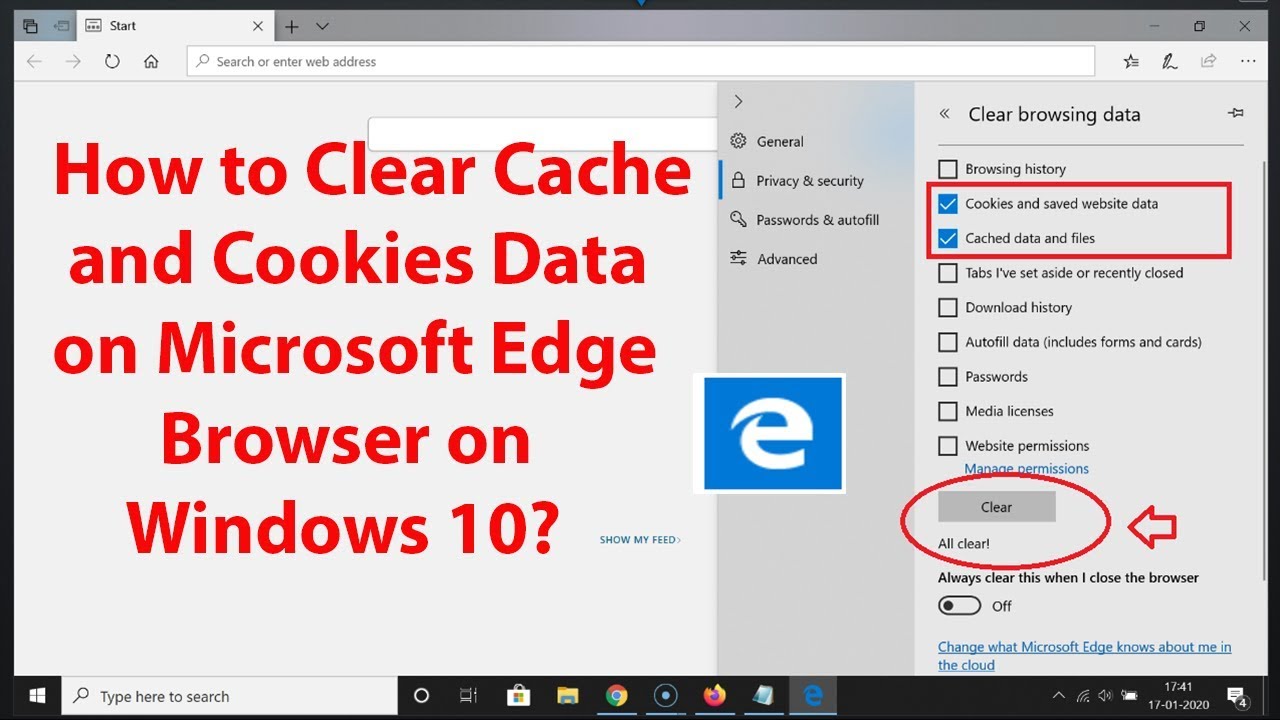
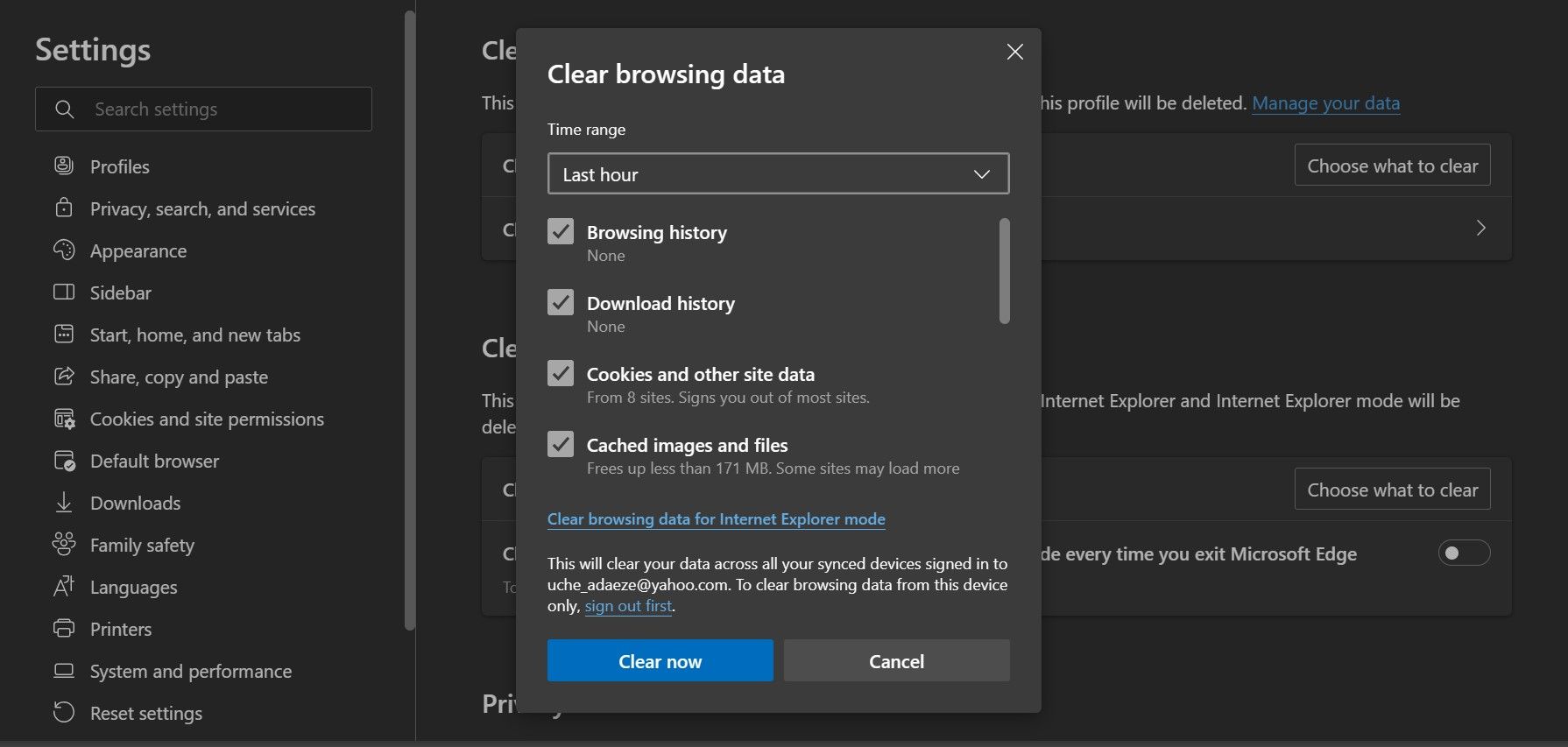
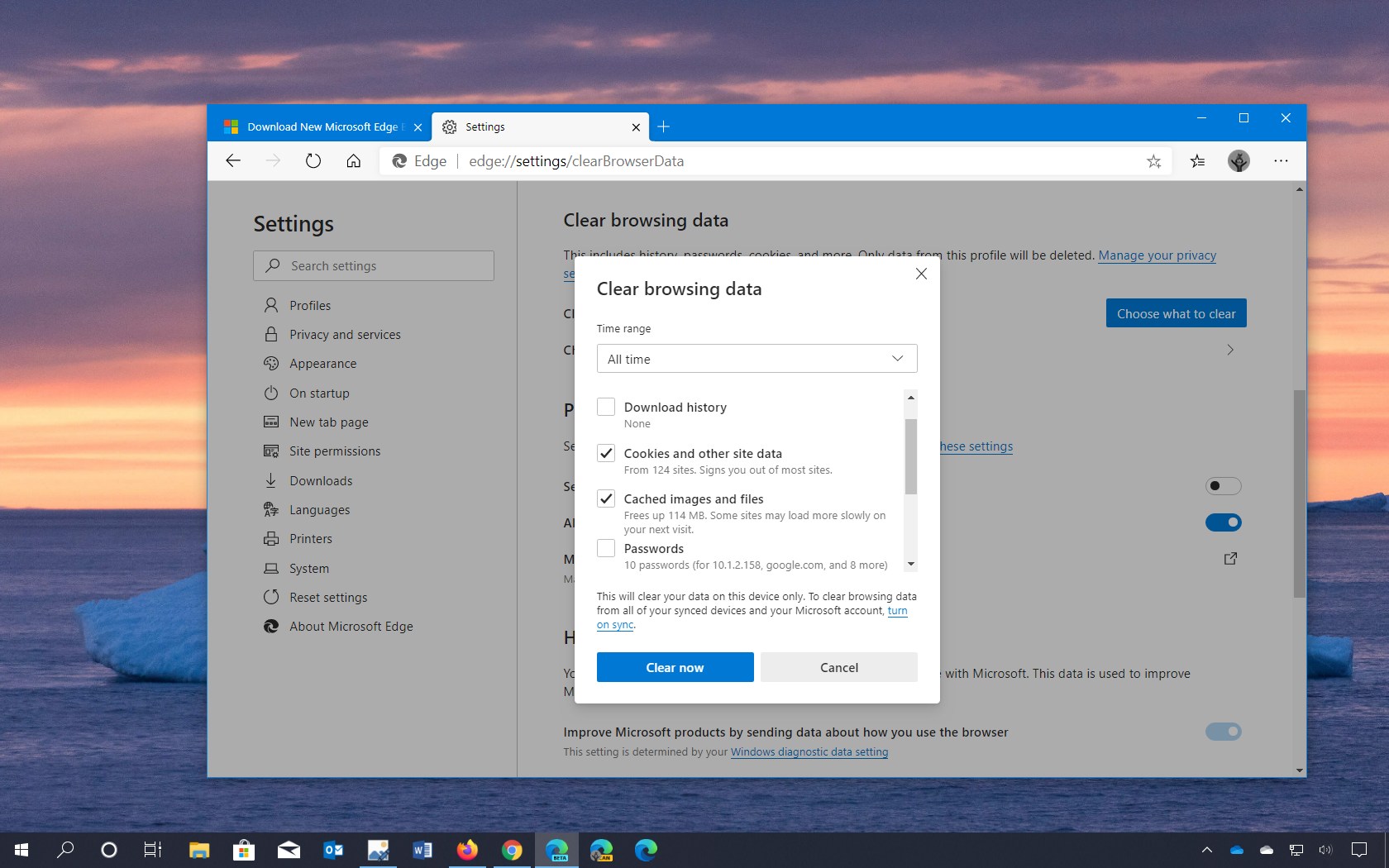
In the clear browsing data dialog, locate the Time range dropdown menu at the top. Choose the period for which you want to remove cached content. Available options typically include Last hour, Last 24 hours, Last 7 days, Last 4 weeks, and All time. To perform a complete cache cleanup, select All time. Next, review the checklist of data types. Ensure that the checkbox next to Cached images and files is selected. You may also check Cookies and other site data if you wish to sign out of websites, but this is optional for a cache-only clear. Deselect any categories you do not want to remove, such as Browsing history or Download history, to preserve those records.
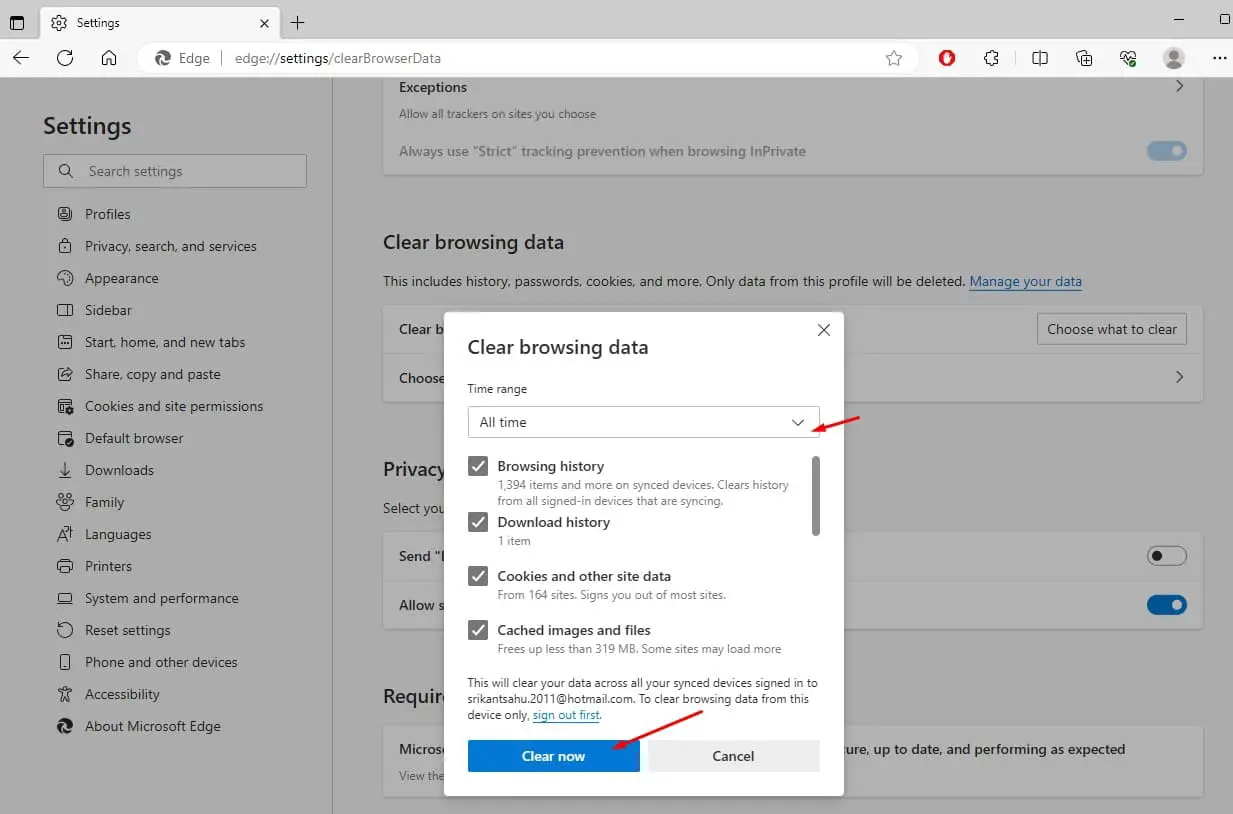
Step 4: Confirm and Complete the Cache Removal
After selecting your desired time range and data types, click the Clear now button at the bottom of the dialog. Edge will immediately begin deleting the selected items. The process usually takes only a few seconds, depending on how much cached data has accumulated. Once complete, the dialog will close automatically, and you will return to the Privacy, search, and services settings page. For mobile users, the button may read Clear or Clear data. After clearing the cache, you may notice that some websites load slightly slower on the first visit as Edge rebuilds its cache. This is normal and temporary. To verify the action, you can revisit the same dialog and confirm that the Cached images and files option is unchecked or that the storage indicator shows reduced usage.
Step 5: Optional Maintenance for Persistent Cache Issues
If you continue to experience stale content or rendering errors after clearing the cache through the standard menu, consider additional troubleshooting. First, close all Edge windows and reopen the browser to ensure no cached processes remain active. Second, navigate to edge://settings/clearBrowserData directly in the address bar to access the same dialog without navigating menus. Third, for desktop users, you can delete the cache folder manually by typing %localappdata%\Microsoft\Edge\User Data\Default\Cache in File Explorer, though this is rarely necessary. Finally, if the issue persists, reset Edge settings to their default values. Regular cache clearing, performed every few weeks or after major browser updates, helps maintain optimal performance and prevents unnecessary disk consumption.
How To Clear Cache In Edge Browser: Delete Cache Easily!
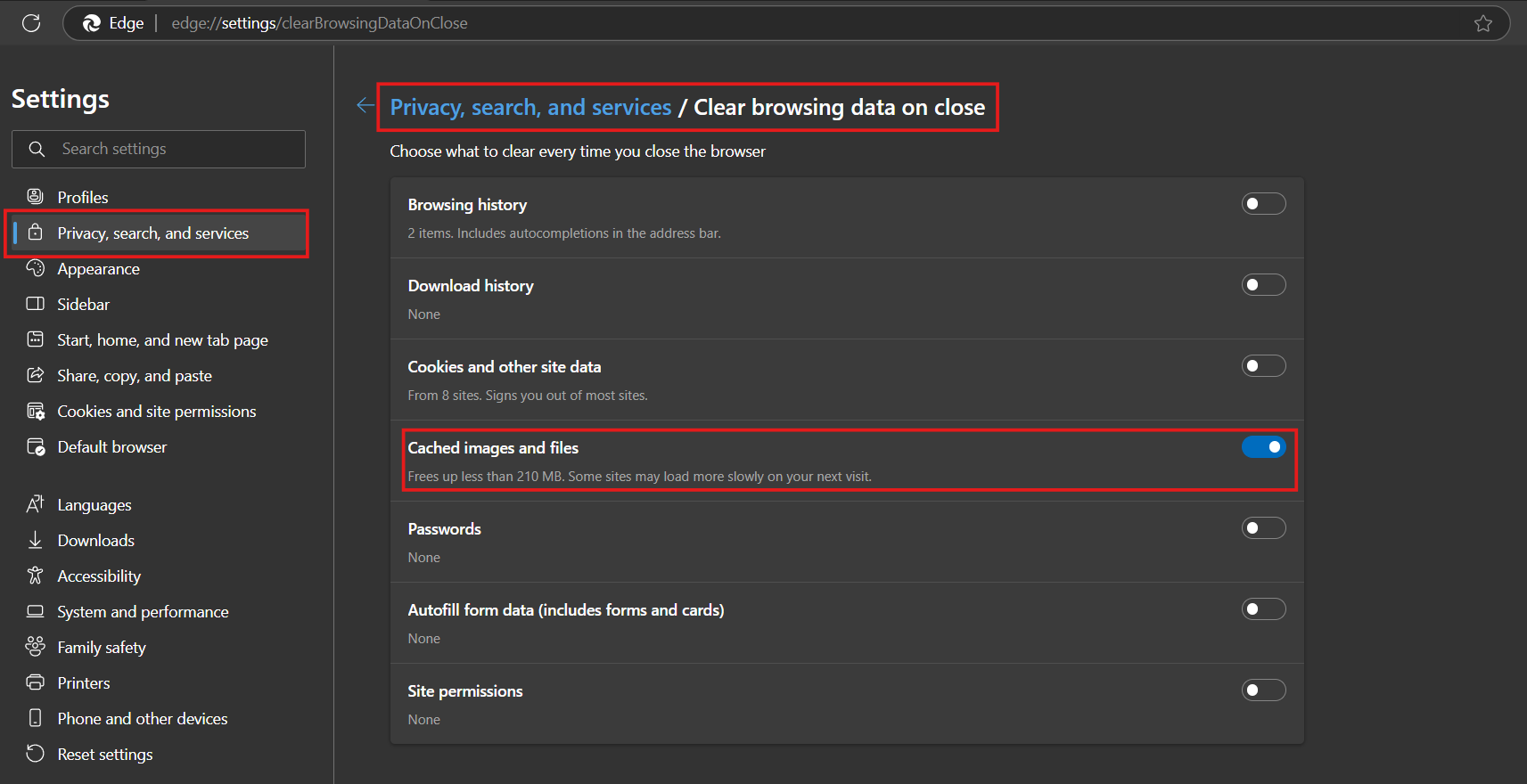
How to Clear Cache in Edge Browser: Delete Cache Easily!
How To Clear Cache In Microsoft Edge? (2 Cases) - MiniTool

How to Clear Cache in Microsoft Edge? (2 Cases) - MiniTool
Clearing The Cache In Edge
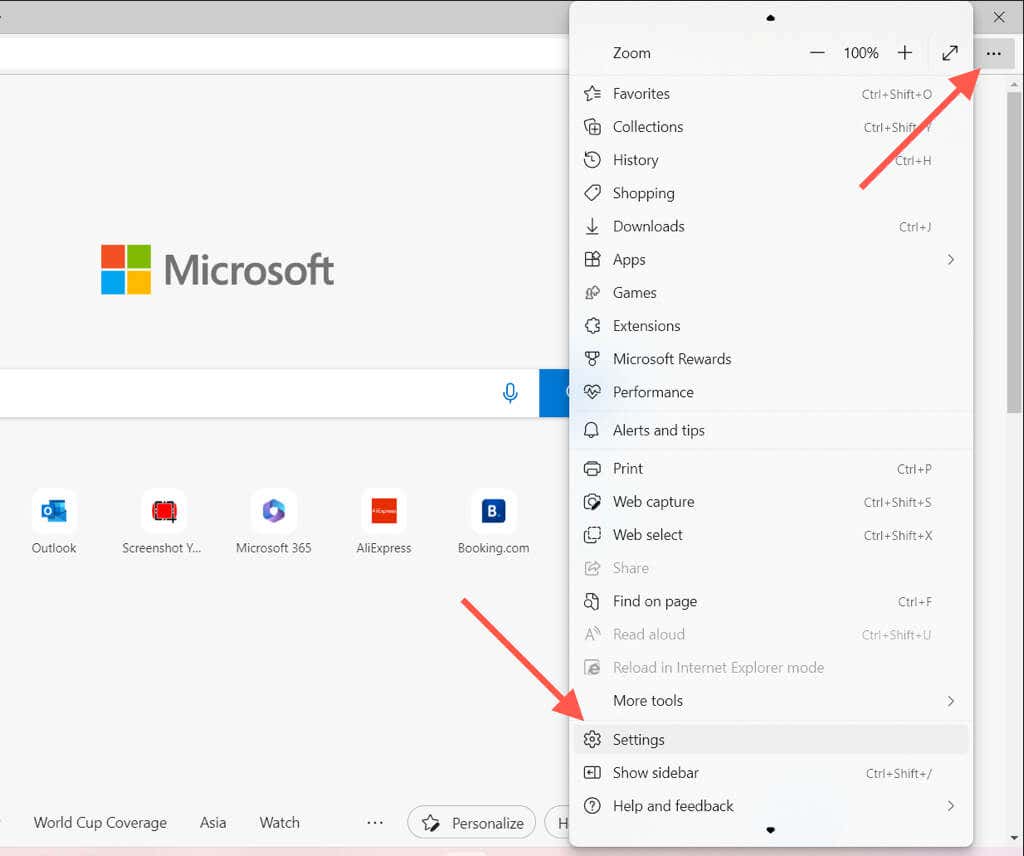
Clearing The Cache In Edge
How To Empty The Browsing Cache In Microsoft Edge?
How to empty the browsing cache in Microsoft Edge?
How To Clear Cache And Cookies On Microsoft Edge? [2024]
![How to Clear Cache and Cookies on Microsoft Edge? [2024]](https://10scopes.com/wp-content/uploads/2023/03/clear-cache-cookie-edge-mac.jpg)
How to Clear Cache and Cookies on Microsoft Edge? [2024]
How To Clear Cache In Edge Browser [Complete 2026 Guide]
![How to Clear Cache in Edge Browser [Complete 2026 Guide]](https://www.cloudwards.net/wp-content/uploads/2023/06/edge-cache-cached-800x393.png)
How to Clear Cache in Edge Browser [Complete 2026 Guide]
How To Clear Cache In Microsoft Edge For Enhanced Performance - Fanyit

How to Clear Cache in Microsoft Edge for Enhanced Performance - fanyit
How To Clear Cache And Browsing History On Microsoft Edge

How to Clear Cache and Browsing History on Microsoft Edge
How To Clear Cache And Cookies On Microsoft Edge - Pureinfotech
How to clear cache and cookies on Microsoft Edge - Pureinfotech
How To Clear Your Cache In Microsoft Edge
How to Clear Your Cache in Microsoft Edge
How To Clear The Cache In Microsoft Edge: PC, Mac, & Mobile

How to Clear the Cache in Microsoft Edge: PC, Mac, & Mobile
How To Clear Cache In Microsoft Edge: Step-by-Step Guide

How to Clear Cache in Microsoft Edge: Step-by-Step Guide
How To Clear Cache In Edge Browser [Complete 2026 Guide]
![How to Clear Cache in Edge Browser [Complete 2026 Guide]](https://www.cloudwards.net/wp-content/uploads/2023/06/edge-cache-choose-800x400.png)
How to Clear Cache in Edge Browser [Complete 2026 Guide]
How To Clear Cache In Microsoft Edge? (2 Cases) - MiniTool
How to Clear Cache in Microsoft Edge? (2 Cases) - MiniTool
How To Clear Cache In Microsoft Edge? (2 Cases)
How to Clear Cache in Microsoft Edge? (2 Cases)
How To Clear Your Cache In Microsoft Edge
How to Clear Your Cache in Microsoft Edge
How To Clear Cache On Microsoft Edge Chromium And Legacy Pureinfotech
:max_bytes(150000):strip_icc()/001-manage-and-delete-browsing-data-in-microsoft-edge-4103666-c542ce31bb1a463d907a1dc867ffd7ba.jpg)
How To Clear Cache On Microsoft Edge Chromium And Legacy Pureinfotech ...
How To Clear Cache And Cookies Data On Microsoft Edge Browser On
How to Clear Cache and Cookies Data on Microsoft Edge Browser on ...
How To Clear The Cache In Microsoft Edge
:max_bytes(150000):strip_icc()/003-manage-and-delete-browsing-data-in-microsoft-edge-4103666-377baaf1f7774465a91dc106b7bd5542.jpg)
How to Clear the Cache in Microsoft Edge
How To Clear Cache In Microsoft Edge: Step-by-Step Guide
How to Clear Cache in Microsoft Edge: Step-by-Step Guide
How To Clear Cache In Microsoft Edge

How to clear Cache in Microsoft Edge
How To Clear Cache In Microsoft Edge - YouTube

How To Clear Cache in Microsoft Edge - YouTube
How To Clear Cache In Edge Browser [Complete 2023 Guide]
![How to Clear Cache in Edge Browser [Complete 2023 Guide]](https://www.cloudwards.net/wp-content/uploads/2023/06/edge-cache-close-600x322.png)
How to Clear Cache in Edge Browser [Complete 2023 Guide]
How To Clear Cache And Browsing Data On Microsoft Edge
How to Clear Cache and Browsing Data on Microsoft Edge
Clear Browsing Data In Microsoft Edge In Windows 10 Microsoft Edge In

Clear Browsing Data In Microsoft Edge In Windows 10 Microsoft Edge In
How To Clear Your Cache (and Why You Really Need To) | Trusted Since 1922
How to Clear Your Cache (and Why You Really Need To) | Trusted Since 1922
How To Clear Cache In Microsoft Edge
:max_bytes(150000):strip_icc()/001-clear-cache-microsoft-edge-4156806-789fb261ac8a4a0093f46b2b2dca2dc2.jpg)
How to Clear Cache in Microsoft Edge
How To Clear Cache In Microsoft Edge Windows 11/10
How to clear cache in Microsoft Edge Windows 11/10
How To Clear The Cache In Microsoft Edge
:max_bytes(150000):strip_icc()/002-clear-cache-microsoft-edge-4156806-761c2b7db49a478492cf315de8231400.jpg)
How to Clear the Cache in Microsoft Edge
How To Clear Cache On Microsoft Edge Chromium And Legacy - Pureinfotech
How to clear cache on Microsoft Edge Chromium and legacy - Pureinfotech
How To Clear Your Cache (and Why You Really Need To) | Trusted Since 1922

How to Clear Your Cache (and Why You Really Need To) | Trusted Since 1922
How To Clear The Cache In Microsoft Edge
:max_bytes(150000):strip_icc()/002-manage-and-delete-browsing-data-in-microsoft-edge-4103666-4677a9427d41443eb856b7486847872c.jpg)
How to Clear the Cache in Microsoft Edge
How To Clear Cache In Microsoft Edge Windows 11/10
How to clear cache in Microsoft Edge Windows 11/10