← How to Clear Cache in Mozilla Firefox: A Simple Visual Guide Step-by-Step Guide to Recover Deleted WhatsApp Messages With or Without Backup →
If your Zoom camera is not working before or during a meeting, it can disrupt communication and undermine professional presentations. This tutorial walks you through the most effective troubleshooting methods in a clear, sequential process. You will learn how to verify camera permissions, release the webcam from conflicting applications, restart camera drivers, and adjust Zoom video settings to restore functionality. Follow each step carefully and test your camera after completing it.
Step 1: Verify Camera Permissions and Operating System Privacy Settings
Before making changes inside Zoom, confirm that your operating system allows Zoom to use the webcam. On Windows, open Settings > Privacy & security > Camera, and make sure Camera access is enabled. Scroll to Let apps access your camera and ensure Zoom is listed and toggled on. On macOS, go to System Settings > Privacy & Security > Camera and check the box next to Zoom. If Zoom does not appear, launch Zoom and attempt to start video once to trigger the permission prompt. In addition, open Zoom, click the gear icon, select Video, and confirm the correct camera is selected under Camera. If the preview is black, close other applications that may be using the webcam, such as Microsoft Teams, Skype, or browser-based video calls. After adjusting these settings, test the camera by starting a new meeting or using Zoom's video preview.

Step 2: Restart the Camera Driver and Close Conflicting Applications
If permissions are correct, the issue may be caused by a stalled camera driver or another application holding exclusive access to the webcam. On Windows, right-click the Start button, select Device Manager, expand Cameras or Imaging devices, right-click your webcam, and choose Uninstall device. Do not check the box to delete driver software unless you plan to reinstall manually. Restart your computer; Windows will reinstall the driver automatically. For external USB cameras, disconnect the device, wait 10 seconds, then reconnect it to a different USB port. On macOS, quit all applications that might use the camera, open Terminal, and run sudo killall VDCAssistant, then enter your administrator password. Also check the Windows Camera app or Photo Booth on macOS to confirm the camera works outside Zoom. If the camera fails outside Zoom, update the camera driver from the manufacturer website or run Windows Update. In Zoom, disable HD video and enable Original Ratio under Video settings if the image is freezing. Finally, restart Zoom and test the video feed.
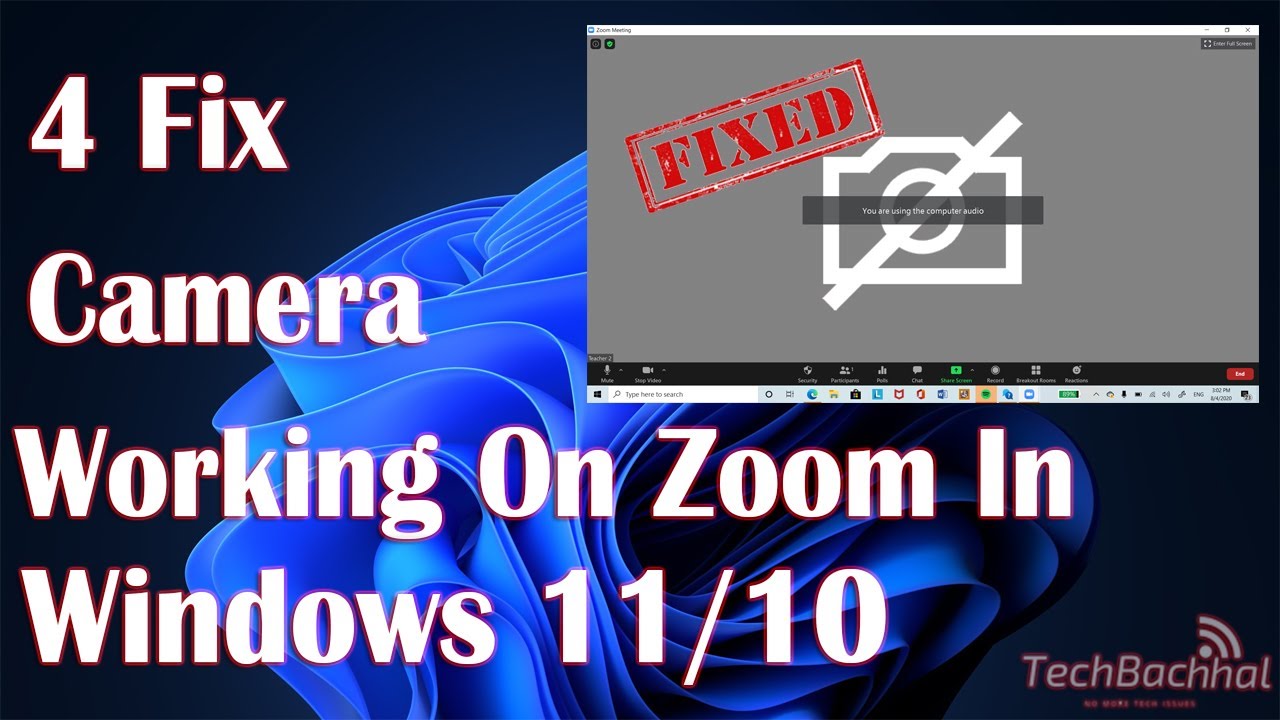
Zoom Camera Not Working? 5 Proven Fixes By Device & Scenario
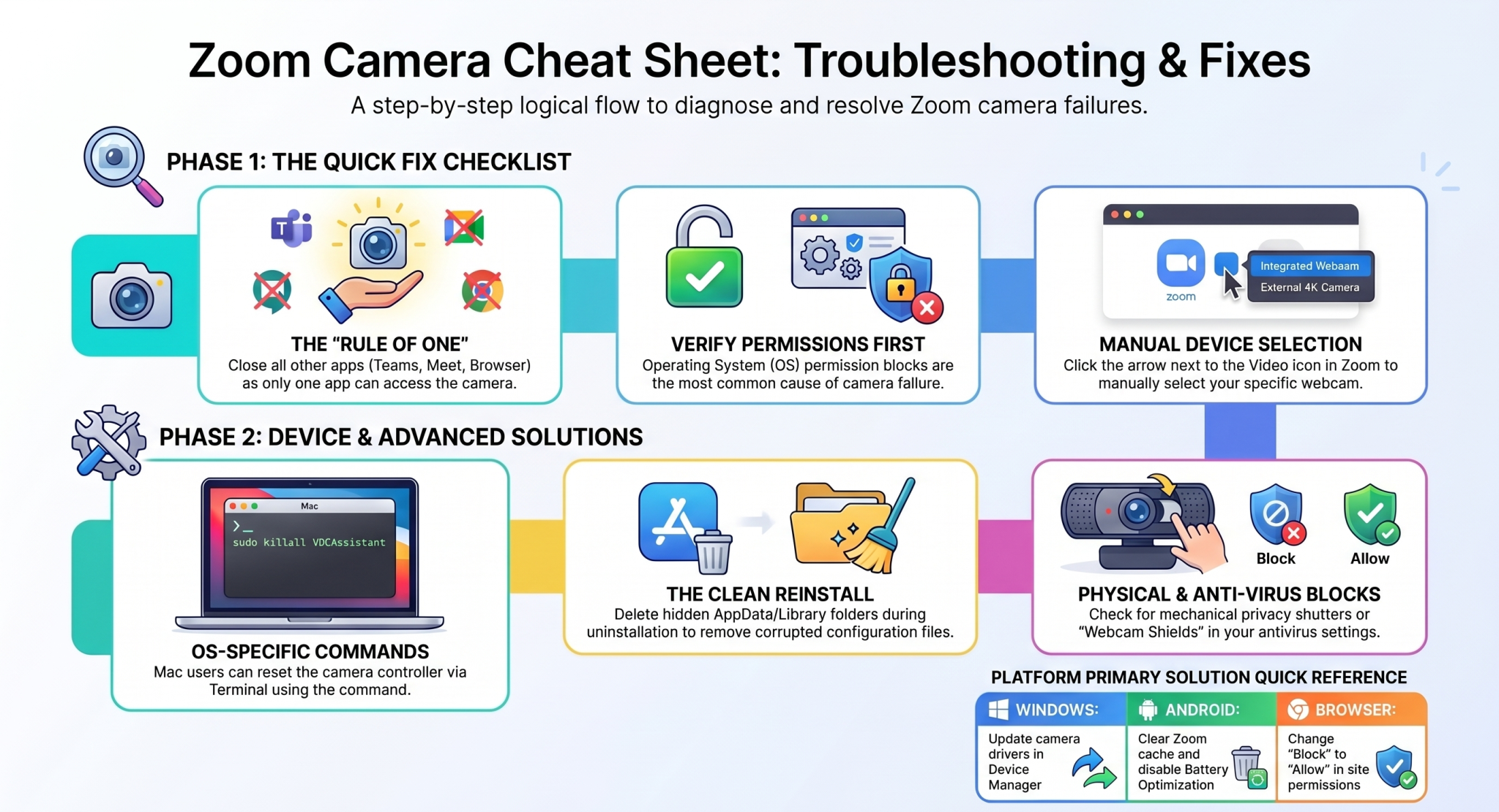
Zoom Camera Not Working? 5 Proven Fixes by Device & Scenario