← How to Fix WhatsApp Web Not Connecting: Step-by-Step Guide How to Update Microsoft Office in 2026: Step-by-Step Guide for Windows →
If you are encountering persistent download issues, corrupted game files, or the dreaded "Content File Locked" error on Steam, clearing the download cache is often the most effective solution. Over time, the Steam client accumulates temporary files and cached data that can become corrupted, preventing games from updating or downloading correctly. In this tutorial, you will learn exactly how to clear the download cache on Steam safely and efficiently, restoring your client's performance without affecting your installed games or saved data.
Step 1: Open Steam and Access the Settings Menu
Begin by launching the Steam client on your computer. Once you are logged in and the main interface has loaded, locate the "Steam" menu in the top-left corner of the window. Click on it to reveal a dropdown menu, and then select "Settings" from the list of options. This will open a new window containing all the configuration options for your Steam client, including account details, interface preferences, and download management tools.

Step 2: Navigate to the Downloads Tab
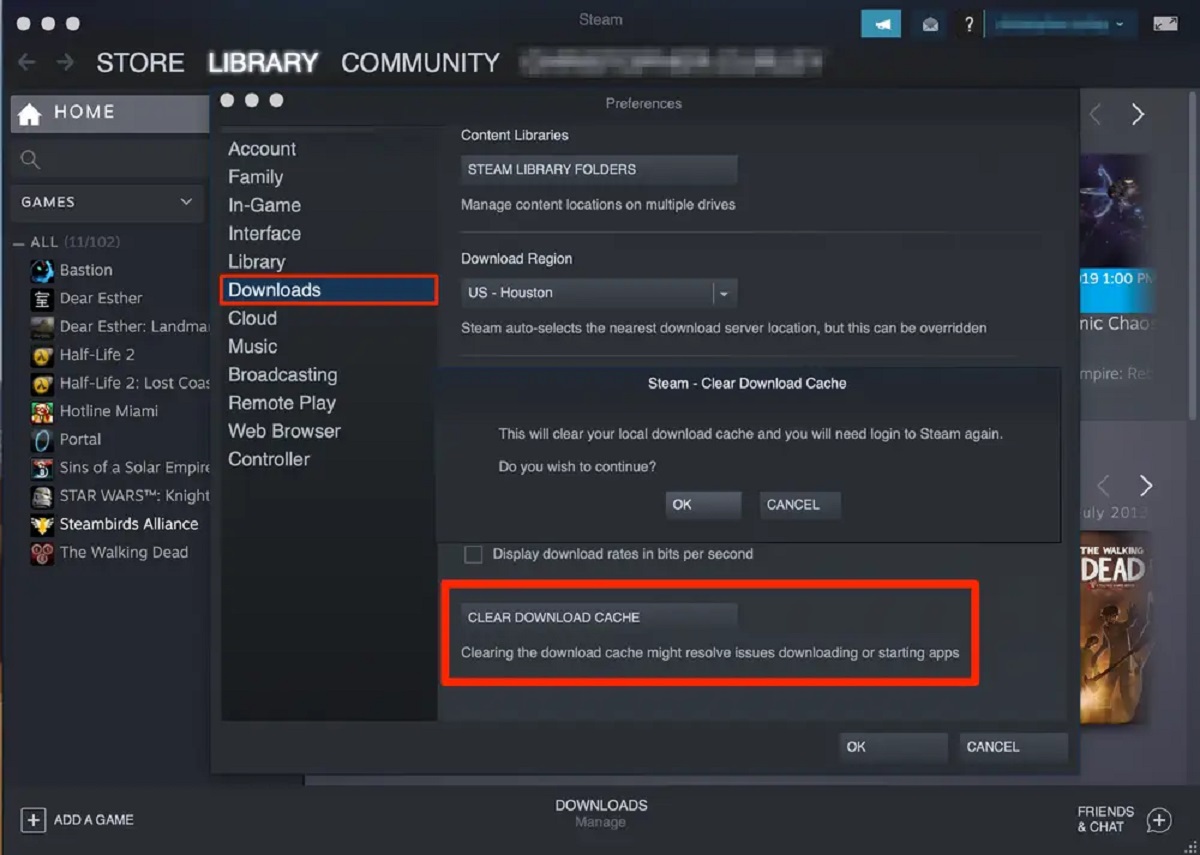
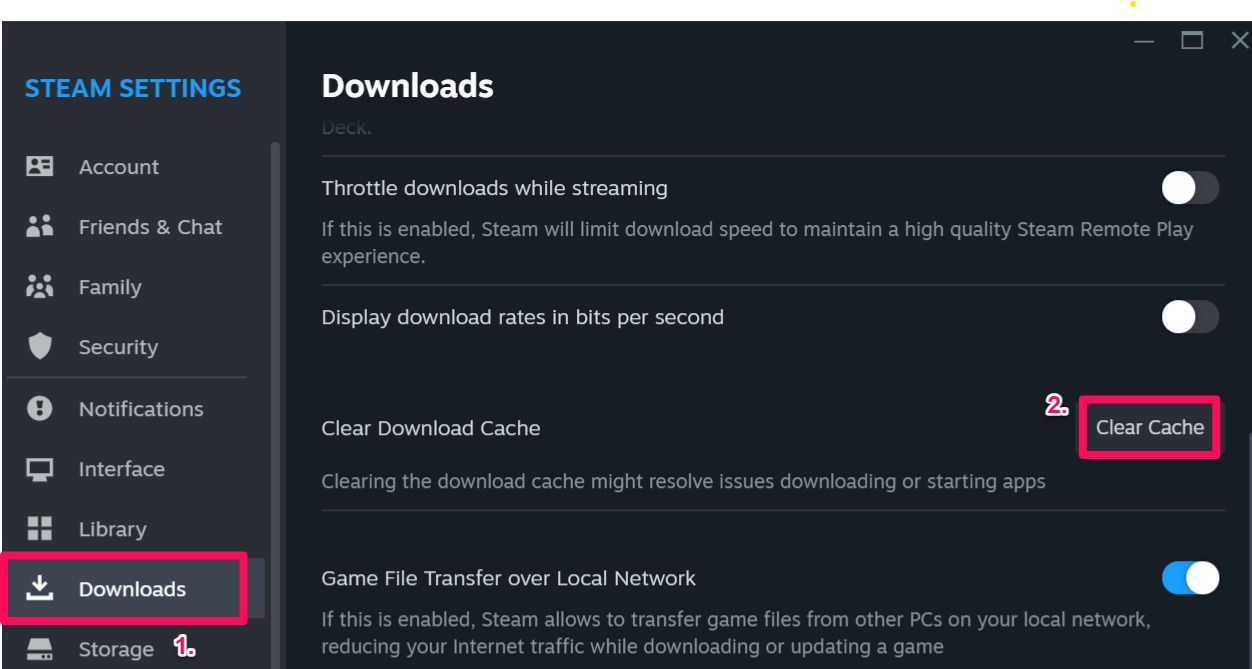
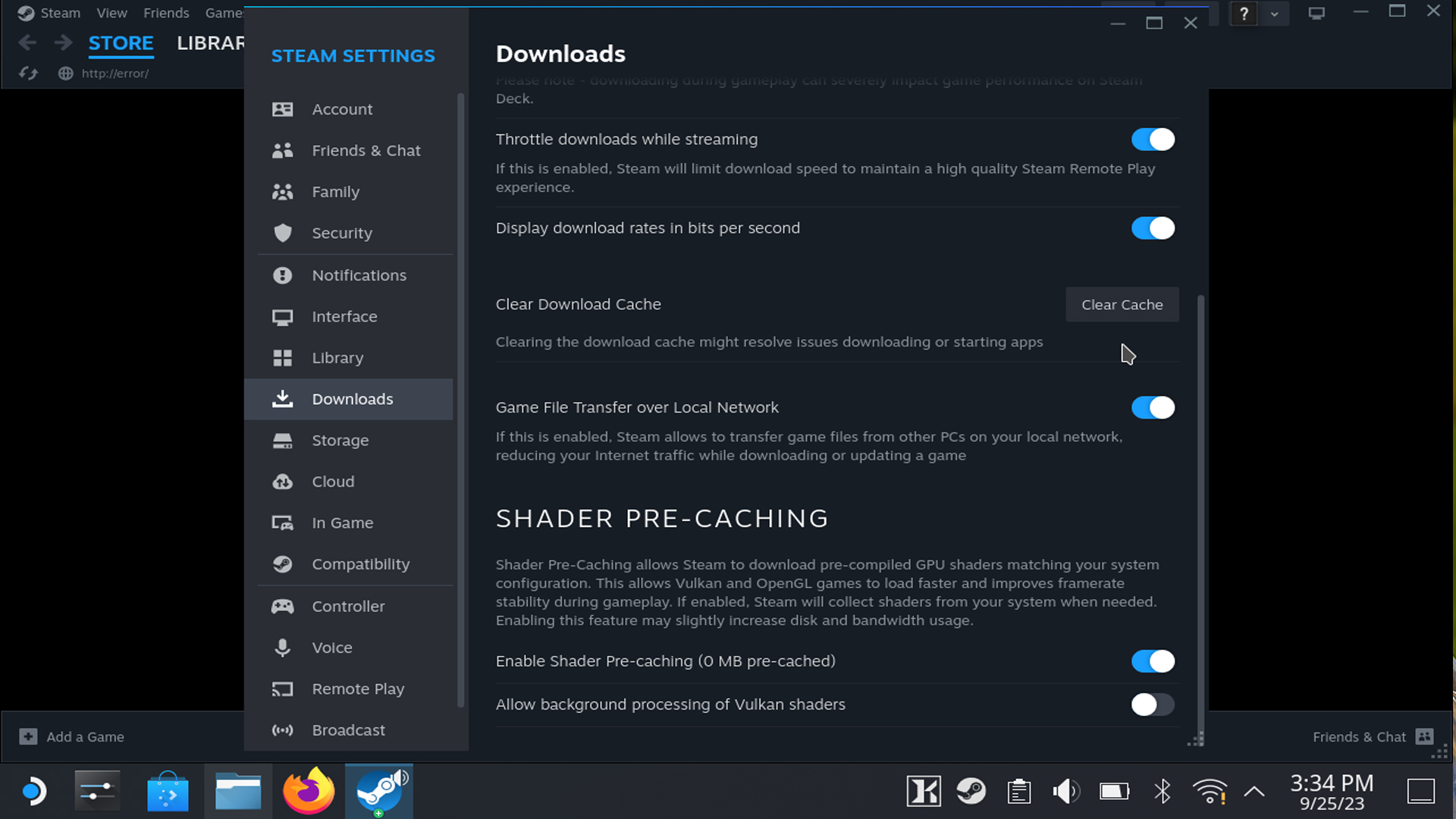
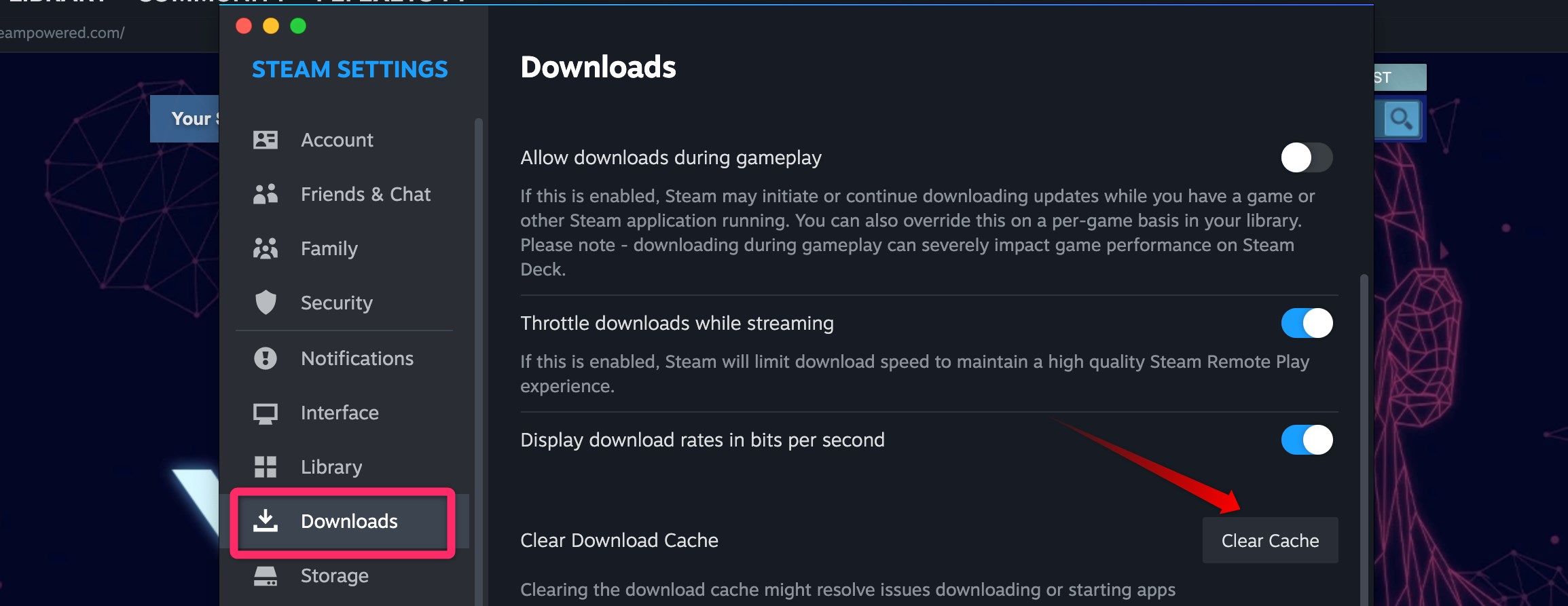
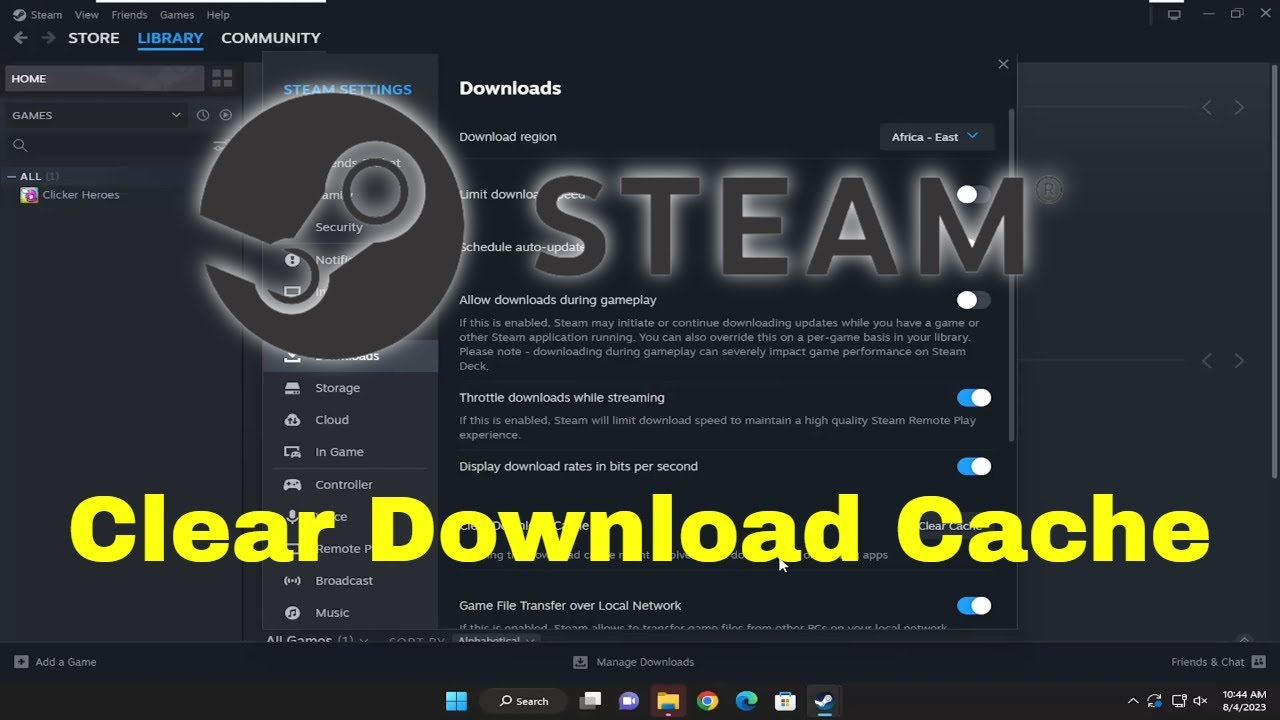
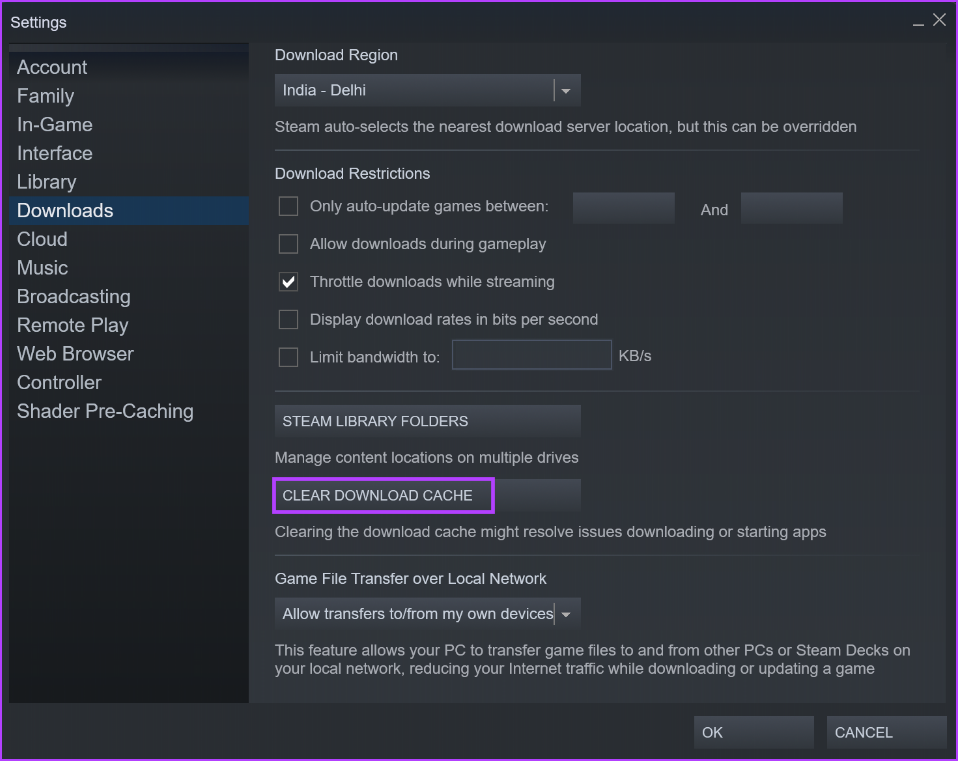
Within the Settings window, you will see a list of categories on the left-hand side. Look for the "Downloads" tab and click on it. This section is dedicated to managing how Steam handles downloads, including your download region, bandwidth limits, and the all-important download cache. If you have been experiencing slow speeds or download errors, this is the correct area to address those issues. Take a moment to ensure you are in the right tab before proceeding, as the next step will involve clearing data that Steam uses to manage content delivery.
Step 3: Clear the Download Cache
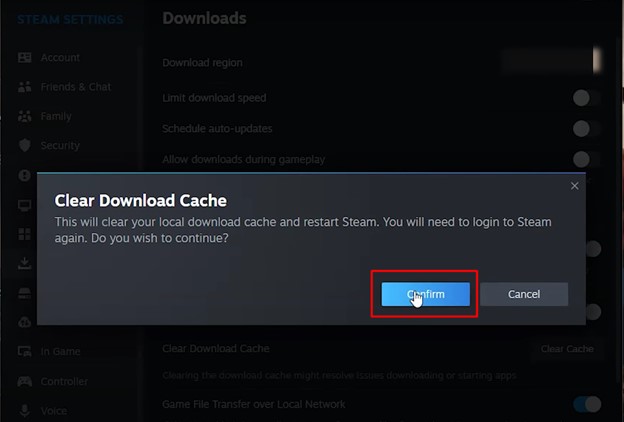
Inside the Downloads tab, locate the button labeled "Clear Download Cache." It is typically found near the bottom of the window. Click this button to initiate the process. A warning dialog box will appear, informing you that clearing the cache will require you to log in to Steam again and that it will not delete your installed games or game saves. Confirm by clicking "OK" or "Clear Cache" to proceed. Steam will then clear the temporary download data and automatically restart the client, prompting you to log back in with your credentials. Once you have logged back in, the cache will be fully reset, and you can attempt your download or update again with a fresh configuration.

By following these steps, you can resolve many common Steam download problems without needing to reinstall the entire client or your games. Clearing the download cache is a safe and quick maintenance task that every Steam user should know. After completing this process, your downloads should resume normally, and any content file locked errors should be eliminated.
How To Clear Steam Cache Tutorial - YouTube

How to clear Steam cache Tutorial - YouTube
How To Download Game On Steam | Robots.net
How To Download Game On Steam | Robots.net
How To Enable Steam Local Network Transfer And Fix Issues

How To Enable Steam Local Network Transfer And Fix Issues
How (and When) To Clear The Download Cache In Steam
How (and When) to Clear the Download Cache in Steam
Top 7 Ways To Fix Content File Locked Error In Steam For Windows

Top 7 Ways to Fix Content File Locked Error in Steam for Windows ...
How To Clear Cache [Games & Browsers] - EXputer.com
![How to Clear Cache [Games & Browsers] - eXputer.com](https://exputer.com/wp-content/uploads/2023/04/Clear-cache-in-steam.jpg)
How to Clear Cache [Games & Browsers] - eXputer.com
How To Clear Steam Download Cache (2024) Clear Steam Cache - YouTube

How to Clear Steam Download Cache (2024) Clear Steam Cache - YouTube
How To Clear Steam Download Cache — HellaGoodMarketing

How To Clear Steam Download Cache — HellaGoodMarketing
How (and When) To Clear The Download Cache In Steam

How (and When) to Clear the Download Cache in Steam
How To Resolve The "Not Enough Disk Space" Error
How To Resolve The "Not Enough Disk Space" Error
4 Ways To Make Steam Download Faster – TechCult

4 Ways to Make Steam Download Faster – TechCult
How To Clear Steam Download Cache — HellaGoodMarketing

How To Clear Steam Download Cache — HellaGoodMarketing
How To Clear The Steam Deck Download Cache
How to clear the Steam Deck download cache
How To Clear Steam Cache: Everything You Need To Know

How to Clear Steam Cache: Everything You Need to Know
How To Fix Steam Validation Errors With These 6 Tips

How to Fix Steam Validation Errors with these 6 Tips
How To Clear Steam Download Cache - YouTube

How To Clear Steam Download Cache - YouTube
How To Clear Download Cache On Steam - YouTube

How To Clear Download Cache On Steam - YouTube
How To Clear Steam Download Cache | NordVPN
How to clear Steam download cache | NordVPN
How (and When) To Clear The Download Cache In Steam
How (and When) to Clear the Download Cache in Steam
How To Make Steam Downloads Faster In Windows 11 - Guiding Tech

How to Make Steam Downloads Faster in Windows 11 - Guiding Tech
How To Clear Steam Download Cache - YouTube

How to clear Steam download cache - YouTube
How To Clear Download Cache On Steam (2024) - YouTube
How To Clear Download Cache on Steam (2024) - YouTube
How To Clear Steam Cache: Depotcache Steam – IJUJ
How To Clear Steam Cache: Depotcache Steam – IJUJ
Top 5 Ways To Fix ‘Steam Stuck On Verifying Installation’ Error In
Top 5 Ways to Fix ‘Steam Stuck on Verifying Installation’ Error in ...
How To Clear Steam Cache: Everything You Need To Know

How to Clear Steam Cache: Everything You Need to Know