← How to Fix Outlook Not Receiving Emails: Step-by-Step Guide How to Fix Chrome Using Too Much Memory: 13 Simple Solutions →
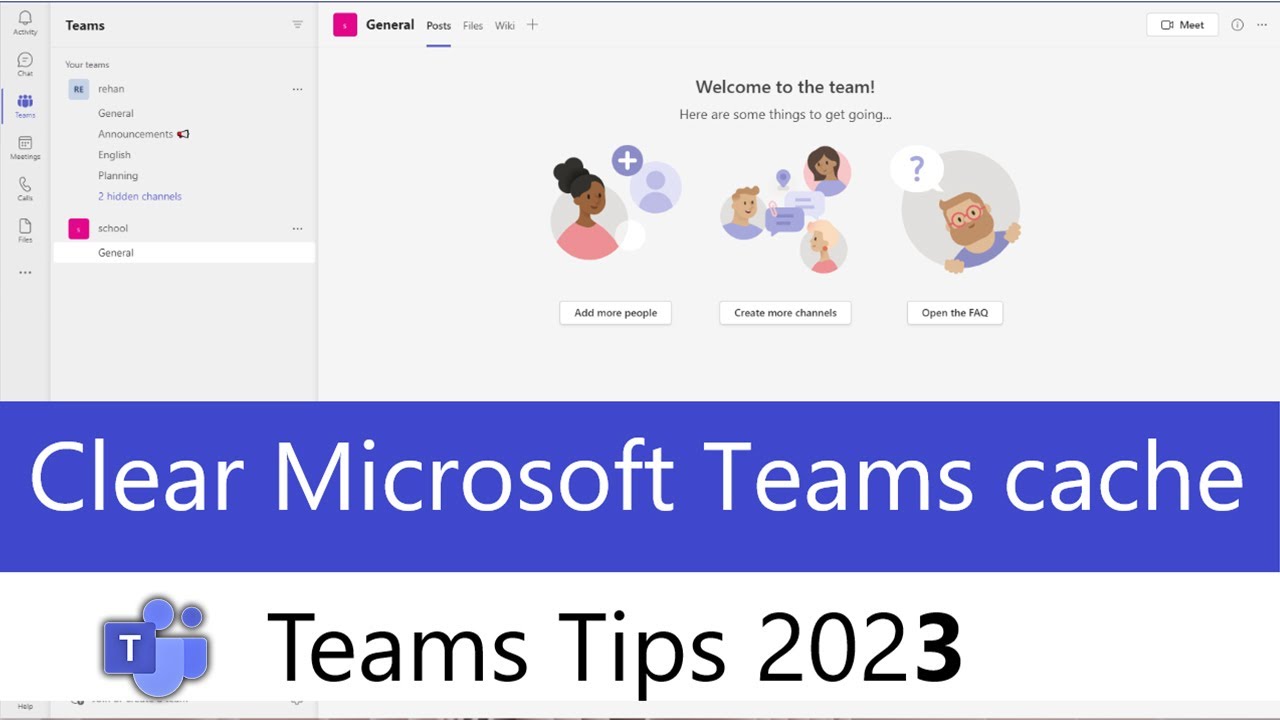
Microsoft Teams relies on temporary files and cached data to deliver fast performance, quick message loading, and smooth meeting experiences. Over time, however, this cache can become corrupted or outdated, leading to common issues such as missing messages, failed file uploads, blurry video, login loops, or the application refusing to launch correctly. Clearing the Teams cache is one of the most effective troubleshooting steps for resolving these problems without reinstalling the entire application. In this tutorial, you will learn exactly how to locate and delete the Microsoft Teams cache on a Windows computer. The process is straightforward, safe, and takes only a few minutes. By the end, you will be able to refresh Teams so it rebuilds a clean cache automatically.
Step 1: Close Microsoft Teams Completely
Before you delete any cache files, you must ensure that Microsoft Teams is not running in the background. If the app is still active, it will lock the cache files and prevent deletion, or it may recreate them immediately. Right-click the Teams icon in the system tray near the clock, then select Quit. You can also open Task Manager by pressing Ctrl + Shift + Esc, locate any Microsoft Teams processes, and click End task. Confirm that no Teams window remains open on your desktop.
Step 2: Open the Run Dialog and Access the AppData Folder
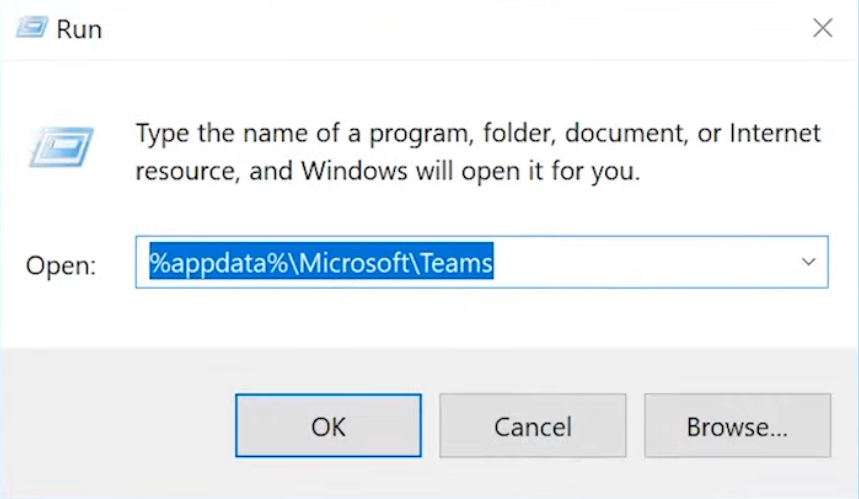
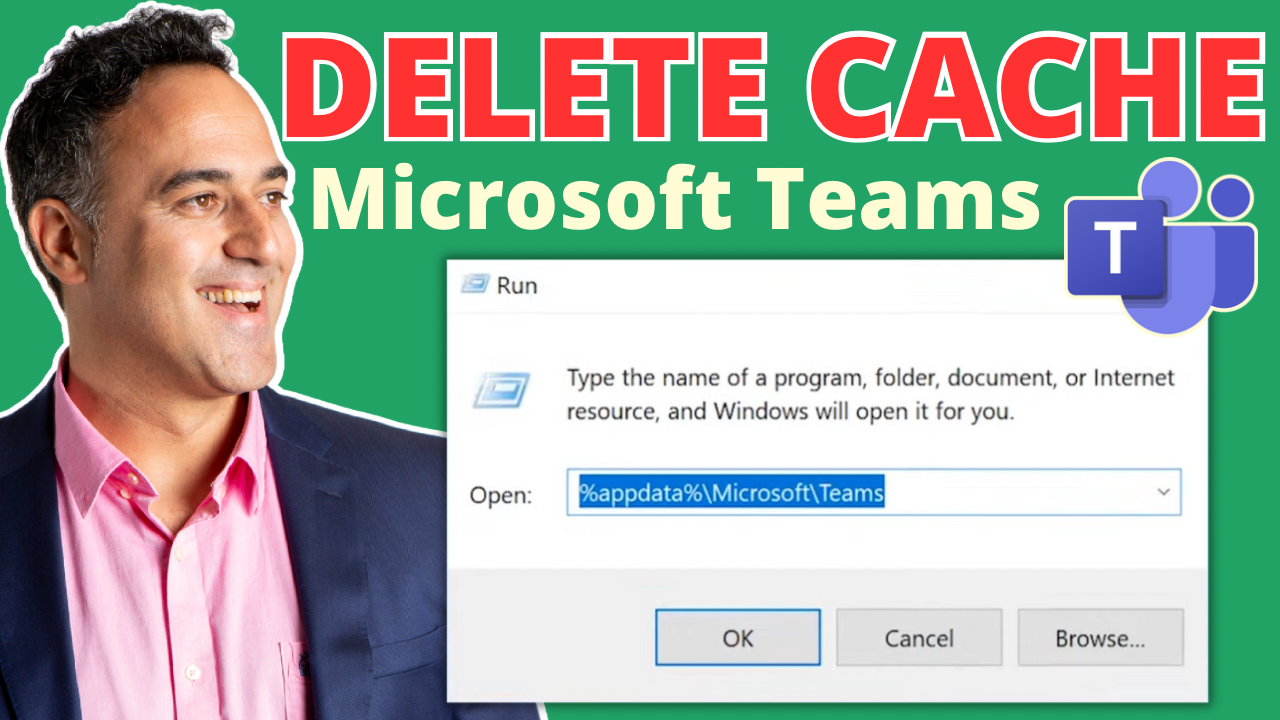
Windows stores Teams cache inside a hidden folder within your user profile. The quickest way to reach it is through the Run dialog. Press Windows key + R on your keyboard to open the Run box. In the text field, type %appdata% and press Enter. This command opens the Roaming folder inside AppData, which contains configuration and cache data for many installed applications, including Microsoft Teams.

Step 3: Locate the Microsoft Teams Cache Folder
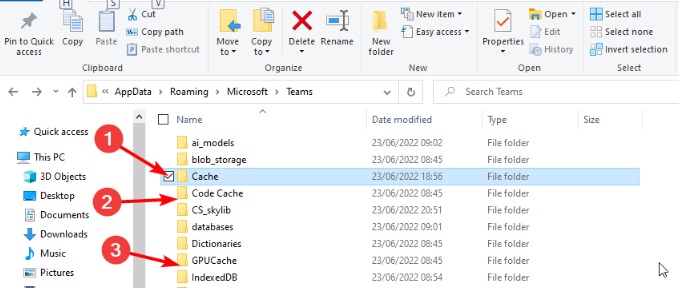
Inside the Roaming folder, look for a folder named Microsoft. Double-click it to open its contents. Within that folder, you should see a subfolder named Teams. This is the primary cache directory for the classic Microsoft Teams desktop client. If you are using the new Teams client, you may also find a folder named Microsoft Teams under %localappdata%\Packages, but for most users the Roaming path is the correct location. Open the Teams folder to view its contents.
Step 4: Delete the Cache Files and Folders
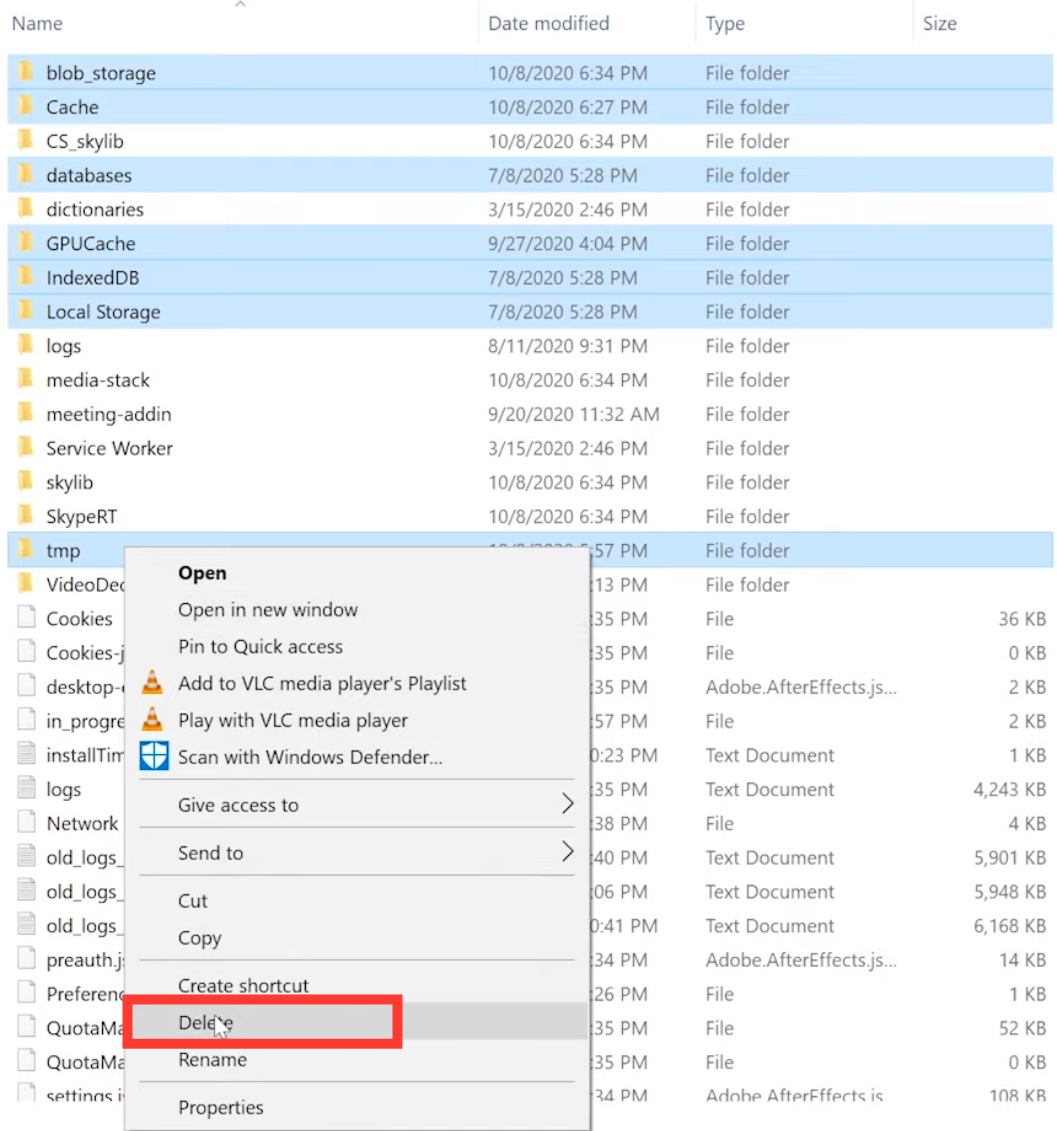
Inside the Teams folder, you will see several subfolders and files, such as Cache, blob_storage, databases, GPUCache, IndexedDB, Local Storage, tmp, and Code Cache. Select all of these items by pressing Ctrl + A, then press Delete on your keyboard. Alternatively, right-click the selection and choose Delete. Do not delete the entire Teams folder itself, only its contents. When prompted, confirm the deletion. These files are temporary and will be regenerated the next time you launch the application.
Step 5: Restart Microsoft Teams and Sign In
After the cache has been cleared, close File Explorer and relaunch Microsoft Teams from the Start menu or taskbar. The application will take slightly longer to open than usual because it needs to rebuild a fresh cache and synchronize your chats, channels, and files from the cloud. You may be asked to sign in again with your Microsoft 365 credentials. Once signed in, verify that your messages, meetings, and files load correctly. If the original issue persists, consider clearing the cache one more time or reinstalling the Teams client for a completely clean setup.
How To Clear Microsoft Teams Cache — LazyAdmin
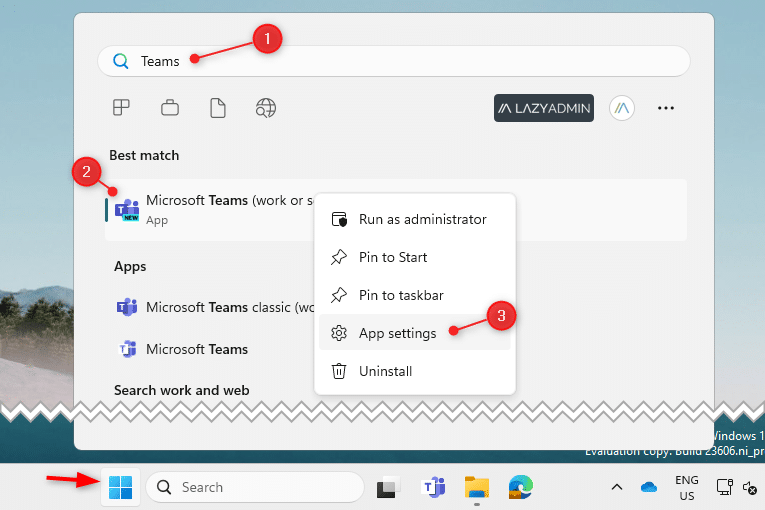
How to Clear Microsoft Teams Cache — LazyAdmin
How To Clear Microsoft Teams Cache: Windows And Mac

How to Clear Microsoft Teams Cache: Windows and Mac
How To Clear Microsoft Teams Cache — LazyAdmin

How to Clear Microsoft Teams Cache — LazyAdmin
How To Clear Microsoft Teams Cache

How to Clear Microsoft Teams Cache
How To Clear Microsoft Teams Cache

How to Clear Microsoft Teams Cache
"How To Clear Microsoft Teams Cache: 6 Simple Steps For A Refreshed
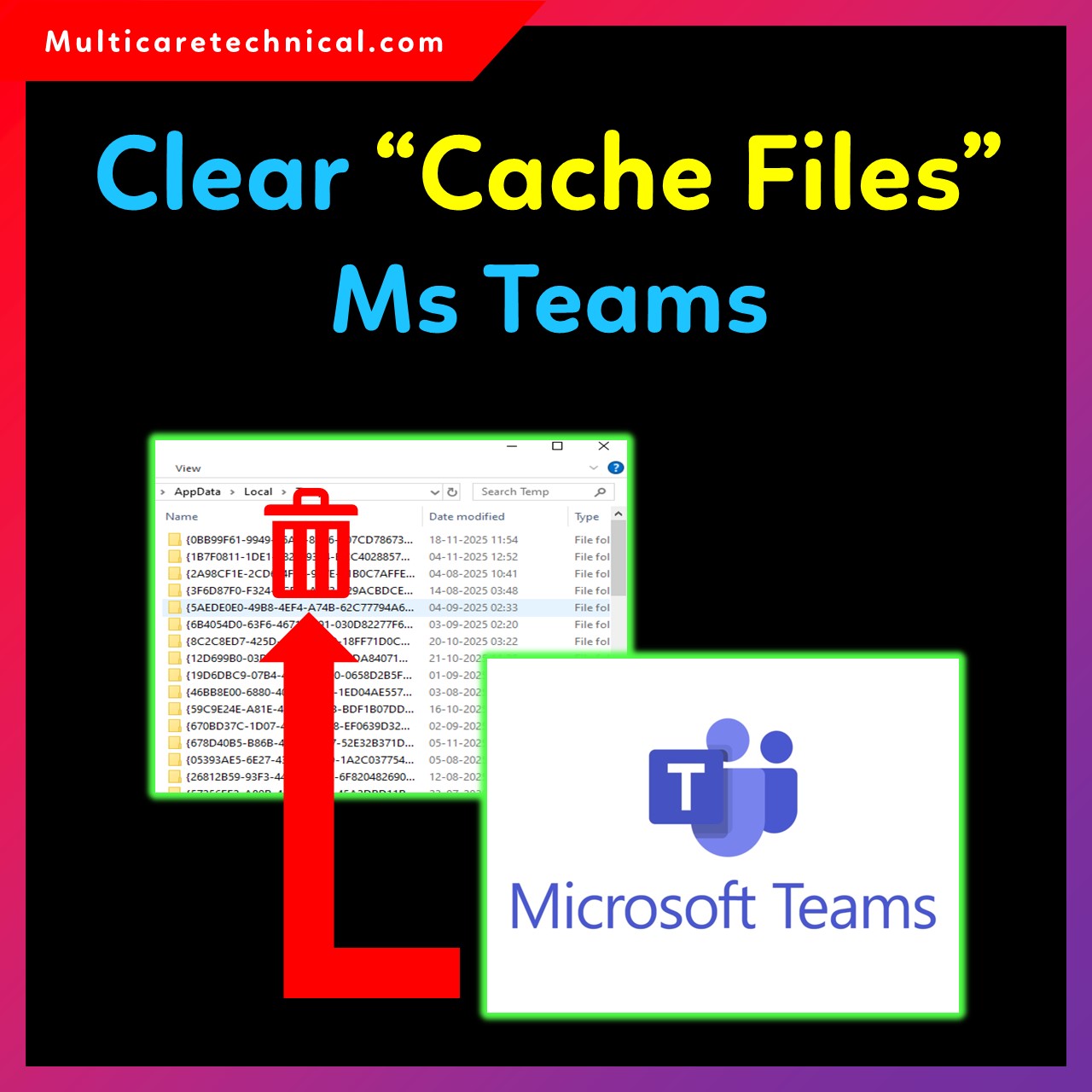
"How to Clear Microsoft Teams Cache: 6 Simple Steps for a Refreshed ...
How To Clear Cache To Fix Problems On Microsoft Teams - Pureinfotech

How to clear cache to fix problems on Microsoft Teams - Pureinfotech
How To Clear Microsoft Teams Cache - YouTube

How To Clear Microsoft Teams Cache - YouTube
Clear Teams Cache: A Step-by-Step Guide
Clear Teams Cache: A Step-by-Step Guide
How To Clear The Microsoft Teams Cache [On Desktop & Mobile]
![How to Clear The Microsoft Teams Cache [On Desktop & Mobile]](https://10scopes.com/wp-content/uploads/2022/12/how-to-clear-the-microsoft-teams-cache.jpg)
How to Clear The Microsoft Teams Cache [On Desktop & Mobile]
How Do I Clear Microsoft Teams Cache In Windows 10 - Infoupdate.org
How Do I Clear Microsoft Teams Cache In Windows 10 - Infoupdate.org
How To Clear Teams Cache Credentials [Step-by-Step Guide]
![How to Clear Teams Cache Credentials [Step-by-Step Guide]](https://10scopes.com/wp-content/uploads/2022/12/clear-teams-cache-credentials.jpg)
How to Clear Teams Cache Credentials [Step-by-Step Guide]
How To Clear The Microsoft Teams Cache [Quick Methods 2024]
![How to Clear the Microsoft Teams Cache [Quick Methods 2024]](https://10pcg.com/wp-content/uploads/how-to-clear-the-microsoft-teams-cache.jpg)
How to Clear the Microsoft Teams Cache [Quick Methods 2024]
How To Clear Cache & Completely Reset Microsoft Teams App - YouTube
How to Clear Cache & Completely Reset Microsoft Teams App - YouTube
Best Guide To Clear Microsoft Teams Cache (2024) | MyExcelOnline
Best Guide to Clear Microsoft Teams Cache (2024) | MyExcelOnline
How To Clear The Microsoft Teams Cache On PC And Mac - Cleaner One Pro
How to Clear the Microsoft Teams Cache on PC and Mac - Cleaner One Pro
How To Clear Microsoft Teams Cache
How to Clear Microsoft Teams Cache
How To Clear Cache In Microsoft Teams | How To Clear Cache On Teams App
How to Clear Cache in Microsoft Teams | How To Clear Cache on Teams App ...
How To Clear Microsoft Teams Cache In Windows 11

How to Clear Microsoft Teams Cache in Windows 11
How To Clear Microsoft Teams Cache - Guiding Tech

How to Clear Microsoft Teams Cache - Guiding Tech
How To Clear MS Teams Cache - YouTube
How to Clear MS Teams Cache - YouTube
Best Guide To Clear Microsoft Teams Cache (2024) | MyExcelOnline
Best Guide to Clear Microsoft Teams Cache (2024) | MyExcelOnline
How To Clear MS Teams Cache - YouTube

How to Clear MS Teams Cache - YouTube
How To Clear Microsoft Teams Cache (And Why You Should)

How to Clear Microsoft Teams Cache (And Why You Should)
How To Clear Microsoft Teams Cache? - SharePoint Diary

How to Clear Microsoft Teams Cache? - SharePoint Diary
How To Clear Microsoft Teams Cache On Mac - YouTube
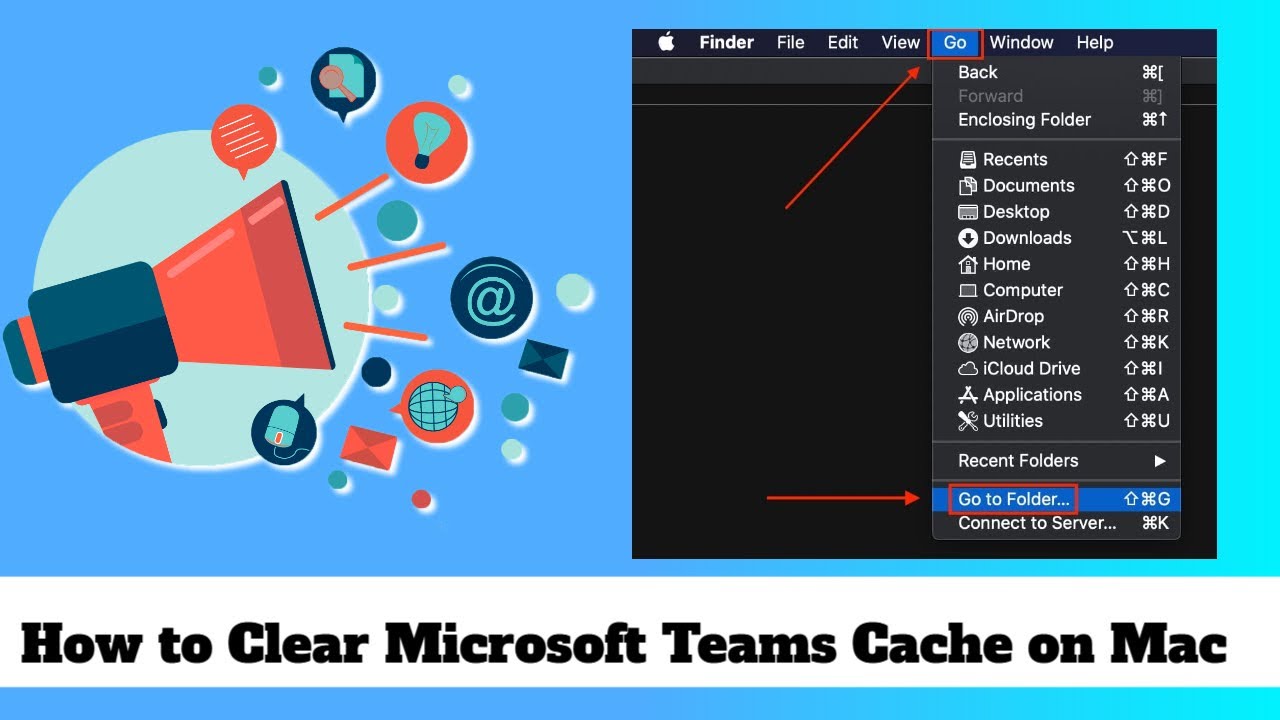
How to Clear Microsoft Teams Cache on Mac - YouTube
How To Clear Microsoft Teams Cache (And Why You Should)

How to Clear Microsoft Teams Cache (And Why You Should)
Simple Tips On How To Clear Microsoft Teams Cache
Simple Tips on How to Clear Microsoft Teams Cache
🌐 How To Clear Microsoft Teams Cache: Quick Guide | Initial Solution

🌐 How to Clear Microsoft Teams Cache: Quick Guide | Initial Solution ...
How To Clear Microsoft Teams Cache On Mac For Performance?
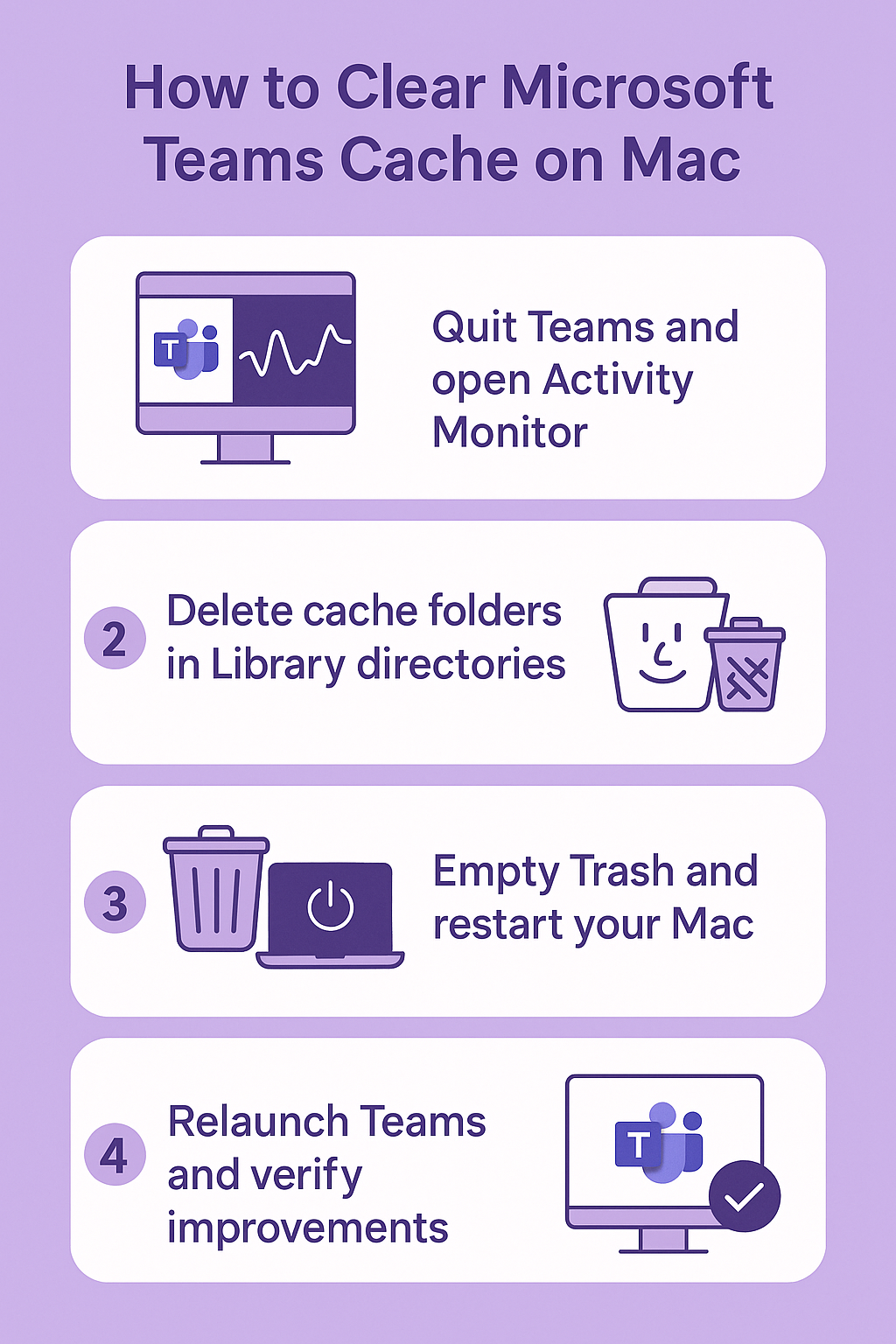
How to Clear Microsoft Teams cache on Mac for performance?
How To Clear Microsoft Teams Cache - Guiding Tech

How to Clear Microsoft Teams Cache - Guiding Tech
How To Clear Microsoft Teams Cache

How to Clear Microsoft Teams Cache
Clear Cache In Microsoft Teams

Clear Cache In Microsoft Teams