← How to Remove Background in Canva for Free: Step-by-Step Tutorial How to Fix Notion Not Syncing: A Step-by-Step Troubleshooting Guide →
In this tutorial, you will learn how to convert a PDF file into a Microsoft Word document while keeping the original layout, fonts, images, tables, and spacing. Whether you are working with a business report, an academic paper, or a fillable form, the goal is to produce an editable Word file that looks as close to the original PDF as possible. The process is straightforward, and you can complete it in a few minutes using a reliable converter. Follow the two main steps below, and you will avoid the common formatting issues that appear during PDF to Word conversion.
Step 1: Choose a PDF to Word Tool That Preserves Original Formatting
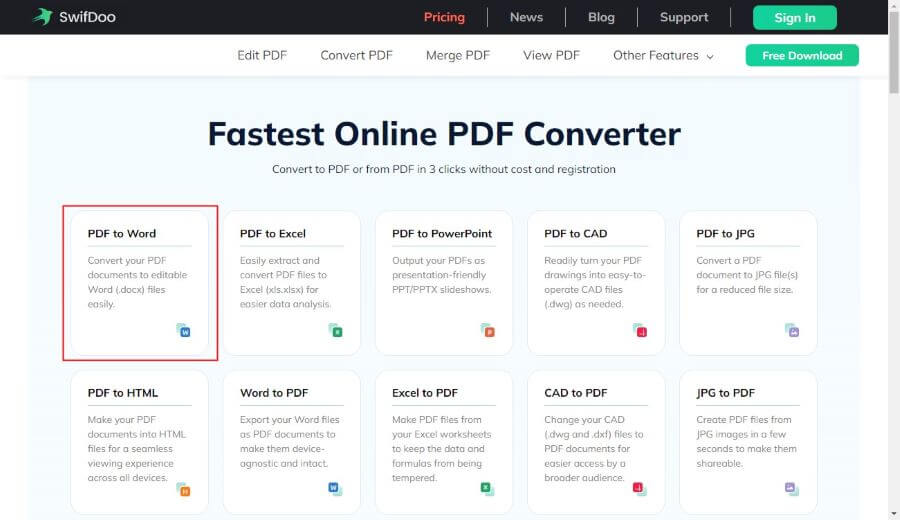
The first step is to select a conversion tool that advertises layout preservation or high-fidelity output. Many free online converters compress or reflow the document during conversion, which can break tables, shift images, and change fonts. Look for a converter with features such as "preserve layout," "keep formatting," or "OCR for scanned PDFs." Open the converter in your browser, drag and drop your PDF into the upload area, and wait for the file to load. Before starting the conversion, check the settings panel for output options. Select Word (.docx) as the target format, and enable any option related to retaining the original layout, recognizing text in scanned documents, or keeping images in place. If your PDF has complex elements like charts, footnotes, or multi-column pages, choose the highest quality or most accurate conversion mode available. After the tool finishes processing, download the converted Word file. Keep the original PDF open or available because you will use it for a quick visual comparison in the next step.
Step 2: Review the Word Document and Correct Minor Layout Differences
Once the Word file is downloaded, open it in Microsoft Word or another compatible word processor. Place the original PDF and the converted document side by side on your screen. Start by checking the overall page structure: margins, page breaks, headers, and footers. Then focus on fonts and paragraph spacing. If any text appears in a different typeface, select that text and reapply the correct font and size from the Home tab. Use the Styles pane to update headings so they remain consistent. Next, inspect tables. Click inside any table that looks misaligned, and use the Table Layout tab to adjust column widths or row heights. If images have shifted, click an image and drag it to the correct position. For more control, right-click the image, choose Wrap Text, and select the same text-wrapping style used in the original layout. Bullet lists and numbered lists may also need small fixes; use the list buttons on the Home tab to restore them. Finally, run a spelling check and save the document. This review step gives you a clean Word file that matches the original PDF and is ready to edit.
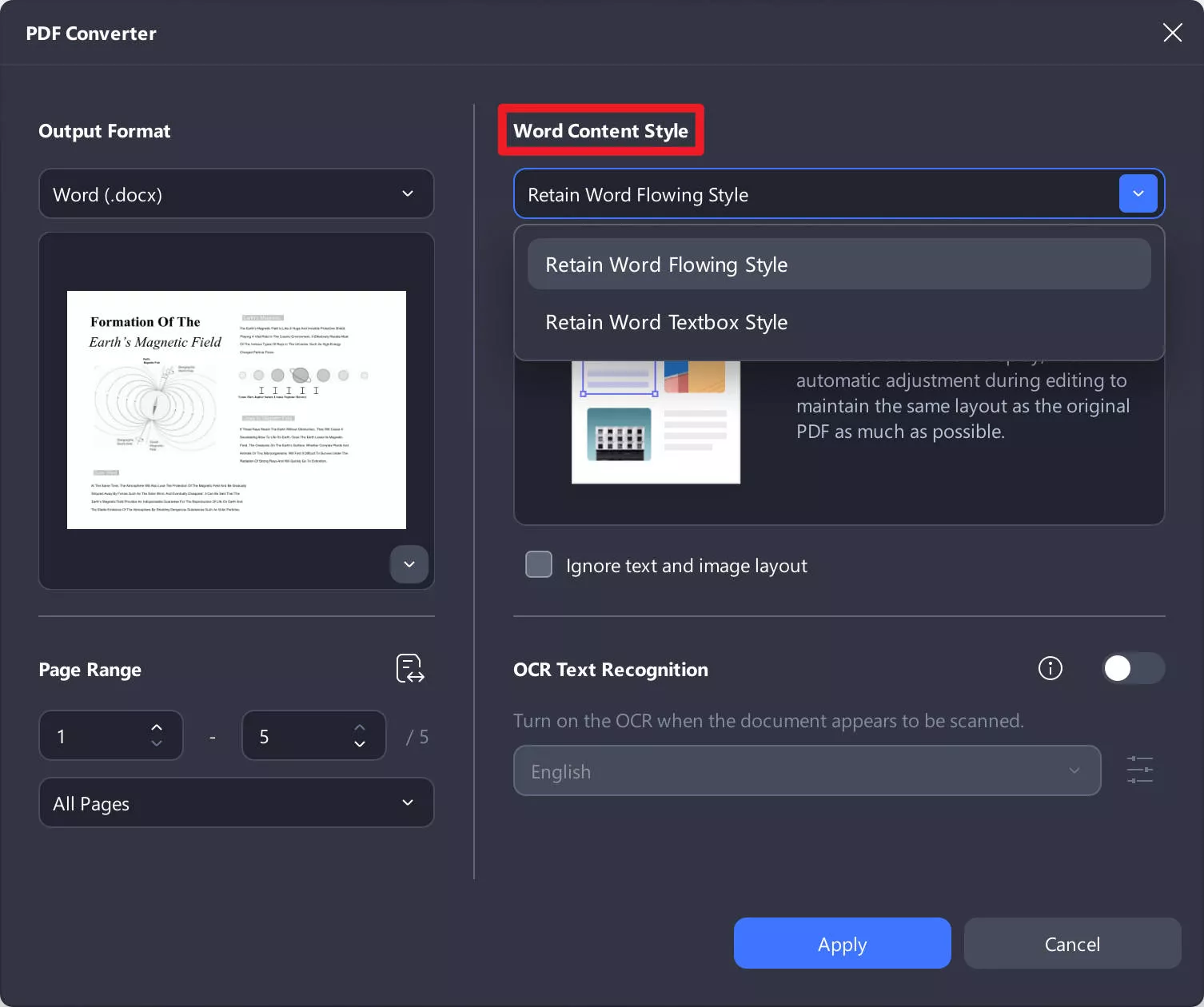
For scanned PDFs or files with unusual fonts, enable OCR during conversion and be prepared to spend a little more time on manual formatting fixes. Saving the document as a .docx file before making major edits is also a good practice.
How To Convert PDF To Word Without Changing And Losing Formatting - YouTube

How to Convert PDF to Word Without Changing and Losing Formatting - YouTube