← How to Fix Discord Screen Share No Audio: Step-by-Step Troubleshooting Guide Convert PDF to Word Without Losing Formatting: A Step-by-Step Tutorial →
In this tutorial, you will learn how to remove the background from any image using Canva’s free background remover tool. The process works for product photos, portraits, logos, and graphics, and you do not need any design experience to get clean results. By the end of this guide, you will know how to upload an image, apply the background remover, refine the edges, and download your cutout with a transparent background.
Step 1: Open Canva and Start a Design
Go to Canva.com and log in to your free account. If you do not have an account yet, create one using an email address, Google account, or Facebook login. Once you are inside the dashboard, click the “Create a design” button and choose a format such as Instagram Post, Presentation, or Custom Size. The background remover works in any design type, so pick the size that fits your project.
Step 2: Upload Your Image
Select the Uploads tab in the left sidebar, then click the “Upload files” button. Choose an image from your computer or drag and drop it directly into the upload area. After the upload finishes, click the image thumbnail to add it to your design canvas. You can also use a stock photo from Canva’s library if you prefer, but the background remover works best with images where the subject is clearly visible.

Step 3: Select the Image and Find Background Remover
Click on the image on your canvas so it is highlighted with a border. A toolbar will appear above the design. Look for the “Edit image” or “Effects” button. In the effects panel, scroll until you see “Background Remover.” The tool is available for Canva Free users, although some advanced features may prompt you to upgrade. The basic one-click background removal is free and works well for most images.
Step 4: Apply the Background Remover
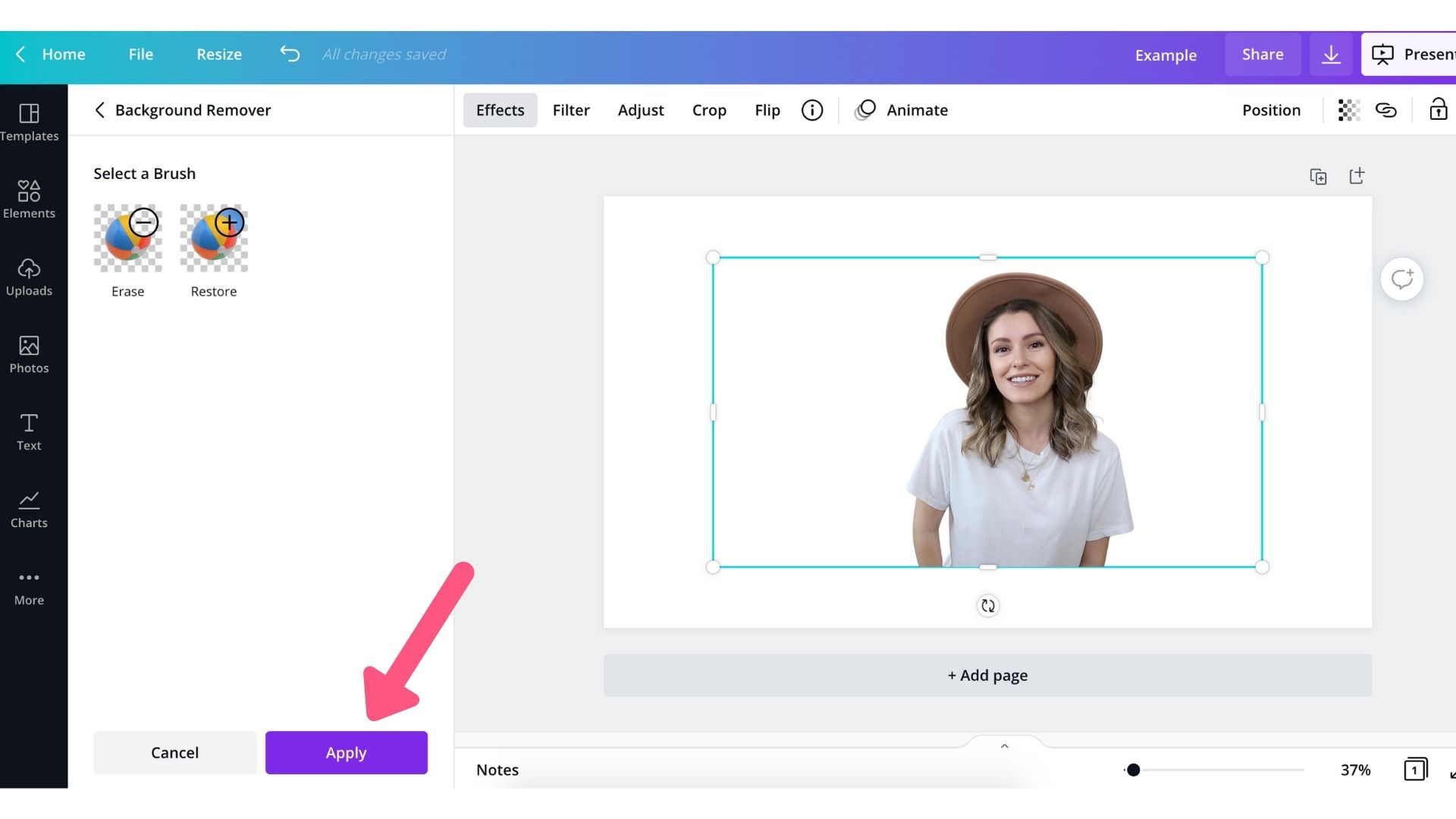
Click the “Background Remover” option and wait a few seconds while Canva processes the image. The background will disappear automatically, leaving only the main subject. If any background remains, click the same option again or use the eraser brush to clean up leftover areas. For subjects with complex edges, take your time and work in small sections.
Step 5: Adjust and Refine the Cutout
Zoom in on the edges of your subject to check for rough spots. Use the eraser brush to remove leftover background pieces and the restore brush to bring back parts that were removed by mistake. Pay extra attention to hair, fur, clothing edges, and transparent objects. Small adjustments here can make the final result look much cleaner and more professional.
Step 6: Download Your Image with a Transparent Background
When you are satisfied with the cutout, click the “Share” button in the top right corner, then select “Download.” Choose PNG as the file type and make sure the “Transparent background” box is checked. Click “Download” to save the image to your device without a background. You can now use the cutout in other designs, presentations, or marketing materials.
Online Image Background Remover | Canva

Online Image Background Remover | Canva