← Convert PDF to Word Without Losing Formatting: A Step-by-Step Tutorial How to Schedule an Email in Outlook: A Step-by-Step Guide →
If Notion is not syncing across your devices, it can interrupt your workflow and make your notes unreliable. This tutorial walks you through two focused fixes: checking Notion’s server status and rebuilding a synced block that has stopped updating. By the end, you will know how to tell whether the issue is on Notion’s side or in your workspace, and how to restore syncing without losing your content.
Step 1: Check Notion Server Status
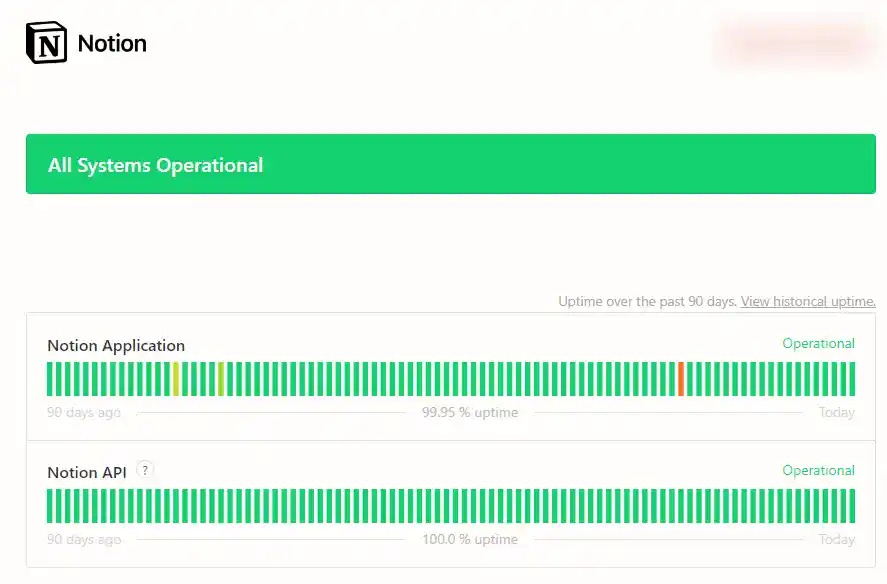
Before adjusting your settings or reinstalling the app, find out whether Notion’s servers are having problems. Open the Notion status page or a third-party status checker in a web browser. If the dashboard shows a partial outage or degraded performance, syncing will fail on every device. In that case there is nothing to fix locally; wait for Notion to restore service, then refresh the desktop or mobile app. If the status is operational, the issue likely lives in a specific block or in your local app cache. Also compare your desktop and mobile app: create a small test note on one device and wait a few seconds. If the test note appears on the other device, general syncing works, and you can move on to the next step. If nothing syncs at all, log out and back in on the struggling device before continuing.
Step 2: Recreate the Synced Block That Is Not Updating
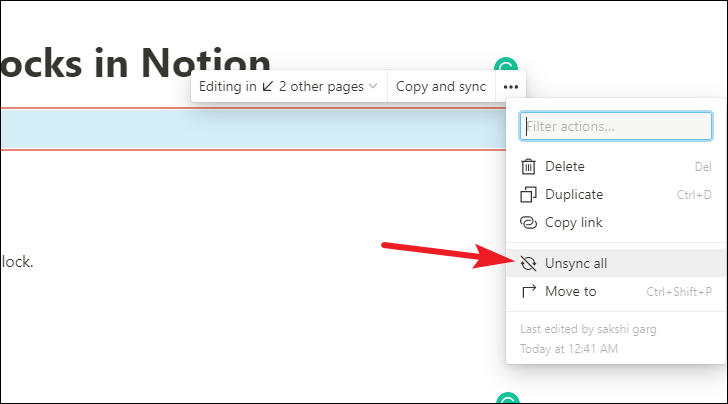
Synced blocks in Notion can stop updating if the original block reference becomes corrupted or disconnected. The most reliable fix is to replace the problematic synced block with a new one. Open the page that shows outdated or missing content. Select the existing synced block, copy the content inside it so nothing is lost, and then delete the block. Click the area where you want the new block, type /synced block, and choose the “Synced block” option from the menu. Paste your copied content into the new block, then click “Copy and sync” to create fresh sync references for other locations. Open the other page or device where the block should appear, delete the old copy, and paste the new synced block reference. Give Notion a few seconds to push the update, and then edit a small line inside the block on one device to verify that the change appears everywhere. If the new synced block updates correctly, the old block was the problem. If it still does not sync, clear the app cache or use Notion in a web browser as a temporary workaround.
After checking server status and recreating any broken synced blocks, most Notion sync failures will resolve. Keep your app updated and avoid duplicating synced blocks through copy-paste across devices, because stale references are a common cause of the issue.
Bookmarks To Notion
Bookmarks to Notion