← How to Fix Notion Not Syncing: A Step-by-Step Troubleshooting Guide How to Disable the Pop-Up Blocker in Chrome: A Step-by-Step Guide →
Scheduling an email in Microsoft Outlook lets you draft a message immediately and set it to send automatically at a later date and time. This guide walks you through the delay delivery feature, shows you where to find the scheduling controls, and explains how to confirm that your email will arrive when you intend it to.
Step 1: Compose Your Email and Open the Delay Delivery Option
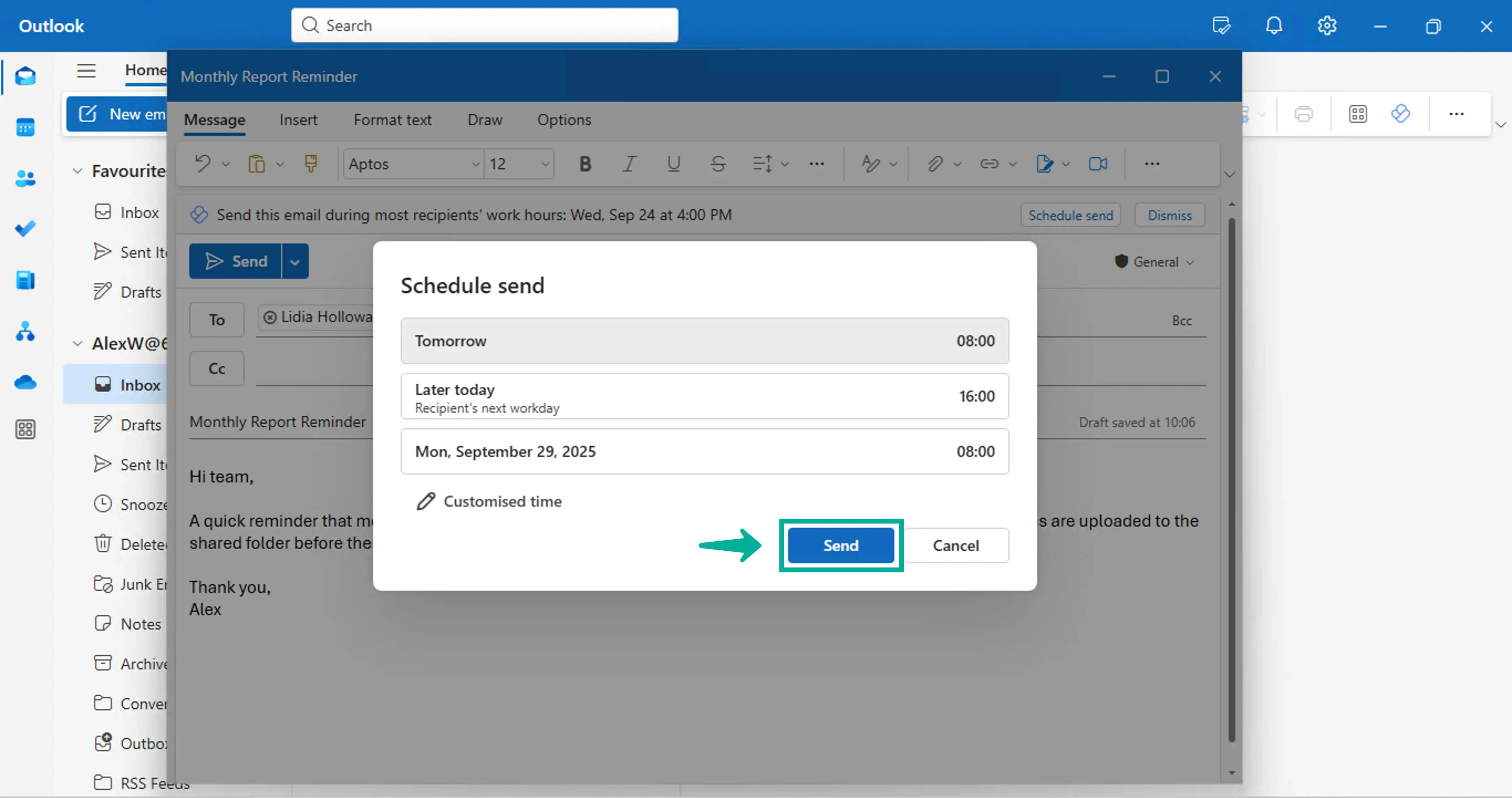
Begin by opening Microsoft Outlook and creating a new email message. Click "New Email" in the Home ribbon, then enter the recipient's address, a subject line, and the body text as you normally would. Make sure your message is complete and ready to send, because the scheduling tool will hold the entire message in the Outbox until the selected time. After you finish writing, do not click Send yet. Instead, look for the "Options" tab in the message window. In the "More Options" group, click "Delay Delivery." On some versions of Outlook, the button may be labeled "Schedule Send" or may appear under the three-dot menu, depending on whether you use the desktop app, Outlook on the web, or the new Outlook for Windows. This opens a dialog box where you can control when Outlook delivers the message. If you use Outlook on the web, select the small arrow next to the Send button and choose "Schedule send." The image below shows an example of the scheduling option in the Outlook interface, so you know what to look for when you access the setting.
Step 2: Set the Date and Time and Confirm the Scheduled Send
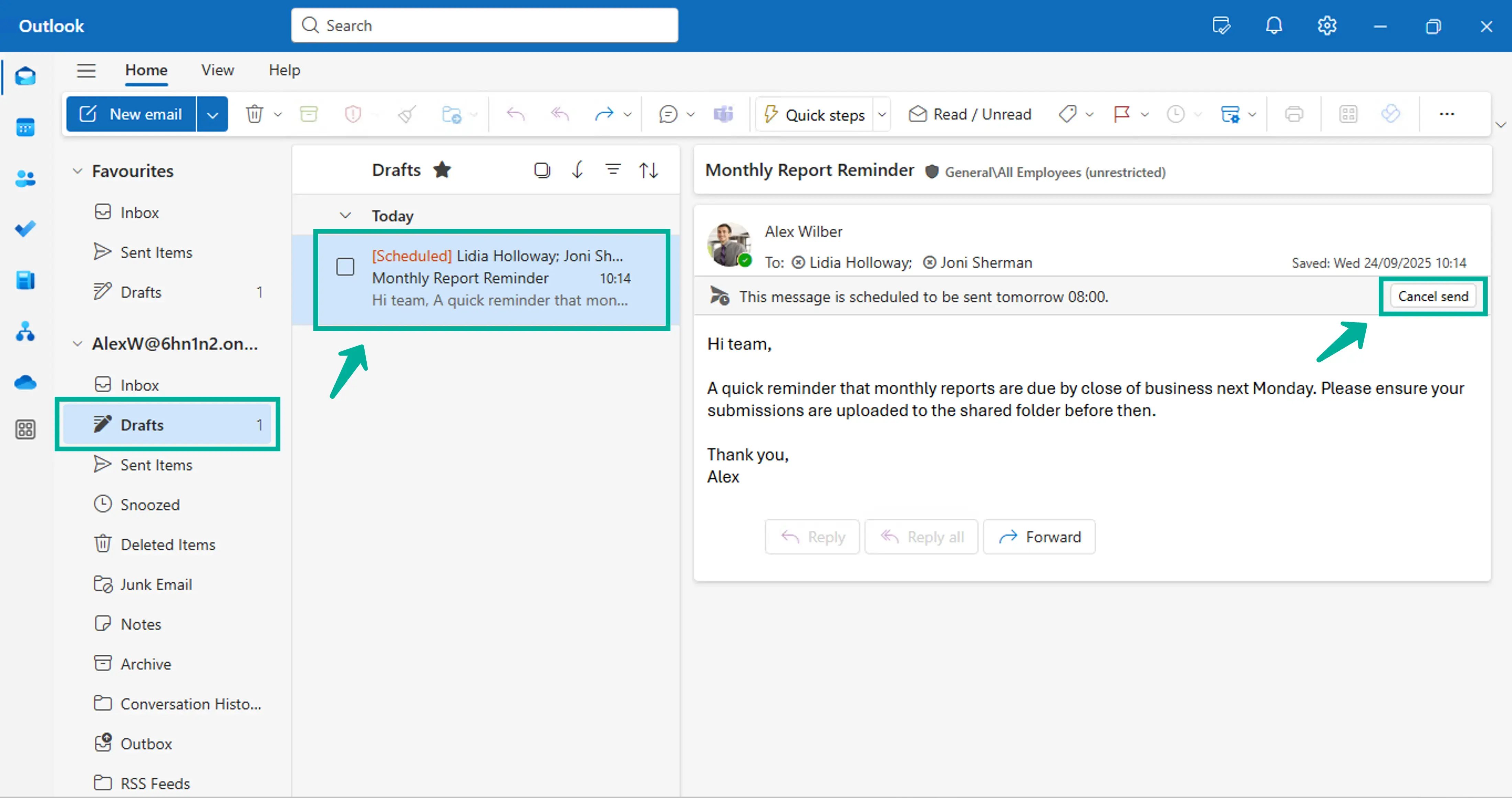
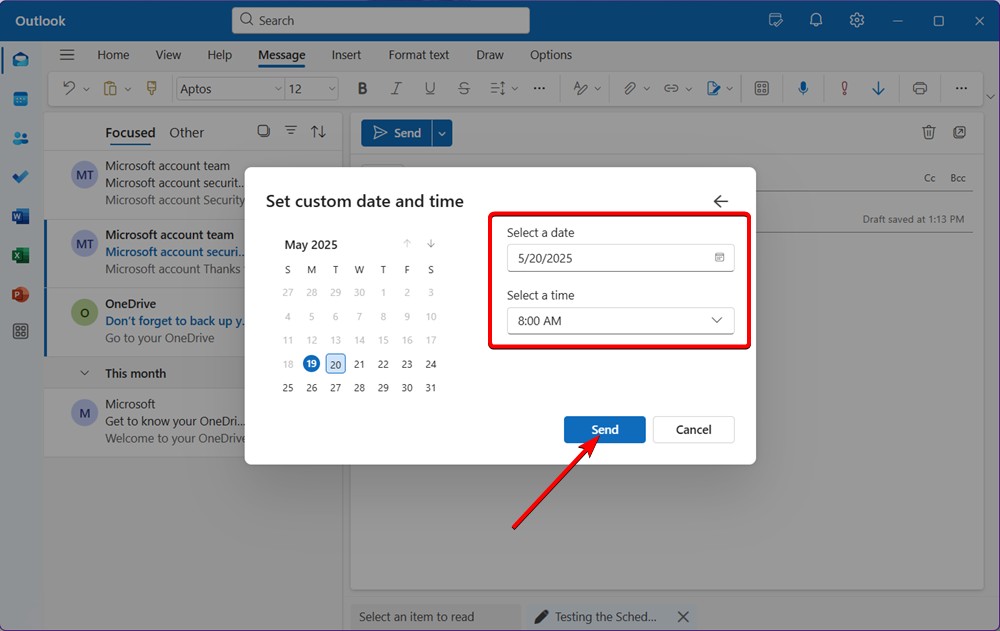
In the delivery options dialog box, locate the "Delivery options" section. Check the box next to "Do not deliver before" and use the date and time pickers to choose exactly when you want the email to be sent. You can also set a specific time zone if needed, which is useful when you are scheduling a message for recipients in another region. After selecting your preferred date and time, click "Close" to save the setting. Back in the email window, click "Send." Outlook will place the message in the Outbox and hold it until the scheduled time. Keep Outlook open and make sure your computer is connected to the internet at the scheduled time, because the desktop app needs to be running to send the delayed message automatically. If you are using Outlook on the web, the scheduled message will be sent from the server even if your browser is closed, which makes it a convenient option for scheduling emails in advance. You can review or cancel scheduled messages by opening the Outbox or the scheduled items folder, depending on your Outlook version. The image below shows the date and time selection area where you confirm the scheduled delivery.
How To Schedule An Email In Outlook | Beebom
How to Schedule an Email in Outlook | Beebom