← How to Recover an Unsaved Excel File: Step-by-Step Guide How to Remove Background in Canva for Free: Step-by-Step Tutorial →
If your Discord screen share displays video but produces no audio, the issue is usually caused by incorrect output device selection, muted application volume, an outdated audio subsystem, or system-level audio restrictions. This tutorial walks through targeted fixes that restore audio during Discord screen sharing, including verifying Discord voice settings, checking Windows volume controls, adjusting the audio subsystem, and resolving device permission conflicts. Follow each step in order until the shared application sound is heard by other participants.
Step 1: Verify Audio Output and Application Volume Settings
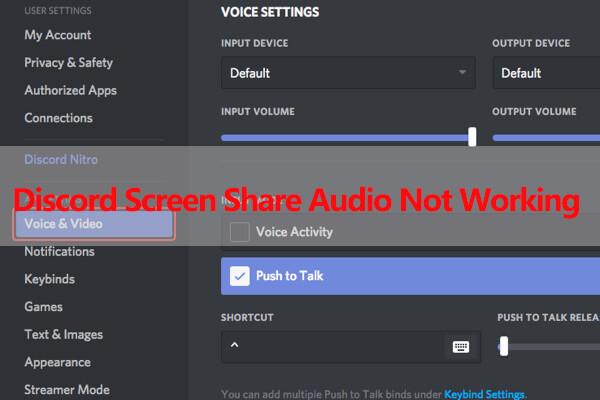
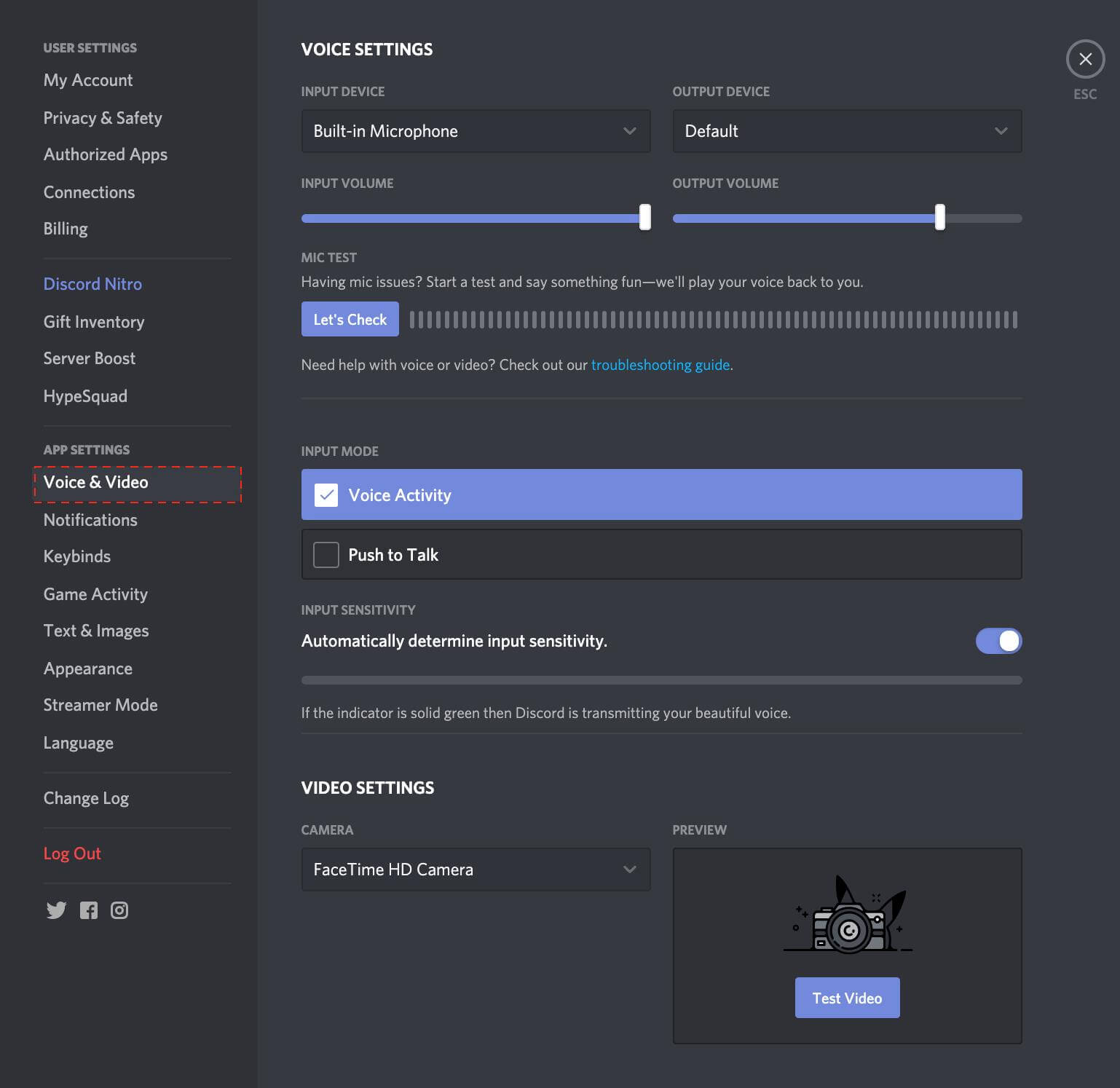
Launch Discord and open User Settings by clicking the gear icon near your username. Navigate to the Voice & Video section and confirm that the Output Device is set to the headset or speakers you are currently using. If the wrong playback device is selected, Discord may route sound to a monitor or unused output. Next, open the Windows Volume Mixer by right-clicking the speaker icon in the system tray and selecting Open Volume mixer. Locate Discord and the application you are sharing, then make sure neither volume slider is muted or set to zero. While a screen share is active, Discord captures audio only from the specific application being shared, so the app must produce sound on the same output device. In Discord, expand the stream preview and check the screen share tile volume slider; it must be above zero and not crossed out. If you are sharing a game or media player, open that application and confirm its internal audio is not muted. Some protected applications may also require Discord to run as administrator to capture audio. Close Discord completely, right-click the Discord shortcut, select Run as administrator, and start a new screen share to test the audio.
Step 2: Reset the Audio Subsystem and Adjust System Audio Permissions
Discord uses an audio subsystem that can fail after updates or device changes. In User Settings > Voice & Video, scroll to the Audio Subsystem section. If it is set to Standard, switch to Legacy, click OK, and allow Discord to restart. After restarting, return to the same setting and switch back to Standard if needed. This reset clears audio capture errors. Then open Windows Settings > System > Sound > App volume and device preferences. Verify that Discord and the shared application are assigned to the correct output device and that their volume levels are not muted. For browser-based Discord, ensure the browser has microphone and audio permissions enabled. Additionally, open the Windows Sound Control Panel, select your playback device, open Properties, go to the Advanced tab, and uncheck Allow applications to take exclusive control of this device. Exclusive mode can prevent Discord from capturing audio while another application uses the device. Restart Discord and begin a new screen share. If audio is still missing, update your audio drivers through Device Manager, restart the computer, and test the screen share again.
Discord Screen Share No Audio [ Fixed] - Alvaro Trigo's Blog
![Discord Screen Share No Audio [ Fixed] - Alvaro Trigo's Blog](https://alvarotrigo.com/blog/wp-content/uploads/2024/12/discord-screen-share-no-audio.jpg)
Discord Screen Share No Audio [ Fixed] - Alvaro Trigo's Blog