← Step-by-Step Guide to Recover Deleted WhatsApp Messages With or Without Backup How to Fix Discord Screen Share No Audio: Step-by-Step Troubleshooting Guide →
Losing an Excel file before you save it can be stressful, but Excel includes built-in recovery tools that can help you restore unsaved work. This tutorial explains how to recover unsaved Excel files using the Document Recovery pane, the Recover Unsaved Workbooks feature, and the Manage Workbook options. Follow each step carefully to bring your missing workbook back and save it before it disappears again.
Step 1: Open Excel and look for automatic recovery prompts
Launch Excel on your computer. If Excel closed unexpectedly because of a crash, power loss, or another error, the application may display a recovery prompt the next time you open it. Pay attention to the left side of the Excel window for a Document Recovery pane, which lists available unsaved or recovered files. If you see this pane, go to Step 2. If the pane does not appear, continue to Step 3 to manually locate unsaved workbooks.
Step 2: Check the Document Recovery pane for unsaved files
When Excel opens after an unexpected shutdown, the Document Recovery pane usually appears automatically. This pane shows one or more file versions with timestamps that help you identify the most recent copy. Select the file labeled as unsaved or choose the latest version from the list. Open the file and review the content to make sure it is the workbook you need. After confirming the content, click Save As and store the file in a dedicated folder so you do not lose it again.
Step 3: Use the Recover Unsaved Workbooks feature in Excel
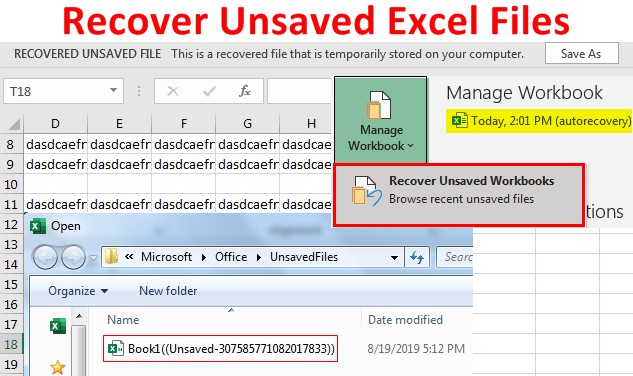
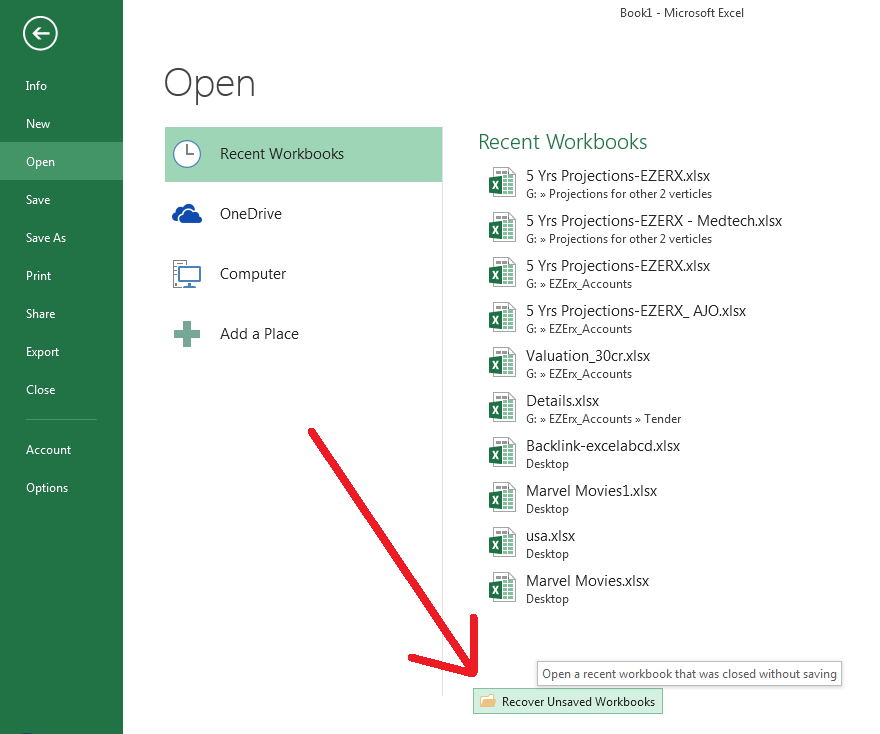
If the Document Recovery pane is not visible, you can manually access the unsaved files folder. Click the File tab in the upper-left corner of Excel. In the backstage view, select Open and then choose Recent. Scroll to the bottom of the recent workbooks list and click the Recover Unsaved Workbooks button. Excel opens a temporary folder that stores drafts of workbooks you closed without saving. This location contains files that Excel automatically saves at regular intervals, so it is often the fastest way to recover lost work.
Step 4: Select the unsaved file and open it
In the unsaved files folder, look for the file name that matches the workbook you lost. Unsaved workbooks may appear with generic names such as Book1 or with a file type that identifies them as temporary Excel files. Select the file and click Open. Once the workbook opens in Excel, a yellow business bar may appear at the top of the worksheet with a Save As button. Click that button or use File > Save As to save the recovered workbook to your preferred location before making any further edits.
Step 5: Recover unsaved workbooks through the Info menu
You can also reach the same recovery tool through the Info section. Click File and then select Info from the left menu. Look for the Manage Workbook area, which may show unsaved versions or recovery options. Click Recover Unsaved Workbooks to browse the temporary folder and open the file you need. This method is useful when you have already saved a version of the workbook but need to recover changes that were not saved before Excel closed. After opening the file, save it immediately to preserve the recovered content.
Step 6: Save the recovered workbook right away
After you successfully open an unsaved or recovered Excel file, the most important step is to save it in a safe location. Use File > Save As, choose a folder you can easily find, and give the workbook a clear file name. Saving immediately prevents you from losing the recovered content if Excel crashes again or if you accidentally close the file without saving. Once the file is saved, continue working normally and consider enabling AutoSave or saving your progress frequently to avoid repeating the recovery process.
How To Recover Unsaved Excel Files [All Options + Precautions]
![How to Recover Unsaved Excel Files [All Options + Precautions]](https://trumpexcel.com/wp-content/uploads/2019/02/Recover-Unsaved-Files-in-Excel-Document-Recovery.png)
How to Recover Unsaved Excel Files [All Options + Precautions]