← How to Fix VS Code Not Opening: Step-by-Step Troubleshooting Guide Netflix Not Loading in Chrome? 7 Proven Fixes That Work →
YouTube has become the default destination for entertainment, education, and news, so few things are more frustrating than clicking a video and watching it stall, buffer endlessly, or display a black screen. Whether the problem appears in the Chrome desktop browser or inside the YouTube mobile app, the underlying causes are usually similar: browser conflicts, network instability, corrupted caches, or outdated software. This tutorial walks you through a complete, step-by-step troubleshooting process that addresses the most common reasons YouTube refuses to play videos. By the end, you will know how to restore smooth playback on your computer and your phone.
Step 1: Check Your Internet Connection and Speed
Before adjusting any settings, confirm that your connection can actually handle video streaming. Run a quick speed test and make sure your download speed is stable. A weak Wi-Fi signal, a congested network, or a temporary outage will cause YouTube videos to buffer or fail entirely. If other websites load slowly too, restart your router and reconnect to the network.

Step 2: Disable Browser Extensions and Hardware Acceleration
Extensions such as ad blockers, VPNs, and script managers can interfere with YouTube's player. Open Chrome in Incognito mode to test whether an extension is the culprit. If videos play normally there, disable your extensions one at a time until you identify the problematic one. You should also try turning off hardware acceleration under Chrome's system settings, since outdated graphics drivers sometimes prevent the player from rendering correctly.
Step 3: Clear Cache and Cookies in Chrome
Over time, Chrome accumulates cache files and cookies that can become corrupted, causing the YouTube player to malfunction. Navigate to the browser's privacy settings and clear browsing data, selecting cached images and files along with cookies. After clearing them, sign back into YouTube and try playing a video again.
Step 4: Update Chrome and Your Operating System
Running an outdated version of Chrome or your operating system can create compatibility issues with YouTube's latest player code. Check for updates in Chrome's settings menu, then install any pending system updates. Restart your computer after updating so all changes take effect.
Step 5: Restart the YouTube App and Clear Its Cache
On mobile devices, the YouTube app itself may be holding onto corrupted temporary data. Force stop the app from your device settings, then clear its cache. If the problem persists, clear the app's storage entirely and sign in again. This step resolves a large number of playback errors on Android devices.

Step 6: Check the Video Quality and Date Settings
Sometimes a single video will not play because its quality setting exceeds your current bandwidth. Lower the playback quality manually from the player's gear icon. Additionally, verify that your device's date and time are set automatically, as an incorrect system clock can break the secure connection YouTube requires.
Step 7: Disable VPN or Proxy Services
VPNs and proxies route your traffic through servers that YouTube may block or throttle. Temporarily disconnect your VPN and reload the page. If the video plays without it, consider switching to a different server or disabling the service while streaming.
Step 8: Try a Different Browser or Device
To determine whether the issue is specific to Chrome, open YouTube in another browser such as Edge or Firefox. If playback works elsewhere, the problem lies within Chrome, and you may need to reset the browser to its default settings.
Step 9: Update Graphics Drivers and Check for Malware
Outdated graphics drivers frequently cause black screens and frozen video playback. Visit your GPU manufacturer's website and install the latest drivers. Finally, run a full malware scan, since malicious software can hijack browser traffic and disrupt streaming services. If none of these steps resolve the issue, contacting YouTube support or your internet provider is the next logical move.
8 Ways To Fix YouTube Videos Are Not Playing
8 Ways to Fix YouTube Videos Are Not Playing
How To Fix YouTube Not Working/Playing Video On Google Chrome - YouTube

How to Fix YouTube Not Working/Playing Video on Google Chrome - YouTube
How To Fix YouTube Videos Not Playing On Chrome - YouTube
How to Fix YouTube Videos Not Playing on Chrome - YouTube
YouTube Video Not Playing In Any Browser FIX | Youtube Videos Loading
YouTube video not playing in any Browser FIX | Youtube videos loading ...
Fix For YouTube Videos Not Playing In Firefox

Fix For YouTube Videos Not Playing in Firefox
How To Fix YouTube Video Loading But Not Playing Problem Solved - YouTube

How to Fix YouTube Video Loading But Not Playing Problem Solved - YouTube
How To Fix YouTube Videos Not Playing - YouTube

How To Fix YouTube Videos Not Playing - YouTube
Youtube Video Not Playing Problem | How To Fix Youtube Video Not

youtube video not playing problem | how to fix youtube video not ...
How To Fix When Vidéos Won T Play On YouTube - YouTube

How to Fix When vidéos Won t play on YouTube - YouTube
How To Fix Youtube Video Not Playing - How To Fix Youtube Videos Not

How to fix youtube video not playing - how to fix youtube videos not ...
Video Is Not Playing On YouTube: PC And Mobile Solution

Video is Not Playing on YouTube: PC and Mobile Solution
8 Ways To Fix YouTube Videos Are Not Playing
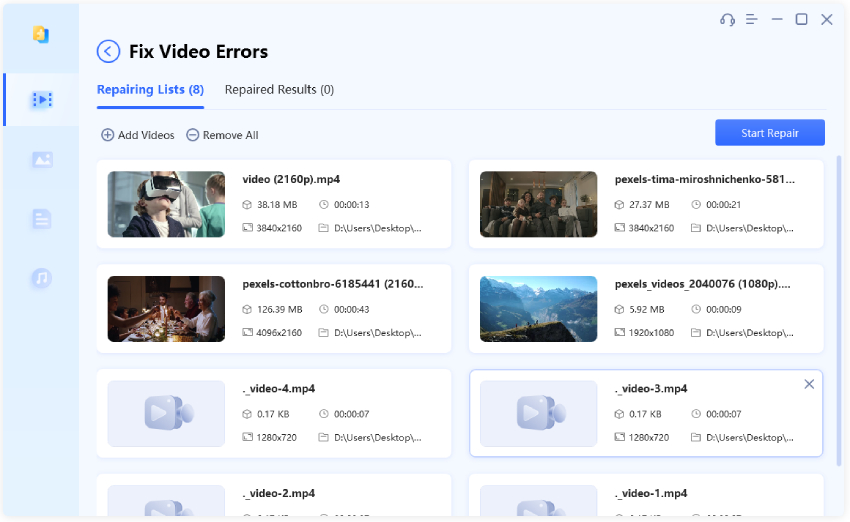
8 Ways to Fix YouTube Videos Are Not Playing
How To Fix Youtube Video Not Playing In Google Chrome? Fix For Youtube
How to Fix Youtube Video Not Playing in Google Chrome? Fix for Youtube ...
How To Fix YouTube Videos Not Playing [New 2026 Update] - YouTube
![How to Fix YouTube Videos Not Playing [New 2026 Update] - YouTube](https://i.ytimg.com/vi/Y58uJl2i3-A/maxresdefault.jpg)
How to Fix YouTube Videos Not Playing [New 2026 Update] - YouTube
Easy Fix - Youtube Videos Not Playing - YouTube
Easy fix - Youtube videos not playing - YouTube
Fix Youtube Not Update Play Store | How To Update Youtube | How To Fix

Fix youtube not update play store | how to update youtube | how to fix ...
Videos On YouTube Won’t Play? Step-by-Step Guide To Fix Them!
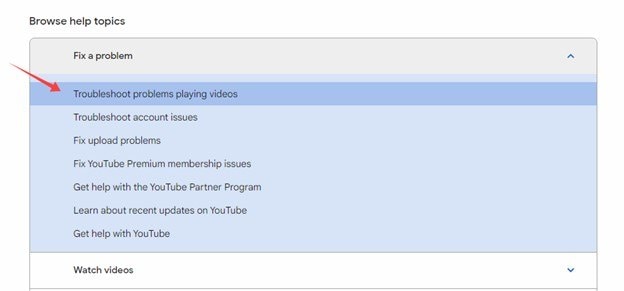
Videos on YouTube Won’t Play? Step-by-Step Guide to Fix Them!
4 Ways To Fix YouTube Not Playing Videos On PC - Guiding Tech
4 Ways to Fix YouTube Not Playing Videos on PC - Guiding Tech
Detail Guides: How To Fix YouTube Not Playing Videos?
Detail Guides: How to Fix YouTube Not Playing Videos?
How To Fix YouTube Videos Not Playing - Easily Fixed!! - YouTube

How to Fix YouTube Videos Not Playing - Easily Fixed!! - YouTube
How To Fix YouTube Videos Not Playing On Chrome In Windows 10 - Full

How To Fix YouTube Videos Not Playing On Chrome In Windows 10 - Full ...
Fix For YouTube Videos Not Playing In Firefox

Fix For YouTube Videos Not Playing in Firefox
How To Fix YouTube Videos Not Playing On Desktop And Mobile?
How to Fix YouTube Videos Not Playing on Desktop and Mobile?
Why Is My Phone Not Playing Videos & How To Fix It In 2026
Why Is My Phone Not Playing Videos & How to Fix It in 2026
How To Fix Youtube Problem Video Not Playing 2023 - YouTube

how to fix youtube problem video not playing 2023 - YouTube
How To Fix YouTube Videos Not Playing 2026 – Quick & Easy Solutions

How to Fix YouTube Videos Not Playing 2026 – Quick & Easy Solutions ...
Is YouTube Down? How To Check, Fix & Understand Issues - The Data Scientist

Is YouTube Down? How to Check, Fix & Understand Issues - The Data Scientist
How To Fix Youtube Videos Not Playing Issue? - Viral Hax

How to Fix Youtube Videos Not Playing Issue? - Viral Hax
7 Easy Ways To Fix Youtube Videos Not Playing (Complete Guide

7 Easy Ways To Fix Youtube Videos Not Playing (Complete Guide ...
Learn New Things: Fix All Problems Of YouTube Not Working In Chrome

Learn New Things: Fix All Problems of YouTube Not Working in Chrome ...
HOW TO FIX YOUTUBE VIDEOS NOT PLAYING 2026! (EASY FIX) - YouTube

HOW TO FIX YOUTUBE VIDEOS NOT PLAYING 2026! (EASY FIX) - YouTube
How To Fix YouTube Videos Not Playing? - YouTube
How to fix YouTube Videos not Playing? - YouTube
How To Fix YouTube Videos Not Playing In Chrome - Quick Solutions

How to Fix YouTube Videos Not Playing in Chrome - Quick Solutions