← How to Fix Zoom Camera Not Working: Step-by-Step Troubleshooting Guide How to Recover an Unsaved Excel File: Step-by-Step Guide →
In this tutorial, you will learn two reliable ways to recover deleted WhatsApp messages. The first method walks you through restoring your chat history from a Google Drive or iCloud backup. The second method explains how to use a desktop data recovery tool when no backup is available. Follow each step in order, and stop using WhatsApp as soon as you notice the messages are missing to increase your chances of a successful recovery.
Step 1: Restore Deleted WhatsApp Messages from a Google Drive or iCloud Backup
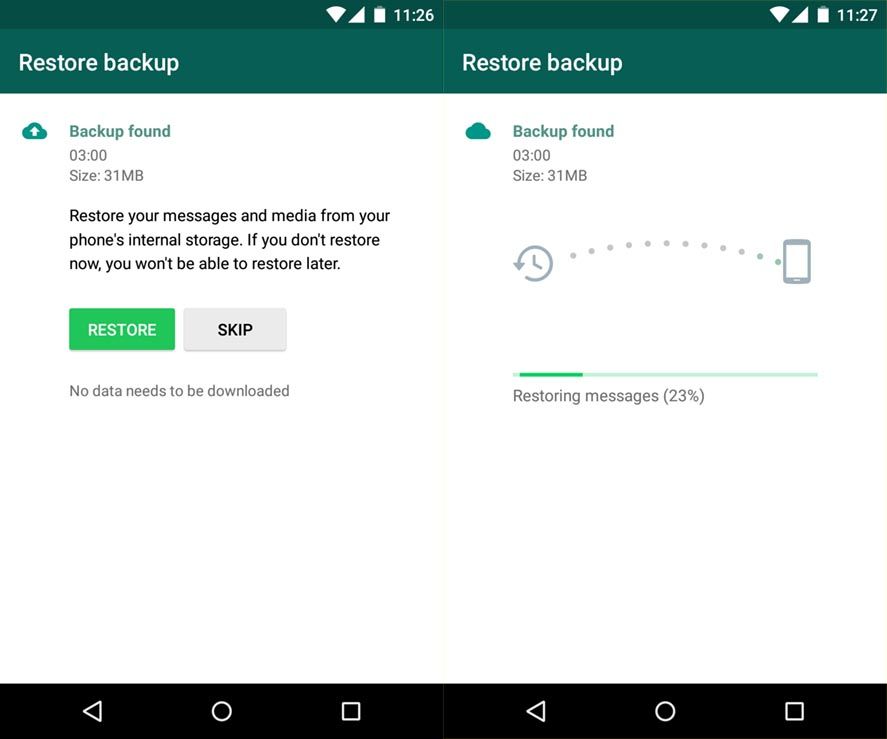
The fastest way to recover deleted WhatsApp messages is to restore a recent backup. WhatsApp can automatically back up your chats to Google Drive on Android or iCloud on iPhone, but you need to check the date of the last backup before you begin. Open WhatsApp, go to Settings, tap Chats, and then tap Chat backup. If a recent backup exists, delete WhatsApp from your phone. Reinstall the app from the official app store, open it, and verify your phone number. WhatsApp will detect the available backup and prompt you to restore your chat history. Tap Restore and wait for the process to finish. Keep your phone connected to a stable Wi-Fi network and plugged into power during the restore. Do not open other apps or send new messages until the restore is complete, because this can interrupt the process or overwrite older data.
Step 2: Recover Deleted WhatsApp Messages Without a Backup Using a Desktop Tool

If you do not have a backup, a desktop data recovery tool can scan your phone’s internal storage for deleted WhatsApp messages. Install a trusted recovery program on your computer and connect your phone with a USB cable. On Android, enable USB debugging in the developer options. On iPhone, tap Trust when the computer connection prompt appears. Launch the recovery tool and select WhatsApp or chat recovery from the list of supported data types. The software will display on-screen steps to prepare your device and begin the scan. The scan may take several minutes depending on the amount of data stored on your phone. When the scan finishes, preview the deleted messages and select the conversations you want to recover. Save the recovered messages to your computer or export them back to your phone. For the best results, stop using your phone immediately after you delete or lose the messages. New data such as photos, videos, and app updates can overwrite the deleted files and make them impossible to recover.
Before trying either method, enable airplane mode on your phone if possible. This prevents new messages and background data from overwriting the deleted files. If you have a backup, restoring it is the safest and easiest option. If you do not have a backup, a data recovery tool may still be able to recover your messages, but success is not guaranteed. To avoid future data loss, set WhatsApp to back up your chats daily or weekly to Google Drive or iCloud.
How To Restore Deleted Chats On WhatsApp
How to restore deleted chats on WhatsApp